

































































Edit Mode
Edit the lattice itself: every header menu, tool, sidebar tab and context menu of Edit Mode.
: every menu, tool, sidebar tab and context menu of this mode, on one page. Use the panels on the right to jump between the regions.
Header
Lattice menu
Edit Mode - Lattice Menu
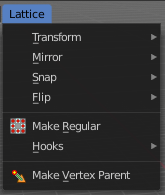
In Edit Mode you will also see a add menu for some object types. The number of objects that you can add is limited to the same object type that you are in edit mode with. You can just add mesh geometry to a mesh geometry. And just curve geometry to curve geometry.
The added objects in edit mode becomes part of the current object geometry.
Transform submenu
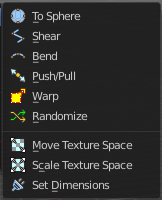
To Sphere
Shapes a selection of objects into the shape of a sphere. The calculation happens with the object origins.
In Object mode this tools requires to have more than one object selected.
Usage
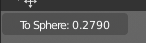
Select the vertices, activate the tool, then drag the mouse in the 3D viewport. In the header you will read the current factor then. Which tells you how close you are towards the sphere shape.
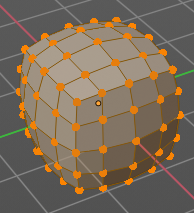
Last Operator To Sphere
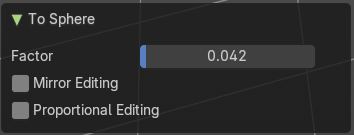
| Entry | What it does |
|---|---|
| Factor | The factor to transform the selection into a shape form. |
| Mirror Editing | Enable mirror editing. |
Proportional editing
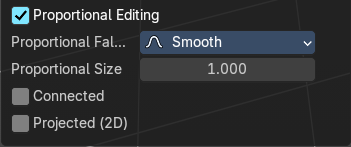
Enables proportional editing. Activating proportional editing reveals further settings.
| Entry | What it does |
|---|---|
| Proportional Falloff | Adjust the falloff methods. |
| Proportional Size | See and adjust the falloff radius. |
| Connected | The proportional falloff gets calculated for connected parts only. |
| Projected(2D) | The proportional falloff. |
Shear
Shear shears the selection.
In Object mode this tools requires to have more than one object selected.
The shear tool works along a imaginary 2d plane. The shear axis controls if the items are sheared along the x or the y axes of this plane. This is the plane along which the transformation happens. You can shear along the x or the y axis of this plane.
To make things even more complicated, the orientation of this imaginary plane is defined by the Axis and Axis Ortho items below.
Last Operator Shear
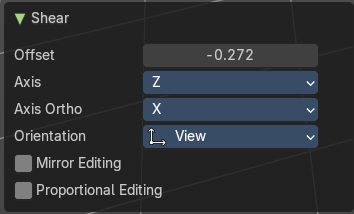
Offset
Adjust an offset.
Axis
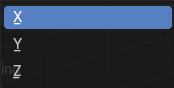
Defines one axis of the imaginary shear axis plane.
Axis Ortho
Defines the other axis of the imaginary shear axis plane.
| Entry | What it does |
|---|---|
| Orientation | Choose the orientation for the shear action. |
| Mirror Editing | Enable mirror editing. |
Proportional editing
Enables proportional editing. Activating proportional editing reveals further settings.
| Entry | What it does |
|---|---|
| Proportional Falloff | Adjust the falloff methods. |
| Proportional Size | See and adjust the falloff radius. |
| Connected | The proportional falloff gets calculated for connected parts only. |
| Projected(2D) | The proportional falloff gets calculated in the screen space. Depth doesn't play a role. When it's in the radius, then it gets calculated. |
Bend
Bends the selection.
Push/Pull
It pushes or pulls the object positions relative to the center of the selection.
In Object mode this tool requires to have more than one object selected.
Last Operator Push/Pull
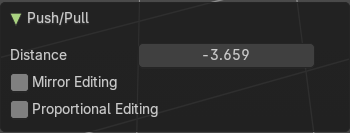
| Entry | What it does |
|---|---|
| Distance | Adjust the distance of influence of the tool. |
| Mirror Editing | Enable mirror editing. |
Proportional editing
Enables proportional editing. Activating proportional editing reveals further settings.
| Entry | What it does |
|---|---|
| Proportional Falloff | Adjust the falloff methods. |
| Proportional Size | See and adjust the falloff radius. |
| Connected | The proportional falloff gets calculated for connected parts only. |
| Projected(2D) | The proportional falloff gets calculated in the screen space. Depth doesn't play a role. When it's in the radius, then it gets calculated. |
Warp
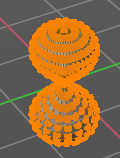
Warps a mesh selection between two defined points.
Last operator Warp
| Entry | What it does |
|---|---|
| Warp Angle | The strength of the warp effect |
| Offset Angle | An offset angle to bend sidewards. |
Min
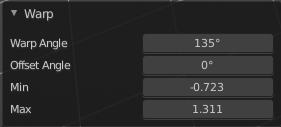
The start point.
Max
The end point.
Randomize Transform
This tool allows randomizes the positions of the selected vertices.
Last Operator Randomize Transform
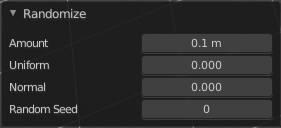
| Entry | What it does |
|---|---|
| Amount | Adjust the amount. |
| Uniform | The uniform offset distance. |
| Normal | Align the offset direction to the normals. |
| Random Seed | The seed value for randomization. |
Move Texture Space
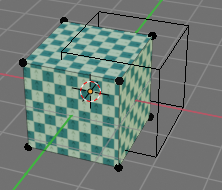
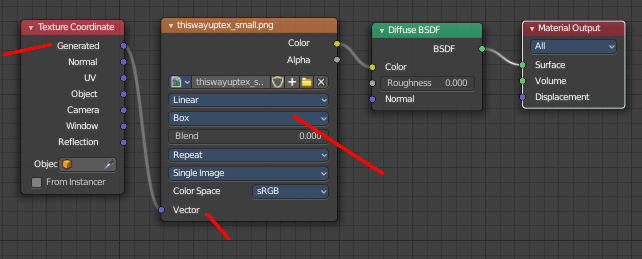
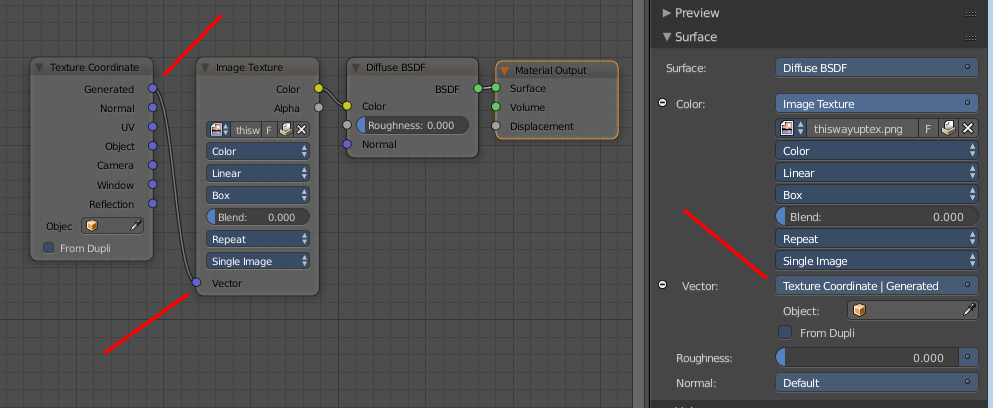
This tool relies at the move tool. With the difference that it moves the texture space instead of the object. It has also a very special use case, and just works with a material with a Texture Coordinate / Generated node. And requires to have the shading at Material or Rendered to see a result in the viewport.

In the viewport you will see the UV cage in black color. In the header you will see the values for the current position of the UV cage.
Note that once done and applied, there is no way to reset the UV cage back to zero. When you repeat the operation, then the values will start at 0 again. Even when the UV cage is already offset.
Last Operator Move
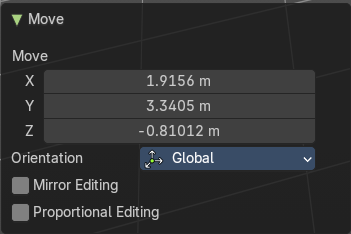
Move
Adjust in which directions you want to transform.
Orientation
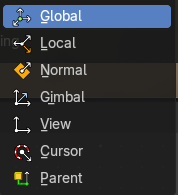
Choose the orientation.
Mirror Editing
Enable mirror editing.
Proportional editing
Enables proportional editing. Activating proportional editing reveals further settings.
| Entry | What it does |
|---|---|
| Proportional Falloff | Adjust the falloff methods. |
| Proportional Size | See and adjust the falloff radius. |
| Connected | The proportional falloff gets calculated for connected parts only. |
| Projected(2D) | The proportional falloff gets calculated in the screen space. Depth doesn't play a role. When it's in the radius, then it gets calculated. |
Scale Texture Space
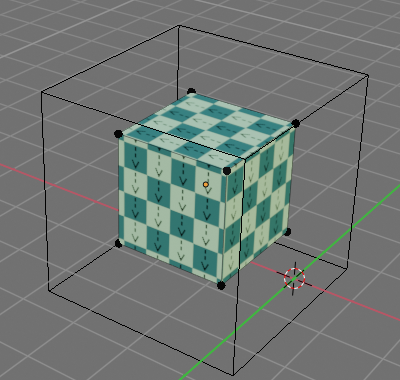
Scale Texture space is similar to the Move texture Space. With the only difference that it scales the UV space instead of moving it.
This tool relies at the scale tool. With the difference that it scales the texture space instead of the object. It has also a very special use case, and just works with a material with a Texture Coordinate / Generated node. And requires to have the shading at Material or Rendered to see a result in the viewport.
In the viewport you will see the UV cage in black color. In the header you will see the values for the current position of the UV cage.
Note that once done and applied, there is no way to reset the UV cage back to zero. When you repeat the operation, then the values will start at 0 again. Even when the UV cage is already offset.
Last Operator Resize
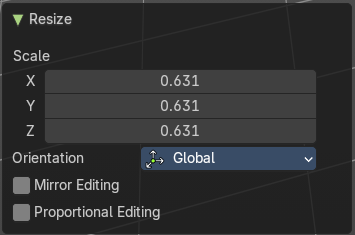
Scale
Adjust in which directions you want to transform.
Orientation
Choose the orientation.
Mirror Editing
Enable mirror editing.
Proportional editing
Enables proportional editing. Activating proportional editing reveals further settings.
| Entry | What it does |
|---|---|
| Proportional Falloff | Adjust the falloff methods. |
| Proportional Size | See and adjust the falloff radius. |
| Connected | The proportional falloff gets calculated for connected parts only. |
| Projected(2D) | The proportional falloff gets calculated in the screen space. Depth doesn't play a role. When it's in the radius, then it gets calculated. |
Set Dimensions
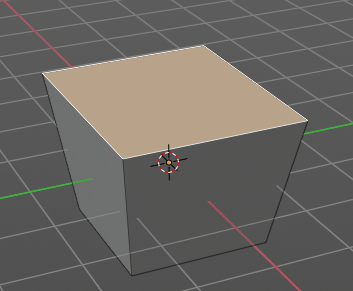
Edit Mode Only!
Normally all scale operations in Bforartists are relative to the current selection and dimensions. And you always start with a relative value of 1.
Set dimensions allows to scale mesh selections in absolute world values. No matter how the initial values are. The new values gets set in the Last Operator.
Set dimensions is an add-on. You can turn it off in the add-ons section of the user preferences when you want.
Last Operator Set Dimensions
New Dimensions
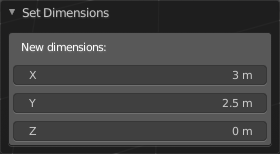
When you activate the tool then you will see the world coordinates of the selection. Change the values to other world coordinates.
Mirror submenu
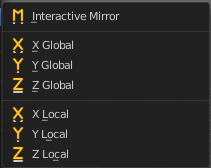
Mirror mirrors the selected geometry along the defined axis.
Interactive Mirror
Mirror by hotkeys. You activate the tool, type in x for x global for example, or x x for x local. And the selection gets mirrored
X Global, Y Global etc.
Mirrors the selection around the chosen axis.
Last Operator Mirror

The Last Operator Mirror panel gives you tools to adjust the mirror action.
Orientation
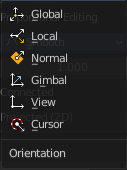
Orientation is a drop-down box . Choose the type of orientation for the mirroring action.
Constraint Axis
Constraint Axis gives you again the possibility to define the mirror axis. You can choose more than one axis here.
Snap submenu
Snap
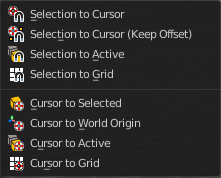
Choose several methods to snap one element to another. The menu items should be self explaining.
Last operator Snap Selection to Cursor
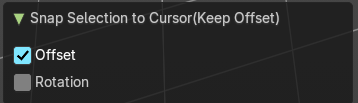
Some snap operations shows a last operation panel, some not.
| Entry | What it does |
|---|---|
| Offset | If the selection should snap as a whole, or if each individual element of the selection should snap. |
| Rotation | If the selection should be rotated to match the cursor. |
Flip submenu
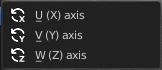
the lattice object along the world axis X, Y or Z .
Last Operator Flip (Distortion Free)
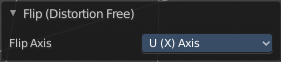
Flip Axis
Flip the lattice object along the world axis X, Y or Z .
Single Operators
Make Regular
Set the UVW control points by a uniform distance apart.
Hooks
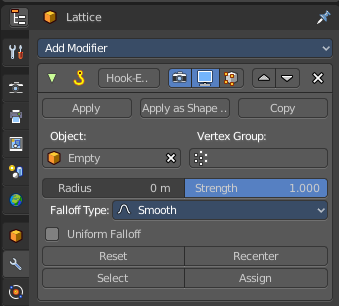
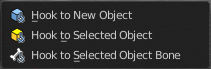
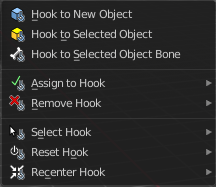
Hooks is a menu with tools around the hook modifier. You could also adjust the hook modifier from the Properties editor. But the menu items are more accessible.
You need to have at least one vertice of the lattice object selected.
When there is no hook modifier at the mesh then you just see three menu items. When there is minimum one hook modifier applied, then you will see an extended menu.
Hook to New Object
Creates a new Hook Modifier for the active object and assigns it to the selected vertices. It also creates an empty at the center of those vertices, which are hooked to it.
Hook to Selected Object
Does the same as Hook to New Object, but instead of hooking the vertices to a new empty, it hooks them to the selected object (if it exists). There should be only one selected object (besides the mesh being edited).
Last Operator Hook to Selected Object
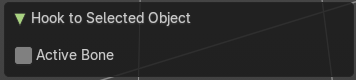
Active Bone
Hook to the object(s) of the active bone.
| Entry | What it does |
|---|---|
| Hook to Selected Object Bone | Does the same as Hook to New Object. B**ut it sets the last selected bone in the also selected armature as a target. |
| Assign to Hook | Assign the selected vertices to the chosen hook modifier. Existing hooks gets overwritten. One vertex can be assigned to more than one hook. |
| Remove Hook | Removes the chosen Hook Modifier from the object. |
| Select Hook | Selects all vertices assigned to the chosen Hook Modifier. |
| Reset Hook | Resets the chosen Hook Modifier. |
| Recenter Hook | Recenter the Hook Modifier. |
Make Vertex Parent
Parents an object to the selected vertice(s)
In Object mode select the object that you want to parent to a vertex. Shift select the Lattice object so that both are selected. Enter Edit mode. Then select one vertex for a single point. Or three for an area. Then click the Make Vertex Parent button to make the relation.
Tool Shelf
Tools
Tool Shelf - Lattice - Edit Mode
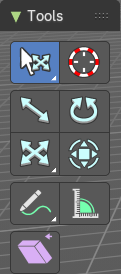
Select, 3D Cursor, Transform, Measure and Annotate tools
The Select, 3D Cursor, Transform, Measure and Annotate tools at the end of the list are explained in the chapter 7.1.1 Editors - 3D View - Tool Shelf - Object Mode. We won't cover this tools again here.
Shear
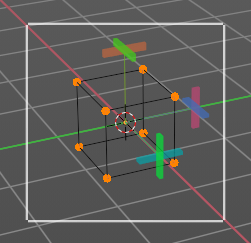
Shear shears the selection. When you activate the tool then you will reveal a widget. This widget allows you to shear the selection in all possible axis.
Tool Settings
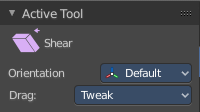
Orientation
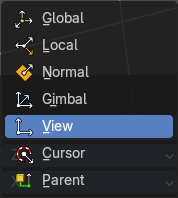
Choose the orientation for the shear action.
Drag
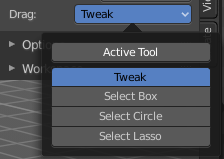
When you click at the widget of the active tool, then you perform the tool action. Adjust what should happen when you click outside of the widget, in the empty area.
| Entry | What it does |
|---|---|
| Active Tool | When you click off the widget then the click still does the same than clicking at the widget. It performs the active tool. |
| Tweak, Select Box, Circle and Lasso | When you choose this options then you will set the off click to the different select methods. Whereas tweak works more than a move tool then. Tweak is the default. |
Last Operator Shear
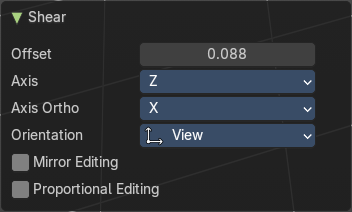
| Entry | What it does |
|---|---|
| Offset | Adjust an offset. |
| Axis | Defines one axis of the imaginary shear axis plane. |
Axis Ortho
Defines the other axis of the imaginary shear axis plane.
| Entry | What it does |
|---|---|
| Orientation | Choose the orientation for the shear action. |
| Mirror Editing | Enable Mirror Editing |
Proportional editing
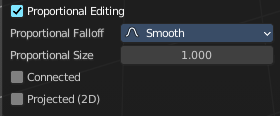
Enables proportional editing. Activating proportional editing reveals further settings.
| Entry | What it does |
|---|---|
| Proportional Falloff | Adjust the falloff methods. |
| Proportional Size | See and adjust the falloff radius. |
| Connected | The proportional falloff gets calculated for connected parts only. |
| Projected(2D) | The proportional falloff gets calculated in the screen space. Depth doesn't play a role. When it's in the radius, then it gets calculated. |
Context Menus
Lattice context menu
Detailed table of collection
Edit Mode - Lattice Context Menu
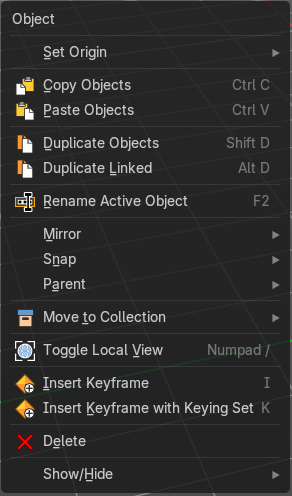
Call this menu with double right click in the 3D viewport. You need to be in Edit mode with a armature object.
Set Origin
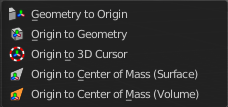
| Entry | What it does |
|---|---|
| Geometry to Origin | Sets the geometry to origin. |
| Origin to Geometry | Sets the origin to geometry. |
| Origin to 3D cursor | Sets the origin to the 3D cursor. |
| Origin to Center of Mass(Surface) | Sets the origin to the center of mass, calculating it from the center of the surface area. |
| Origin to Center of Mass(Volume) | Sets the origin to the center of mass, calculating from the center of the Volume. It must be manifold geometry with consistent normal's. |
Last Operator Set Origin
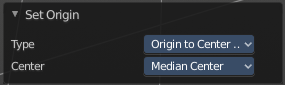
The last operator is the same for all set origin methods.
| Entry | What it does |
|---|---|
| Type | Choose the method again. |
| Center | Use the median center or the bounds center for calculation. |
Copy Objects
Copies the selected object(s).
Paste Objects
Pastes copied object(s).
Last Operator Paste Selection from Buffer
Select
Select pasted object(s).
Active Collection
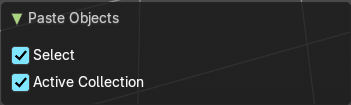
Put the pasted objects into the active collection.
Duplicate Objects
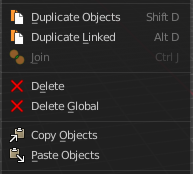
Duplicates selected objects. The copy is completely independent. All containing data gets duplicated too. And you can edit the object instances completely independent. then.
You are automatically in grab mode, and so you can easily move the object out of position. Which is sometimes wanted, since you can position the duplicate then. But sometimes this is unwanted. A right click after releasing the mouse lets the object snap back into its creation position.

When you drag the duplicate around you will see the position values in the header.
Last Operator Duplicate
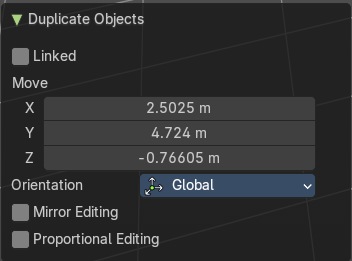
| Entry | What it does |
|---|---|
| Duplicate Objects | Linked: With this option ticked the duplication happens with linked data. |
| Move X , Y , Z | The Position of the duplicated object. |
Orientation
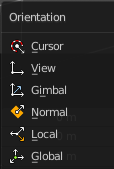
Orientation is a drop-down box choose the type of orientation for the duplicate action.
Proportional editing
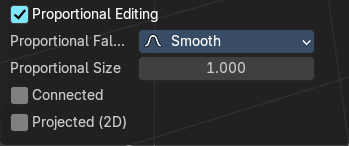
Enables proportional editing. Activating proportional editing reveals further settings.
| Entry | What it does |
|---|---|
| Proportional Falloff | Adjust the falloff methods. |
| Proportional Size | See and adjust the falloff radius. |
| Connected | The proportional falloff gets calculated for connected parts only. |
| Projected(2D) | The proportional falloff gets calculated in the screen space. Depth doesn't play a role. When it's in the radius, then it gets calculated. |
Rename active Item / Object
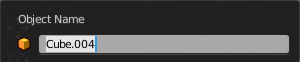
Allows you to rename the currently active item or object. A rename dialog will pop up where you can type in a new name for the current item. You can have more than one item selected. Just the active item gets renamed.
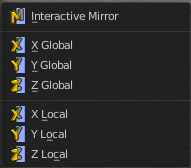
Mirror sub menu
Mirrors the selection.
Interactive Mirror
Mirrors the selection.
Usage:
Activate the tool. In the header you will now see further instructions. Which is: type in the axis at which you want to mirror. Interactive mirroring starts in Global space. You can change the orientation in the last operator.
| Entry | What it does |
|---|---|
| X Y Z Global | Mirrors along the global axis. |
| X Y Z Local | Mirrors along the object axis. |
Last Operator Mirror
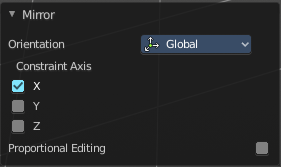
Orientation
Choose the orientation in which the transform should happen.
Proportional editing
Enables proportional editing. Activating proportional editing reveals further settings.
| Entry | What it does |
|---|---|
| Proportional Falloff | Adjust the falloff methods. |
| Proportional Size | See and adjust the falloff radius. |
| Connected | The proportional falloff gets calculated for connected parts only. |
| Projected(2D) | The proportional falloff gets calculated in the screen space. Depth doesn't play a role. When it's in the radius, then it gets calculated. |
Snap sub menu
Selection to Cursor
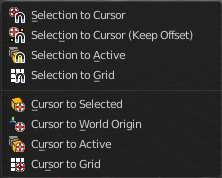
Snaps the currently selected object(s) to the cursor location.
Selection to Cursor(Keep Offset)
Snaps the currently selected object(s) to the cursor location, but keeps the offset of the selected objects to each other. Means the center of the current selection goes to cursor position. Not every individual object.
Last operator Snap Selection to Cursor
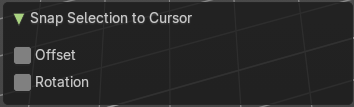
Offset
Keep the offset of the selected objects to each other.
Rotation
Rotate to match the cursor.
| Entry | What it does |
|---|---|
| Selection to Active | Snaps the currently selected object(s) to the active object. |
| Selection to Grid | Snaps the currently selected object(s) to the nearest grid point. |
| Cursor to Selected | Moves the cursor to the center of the selected object(s). |
| Cursor to World Origin | Moves the cursor to the world origin. |
| Cursor to Active | Moves the cursor to the center of the active object. |
| Cursor to Grid | Moves the cursor to the nearest grid point. |
Parent sub menu
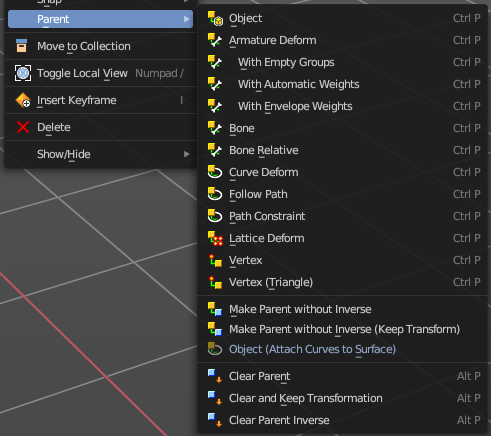
The parent menu provides you with all parenting methods at object level.
To use parenting you first have to select the source object, hold down shift, then select the target object so that both are selected. This also works in the outliner (here you can also simply hold down shift and drag the source object at the target object to make it a child). The source object becomes the child object then.
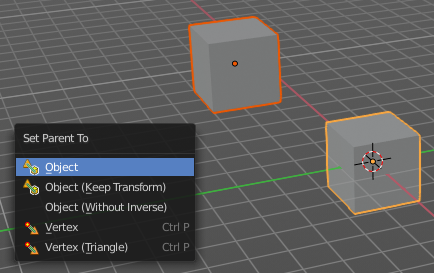
The methods are object type dependent. The armature methods requires to have a mesh and an armature. The path methods a curve. The available methods for the current selection can also be found out by pressing the hotkey ctrl P. This calls the parenting menu with just the available methods.
Object
Sets the parent to selected object.
Object ( Keep Transform)
Sets the parent to selected object, but applies all transform before the operation.
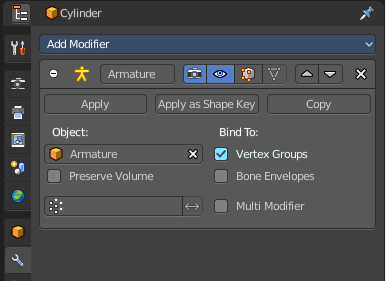
Armature parenting creates an armature modifier at the mesh.
| Entry | What it does |
|---|---|
| Armature Deform | Sets the parent to selected Armature. |
| With empty Groups | Sets the parent to selected Armature, using empty groups. |
| With Envelope Weights | Sets the parent to selected Armature, using envelope weights |
| With automatic Weights | Sets the parent to selected Armature, with automatic weights. |
| Bone | Sets the parent absolute to selected Bone. |
| Bone Relative | Sets the parent relative to selected Bone. |
Curve Deform
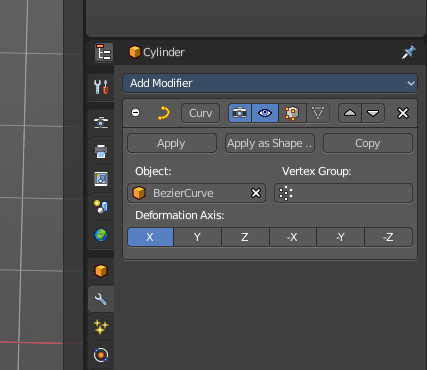
allows you to deform a mesh by a curve shape. It adds a curve modifier at the mesh.
Usage:
Create a curve. Bend it in edit mode to your needs. Create a mesh. I have for demonstration purposes created a cylinder with several subdivisions.
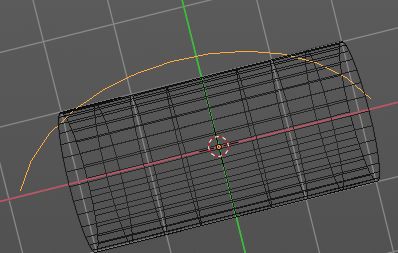
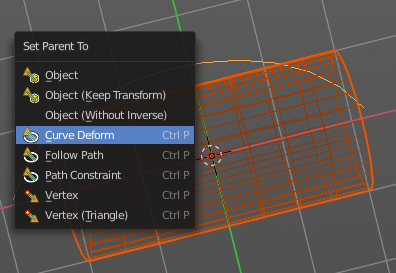
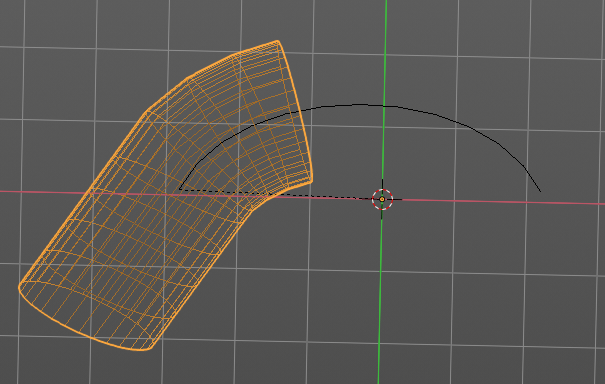
To demonstrate the only pitfall, by parenting the center of the object goes to the start point of the curve. So you better put the origin at the bottom of the cylinder before parenting.
Follow Path
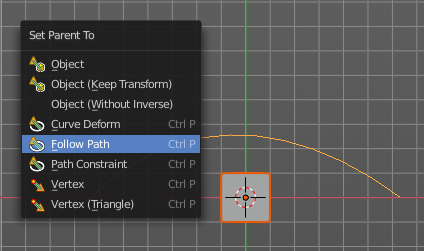
Attaches an object to a curve. The curve then gets used to animate the object position. Every vertice of the curve is one key frame.
Create a curve, create an object, hold down shift and select the curve, make parent ...
Take care of the position and rotation of the object before parenting it to the curve. It influences how the object behaves.
There is a constraint with the same name and functionality. But parenting with follow path will not create such a constraint.
Path Constraint
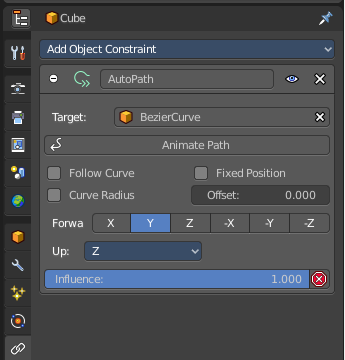
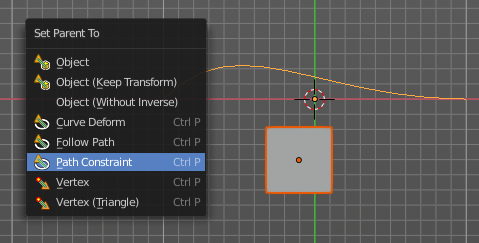
Path constraint adds a AutoPath constraint at the mesh object, which is most probably a wrong labeled path constraint. It is not documented by the Blender developers.
Create a curve, create an object, hold down shift and select the curve, make parent ...
Take care of the position and rotation of the object before parenting it to the curve. It influences how the object behaves.
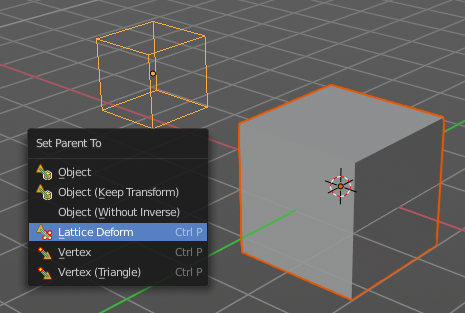
Lattice Deform
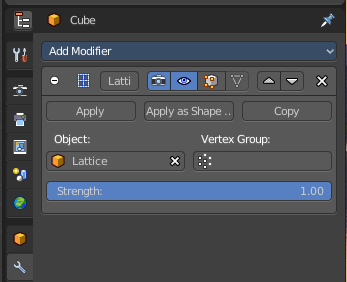
Parents a lattice object to the object.
You need a lattice object and a mesh object. Lattice deformations just works with mesh objects.
Create a lattice, create an object, hold down shift and select the lattice, make parent ...
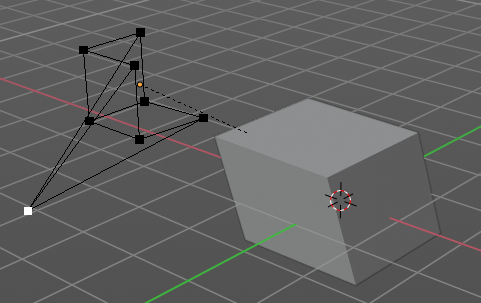
Parent the mesh object to the lattice object with method Lattice Deform. A Lattice Deform constraint will be added at the mesh object.
Take care of the position and size of the lattice object. It influences how the deformation works.
Enter Edit Mode with the lattice object. Deform it. The mesh object will follow the deformation.
Vertex
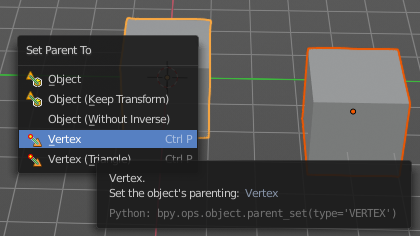
Vertex parents the current object to a vertex of the target object. The vertex will be chosen automatically, it's the
closest vertice of the parent object. When you want to assign the object to a specific vertice, then you have to do
The vertex parenting in Edit mode. You need to have an object type that has vertices. Mesh or curve.
Create a mesh or curve object, create an object, hold down shift and select the mesh object, make parent ...
Vertex (Triangle)
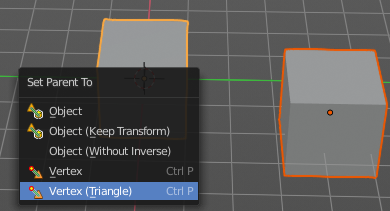
Vertex (Triangle) parents the current object to a face of the target object. The face will be chosen automatically.
It's the closest face of the parent object. When you want to assign the object to a specific face, then you have to
Do the vertex parenting in Edit mode. You need to have an object type that has vertices. Mesh or curve.
Create a mesh or curve object, create an object, hold down shift and select the mesh object, make parent ...
| Entry | What it does |
|---|---|
| Make Parent without Inverse | With normal parenting the child object keeps its world transformation. Without inverse parenting the child object uses the coordinate system of the parent object. As one of the effects you will see that the child objects will jump to the origin of the parent object when parenting. |
| Make Parent without Inverse (Keep Transform ) | Set the object’s parenting without setting the inverse parent connections and applies all transform before the operation. Without inverse parenting the child object uses the coordinate system of the parent object. By keeping the transform, the origin of the parent and child object stay in position. |
| Object (Attach Curves to Surface) | Parent a Hair Curve to the surface of a new object. |
Last Operator Make Parent
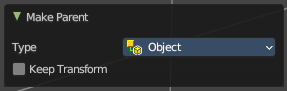
| Entry | What it does |
|---|---|
| Type | Choose the make parent method again. This last operator counts for most of the parent actions. |
| Keep Transform | Apply transform before parenting. |
Clear Parent
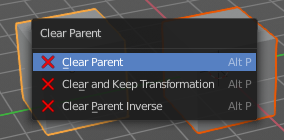
Clear Parent clears the parent relation completely, including involved modifiers.
| Entry | What it does |
|---|---|
| Clear and Keep Transformation | Clear Parent clears the parent relation completely, including involved modifiers. But keeps the current visual transformation. |
| Clear Parent Inverse | Clear Parent Inverse resets the transform corrections applied to the parenting relationship. It does not remove the parenting itself. |
Last Operator Clear Parent
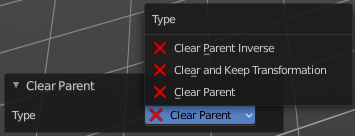
Change the type of clearing.
Move to Collection
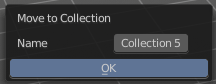
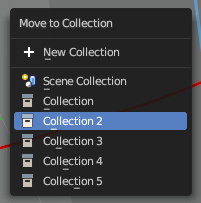
Moves the selected object to a collection. The object is removed from the collection it was in.
By clicking at this menu item a popup will appear choose the new collection. Allows also to create a new collection. Once done, the object will be moved to this new created collection.
This operator can also be found in the Header Object menu.
Last Operator Move to Collection
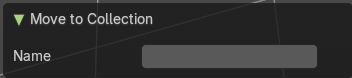
Name
Set a name for your new collection. When you haven't created a new collection, then this name stays blank.
Toggle Local View
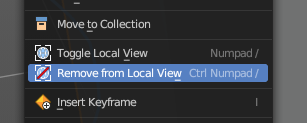
Toggles local view isolating the selection in the viewport. You can find this operator in the Header View menu.
| Entry | What it does |
|---|---|
| Remove from Local | Removes the selection from the Local View keeping the unselected items in the viewport. You can find this operator in the Header View menu. Note: This is a conditional operator that only shows when the context of the 3D View editor is in the Local View mode. |
| Insert Key frame | Inserts a key frame. It uses the default keying set that is defined in the Preferences. |
Insert Key frame with keying sets
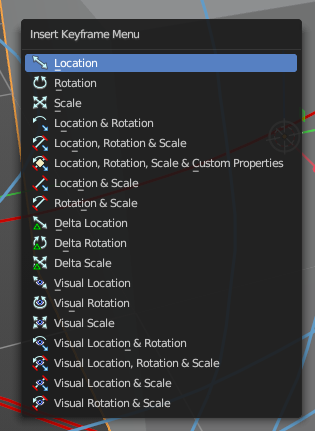
Calls the Insert Key frame menu where you can choose the keying set that you want to use.
The keying set defines what kind of key frames gets recorded. When you start with an
animation, and your object does not have a keying set yet, then you will be prompted with a menu choose the proper keying set. The Insert Key frame menu.
Note that this just adds a keying set to the current key frame. And not to the whole object. That's why the keying set menu down right stays empty when you add a key frame. this way.
Delete
Deletes the selected object(s).
Show/Hide sub menu

Sub-menu with shows or hide selection, unselected or hidden operators.
Show Hidden
Makes all geometry in the scene visible again.
Hide Selected
Hides the selected geometry.
Last Operator Hide Selected
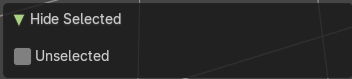
Unselected
Hides the not selected geometry.
Hide Unselected
Hides the not selected geometry. The selected geometry stays visible.