

































































Vertex Paint
Paint colours onto the vertices of the grease pencil: menus, brushes and settings.
: every menu, tool, sidebar tab and context menu of this mode, on one page. Use the panels on the right to jump between the regions.
Header
Paint menu
Paint Menu
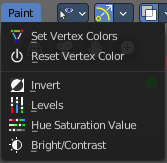
Set Vertex Colors
Sets the color of all selected vertices to the current active vertex color.
Last operator Vertex Paint Set Color
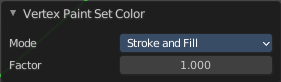
Mode
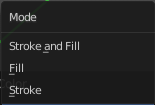
What vertex colors to affect.
Factor
How strong the color is set compared to the old color.
Reset Vertex Color
Resets all vertex color to white.
Last operator Reset Vertex Color
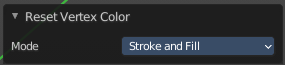
Mode
What vertex colors to affect.
Invert
Inverts the stroke colors.
Last operator Vertex Paint Invert
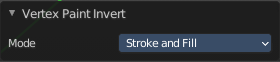
Mode
What vertex colors to affect.
Levels
Adjust the levels of the vertex colors.
Last operator Vertex Paint Levels
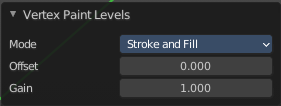
Mode
What vertex colors to affect.
| Entry | What it does |
|---|---|
| Offset | Value to add to the colors. |
| Gain | Value to multiply colors by. |
Hue Saturation Value
Adjust the HSV colors of the vertex colors.
Last operator Vertex Paint Hue Saturation Value
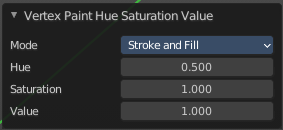
Mode
What vertex colors to affect.
| Entry | What it does |
|---|---|
| Hue | The hue value |
| Saturation | The saturation value. |
| Value | The value value. |
Bright Contrast
Adjust the brightness and contrast of the vertex colors.
Last operator Vertex Paint Bright/Contrast
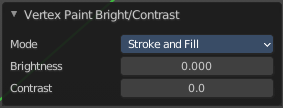
Mode
What vertex colors to affect.
| Entry | What it does |
|---|---|
| Brightness | The brightness value |
| Contrast | The contrast value. |
Tool Shelf
Tools
Tool Shelf - Grease Pencil - Vertex Paint Mode
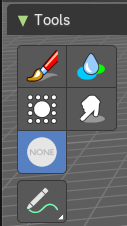
In this Mode you will mainly find brushes in the tool shelf.
Draw
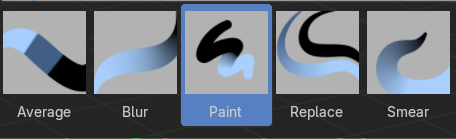
Paint vertices.
| Entry | What it does |
|---|---|
| Blur | Blur the color. |
| Average | Blends the color under the brush. |
| Smear | Smear the colors. |
| Replace | Replaces the vertex color under the mouse with the current color. |
| Annotate tools | The annotate tools at the end of the list are explained in the chapter 7.1.1 Editors - 3D View - Tool Shelf - Object Mode. We won't cover this tools again here. |
Select Tools
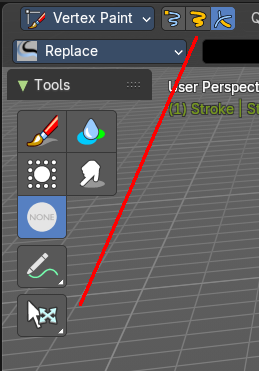
When you activate one of the mask modes then the select tool group appears. It is explained in the chapter 7.1.1 Editors - 3D View - Tool Shelf - Object Mode. We won't cover this tools again here.
Sidebar
Vertex Paint Mode
Grease Pencil - Vertex Paint Mode
In draw mode you can paint whole strokes with vertex color. In Vertex Paint mode you can paint the single vertices of a stroke with vertex color.
Brush Asset Panel
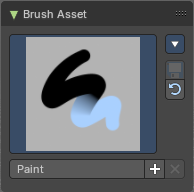
The Brush Asset Panel contains the different Brushes and some Brush settings. Choose and adjust your current active brush.
Browse Brush
The big image at the top is a dropdown box that allows you to choose a brush. Click at it, and you will see the different brushes. A click at one of the images will choose this brush then.
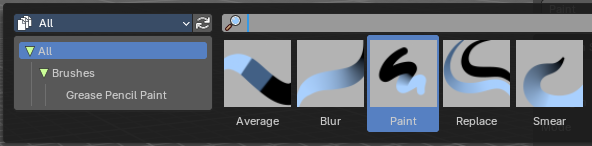
Brushes are assets. You can load them from different libraries if you want.
Brush Specials menu
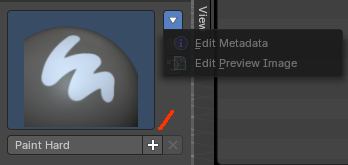
This menu becomes active when you create a new brush. Which can be done wiht the Plus button in the name property. This data cannot be changed for builtin system brushes.
Edit Metadata
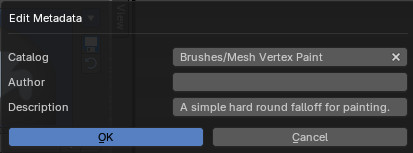
Calls a popup where you can adjust further informations and settings for the brush.
| Entry | What it does |
|---|---|
| Catalog | The asset catalog in which the brush is stored. |
| Author | The brush author. |
| Desctription | Add a description |
| OK / Cancel | Accept or decline the changes. |
| Edit Preview Image | Allows you to load a custom preview image. |
| Entry | What it does |
|---|---|
| Save Brush Asset | This button is just active with a custom brush. It saves all changes made at the brush settings into the current custom brush. |
| Revert Brush Asset | Reverts the brush settings to the default values of the brush in the asset library. |
Name

The edit box below the Image shows the name of the current active brush.
The + button allows you to add a new pencil with the current settings. Note that the brushes are NOT automatically saved when you close Bforartists. You need to save the brush asset. See above.
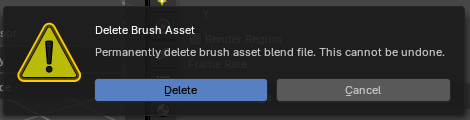
The X button deletes the brush from the brushes list and from the asset library. This button is just active with a custom brush. You will be prompted by a warning so that you don't accidentally remove the brush.
Brush Settings Panel - Average brush
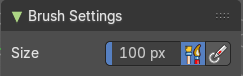
Smoothens the color an average value.
Size
The size of the brush.
| Entry | What it does |
|---|---|
| Use unified Size | The size is shared across the brushes. |
| Size Pressure | Enable tablet pressure sensity. |
Brush Settings Panel - Blur brush
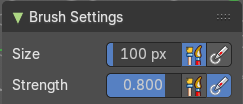
Blurs the color.
| Entry | What it does |
|---|---|
| Size | The size of the brush. |
| Strength | The strength of the brush. · Use unified Size: The size is shared across the brushes. · Size Pressure: Enable tablet pressure sensity. |
Brush Settings Panel - Paint brush
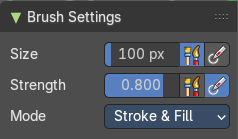
Paints the color with the current color.
| Entry | What it does |
|---|---|
| Size | The size of the brush. |
| Strength | The strength of the brush. · Use unified Size: The size is shared across the brushes. · Size Pressure: Enable tablet pressure sensity. |
Mode
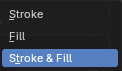
| Entry | What it does |
|---|---|
| Stroke | Vertex Color affects to stroke only. |
| Fill | Vertex Color affects to fill only. |
| Stroke & Fill | Vertex Color affects to stroke and fill. |
Brush Settings Panel - Replace brush
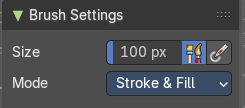
Replaces the color with the current color.
Size
The size of the brush.
| Entry | What it does |
|---|---|
| Use unified Size | The size is shared across the brushes. |
| Size Pressure | Enable tablet pressure sensity. |
Mode
| Entry | What it does |
|---|---|
| Stroke | Vertex Color affects to stroke only. |
| Fill | Vertex Color affects to fill only. |
| Stroke & Fill | Vertex Color affects to stroke and fill. |
Brush Settings Panel - Smear brush
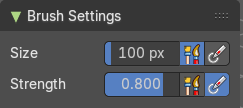
A smear brush.
| Entry | What it does |
|---|---|
| Size | The size of the brush. |
| Strength | The strength of the brush. · Use unified Size: The size is shared across the brushes. · Size Pressure: Enable tablet pressure sensity. |
Brush Settings Panel - Cursor Sub panel
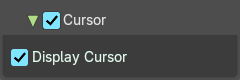
Display Cursor
Show the brush icon when painting.
Color Panel
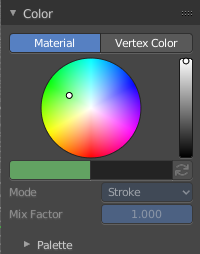
The default grease pencil color is based at materials. And then this panel is greyed out and dysfunctional. But you can also choose to work with vertex colors instead. And then all the color panel features becomes activated.
Material / Vertex Color
Choose if you want to work with material based colors or with vertex colors. Turn it to vertex colors to activate the features.

This can also be done in the tool settings in the header.
Color picker
Define the color for your brush.
Active color
The active color is the left one. When you click the button with the two arrows down right then you can swap the color with the secondary color. Then this secondary color becomes the primary color, and is active.
A click at one of the color fields will open a more detailed color dialog, where you can set up the color by using rgb, hsv and hex colors and with value sliders.
Brush colors flip
Flips the primary color with the secondary color.
Mode
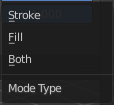
How the vertex color is applied.
Mix Factor
Factor used to mix the vertex color to get final color.
Color Panel - Palette sub panel
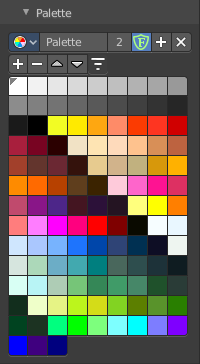
Here you will find a predefined color palette, and here you can create a color palette for later reuse.
The color palette cannot be saved externally. It is part of the current blend file. You can however append color palettes from other blend files.
The currently active color is the one with the triangle at it.
The elements are explained from left to right and from top to bottom.
Palette browser
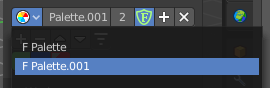
The button at the left opens a drop down list to choose between your palettes.
| Entry | What it does |
|---|---|
| Edit Box | Read the name of the currently active palette. You can also rename the palette here. A click into the edit box makes the name editable. |
| Number of users | The number of users the palette currently has. |
| Fake User | Fake User sets the element to have a fake user. Zero user data-blocks are normally not saved. But sometimes you want to force the data to be kept even when the data block has no user. |
| Add palette | Add a new palette. |
| Remove Palette | Clicking at this button removes the palette. Note that you need to save, close Bforartists and reload the blend file to remove the palette completely. |
| New Palette color | Adjust a color in the color picker. Then click at the add button to add this color to the palette. |
| Delete Palette color | Select the color in the palette, then click at the minus button to remove it. |
| Move Palette Color up and down | With these two buttons you can move the active color up or down in the palette. |
Sort By
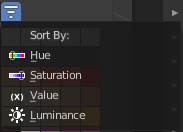
Sort the palette by different methods.
Palette Colors
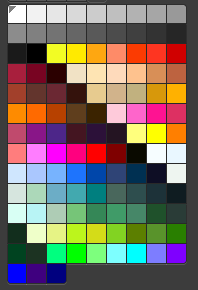
The actual list of the current palette colors. Click at one to make it the active one that gets used for painting.
Falloff Panel
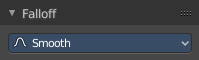
Adjust the brush falloff.
Context Menus
Brushes context menu
Vertex Paint Mode - Brushes Context Menu
Call this menu with double right click in the 3D viewport. You need to be in Vertex Paint mode with a grease pencil object. Different brushes reveals different context menus. But the content is in the sum the same.
In Vertex Paint mode you will call a context menu with the sliders from the Brush settings.
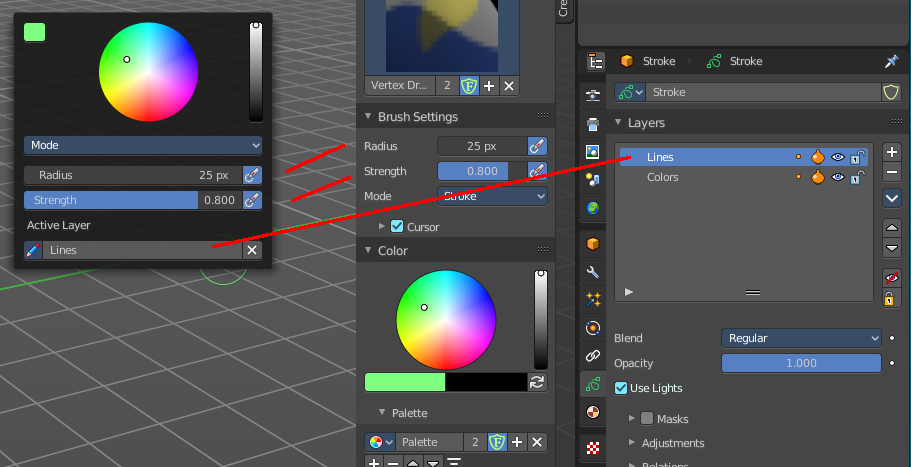
Color dialog
Define the color for your brush.
Up left is the active color. Change the color in the color dialog.
Mode
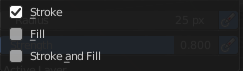
The stroke mode. What the vertex color affects. Stroke, Fill, or both.
| Entry | What it does |
|---|---|
| Radius | The radius of the sculpt brush. |
| Strength | The strength of the sculpt brush. |
Active Layer
The active grease pencil layer. You can choose another layer, and add new layers here too. It is the same content than in the Properties editor.
| Entry | What it does |
|---|---|
| Layer drop down box | The list of available layers. · New Layer: Add a new grease pencil layer. |
| Layer Edit Box | The currently active grease pencil layer. Rename it by clicking into the field. |
| Remove Layer | Remove the grease pencil layer. |
Show/Hide Dropdown
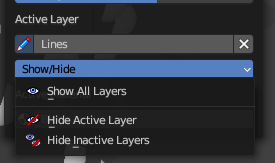
Sub-menu with shows or hide all layers, active layers or inactive layers operators.
Show All Layers
Makes all layers in the grease pencil object visible again.
Hide Active Layer
Hides the active grease pencil layer.
Last Operator Hide Layer(s)
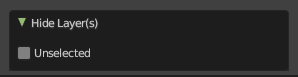
Unselected
Hides the not selected geometry.
Hide Inactive Layers
Hides the not selected grease pencil layer. The selected layer stays visible.