

































































Sculpt Mode
Sculpt the grease pencil with brushes: the menus, brushes, tool settings and context menus of Sculpt Mode.
: every menu, tool, sidebar tab and context menu of this mode, on one page. Use the panels on the right to jump between the regions.
Tool Shelf
Tools
Tool Shelf - Grease Pencil - Sculpt Mode
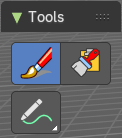
In Sculpt Mode you will mainly find brushes in the tool shelf.
The brushes settings are covered in the chapter 25.1.8 Editors - Properties Editor - Tools Tab - Grease Pencil Object.
Brush
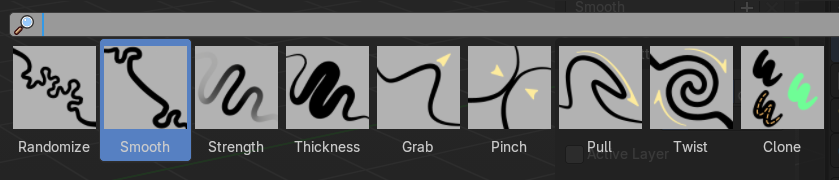
Sculpt brushes.
The brushes names are pretty self expanatory
Clone
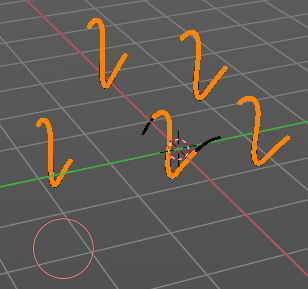
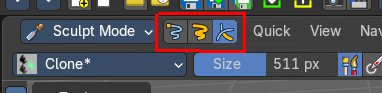
Clones strokes. You first need to copy a stroke before you can clone it in sculpt mode.
This can be done in edit mode. Or you switch to one one of the mask selection modes. Then select a stroke. With circle select for example. Copy it with ctrl c. And then you should be able to clone the current stroke around with a mouse click.
Note that it clones the whole stroke, and not just the selected stroke geometry. The clone brush is more of a copy and paste stroke tool.
Annotate tools
The annotate tools at the end of the list are explained in the chapter 7.1.1 Editors - 3D View - Tool Shelf - Object Mode. We won't cover this tools again here.
However, the active tool setting in Sculpt mode has an extra setting.
Select tools
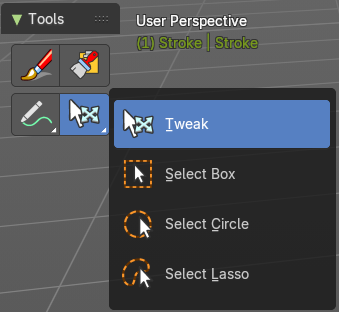
The select tool appears when you are in one of the mask selection modes. It allows you to select strokes.
Like the annotate tools they are already explained in the chapter 7.1.1 Editors - 3D View - Tool Shelf - Object Mode. We won't cover this tools again here.
Sidebar
Sculpt Mode
Sculpt Mode
In Sculpt mode you can sculpt the grease pencil strokes.
Brush Asset Panel
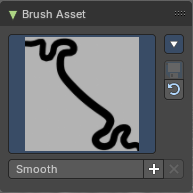
The Brush Asset Panel contains the different Brushes and some Brush settings. Choose and adjust your current active brush.
Browse Brush
The big image at the top is a dropdown box that allows you to choose a brush. Click at it, and you will see the different brushes. A click at one of the images will choose this brush then.
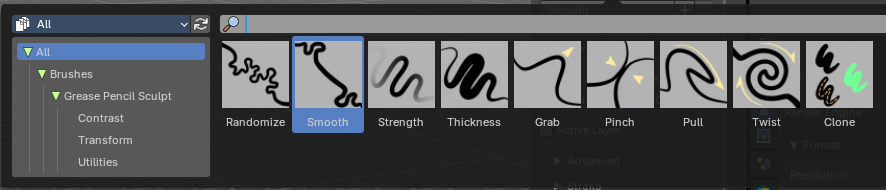
Brushes are assets. You can load them from different libraries if you want.
Brush Specials menu
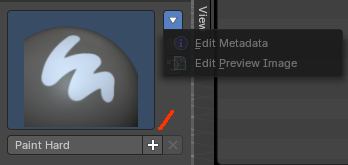
This menu becomes active when you create a new brush. Which can be done wiht the Plus button in the name property. This data cannot be changed for builtin system brushes.
Edit Metadata
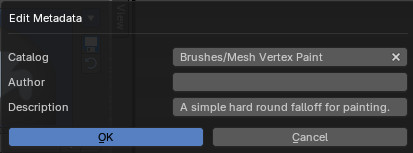
Calls a popup where you can adjust further informations and settings for the brush.
| Entry | What it does |
|---|---|
| Catalog | The asset catalog in which the brush is stored. |
| Author | The brush author. |
| Desctription | Add a description |
| OK / Cancel | Accept or decline the changes. |
| Edit Preview Image | Allows you to load a custom preview image. |
| Entry | What it does |
|---|---|
| Save Brush Asset | This button is just active with a custom brush. It saves all changes made at the brush settings into the current custom brush. |
| Revert Brush Asset | Reverts the brush settings to the default values of the brush in the asset library. |
Name

The edit box below the Image shows the name of the current active brush.
The + button allows you to add a new pencil with the current settings. Note that the brushes are NOT automatically saved when you close Bforartists. You need to save the brush asset. See above.
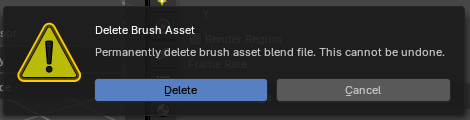
The X button deletes the brush from the brushes list and from the asset library. This button is just active with a custom brush. You will be prompted by a warning so that you don't accidentally remove the brush.
Brush settings panel
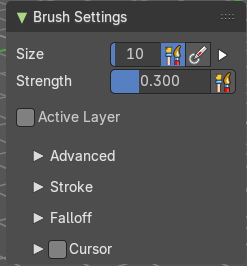
Size
The size of the brush.
Use Unified Size
The size is shared across the brushes.
Size Pressure
The first button behind the edit box enables tablet pressure sensitivity for radius.
Pressure Size Curve
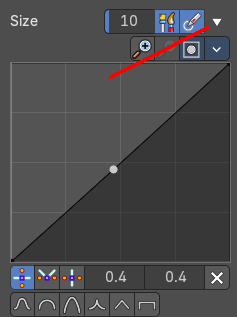
Behind the pressure size button there is a button to reveal the size pressure curve panel. When you activate Size Pressure for tablets, then the Size Pressure curve becomes active, and can be adjusted.
The pressure size curve allows you to adjust the falloff curve for the tablet pressure. It shows when Use Pressure is activated. The curve panel shows when clicking at the button.
Selecting Points
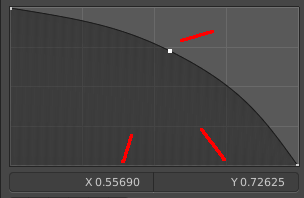
You can select curve points. This reveals two edit boxes for the x and y coordinate of this point.
Selected points can be moved around. Left click at them, hold the mouse button down and move them to a new location.
Adding Points
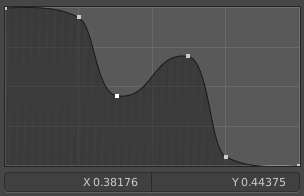
You can add new curve points by simply left clicking at the curve. Move the mouse to position them where you need it.
Navigation elements
| Entry | What it does |
|---|---|
| Zoom in | Zooms in. |
| Zoom out | Zooms out. |
Clipping options
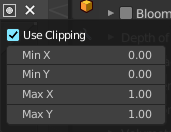
Set up clipping for the stroke.
Tools
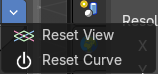
Tools is a menu where you can find some curve related tools.
| Entry | What it does |
|---|---|
| Reset View | Resets the curve windows zoom. |
| Reset Curve | Resets the curve to the initial shape. |
Handles

You can choose between Auto handle, Vector Handle and Auto Clamped.
| Entry | What it does |
|---|---|
| Position X / Y | The position of the selectedc curve point. |
| Delete Points | Deletes the selected curve point. |
Curve Presets

A curve preset to start with.
| Entry | What it does |
|---|---|
| Strength | The strength of the brush. |
| Active Layer | Only edit the active layer of the object. |
Brush Settings Panel - Advanced Sub panel
Advanced subpanel
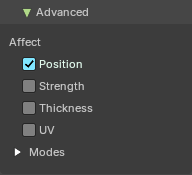
Affect
| Entry | What it does |
|---|---|
| Position | The brush affects the position of the point. |
| Strength | The brush affects the color strength of the point. |
| Thickness | The brush affects the thickness of the point. |
| UV | The brush affects the UV rotation of the point. |
Modes – Subpanel
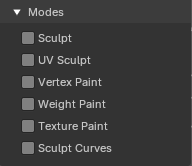
Allows to expose the brush in different modes sharing common attributes.
Example: You can make a brush for vertex mode and also texture paint mode.
Brush Settings Panel - Stroke Sub panel
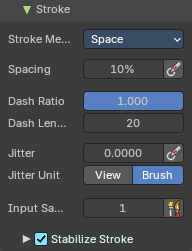
The Stroke panel contains settings to influence the behavior of the brush stroke. There are various stroke methods available. We will go through them one by one.
Stroke method
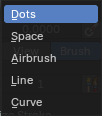
How the brush behaves.
Stroke Panel with Stroke method dots
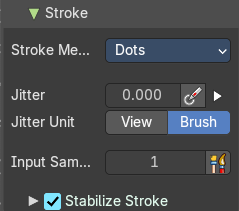
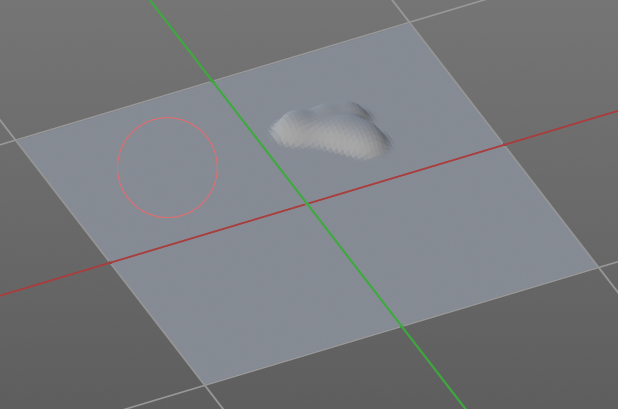
Jitter Edit Box
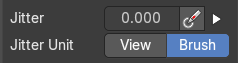
Add Jitter to the brush while painting.
Jitter Pressure
The icon behind the edit box enables tablet pressure sensitivity for tablets.
Size Pressure
The first button behind the edit box enables tablet pressure sensitivity for radius.
Pressure Size Curve
Behind the pressure size button there is a button to reveal the size pressure curve panel. When you activate Size Pressure for tablets, then the Size Pressure curve becomes active, and can be adjusted.
The pressure size curve allows you to adjust the falloff curve for the tablet pressure. It shows when Use Pressure is activated. The curve panel shows when clicking at the button.
Selecting Points
You can select curve points. This reveals two edit boxes for the x and y coordinate of this point.
Selected points can be moved around. Left click at them, hold the mouse button down and move them to a new location.
Adding Points
You can add new curve points by simply left clicking at the curve. Move the mouse to position them where you need it.
Navigation elements
| Entry | What it does |
|---|---|
| Zoom in | Zooms in. |
| Zoom out | Zooms out. |
Clipping options
Set up clipping for the stroke.
Tools
Tools is a menu where you can find some curve related tools.
| Entry | What it does |
|---|---|
| Reset View | Resets the curve windows zoom. |
| Reset Curve | Resets the curve to the initial shape. |
Handles
You can choose between Auto handle, Vector Handle and Auto Clamped.
| Entry | What it does |
|---|---|
| Position X / Y | The position of the selectedc curve point. |
| Delete Points | Deletes the selected curve point. |
Curve Presets
A curve preset to start with.
Jitter Unit
If the jitter happens in screen space in pixels, or relative to the brush size.
Input Samples Edit Box

Average multiple input samples together to smooth the brush stroke.
Stabilize Stroke
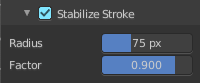
When activated then the brush lags behind the mouse position, and produces a much smoother stroke by that. Smooth stroke has two settings.
| Entry | What it does |
|---|---|
| Smooth Stroke Radius Edit Box | Adjust the radius of the smoothing. |
| Smooth Stroke Factor Edit Box | Adjust the factor of the smoothing. |
Stroke Panel with Stroke method Space
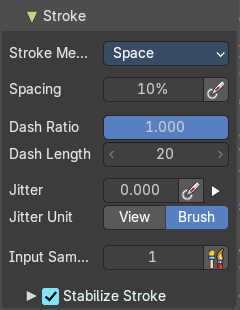
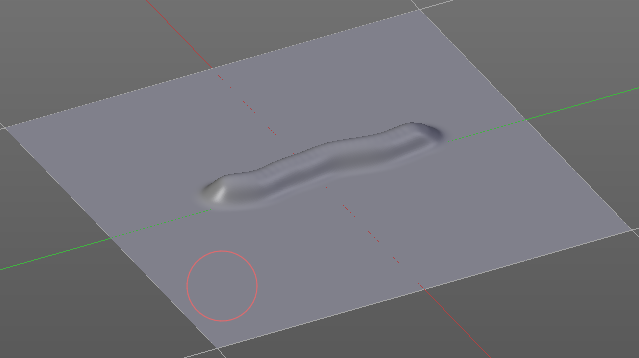
This is the default Stroke method. The sculpt stroke gets added continuously with given settings. Shot is from mesh object, since it is better to visualize. But the principle is the same.
Spacing Edit Box

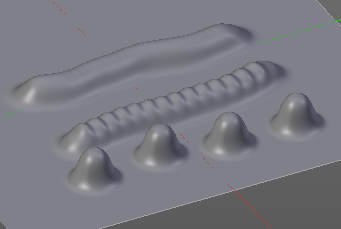
The sculpt drawing happens by mapping the pencil onto the mouse position. And when you move the mouse then the next mapping happens. Adjust the spacing after what mouse movement the next mapping should happen. The lower the value, the lower the distance between the single dots.
Spacing Pressure
The icon behind the edit box enables tablet pressure sensitivity for tablets.
| Entry | What it does |
|---|---|
| Dash Ratio | Ratio of samples in a cycle that the brush is enabled. |
| Dash Length | Length of a dash cycle measured in stroke samples. |
Jitter Edit Box
Add Jitter to the brush while painting.
Jitter Pressure
The icon behind the edit box enables tablet pressure sensitivity for tablets.
Size Pressure
The first button behind the edit box enables tablet pressure sensitivity for radius.
Pressure Size Curve
Behind the pressure size button there is a button to reveal the size pressure curve panel. When you activate Size Pressure for tablets, then the Size Pressure curve becomes active, and can be adjusted.
The pressure size curve allows you to adjust the falloff curve for the tablet pressure. It shows when Use Pressure is activated. The curve panel shows when clicking at the button.
Selecting Points
You can select curve points. This reveals two edit boxes for the x and y coordinate of this point.
Selected points can be moved around. Left click at them, hold the mouse button down and move them to a new location.
Adding Points
You can add new curve points by simply left clicking at the curve. Move the mouse to position them where you need it.
Navigation elements
| Entry | What it does |
|---|---|
| Zoom in | Zooms in. |
| Zoom out | Zooms out. |
Clipping options
Set up clipping for the stroke.
Tools
Tools is a menu where you can find some curve related tools.
| Entry | What it does |
|---|---|
| Reset View | Resets the curve windows zoom. |
| Reset Curve | Resets the curve to the initial shape. |
Handles
You can choose between Auto handle, Vector Handle and Auto Clamped.
| Entry | What it does |
|---|---|
| Position X / Y | The position of the selectedc curve point. |
| Delete Points | Deletes the selected curve point. |
Curve Presets
A curve preset to start with.
| Entry | What it does |
|---|---|
| Jitter Unit | If the jitter happens in screen space in pixels, or relative to the brush size. |
| Input Samples Edit Box | Average multiple input samples together to smooth the brush stroke. |
StabilizeStroke subpanel
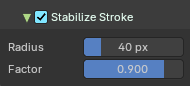
When activated then the brush lags behind the mouse position, and produces a much smoother stroke by that. It is a sub panel with two settings.
| Entry | What it does |
|---|---|
| Smooth Stroke Radius Edit Box | Adjust the radius of the smoothing. |
| Smooth Stroke Factor Edit Box | Adjust the factor of the smoothing. |
Stroke Panel with Stroke method Curve
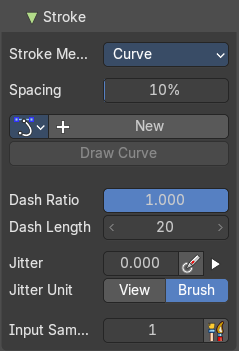
The Stroke method curve doesn't simply influence the way how the stroke is painted.
It is a special method. First you draw a curve object by holding down ctrl and clicking with left mouse button. Then you tweak the curve. You can click at the curve point, and drag out handlers to make the curve points smooth.
Then you hit the Draw Curve button. And the curve gets sculpted.
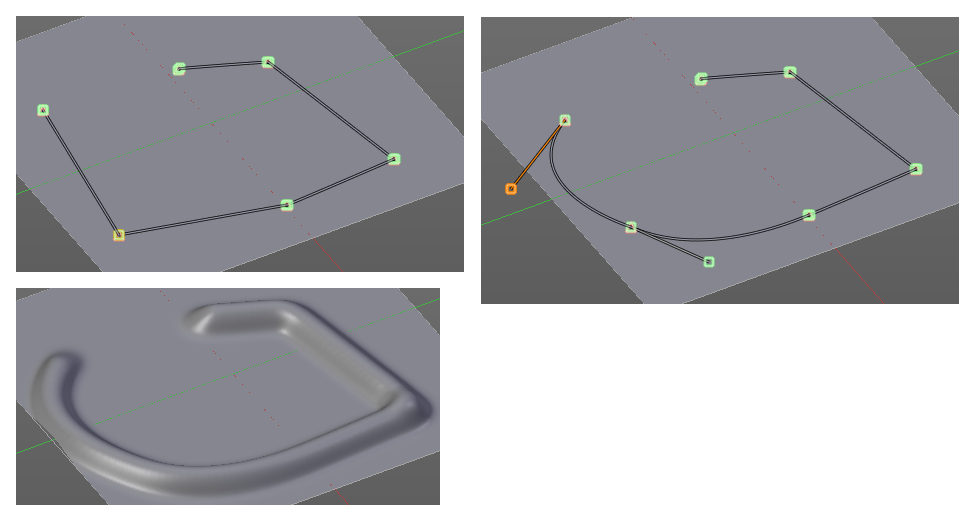
Spacing Edit Box
The sculpt drawing happens by mapping the pencil onto the mouse position. And when you move the mouse then the next mapping happens. Adjust the spacing after what mouse movement the next mapping should happen. The lower the value, the lower the distance between the single dots.
Paint Curve edit box
Here you set the active curve.
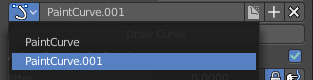
The first element is a drop down box where you will find your curves objects. You can have more than one.
The second element is the edit box that displays the active curve.
Fake User set the brush to have a fake user. Zero user data-blocks are normally not saved. But sometimes you want to force the data to be kept even when the data block has no user.
The + button allows you to add a new pencil with the current settings. Note that the brushes are NOT saved when you close Bforartists. You can save them into the current blend file. Or you can save the startup file. But be careful here. This saves everything else of the current state of Bforartists too.
The X button deletes the brush as the active one. It does NOT delete it from the brushes list.
Draw Curve Button
A click at it to turns the curve into a sculpt stroke.
| Entry | What it does |
|---|---|
| Dash Ratio | Ratio of samples in a cycle that the brush is enabled. |
| Dash Length | Length of a dash cycle measured in stroke samples. |
Jitter Edit Box
Add Jitter to the brush while painting.
Jitter Pressure
The icon behind the edit box enables tablet pressure sensitivity for tablets.
Size Pressure
The first button behind the edit box enables tablet pressure sensitivity for radius.
Pressure Size Curve
Behind the pressure size button there is a button to reveal the size pressure curve panel. When you activate Size Pressure for tablets, then the Size Pressure curve becomes active, and can be adjusted.
The pressure size curve allows you to adjust the falloff curve for the tablet pressure. It shows when Use Pressure is activated. The curve panel shows when clicking at the button.
Selecting Points
You can select curve points. This reveals two edit boxes for the x and y coordinate of this point.
Selected points can be moved around. Left click at them, hold the mouse button down and move them to a new location.
Adding Points
You can add new curve points by simply left clicking at the curve. Move the mouse to position them where you need it.
Navigation elements
| Entry | What it does |
|---|---|
| Zoom in | Zooms in. |
| Zoom out | Zooms out. |
Clipping options
Set up clipping for the stroke.
Tools
Tools is a menu where you can find some curve related tools.
| Entry | What it does |
|---|---|
| Reset View | Resets the curve windows zoom. |
| Reset Curve | Resets the curve to the initial shape. |
Handles
You can choose between Auto handle, Vector Handle and Auto Clamped.
| Entry | What it does |
|---|---|
| Position X / Y | The position of the selectedc curve point. |
| Delete Points | Deletes the selected curve point. |
Curve Presets
A curve preset to start with.
Jitter Unit
If the jitter happens in screen space in pixels, or relative to the brush size.
Input Samples Edit Box
Average multiple input samples together to smooth the brush stroke.
Stroke Panel with Stroke method Line
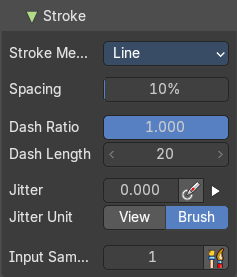
With Stroke method line you draw a line between a starting point and an endpoint. And when you release the mouse then the line gets sculpted.
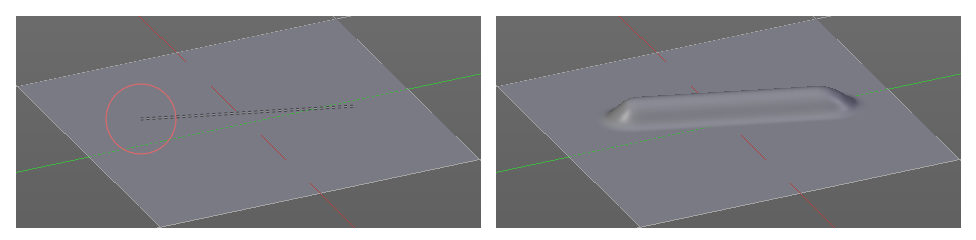
Spacing Edit Box
The sculpt drawing happens by mapping the pencil onto the mouse position. And when you move the mouse then the next mapping happens. Adjust the spacing after what mouse movement the next mapping should happen. The lower the value, the lower the distance between the single dots.
| Entry | What it does |
|---|---|
| Dash Ratio | Ratio of samples in a cycle that the brush is enabled. |
| Dash Length | Length of a dash cycle measured in stroke samples. |
Jitter Edit Box
Add Jitter to the brush while painting.
Jitter Pressure
The icon behind the edit box enables tablet pressure sensitivity for tablets.
Size Pressure
The first button behind the edit box enables tablet pressure sensitivity for radius.
Pressure Size Curve
Behind the pressure size button there is a button to reveal the size pressure curve panel. When you activate Size Pressure for tablets, then the Size Pressure curve becomes active, and can be adjusted.
The pressure size curve allows you to adjust the falloff curve for the tablet pressure. It shows when Use Pressure is activated. The curve panel shows when clicking at the button.
Selecting Points
You can select curve points. This reveals two edit boxes for the x and y coordinate of this point.
Selected points can be moved around. Left click at them, hold the mouse button down and move them to a new location.
Adding Points
You can add new curve points by simply left clicking at the curve. Move the mouse to position them where you need it.
Navigation elements
| Entry | What it does |
|---|---|
| Zoom in | Zooms in. |
| Zoom out | Zooms out. |
Clipping options
Set up clipping for the stroke.
Tools
Tools is a menu where you can find some curve related tools.
| Entry | What it does |
|---|---|
| Reset View | Resets the curve windows zoom. |
| Reset Curve | Resets the curve to the initial shape. |
Handles
You can choose between Auto handle, Vector Handle and Auto Clamped.
| Entry | What it does |
|---|---|
| Position X / Y | The position of the selectedc curve point. |
| Delete Points | Deletes the selected curve point. |
Curve Presets
A curve preset to start with.
Jitter Unit
If the jitter happens in screen space in pixels, or relative to the brush size.
Input Samples Edit Box
Average multiple input samples together to smooth the brush stroke.
Stroke Panel with Stroke method Airbrush
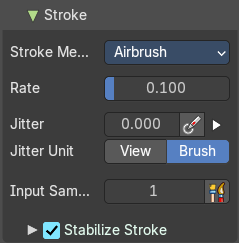
The sculpt stroke acts like an airbrush pencil. The dots gets placed randomly.
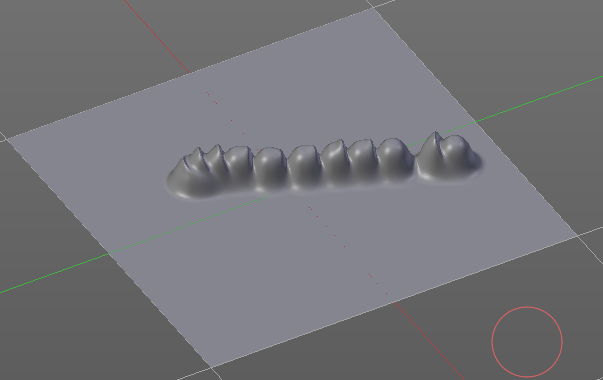
Rate Edit Box
Define the rate of the drawing.
Jitter Edit Box
Add Jitter to the brush while painting.
Jitter Pressure
The icon behind the edit box enables tablet pressure sensitivity for tablets.
Size Pressure
The first button behind the edit box enables tablet pressure sensitivity for radius.
Pressure Size Curve
Behind the pressure size button there is a button to reveal the size pressure curve panel. When you activate Size Pressure for tablets, then the Size Pressure curve becomes active, and can be adjusted.
The pressure size curve allows you to adjust the falloff curve for the tablet pressure. It shows when Use Pressure is activated. The curve panel shows when clicking at the button.
Selecting Points
You can select curve points. This reveals two edit boxes for the x and y coordinate of this point.
Selected points can be moved around. Left click at them, hold the mouse button down and move them to a new location.
Adding Points
You can add new curve points by simply left clicking at the curve. Move the mouse to position them where you need it.
Navigation elements
| Entry | What it does |
|---|---|
| Zoom in | Zooms in. |
| Zoom out | Zooms out. |
Clipping options
Set up clipping for the stroke.
Tools
Tools is a menu where you can find some curve related tools.
| Entry | What it does |
|---|---|
| Reset View | Resets the curve windows zoom. |
| Reset Curve | Resets the curve to the initial shape. |
Handles
You can choose between Auto handle, Vector Handle and Auto Clamped.
| Entry | What it does |
|---|---|
| Position X / Y | The position of the selectedc curve point. |
| Delete Points | Deletes the selected curve point. |
Curve Presets
A curve preset to start with.
Jitter Unit
If the jitter happens in screen space in pixels, or relative to the brush size.
Input Samples Edit Box
Average multiple input samples together to smooth the brush stroke.
Stabilize Stroke
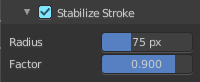
When activated then the brush lags behind the mouse position, and produces a much smoother stroke by that. Smooth stroke has two settings.
| Entry | What it does |
|---|---|
| Smooth Stroke Radius Edit Box | Adjust the radius of the smoothing. |
| Smooth Stroke Factor Edit Box | Is just active when Smooth Stroke is activated. Adjust the factor of the smoothing. |
Brush Settings Panel - Falloff subpanel
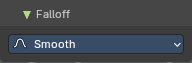
Adjust the falloff of the brush.
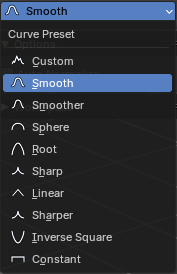
Brush Settings Panel - Cursor Sub panel
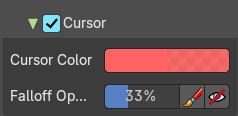
Adjust the color and appearance of the brush cursor to custom values.
Cursor Checkbox
Activate the custom settings.
Cursor Color
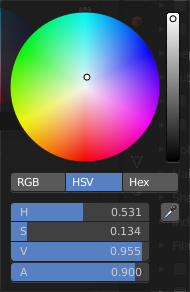
Choose another color for the brush cursor. Double clicking at the color field will open a color picker.
Falloff Opacity
You can turn on the cursor overlay with the eye button at the end. The falloff opacity slider allows you to adjust the opacity of this cursor overlay.
| Entry | What it does |
|---|---|
| Override Overlay | Hide the Cursor Overlay when painting. |
| Use Cursor Overlay | Turn on Cursor Overlay. |
Context Menus
Brushes context menu
Edit Mode - Brushes Context Menu
Call this menu with double right click in the 3D viewport. You need to be in Sculpt mode with a grease pencil object.
In Sculpt mode you will call a context menu with the sliders from the Brush settings.
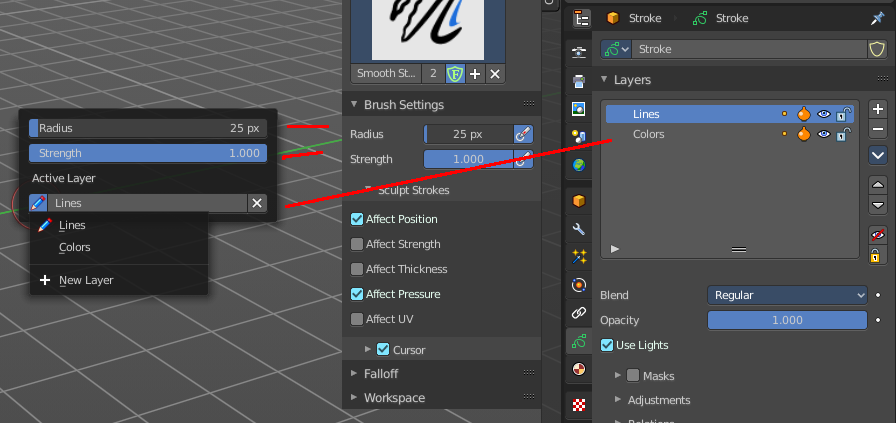
| Entry | What it does |
|---|---|
| Radius | The radius of the sculpt brush. |
| Strength | The strength of the sculpt brush. |
Active Layer
The active grease pencil layer. You can choose another layer, and add new layers here too. It is the same content than in the Properties editor.
| Entry | What it does |
|---|---|
| Layer drop down box | The list of available layers. · New Layer: Add a new grease pencil layer. |
| Layer Edit Box | The currently active grease pencil layer. Rename it by clicking into the field. |
| Remove Layer | Remove the grease pencil layer. |