

































































Edit Mode
Edit the grease pencil itself: every header menu, tool, sidebar tab and context menu of Edit Mode.
: every menu, tool, sidebar tab and context menu of this mode, on one page. Use the panels on the right to jump between the regions.
Header
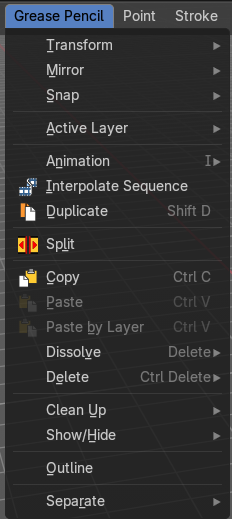
Grease Pencil menu
Edit Mode - Grease Pencil Menu
Transform submenu
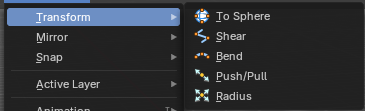
To Sphere
Transforms the selected geometry into a sphere shape.
Last Operator To Sphere
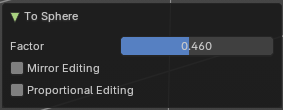
| Entry | What it does |
|---|---|
| Factor | The transform factor. |
| Mirror Editing | Edit mirror geometry too. |
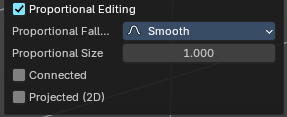
Proportional Editing
Proportional editing
Enables proportional editing. Activating proportional editing reveals further settings.
| Entry | What it does |
|---|---|
| Proportional Falloff | Adjust the falloff methods. |
| Proportional Size | See and adjust the falloff radius. |
| Connected | The proportional falloff gets calculated for connected parts only. |
| Projected(2D) | The proportional falloff gets calculated in the screen space. Depth doesn't play a role. When it's in the radius, then it gets calculated. |
Shear
Shear shears the selection.
In Object mode this tools requires to have more than one object selected.
The shear tool works along a imaginary 2d plane. The shear axis controls if the items are sheared along the x or the y axes of this plane. This is the plane along which the transformation happens. You can shear along the x or the y axis of this plane.
To make things even more complicated, the orientation of this imaginary plane is defined by the Axis and Axis Ortho items below.
Last Operator Shear
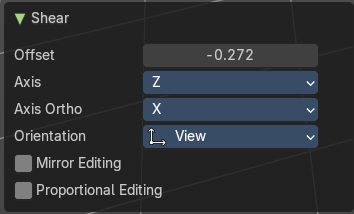
Offset
Adjust an offset.
Axis
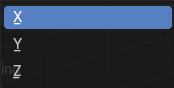
Defines one axis of the imaginary shear axis plane.
Axis Ortho
Defines the other axis of the imaginary shear axis plane.
| Entry | What it does |
|---|---|
| Orientation | Choose the orientation for the shear action. |
| Mirror Editing | Enable mirror editing. |
Proportional editing
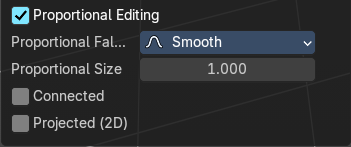
Enables proportional editing. Activating proportional editing reveals further settings.
| Entry | What it does |
|---|---|
| Proportional Falloff | Adjust the falloff methods. |
| Proportional Size | See and adjust the falloff radius. |
| Connected | The proportional falloff gets calculated for connected parts only. |
| Projected(2D) | The proportional falloff gets calculated in the screen space. Depth doesn't play a role. When it's in the radius, then it gets calculated. |
Bend
Bends the selection.
Push/Pull
It pushes or pulls the object positions relative to the center of the selection.
In Object mode this tool requires to have more than one object selected.
Last Operator Push/Pull
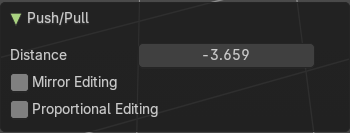
| Entry | What it does |
|---|---|
| Distance | Adjust the distance of influence of the tool. |
| Mirror Editing | Enable mirror editing. |
Proportional editing
Enables proportional editing. Activating proportional editing reveals further settings.
| Entry | What it does |
|---|---|
| Proportional Falloff | Adjust the falloff methods. |
| Proportional Size | See and adjust the falloff radius. |
| Connected | The proportional falloff gets calculated for connected parts only. |
| Projected(2D) | The proportional falloff gets calculated in the screen space. Depth doesn't play a role. When it's in the radius, then it gets calculated. |
Radius
Scales the selected geometry of a curve along its normals. Grease pencil is under the hood a curve. Transform orientation and Pivot point gets ignored.
A positive value pushes the vertices outwards. A negative value pushes the vertices inwards.
Last Operator Transform
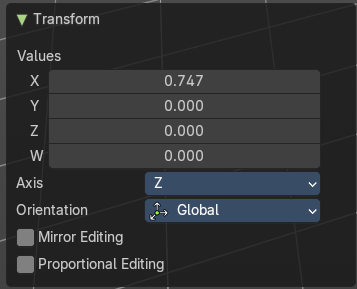
Values
The transform values.
Axis
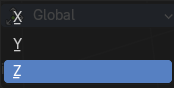
The transform axis.
Orientation
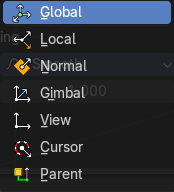
Choose the orientation.
| Entry | What it does |
|---|---|
| Mirror Editing | Enable Mirror Editing. |
| Proportional editing | Enables proportional editing. Activating proportional editing reveals further settings. · Proportional Falloff: Adjust the falloff methods. · Proportional Size: See and adjust the falloff radius. · Connected: The proportional falloff gets calculated for connected parts only. · Projected(2D): The proportional falloff gets calculated in the screen space. Depth doesn't play a role. When it's in the radius, then it gets calculated. |
Opacity
Changes the transparency of selected Grease Pencil vertices. Higher values = more opaque; lower values = more transparent. This is useful for shading, layering, or fade effects in drawings.
To use, activate then drag left or right to change the stroke opacity.
Note: This does not affect fill opacity, only stroke.
Last Operator Transform
Values
The transform values.
Axis
The transform axis.
Orientation
Choose the orientation.
| Entry | What it does |
|---|---|
| Mirror Editing | Enable Mirror Editing. |
| Proportional editing | Enables proportional editing. Activating proportional editing reveals further settings. · Proportional Falloff: Adjust the falloff methods. · Proportional Size: See and adjust the falloff radius. · Connected: The proportional falloff gets calculated for connected parts only. · Projected(2D): The proportional falloff gets calculated in the screen space. Depth doesn't play a role. When it's in the radius, then it gets calculated. |
Mirror submenu
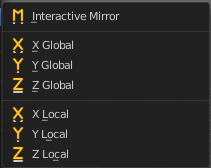
Mirror mirrors the selected geometry along the defined axis.
Interactive Mirror
Mirror by hotkeys. You activate the tool, type in x for x global for example, or x x for x local. And the selection gets mirrored
X Global, Y Global etc.
Mirrors the selection around the chosen axis.
Last Operator Mirror

The Last Operator Mirror panel gives you tools to adjust the mirror action.
Orientation
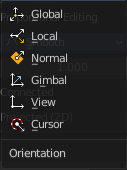
Orientation is a drop-down box . Choose the type of orientation for the mirroring action.
Constraint Axis
Constraint Axis gives you again the possibility to define the mirror axis. You can choose more than one axis here.
Snap submenu
Snap
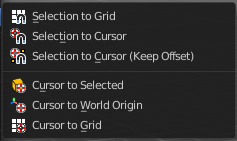
Choose several methods to snap one element to another. The menu items should be self explaining.
Last operator Snap Selection to Cursor
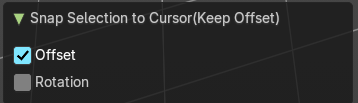
Some snap operations shows a last operation panel, some not.
| Entry | What it does |
|---|---|
| Offset | If the selection should snap as a whole, or if each individual element of the selection should snap. |
| Rotation | If the selection should be rotated to match the cursor. |
Active Layer
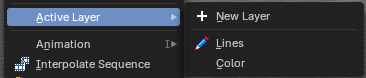
Set the active layer
New Layer
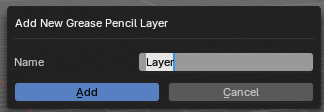
Add a new greasepencil layer. A popup will appear where you can add the name.
Layers
The list of the available layers.
Animation
Insert Blank Key frame ( Active Layer )
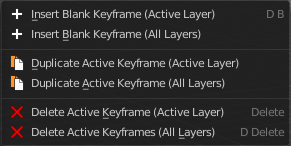
Inserts a key frame into the active layer.
Insert Blank Key frame ( All Layers )
Inserts a key frame into all layers.
Last Operator Insert Blank Frame
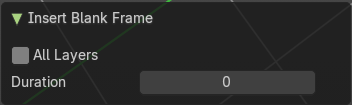
Some snap operations shows a last operation panel, some not.
All Layers
Insert into active layer or into all layers.
Duplicate Active Key frame ( Active Layer )
Duplicates the active key frame in the active layer.
Duplicate Active Key frame ( All Layers )
Duplicates the active key frame in all layers.
Last Operator Insert Blank Frame
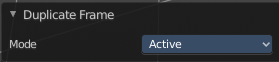
Some snap operations shows a last operation panel, some not.
Mode
Duplicate the active key frame in the active layer or in all layers.
Delete Active Key frame ( Active Layer )
Deletes the active key frame in the active layer.
Delete Active Key frame ( All Layers )
Deletes the active key frame in all layers
Single Operators
Interpolate Sequence
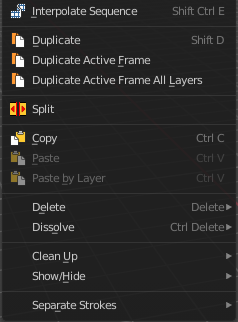
Interpolate strokes between the previous and next keyframe by adding multiple keyframes. When you are on a frame between two keyframes and click the sequence button, then a breakdown keyframe will be added on every frame between the previous and next keyframe.
Duplicate
Duplicates the current selection. This can be a single control point or a whole curve.
The copy sticks to the mouse until you release it. A Right click while moving will reset the position of the duplicate. The duplicated part will be part of the same object.
When you drag the duplicate around you will see the position values in the header.
Last Operator Duplicate
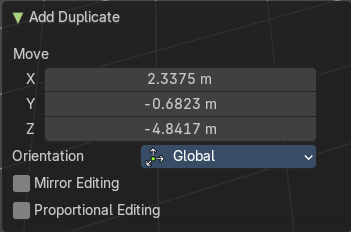
Move X , Y , Z
Orientation
Choose the orientation.
| Entry | What it does |
|---|---|
| Mirror Editing | Enable Mirror Editing. |
| Proportional editing | Enables proportional editing. Activating proportional editing reveals further settings. · Proportional Falloff: Adjust the falloff methods. · Proportional Size: See and adjust the falloff radius. · Connected: The proportional falloff gets calculated for connected parts only. · Projected(2D): The proportional falloff gets calculated in the screen space. Depth doesn't play a role. When it's in the radius, then it gets calculated. |
| Entry | What it does |
|---|---|
| Split | Split selected points to a new stroke. |
| Copy | Copies the selection. |
| Paste | Pastes a copied selection to active layer. You can have more than one layer. |
Paste by Layer
Pastes a copied selection to same, original layer. You can have more than one layer.
Last operator Paste Strokes
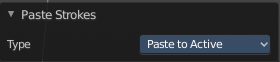
Type
Choose between the paste methods again.
Dissolve
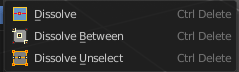
Dissolve is a union operation. Two edges becomes one edge by removing the vertice in between.
| Entry | What it does |
|---|---|
| Dissolve | Dissolves the selection. |
| Dissolve Between | Dissolves the vertices between the selected vertices. |
Dissolve Unselect
Dissolves the vertices that are not selected.
Last Operator Dissolve
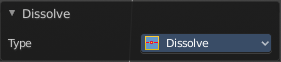
Type
Choose how you want to dissolve.
Delete
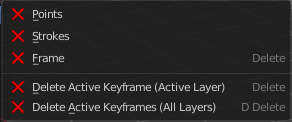
| Entry | What it does |
|---|---|
| Delete | Delete selected stroke points. |
| Delete Active Key frame(Active Layer) | Deletes the active key frame in the current active layer. |
| Delete Active Key frame(All Layers) | Deletes the active key frame in all layers. |
Cleanup sub menu
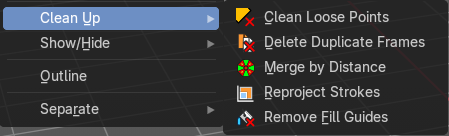
Clean Loose Points
Deletes not connected stroke geometry that is made of loose points.
Last Operator Clean Loose Points
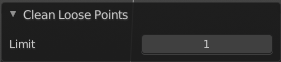
Limit
The number of vertices below which a stroke gets counted as a loose point.
Delete Duplicated Frames
Deletes all duplicated frames.
Last Operator Clean Duplicated Frames
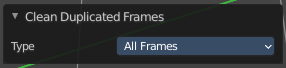
Type
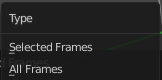
Delete just in the selected frames or in all frames.
Merge by Distance
Merge selected geometry that is in a specific range to each other.
Last Operator Merge by Distance
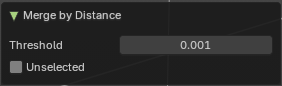
| Entry | What it does |
|---|---|
| Threshold | Delete just in the selected frames or in all frames. |
| Unselected | Also merge geometry by distance that is not selected but part of the stroke. |
Re project Strokes
Re project the selected strokes onto a new plane from the current viewport. So that all strokes are on one plane.
Re project Strokes menu
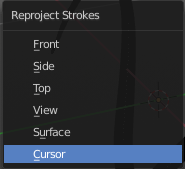
Using this tool opens a popup menu. Choose the projection type method.
Last Operator Re projectStrokes
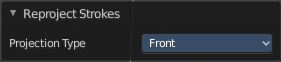
Projection Type
A popup menu. Choose the projection type method.
Remove Fill Guides
In Draw mode with the fill tool you are able to draw so called fill guide with holding down the Alt key. They act as the boundary of the fill area. This tool removes these fill guides.
Last Operator Remove Fill Guides
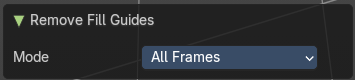
Mode
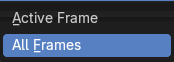
All frames or just the current frame.
Show / Hide
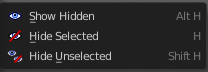
Show Hidden
Makes all curve geometry in the scene visible again.
Hide Selected
Hides the selected curve geometry.
Last Operator Hide Selected
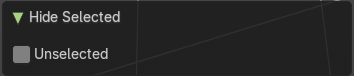
Unselected
Hides the not selected curve geometry.
Hide Unselected
Hides the not selected curve geometry. The selected geometry stays visible.
Outline
Convert selected strokes to perimeter.
Last Operator Outline
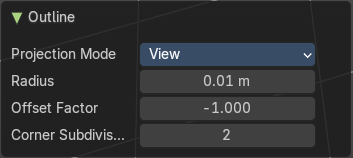
| Entry | What it does |
|---|---|
| Projection mode | Hides the not selected layers. |
| Radius | The radius. |
| Offset Factor | The offset factor. |
| Corner Subdivision | The corner subdivision resolution. |
Separate sub menu
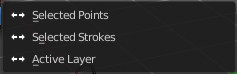
Separates the selection into a new grease pencil object.
| Entry | What it does |
|---|---|
| Selected Points | Separate the selected points with its edges. |
| Selected Strokes | Separate the whole stroke of the current selection. |
| Active Layer | Separate all the strokes at the current active layer. |
Last Operator Separate Strokes
Mode
Active Layer
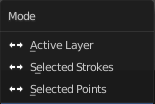
Separate all the strokes at the current active layer.
| Entry | What it does |
|---|---|
| Selected Strokes | Separate the whole stroke of the current selection. |
| Selected Points | Separate the selected points with its edges. |
Point menu
Edit Mode - Point Menu
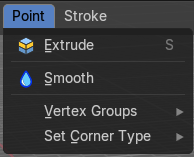
Extrude
Extrude selected points and move them. The new points stay connected with the original points of the stroke.
Extrude does not show in Select mode Stroke.
Last Operator Extrude Stroke Points
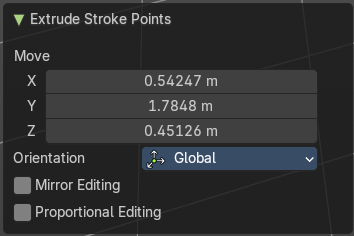
Move
The vector coordinates. They start relative to the initial vector.
Orientation
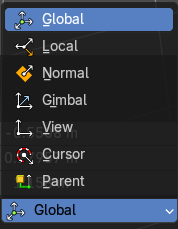
The orientation in which the extrude happens.
| Entry | What it does |
|---|---|
| Mirror Editing | — |
| Proportional editing | Enables proportional editing. Activating proportional editing reveals further settings. · Proportional Falloff: Adjust the falloff methods. · Proportional Size: See and adjust the falloff radius. · Connected: The proportional falloff gets calculated for connected parts only. · Projected(2D): The proportional falloff gets calculated in the screen space. Depth doesn't play a role. When it's in the radius, then it gets calculated. |
Smooth
Smoothens out the selected geometry.
Last Operator Smooth Stroke
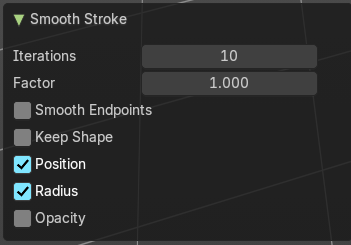
| Entry | What it does |
|---|---|
| Repeat | How often to repeat the procedure. |
| Factor | The amount of the smoothness to apply. |
| Selected points | When enabled, limits the effect to only the selected points within the stroke. |
| Position | When enabled, the operator affect the points location. |
| Thickness | When enabled, the operator affect the points thickness. |
| Strength | When enabled, the operator affect the points strength (alpha). |
| UV's | When enabled, the operator affect the UV rotation on the points. |
Vertex Groups

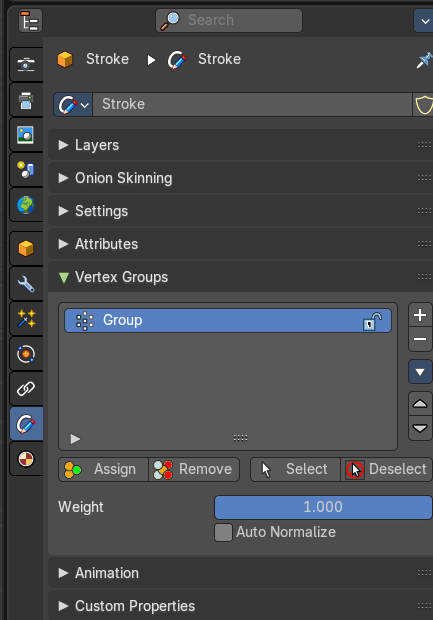
This menu contains just the Add New Group button.
Add New Group
Adds a new group.
Set Corner Type submenu
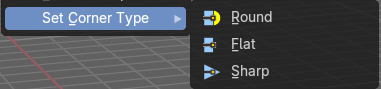
Sets the corner type of the selected corners to the methods round, flat or sharp.
Stroke menu
Edit Mode - Stroke Menu
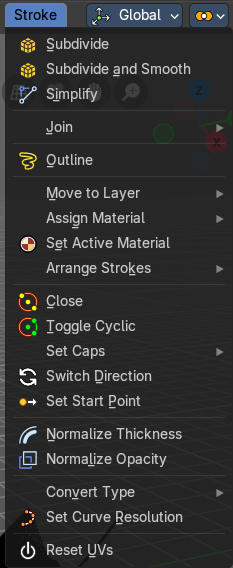
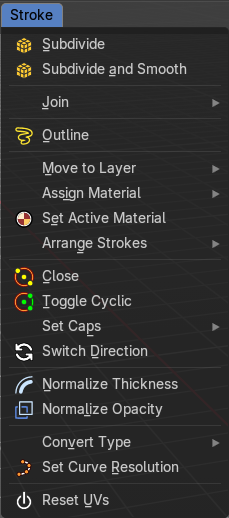
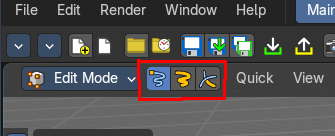
The menu content changes dependant of the Select mode. In Select mode Stroke a few menu items are not displayed. Since they do not work in that mode.
Subdivide
Subdivides the selected grease pencil geometry.
Last Operator Subdivide
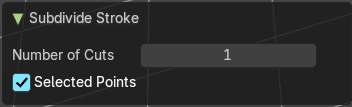
| Entry | What it does |
|---|---|
| Number of Cuts | Number of subdivision cuts. |
| Selected Points | Limits the effect to only the selected points within the stroke. |
Subdivide and smooth
Subdivides the selected grease pencil geometry, and smoothens it.
Last Operator Subdivide
Number of Cuts

Number of subdivision cuts.
| Entry | What it does |
|---|---|
| Selected Points | Limits the effect to only the selected points within the stroke. |
| Iterations | How often to smooth. |
| Factor | The smoothing factor |
| Smooth Endpoints | Smoothen the endpoints. |
| Keep Shape | Try to keep the original shape. |
| Position | The operator affects the points location. |
| Radius | The smooth radius around vertices. |
| Opacity | The smooth opacity. |
Simplify Strokes - Sub Menu
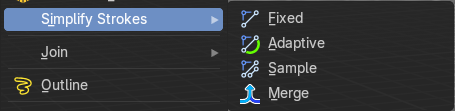
Stroke mode. Simplify the stroke.
| Entry | What it does |
|---|---|
| Fixed | Deletes every second point in the stroke, except the start and end points. |
| Adaptive | This method uses an algorithm called RDP algorithm (Ramer-Douglas-Peucker algorithm) for points deletion. The algorithm tries to keep the shape with the remaining points. |
| Sample | Samples points along the shape of the stroke, and increases the length of the edges. |
| Merge | Simplify the stroke by merging vertices closer than a given distance. |
Last Operator Simplify Stroke
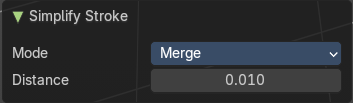
The simplify strokes operators share the same last operator.
Mode
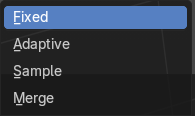
The method.
| Entry | What it does |
|---|---|
| Steps (Fixed) | How much levels of simplifying. |
| Factor (Adaptive) | How strong the simplification should be performed. |
| Length (Sample) | The sample length. |
| Distance (Merge) | The distance. Below this value the vertices gets merged. |
Join - Sub Menu
| Entry | What it does |
|---|---|
| Join and Copy | Copy the selection in the new stroke. |
| Join | Move the selection to the new stroke. |
Adjust last operator Join Selection
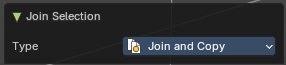
Type
Choose the join method.
Outline
Convert selected strokes to perimeter.
Adjust last operator Outline
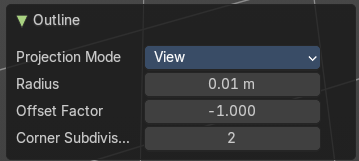
Projection mode
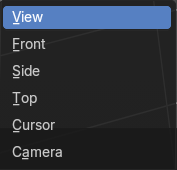
How to project the stroke.
| Entry | What it does |
|---|---|
| Radius | How big. |
| Offset Factor | Offset from the stroke. |
| Corner Subdivisions | How much subdivisions at corners. |
Move to Layer – Sub Menu
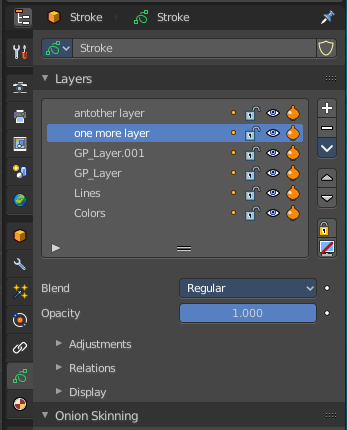
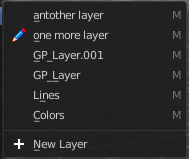
Move the current selected stroke to another grease pencil layer. It lists the current layers.
New Layer
New Layer button adds a new grease pencil layer.
Last Operator Move Strokes to Layer
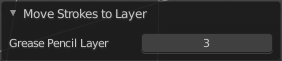
Grease Pencil Layer
Internal the layers are enumerated. So here you move by number.
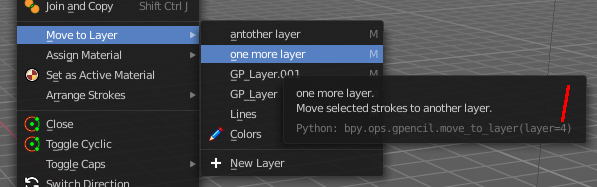
The number of a layer can be found out in the tool tip, in the Python part of it.
Assign Material – Sub Menu
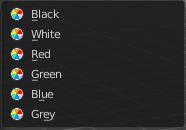
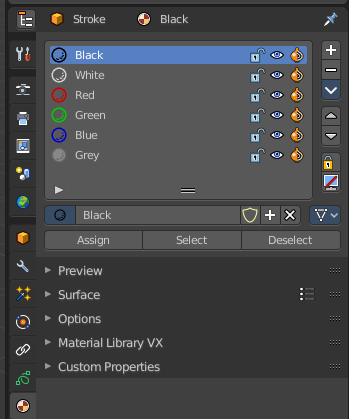
Assign a new material to the current selected stroke geometry.
The materials can be found and edited in the Properties editor. Here you can also create new materials.
Last Operator Change Stroke Color
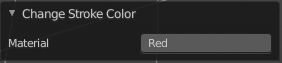
Material
The materials are defined by its name. So when you want to use another material, then change the name here.
Set as active material
Sets the current selected material as the active material.
Arrange Strokes - Sub Menu
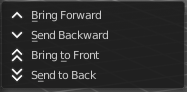
Changes the drawing order of the strokes in the 2D layer.
| Entry | What it does |
|---|---|
| Bring Forward | Moves the selected points/strokes upper the next one in the drawing order. |
| Send Backward | Moves the selected points/strokes below the previous one in the drawing order. |
| Bring to Front | Moves to the top the selected points/strokes. |
Send to Back
Moves to the bottom the selected points/strokes.
Last Operator Arrange Stroke
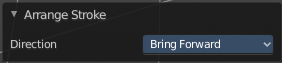
Direction
Choose the method again.
Close
Closes the current stroke by connecting the first vertice with the last vertice by a stroke. See also Toggle Cyclic.
Toggle Cyclic
When the curve is open, then it Closes the current stroke by connecting the first vertice with the last vertice by a stroke. When the curve is closed, then it removes the connection between first and last vertice, and makes the curve open.
Last Operator Set Cyclical State
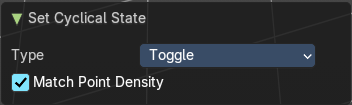
| Entry | What it does |
|---|---|
| Type | Choose the method again. · Close all: Close all open selected strokes. · Open all: Open all closed selected strokes. · Toggle: Close or Open selected strokes as required. |
| Create geometry | When enabled, points are added for closing the strokes like when using the Close tool. If disabled, the stroke is closed with just one edge. |
Set Caps - Sub Menu
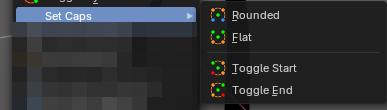
Toggles if the start and endpoints of the strokes are rounded or flat.
Default
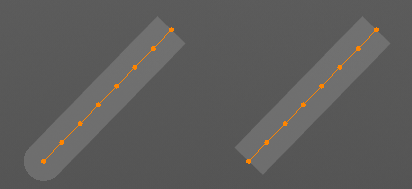
Sets stroke start and end points to rounded (default).
| Entry | What it does |
|---|---|
| Both | Toggle stroke start and end points caps to flat or rounded. |
| Start | Toggle stroke start point cap to flat or rounded. |
| End | Toggle stroke end point cap to flat or rounded. |
Last Operator Set Caps Mode
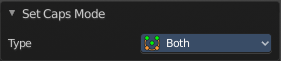
Type
Choose the method again.
Switch Direction
Switches the direction of the stroke geometry.
Set Start Point

Select which point is the start point of the grease pencil curve. This defines the order of point indices, useful for Geometry nodes.
Note: Not available in stroke selection mode.
Normalize Thickness
Adjust the thickness of the stroke.
Normalize Opacity
Adjust the opacity of the stroke.
Last operator Normalize Stroke
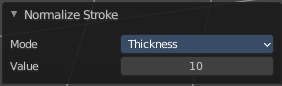
This last operator works for both tools, Normalize Thickness and Normalize Opacity.
Mode
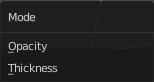
Adjust thickness or opacity.
Value
The value to adjust the opacity or thickness.
Set Spline Type – Sub Menu
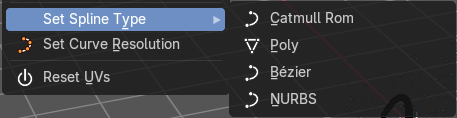
Set the curve type.
Set Curve Resolution
Set the resolution of the curve.
Ajust last operator Set Curve Resolution
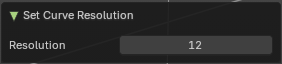
Resolution
The resolution that you want to choose.
Set Stroke Type - Sub Menu
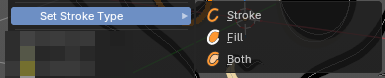
Defines how selected points are interpreted on the Grease Pencil.
| Entry | What it does |
|---|---|
| Stroke | Points are treated as part of a line stroke. |
| Fill | Points are treated as part of a filled region. |
| Both | Points contribute to both stroke and fill. |
Reset UVs
Reset UV Transformation values to zero.
Join Fills
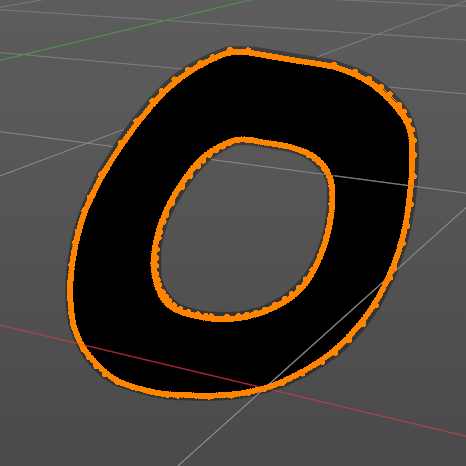
Combines selected strokes into a single fill region. If they overlap, it will create a subtractive boolean. Useful for merging complex shapes into one continuous fill for coloring or shading.
- Creates unified fill areas, even across multiple strokes.
– Automatically generates holes if overlapping strokes define enclosed spaces.
Separate Fills
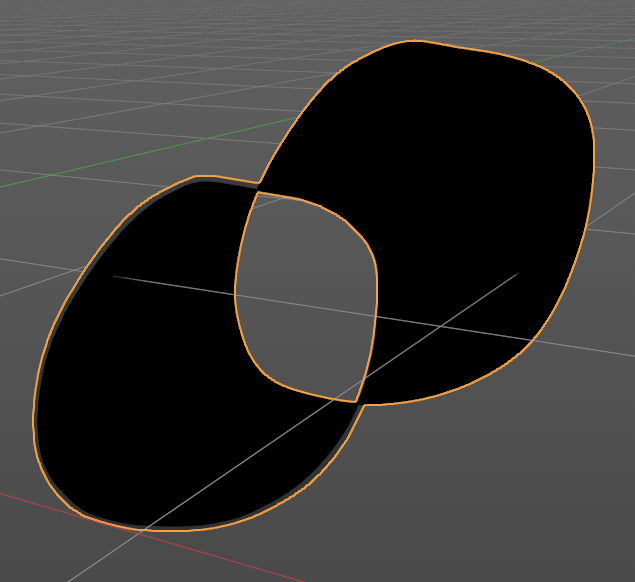
Splits a combined fill back into individual fill regions. Useful for isolating specific areas for recoloring, shading, or animation. Restores stroke-based independence after a join operation.
Tool Shelf
Tools
Tool Shelf - Grease Pencil - Edit Mode
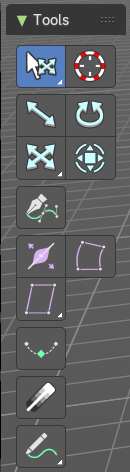
Here you can find tools to edit the curve geometry of the grease pencil strokes.
Tweak, Select, Transform, 3D Cursor Measure and Annotate tools
The tweak, select, transform, 3d cursor, measure and annotate tools at the end of the list are explained in the chapter 7.1.1 Editors - 3D View - Tool Shelf - Object Mode. We won't cover this tools again here.
Pen
Extrude selected curve points to the mouse click position.
Tool Settings
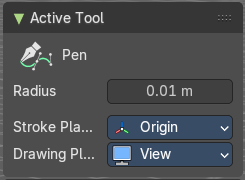
Radius
The thickness of the generated stroke.
Stroke Placement
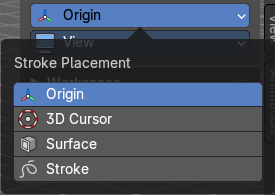
Where to place the stroke, relative to what element.
Drawing Plane
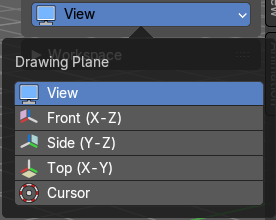
What view plane to use for drawing.
Radius
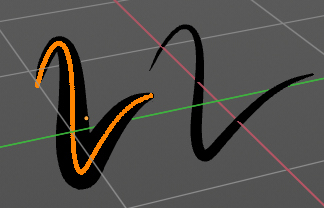
Bezier curves have a radius. This is displayed by the black lines that points away from the curve. The radius tool allows you to resize this radius.
Header Value

When you resize the curve radius then you will see a value in the header. It tells you the current scale factor. This factor always starts with 1.
Tool Settings
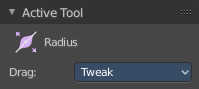
Drag
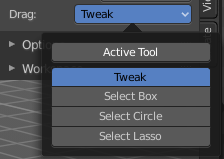
When you click at the widget of the active tool, then you perform the tool action. Adjust what should happen when you click outside of the widget, in the empty area.
| Entry | What it does |
|---|---|
| Active Tool | When you click off the widget then the click still does the same than clicking at the widget. It performs the active tool. |
| Tweak, Select Box, Circle and Lasso | When you choose this options then you will set the off click to the different select methods. Whereas tweak works more than a move tool then. Tweak is the default. |
Last Operator Transform
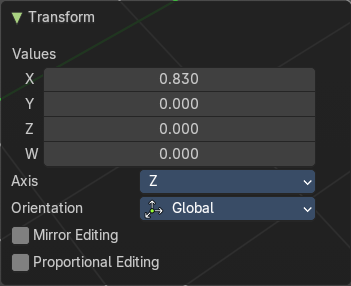
| Entry | What it does |
|---|---|
| Values X Y Z W | The axis to increase the radius. Just X has an effect with the curve radius. |
| Axis | The axis to use. This has no effect with a curve object. |
Orientation
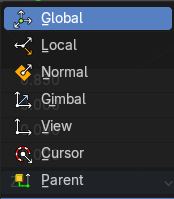
Adjust the orientation of the extrusion. It usually starts with Normal.
| Entry | What it does |
|---|---|
| Mirror Editing | Enable mirror editing. |
| Proportional editing | Enables proportional editing. Activating proportional editing reveals further settings. · Proportional Falloff: Adjust the falloff methods. · Proportional Size: See and adjust the falloff radius. · Connected: The proportional falloff gets calculated for connected parts only. · Projected(2D): The proportional falloff gets calculated in the screen space. Depth doesn't play a role. When it's in the radius, then it gets calculated. |
Bend
Bends the selection.
| Entry | What it does |
|---|---|
| Snapping | Holding down Ctrl activates temporary global snapping. |
| Precision movement | When you hold down shift, then you will have a much slower but also much preciser movement. |
Header Values

When you move the mouse then you will see some values in the header, which shows the current scale factor. This value is relative to the starting value, which always starts with 1.
Shear / To Sphere Tools group
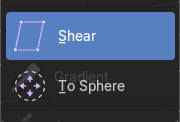
Shear
| Entry | What it does |
|---|---|
| Snapping | Holding down Ctrl activates temporary global snapping. |
| Precision movement | When you hold down shift, then you will have a much slower but also much preciser movement. |
Header Values

When you move the mouse then you will see some values in the header, which shows the current scale factor. This value is relative to the starting value, which always starts with 1.
Hotkeys
As shown in the header, you can press X or Y to set the shear axis.
Tool Settings
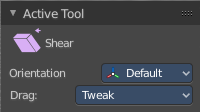
Orientation
Choose the orientation for the shear action.
Drag
When you click at the widget of the active tool, then you perform the tool action. Adjust what should happen when you click outside of the widget, in the empty area.
| Entry | What it does |
|---|---|
| Active Tool | When you click off the widget then the click still does the same than clicking at the widget. It performs the active tool. |
| Tweak, Select Box, Circle and Lasso | When you choose this options then you will set the off click to the different select methods. Whereas tweak works more than a move tool then. Tweak is the default. |
Last Operator Shear
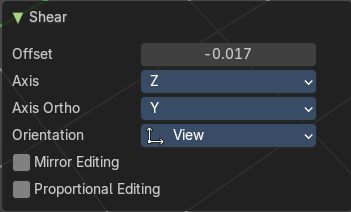
| Entry | What it does |
|---|---|
| Offset | Adjust an offset. |
| Axis | Defines one axis of the imaginary shear axis plane. |
Axis Ortho
Defines the other axis of the imaginary shear axis plane.
Orientation
Choose the orientation for the shear action.
| Entry | What it does |
|---|---|
| Mirror Editing | Enable mirror editing. |
| Proportional editing | Enables proportional editing. Activating proportional editing reveals further settings. · Proportional Falloff: Adjust the falloff methods. · Proportional Size: See and adjust the falloff radius. · Connected: The proportional falloff gets calculated for connected parts only. · Projected(2D): The proportional falloff gets calculated in the screen space. Depth doesn't play a role. When it's in the radius, then it gets calculated. |
To Sphere
Transforms the selection into a sphere shape.
| Entry | What it does |
|---|---|
| Snapping | Holding down Ctrl activates temporary global snapping. |
| Precision movement | When you hold down shift, then you will have a much slower but also much preciser movement. |
Header Values
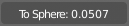
When you move the mouse then you will see some values in the header, which shows the current to sphere factor. This value is relative to the starting value, which always starts with 0.
Last Operator To Sphere
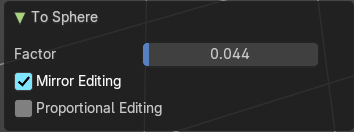
Factor
The factor to transform the selection into a shape form.
Mirror Editing
Enables Mirror Editing.
Proportional editing
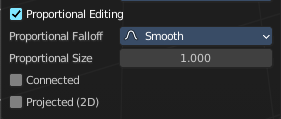
Enables proportional editing. Activating proportional editing reveals further settings.
| Entry | What it does |
|---|---|
| Proportional Falloff | Adjust the falloff methods. |
| Proportional Size | See and adjust the falloff radius. |
| Connected | The proportional falloff gets calculated for connected parts only. |
| Projected(2D) | The proportional falloff gets calculated in the screen space. Depth doesn't play a role. When it's in the radius, then it gets calculated. |
Interpolate
Interpolate grease pencil strokes between animation frames.
Active Tool panel
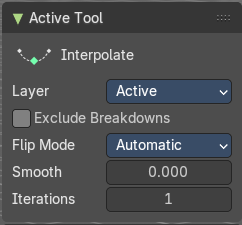
Layer
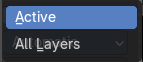
Layers included in the interpolation.
Exclude Breakdowns
Exclude existing breakdowns keyframes as interpolation extremes.
Flip Mode
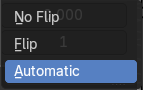
The method to invert destination stroke to match start and end with source stroke.
| Entry | What it does |
|---|---|
| Smooth | Amount of smoothing to apply to interpolate strokes, to reduce jitter and noise. |
| Iterations | Number of times to smooth newly created strokes. |
Gradient
Draw a line to set the fill material gradient for the selected stroke.
Context Menus
Point context menu
Edit Mode - Point Context Menu
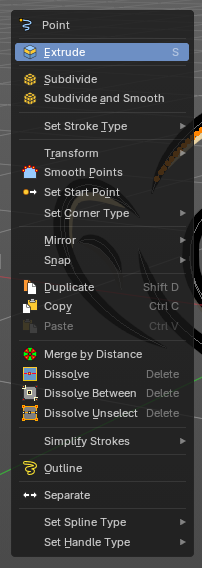
Call this menu with right click in the 3D viewport.
Extrude
Extrude selected points and move them. The new points stay connected with the original points of the stroke.
Last Operator Extrude Stroke Points
Move
The vector coordinates. They start relative to the initial vector.
Orientation
The orientation in which the extrude happens.
| Entry | What it does |
|---|---|
| Mirror Editing | Edit along a mirror axis. |
| Proportional editing | Enables proportional editing. Activating proportional editing reveals further settings. · Proportional Falloff: Adjust the falloff methods. · Proportional Size: See and adjust the falloff radius. · Connected: The proportional falloff gets calculated for connected parts only. · Projected(2D): The proportional falloff gets calculated in the screen space. Depth doesn't play a role. When it's in the radius, then it gets calculated. |
Subdivide
Subdivides the selected grease pencil geometry.
Last Operator Subdivide
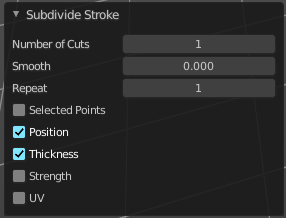
| Entry | What it does |
|---|---|
| Number of Cuts | Number of subdivision cuts. |
| Smooth | Smoothen the stroke, not just the new added vertices |
| Repeat | The number of times to repeat the procedure. |
| Selected Points | Limits the effect to only the selected points within the stroke. |
| Position | The operator affects the points location. |
| Thickness | The operator affect the points thickness. |
| Strength | The operator affect the points strength (alpha). |
| UV | The operator affect the UV rotation on the points. |
Subdivide and Smooth
Subdivides the selected grease pencil geometry.
Last Operator Subdivide and Smooth
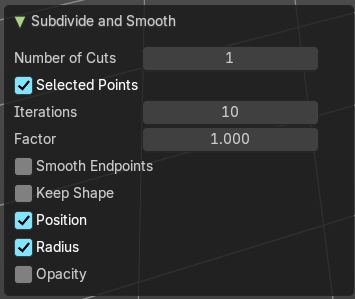
| Entry | What it does |
|---|---|
| Number of Cuts | Number of subdivision cuts. |
| Selected Points | Limits the effect to only the selected points within the stroke. |
| Iterations | Number of iterations. |
| Factor | Smooth factor |
| Smooth Endpoints | Smooth endpoints too. |
| Keep Shape | Keep the overall shape. |
| Position | The operator affects the points location. |
| Radius | Smooth radius. |
| Opacity | Smooth Opacity. |
Set Stroke Type - Sub Menu
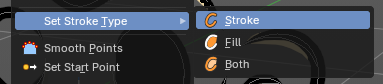
Defines how selected points are interpreted in the
Options:
| Entry | What it does |
|---|---|
| Stroke | Points are treated as part of a line stroke. |
| Fill | Points are treated as part of a filled region. |
| Both | Points contribute to both stroke and fill. |
Transform – Sub Menu
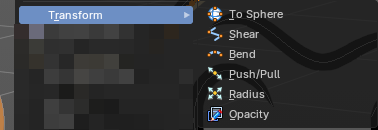
Provides geometric and visual transformations for selected Grease Pencil points or strokes.
Useful for reshaping, stylizing, and refining drawings with precise control
| Entry | What it does |
|---|---|
| To Sphere | Moves selected points toward a spherical distribution. – Strength slider controls how tightly points conform to a sphere. – Useful for rounding shapes or creating circular strokes. |
| Shear | Skews selected points along a chosen axis. – Creates slanted or diagonal distortions. – Ideal for stylized perspective effects or dynamic motion exaggeration. |
| Bend | Bends selected points around a pivot. – Angle and pivot settings define curvature. – Useful for wrapping strokes into arcs or circular motifs. |
| Push/Pull | Moves selected points outward or inward relative to their median center. – Push expands the shape; Pull contracts it. – Useful for inflating or compressing stroke geometry. |
| Radius | Adjusts the thickness (point radius) of selected vertices. – Larger radius = thicker stroke segments. – Useful for line weight variation or emphasis. |
| Opacity | Changes the transparency of selected vertices. – Higher values = more opaque; lower values = more transparent. – Useful for shading, layering, or fade effects in drawings. |
Smooth Points
Smoothens out the selected geometry.
Last Operator Smooth Stroke
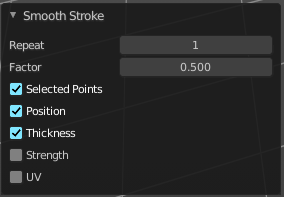
| Entry | What it does |
|---|---|
| Repeat | How often to repeat the procedure. |
| Factor | The amount of the smoothness to apply. |
| Selected points | When enabled, limits the effect to only the selected points within the stroke. |
| Position | When enabled, the operator affect the points location. |
| Thickness | When enabled, the operator affect the points thickness. |
| Strength | When enabled, the operator affect the points strength (alpha). |
| UV's | When enabled, the operator affect the UV rotation on the points. in the screen space. Depth doesn't play a role. When it's in the radius, then it gets calculated. calculated in the screen space. Depth doesn't play a role. When it's in the radius, then it gets calculated. |
Set Start Point
Select which point is the start point of the grease pencil curve. This defines the order of point indices, useful for Geometry nodes.
Note: Not available in stroke selection mode.
Set Corner Type - Sub Menu
Defines how selected corners are treated on the vertices of the Grease Pencil Useful for controlling the visual style, sharpness, and behavior of corners in strokes.
Round
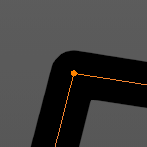
Smooths the corner into a curved transition. Ideal for organic shapes, soft edges, or stylized drawing. Automatically adjusts point handles to create a rounded arc.
Flat
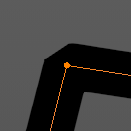
Creates a straight, flat corner with no curvature. Useful for blocky, mechanical, or architectural forms. Ensures the corner remains linear and angular.
Sharp
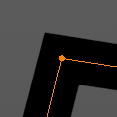
Marks the corner as a sharp transition. Preserves a distinct angle between segments.
Commonly used for precise, technical shapes or hard edges.
Mirror - Sub Menu
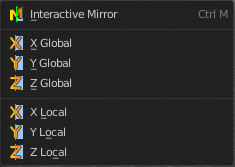
Mirror mirrors the selected geometry along the defined axis.
| Entry | What it does |
|---|---|
| Interactive Mirror | Mirror by hotkeys. You activate the tool, type in x for x global for example, or x x for x local. And the selection gets mirrored. |
| X Global, Y Global etc. | Mirrors the selection around the chosen axis. |
Last Operator Mirror
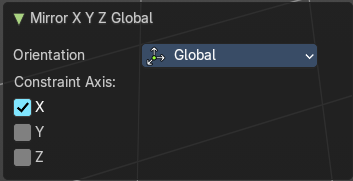
The Last Operator Mirror panel gives you tools to adjust the mirror action.
Orientation
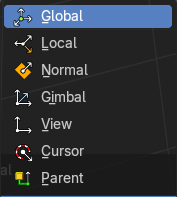
Orientation is a drop-down box. Choose the type of orientation for the mirroring action.
Constraint Axis
Constraint Axis gives you again the possibility to define the mirror axis. You can choose more than one axis here.
Snap- Sub Menu
Choose several methods to snap one element to another. The menu items should be self explaining.
Last Operator Snap
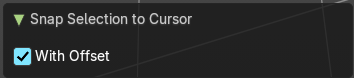
Some snap operations shows a last operation panel, some not.
With Offset
If the selection should snap as a whole, or if each individual element of the selection should snap.
Duplicate
Duplicates the current selection.
When you duplicate a selection, then it sticks to the mouse until you left click. And moves around. A right click repositions the duplicated geometry at its original location.
Last Operator Duplicate Strokes
Mode
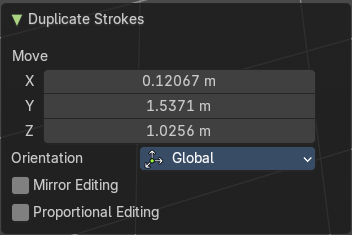
Not to find out. No tool tip, no entry in the Blender manual. Good Job Blender Developers.
Move X, Y, Z
Adjust the position.
Orientation
Orientation is a drop-down box. Choose the type of orientation for the mirroring action.
Mirror Editing
Edit along a mirror axis.
Proportional editing
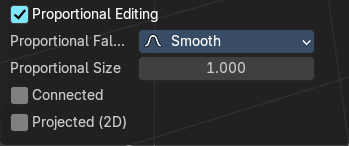
Enables proportional editing. Activating proportional editing reveals further settings.
| Entry | What it does |
|---|---|
| Proportional Falloff | Adjust the falloff methods. |
| Proportional Size | See and adjust the falloff radius. |
| Connected | The proportional falloff gets calculated for connected parts only. |
| Projected(2D) | The proportional falloff gets calculated in the screen space. Depth doesn't play a role. When it's in the radius, then it gets calculated. |
Copy
Copies the selection.
Paste
Pastes a copied selection to active layer. You can have more than one layer.
Last operator Paste Strokes
Type
Choose between the paste methods again.
Merge by Distance
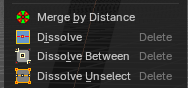
Merges seleceted vertices by distance.
| Entry | What it does |
|---|---|
| Dissolve | Dissolves the selection. |
| Dissolve Between | Dissolves the vertices between the selected vertices. |
Dissolve Unselect
Dissolves the vertices that are not selected.
Last Operator Dissolve
Type
Choose how you want to dissolve.
Simplify Strokes - Sub Menu
Stroke mode. Simplify the stroke.
| Entry | What it does |
|---|---|
| Fixed | Deletes every second point in the stroke, except the start and end points. |
| Adaptive | This method uses an algorithm called RDP algorithm (Ramer-Douglas-Peucker algorithm) for points deletion. The algorithm tries to keep the shape with the remaining points. |
| Sample | Samples points along the shape of the stroke, and increases the length of the edges. |
| Merge | Simplify the stroke by merging vertices closer than a given distance. |
Last Operator Simplify Stroke
The simplify strokes operators share the same last operator.
Mode
The method.
| Entry | What it does |
|---|---|
| Steps (Fixed) | How much levels of simplifying. |
| Factor (Adaptive) | How strong the simplification should be performed. |
| Length (Sample) | The sample length. |
| Distance (Merge) | The distance. Below this value the vertices gets merged. |
Outline
Adds an outline to the grease pencil.
Last Operator Outline
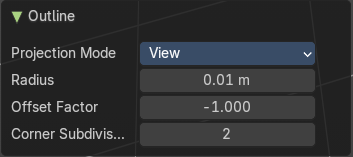
Projection Mode
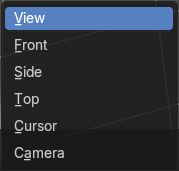
The orientation to project the outline.
| Entry | What it does |
|---|---|
| Radius | Thickness of the outline |
| Offset Factor | Offset from original outline. |
| Corner Subdivisions | How much iterations to subdivide the corners. |
Separate
Separates the selection into a new grease pencil object.
Last Operator Separate Strokes
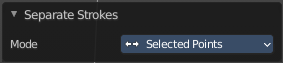
Mode
Active Layer
Separate all the strokes at the current active layer.
| Entry | What it does |
|---|---|
| Selected Strokes | Separate the whole stroke of the current selection. |
| Selected Points | Separate the selected points with its edges. |
Set Spline Type – Sub Menu
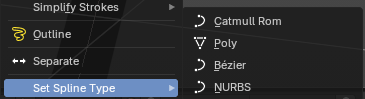
Convert the curve type of the grease pencil to another curve type. These different curve types allows you different ways of modification.
| Entry | What it does |
|---|---|
| Catmull Rom | Generates smooth curves passing through all control points. Produces natural, flowing strokes with minimal manual adjustment. Best for organic shapes and freehand drawing cleanup. |
| Poly | Represents strokes as straight line segments between points. No interpolation is applied. |
| Bézier | Converts strokes into Bézier curves with editable handles. Provides precise control over curvature and tangents. |
| NURBS | Uses Non-Uniform Rational B-Splines for interpolation. Allows smooth curves with weighted control points. |
Last Operator Separate Strokes
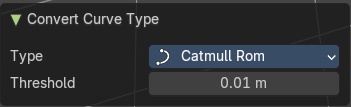
| Entry | What it does |
|---|---|
| Type | The curve types. |
| Threshold | The distance that the resulting points are allowed to be within. |
Set Handle Type – Sub Menu
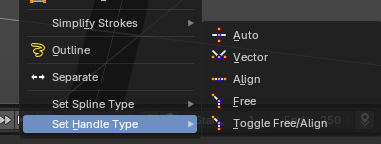
Defines how control point handles behave when editing curves or strokes.
Useful for shaping curvature, controlling tangents, and refining stroke flow in both Grease Pencil and curve objects.
| Entry | What it does |
|---|---|
| Auto | Automatically positions handles to create smooth, natural curves. Handles adjust dynamically as points are moved. |
| Vector | Creates straight, angular transitions at the control point. Handles point directly toward adjacent vertices. |
| Align | Keeps both handles aligned in opposite directions. Ensures smooth, symmetrical transitions through the control point. |
| Free | Allows each handle to move independently. Provides maximum flexibility for custom curve shaping. Best for fine-tuning irregular or stylized strokes. |
| Toggle Free/Align | Switches between Free and Align modes for the selected point. |
Stroke context menu
Edit Mode - Stroke Context Menu
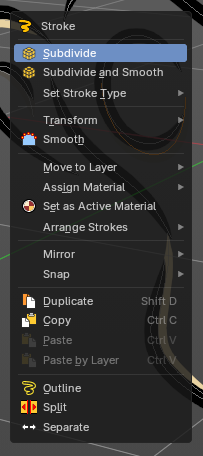
Call this menu with right click in the 3D viewport. The stroke menu appears in select mode stroke and segment
Subdivide
Subdivides the selected grease pencil geometry.
Last Operator Subdivide
| Entry | What it does |
|---|---|
| Number of Cuts | Number of subdivision cuts. |
| Smooth | Smoothen the stroke, not just the new added vertices |
| Repeat | The number of times to repeat the procedure. |
| Selected Points | Limits the effect to only the selected points within the stroke. |
| Position | The operator affects the points location. |
| Thickness | The operator affect the points thickness. |
| Strength | The operator affect the points strength (alpha). |
| UV | The operator affect the UV rotation on the points. |
Subdivide and Smooth
Subdivides the selected grease pencil geometry.
Last Operator Subdivide and Smooth
| Entry | What it does |
|---|---|
| Number of Cuts | Number of subdivision cuts. |
| Selected Points | Limits the effect to only the selected points within the stroke. |
| Iterations | Number of iterations. |
| Factor | Smooth factor |
| Smooth Endpoints | Smooth endpoints too. |
| Keep Shape | Keep the overall shape. |
| Position | The operator affects the points location. |
| Radius | Smooth radius. |
| Opacity | Smooth Opacity. |
Set Stroke Type - Sub Menu
Defines how selected points are interpreted on the Grease Pencil.
| Entry | What it does |
|---|---|
| Stroke | Points are treated as part of a line stroke. |
| Fill | Points are treated as part of a filled region. |
| Both | Points contribute to both stroke and fill. |
Transform – Sub Menu
Provides geometric and visual transformations for selected Grease Pencil points or strokes.
Useful for reshaping, stylizing, and refining drawings with precise control
| Entry | What it does |
|---|---|
| To Sphere | Moves selected points toward a spherical distribution. – Strength slider controls how tightly points conform to a sphere. – Useful for rounding shapes or creating circular strokes. |
| Shear | Skews selected points along a chosen axis. – Creates slanted or diagonal distortions. – Ideal for stylized perspective effects or dynamic motion exaggeration. |
| Bend | Bends selected points around a pivot. – Angle and pivot settings define curvature. – Useful for wrapping strokes into arcs or circular motifs. |
| Push/Pull | Moves selected points outward or inward relative to their median center. – Push expands the shape; Pull contracts it. – Useful for inflating or compressing stroke geometry. |
| Radius | Adjusts the thickness (point radius) of selected vertices. – Larger radius = thicker stroke segments. – Useful for line weight variation or emphasis. |
| Opacity | Changes the transparency of selected vertices. – Higher values = more opaque; lower values = more transparent. – Useful for shading, layering, or fade effects in drawings. |
Smooth
Smoothens out the selected geometry.
Last Operator Smooth Stroke
| Entry | What it does |
|---|---|
| Repeat | How often to repeat the procedure. |
| Factor | The amount of the smoothness to apply. |
| Selected points | When enabled, limits the effect to only the selected points within the stroke. |
| Position | When enabled, the operator affect the points location. |
| Thickness | When enabled, the operator affect the points thickness. |
| Strength | When enabled, the operator affect the points strength (alpha). |
| UV's | When enabled, the operator affect the UV rotation on the points. |
Move to Layer - Sub Menu
Move the current selected stroke to another grease pencil layer. It lists the current layers.
New Layer
New Layer button adds a new grease pencil layer.
Last Operator Move Strokes to Layer
Grease Pencil Layer
Internal the layers are enumerated. So here you move by number.
The number of a layer can be found out in the tool tip, in the Python part of it.
Assign Material - Sub Menu
Assign a new material to the current selected stroke geometry.
The materials can be found and edited in the Properties editor. Here you can also create new materials.
Last Operator Change Stroke Color
Material
The materials are defined by its name. So when you want to use another material, then change the name here.
Set as active material
Sets the current selected material as the active material.
Arrange Strokes - Sub Menu
Changes the drawing order of the strokes in the 2D layer.
| Entry | What it does |
|---|---|
| Bring Forward | Moves the selected points/strokes upper the next one in the drawing order. |
| Send Backward | Moves the selected points/strokes below the previous one in the drawing order. |
| Bring to Front | Moves to the top the selected points/strokes. |
Send to Back
Moves to the bottom the selected points/strokes.
Last Operator Arrange Stroke
Direction
Choose the method again.
Mirror - Sub Menu
Mirror mirrors the selected geometry along the defined axis.
| Entry | What it does |
|---|---|
| Interactive Mirror | Mirror by hotkeys. You activate the tool, type in x for x global for example, or x x for x local. And the selection gets mirrored. |
| X Global, Y Global etc. | Mirrors the selection around the chosen axis. |
Last Operator Mirror
The Last Operator Mirror panel gives you tools to adjust the mirror action.
Orientation
Orientation is a drop-down box. Choose the type of orientation for the mirroring action.
Constraint Axis
Constraint Axis gives you again the possibility to define the mirror axis. You can choose more than one axis here.
Snap – Sub Menu
Choose several methods to snap one element to another. The menu items should be self explaining.
Last Operator Snap
Some snap operations shows a last operation panel, some not.
Offset
If the selection should snap as a whole, or if each individual element of the selection should snap.
Duplicate
Duplicates the current selection.
When you duplicate a selection, then it sticks to the mouse until you left click. And moves around. A right click repositions the duplicated geometry at its original location.
Last Operator Duplicate Strokes
Mode
Not to find out. No tool tip, no entry in the Blender manual. Good Job Blender Developers.
Move X, Y, Z
Adjust the position.
Orientation
Orientation is a drop-down box. Choose the type of orientation for the mirroring action.
| Entry | What it does |
|---|---|
| Constraint Axis | Constraint Axis gives you again the possibility to define the mirror axis. You can choose more than one axis here. |
| Mirror Editing | Edit along a mirror axis. |
Proportional editing
Enables proportional editing. Activating proportional editing reveals further settings.
| Entry | What it does |
|---|---|
| Proportional Falloff | Adjust the falloff methods. |
| Proportional Size | See and adjust the falloff radius. |
| Connected | The proportional falloff gets calculated for connected parts only. |
| Projected(2D) | The proportional falloff gets calculated in the screen space. Depth doesn't play a role. When it's in the radius, then it gets calculated. |
| Entry | What it does |
|---|---|
| Copy | Copies the selection. |
| Paste | Pastes a copied selection to active layer. You can have more than one layer. |
Paste by Layer
Pastes a copied selection to same, original layer. You can have more than one layer.
Last operator Paste Strokes
Type
Choose between the paste methods again.
Outline
Adds an outline to the grease pencil.
Last Operator Outline
Projection Mode
The orientation to project the outline.
| Entry | What it does |
|---|---|
| Radius | Thickness of the outline |
| Offset Factor | Offset from original outline. |
| Corner Subdivisions | How much iterations to subdivide the corners. |
Split
Splits the selection.
Separate
Separates the selection into a new grease pencil object.
Last Operator Separate Strokes
Mode
Active Layer
Separate all the strokes at the current active layer.
| Entry | What it does |
|---|---|
| Selected Strokes | Separate the whole stroke of the current selection. |
| Selected Points | Separate the selected points with its edges. |