

































































Edit Mode
Edit the armature itself: every header menu, tool, sidebar tab and context menu of Edit Mode.
: every menu, tool, sidebar tab and context menu of this mode, on one page. Use the panels on the right to jump between the regions.
Header
Armature menu
Edit Mode - Armature Menu
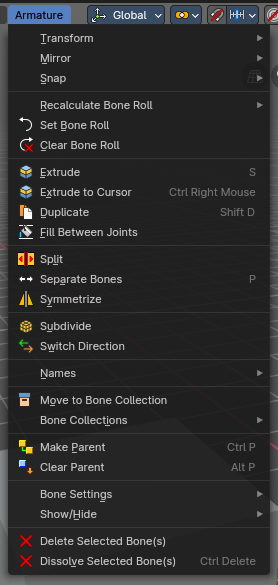
The Edit Mode for Armature objects has a number of operators in this header submenu to change and edit the default bone orientation, relationships and structure before using the Armature in Pose Mode for animation.
Transform - Submenu
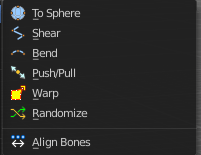
To Sphere
Shapes a selection of objects into the shape of a sphere. The calculation happens with the object origins.
In Object mode this tools requires to have more than one object selected.
Usage
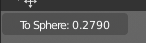
Select the vertices, activate the tool, then drag the mouse in the 3D viewport. In the header you will read the current factor then. Which tells you how close you are towards the sphere shape. With a skeleton the to sphere operation is everything but accurate though. The bones gets stretched or compressed
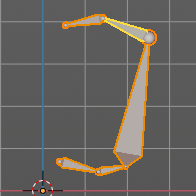
Last Operator To Sphere
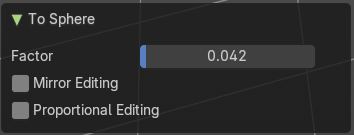
| Entry | What it does |
|---|---|
| Factor | The factor to transform the selection into a shape form. |
| Mirror Editing | Enable mirror editing. |
Proportional editing
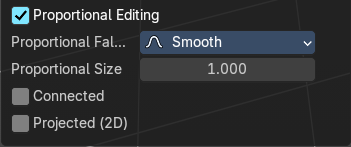
Enables proportional editing. Activating proportional editing reveals further settings.
| Entry | What it does |
|---|---|
| Proportional Falloff | Adjust the falloff methods. |
| Proportional Size | See and adjust the falloff radius. |
| Connected | The proportional falloff gets calculated for connected parts only. |
| Projected(2D) | The proportional falloff. |
Shear
Shear shears the selection.
In Object mode this tools requires to have more than one object selected.
The shear tool works along a imaginary 2d plane. The shear axis controls if the items are sheared along the x or the y axes of this plane. This is the plane along which the transformation happens. You can shear along the x or the y axis of this plane.
To make things even more complicated, the orientation of this imaginary plane is defined by the Axis and Axis Ortho items below.
Last Operator Shear
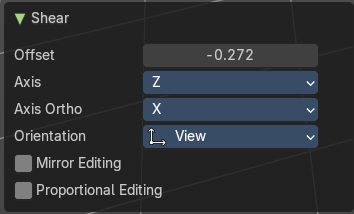
Offset
Adjust an offset.
Axis
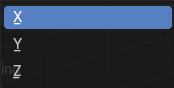
Defines one axis of the imaginary shear axis plane.
Axis Ortho
Defines the other axis of the imaginary shear axis plane.
| Entry | What it does |
|---|---|
| Orientation | Choose the orientation for the shear action. |
| Mirror Editing | Enable mirror editing. |
Proportional editing
Enables proportional editing. Activating proportional editing reveals further settings.
| Entry | What it does |
|---|---|
| Proportional Falloff | Adjust the falloff methods. |
| Proportional Size | See and adjust the falloff radius. |
| Connected | The proportional falloff gets calculated for connected parts only. |
| Projected(2D) | The proportional falloff gets calculated in the screen space. Depth doesn't play a role. When it's in the radius, then it gets calculated. |
Bend
Bends the selection.
Push/Pull
It pushes or pulls the object positions relative to the center of the selection.
In Object mode this tool requires to have more than one object selected.
Last Operator Push/Pull
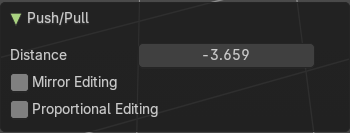
| Entry | What it does |
|---|---|
| Distance | Adjust the distance of influence of the tool. |
| Mirror Editing | Enable mirror editing. |
Proportional editing
Enables proportional editing. Activating proportional editing reveals further settings.
| Entry | What it does |
|---|---|
| Proportional Falloff | Adjust the falloff methods. |
| Proportional Size | See and adjust the falloff radius. |
| Connected | The proportional falloff gets calculated for connected parts only. |
| Projected(2D) | The proportional falloff gets calculated in the screen space. Depth doesn't play a role. When it's in the radius, then it gets calculated. |
Warp
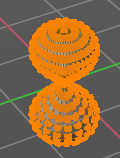
Warps a mesh selection between two defined points.
Last operator Warp
| Entry | What it does |
|---|---|
| Warp Angle | The strength of the warp effect |
| Offset Angle | An offset angle to bend sidewards. |
Min
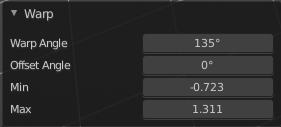
The start point.
Max
The end point.
Randomize Transform
This tool allows randomizes the positions of the selected vertices.
Last Operator Randomize Transform
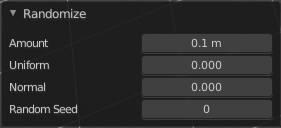
| Entry | What it does |
|---|---|
| Amount | Adjust the amount. |
| Uniform | The uniform offset distance. |
| Normal | Align the offset direction to the normals. |
| Random Seed | The seed value for randomization. |
Align Bones
Aligns the selected bones to the orientation of the active bone.
Mirror
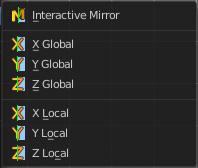
Mirror mirrors the selected geometry along the defined axis.
Interactive Mirror
Mirror by hotkeys. You activate the tool, type in x for x global for example, or x x for x local. And the selection gets mirrored
X Global, Y Global etc.
Mirrors the selection around the chosen axis.
Last Operator Mirror
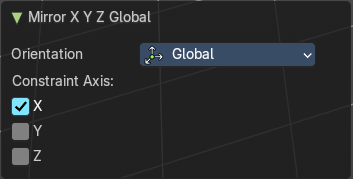
The Last Operator Mirror panel gives you tools to adjust the mirror action.
Orientation
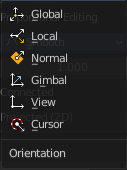
Orientation is a drop-down box. Choose the type of orientation for the mirroring action.
Constraint Axis
Constraint Axis gives you again the possibility to define the mirror axis. You can choose more than one axis here.
Snap
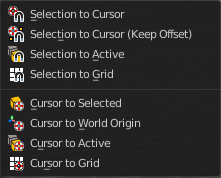
Choose several methods to snap one element to another. The menu items should be self explaining.
Last operator Snap Selection to Cursor
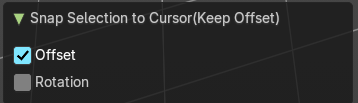
Some snap operations shows a last operation panel, some not.
| Entry | What it does |
|---|---|
| Offset | If the selection should snap as a whole, or if each individual element of the selection should snap. |
| Rotation | If the selection should be rotated to match the cursor. |
Recalculate Bone Roll - Submenu
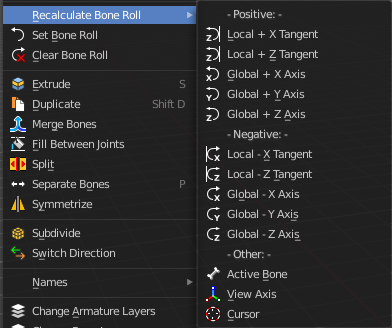
Recalculate Bone Roll Recalculate Roll is a menu where you can recalculate the bone roll in various ways.
The menu items are pretty self explaining. So we will not repeat the descriptions here.
Last Operator Recalculate Roll
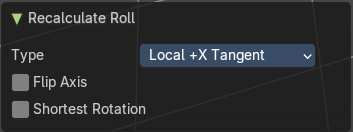
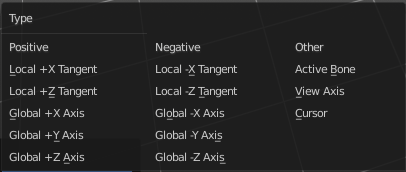
Type
Type is a drop-down box. Choose the recalculation method again.
Flip Axis
Negates the alignment axis.
Shortest Rotation
Ignore the axis direction, and use the shortest rotation to align the bone(s)
Set Bone Roll
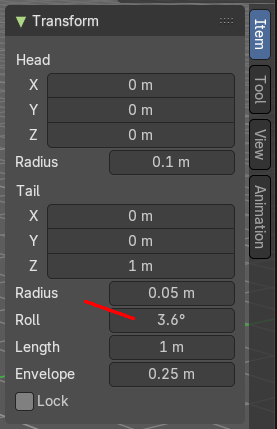
This operation is relative to the starting value, and starts always with zero. It does not display the Bone Roll value from the Transform panel. It adds or subtracts the amount of the operation to/from the Roll value then.

While operating you will see the current relative Roll value in the header.
Last Operator Transform
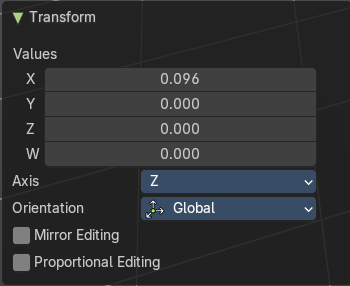
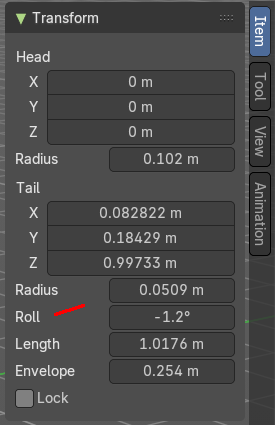
The only interesting value is the X value right at the top. The other settings here are simply dysfunctional. You cannot turn on proportional editing, axis and orientation doesn't play any role since it always rotates around the bone orientation. And so we will not go into detail here.
Unfortunately even the X value to display the amount of the roll is broken. It displays the amount in Radians, while the Bone roll is in degrees.
Values
The vector 4 values.
Axis
Defines one axis of the imaginary shear axis plane.
Orientation
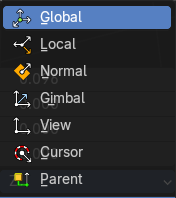
Choose the orientation for the shear action.
Mirror Editing
Enable mirror editing.
Proportional editing
Enables proportional editing. Activating proportional editing reveals further settings.
| Entry | What it does |
|---|---|
| Proportional Falloff | Adjust the falloff methods. |
| Proportional Size | See and adjust the falloff radius. |
| Connected | The proportional falloff gets calculated for connected parts only. |
| Projected(2D) | The proportional falloff. |
Clear Roll
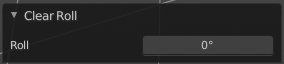
Set the bone roll value directly.
Last Operator Clear Roll
Roll
Set the bone roll.
Single Operators
Extrude
Extrudes out a bone from the selected joints.
Last Operator Extrude
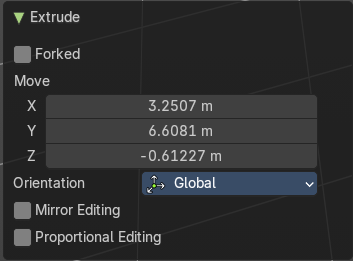
Forked
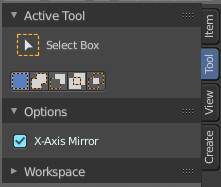
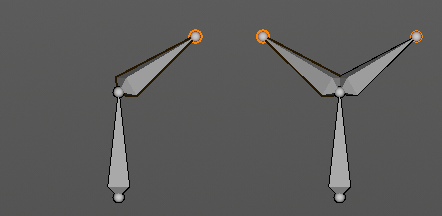
You need to tick X Axis Mirror. When you tick Forked, then the bone that you extrude to the one side will now be extruded to the other side too. The extrude gets mirrored along the x axis. This allows you to create a symmetrical armature.
Move X , Y, Z
The transform values for the new created joint(s)
Orientation
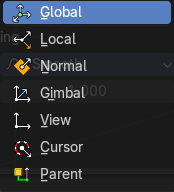
Orientation is a drop-down box. Choose the type of orientation for the mirroring action.
| Entry | What it does |
|---|---|
| Mirror Editing | Enable Mirror Editing. |
| Proportional editing | Enables proportional editing. Activating proportional editing reveals further settings. · Proportional Falloff: Adjust the falloff methods. · Proportional Size: See and adjust the falloff radius. · Connected: The proportional falloff gets calculated for connected parts only. · Projected(2D): The proportional falloff gets calculated in the screen space. Depth doesn't play a role. When it's in the radius, then it gets calculated. |
Extrude to Cursor
Hotkey only tool. Extrude to the mouse position.
Last Operator Extrude to Cursor or Add
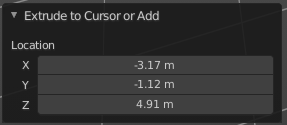
Location X Y Z
The location to extrude to.
Duplicate
Duplicates selected bones.
You are automatically in grab mode, and so you can easily move the object out of position. Which is sometimes wanted, since you can position the duplicate then. But sometimes this is unwanted. A right click after releasing the mouse lets the object snap back into its creation position.

When you drag the duplicate around you will see the position values in the header.
Last Operator Duplicate
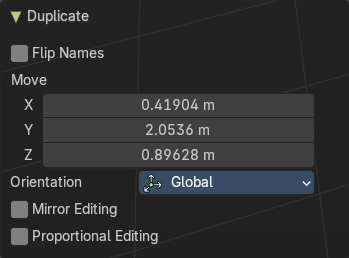
| Entry | What it does |
|---|---|
| Duplicate Objects | Flip Names: Tries to flip the names of the bones. This is a name convention feature. When you have a bone called mybone.R, then it tries to become mybone.L |
| Move X , Y , Z | The Position of the duplicated object. |
Orientation
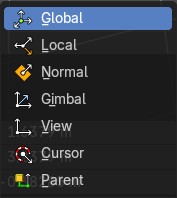
Orientation is a drop-down box choose the type of orientation for the mirroring action.
Mirror Editing
Enable Mirror Editing.
Proportional editing
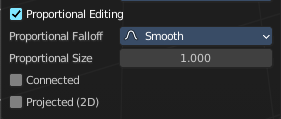
Enables proportional editing. Activating proportional editing reveals further settings.
| Entry | What it does |
|---|---|
| Proportional Falloff | Adjust the falloff methods. |
| Proportional Size | See and adjust the falloff radius. |
| Connected | The proportional falloff gets calculated for connected parts only. |
| Projected(2D) | The proportional falloff gets calculated in the screen space. Depth doesn't play a role. When it's in the radius, then it gets calculated. |
Fill between Joints
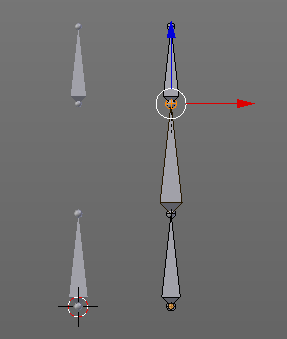
Fill between joints fills a bone between two selected joints.
When there is just one joint selected, then the bone is created between this selected joint and the 3D cursor.
| Entry | What it does |
|---|---|
| Split | Split splits the selected bone(s) from connected bones. They are still part of the armature. But the bone is now floating. And you can pull this bone(s) around without pulling the rest of the armature around. The Last operator for Split has no content. |
| Separate Bones | Separate separates the selected bone(s) from the armature. And creates a new, independent, armature. The Last operator for Separate has no content. |
Symmetrize
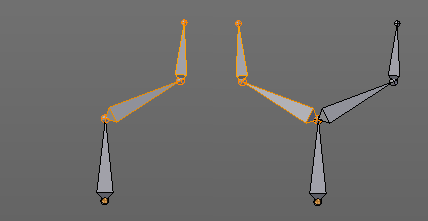
Creates a symmetrical mirrored copy of the currently selected bones along the X axis. The mirror centre is the pivot of the armature.
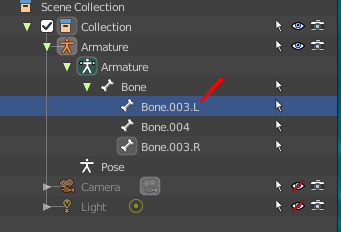
The bones that you want to symmetrize needs to follow the left right name conventions for bones. Bones without this left right naming are not affected by the tool. If there is a lower or upper case “L”, “R”, “left” or “right” with a separating dot in the bone name, then this tool creates and renames the bones names to its counter part. Bone.L becomes Bone.R.
Last Operator Symmetrize
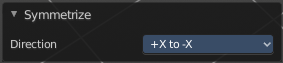
Direction
Define the calculation direction. From -X to + X or from +X to -X
Subdivide
Subdivide subdivides the current selection.
Last Operator Subdivide Multi
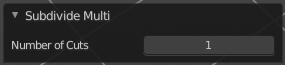
Number of Cuts
Adjust the number of subdivisions.
Switch Direction
Switches the direction in which the selected bones are pointing.
Names - Submenu

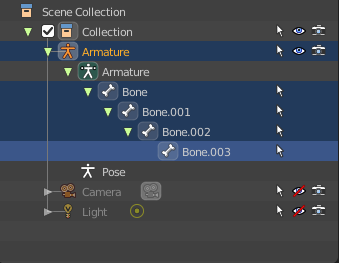
Bforartists has some internal name conventions for a symmetrical armature. Bones are for example named mybone.L or mybone.R, dependant at which side of the mirror axis they are. The Names items allows you to rename the bone names to this name convention.
| Entry | What it does |
|---|---|
| Autoname Left/Right | Renames the bones from left to right. |
| Autoname Front/Back | Renames the bones from front to back. |
Autoname Top/Bottom
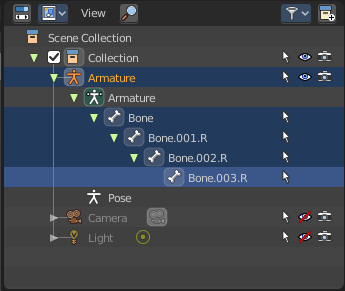
Renames the bones from top to bottom.
Last operator Autoname by Axis
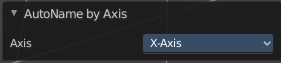
Axis
Choose the autoname axis again. Left/Right is X axis, Front/Back is Y axis, and Top/Bottom is Z axis.
Flip Names
When you mirror a half of an armature you end in names like Bone.001.R.001. But what we need is Bone.001.L for a symmetrical armature. Flip names flips the names to follow the left right name conventions.
Last operator Flip Names
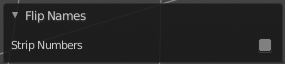
Strip Numbers
Tries to remove the numbers in the names if possible.
About Bone Collections
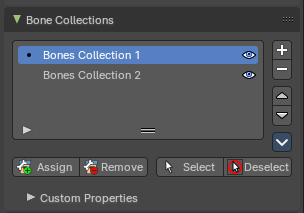
Bone Collections is a menu to handle bone collection functionality from within a menu in the 3D View editor. The bone collections themselves can be found in the Properties editor then in the Armature tab.
Move to Bone Collection
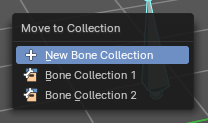
Armature and bones have their own collection system. This menu item opens a popup where you can put the selected bones into a New Collection or an existing Bone Collection.
| Entry | What it does |
|---|---|
| New Bone Collection | Assigns the selected bones to a new Bone Collection. This will prompt to name the new collection. |
| Bone List | Assigns or unassigns the selected bones to or from the collection. The green + icon and red – icon show if you can remove or add a bone to the listed collection. |
Bone Collections – Sub Menu

Armature and bones has its own collection system.
Add
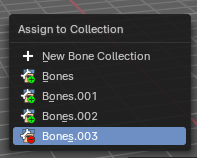
Add or remove the bone from the listed bone collections. The green + icon and red – icon show if you can remove or add a bone to the listed collection. A bone can be in multiple collections at the same time.
| Entry | What it does |
|---|---|
| New | Assigns the selected bones to a new Bone Collection. This will prompt to name the new collection. |
| Bone List | Assigns or unassigns the selected bones to or from the collection. The green + icon and red – icon show if you can remove or add a bone to the listed collection. |
Show All
Show all bone collections.
Assign to New
Add selected bones to a new collection with a new name.
Last Operator Add Selected Bones to Collection
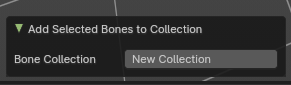
Bone Collection
Change name of the new collection.
Make Parent
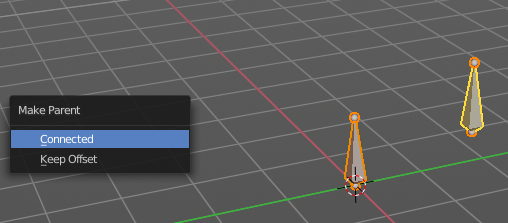
Adds a parent relationship.
Select a bone, hold down shift, select the bone that you want to parent it to. Perform Make Parent. In the pop-up choose the method that you want to use.
Connected
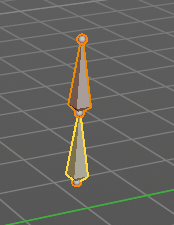
The child bone will jump to the position of the tail joint of the parent bone.
Keep Offset
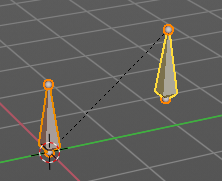
The bone will remain in its original position. The relationship will be displayed by a black dotted line.
Last Operator Make Parent
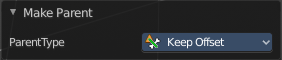
Parent Type
Choose between Connected and Keep Offset method again.
Clear Parent
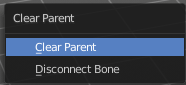
Clears the parent relationship of the selected bone(s). It calls a pop-up menu. Choose between two methods.
| Entry | What it does |
|---|---|
| Clear Parent | Clears the parent relationship of the selected bone(s). |
| Disconnect Bone | The parent ship is kept. Turns a Connected parent relationship into a Keep Offset parent relationship. You can move the disconnected bone around without to pull the parent with it. |
Last Operator Clear Parent
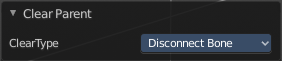
Clear Type
Choose between Clear Parent and Disconnect Bone method again.
Bone Settings - Submenu
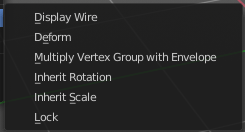
Bone Settings is a menu with menu items to toggle special checkboxes in the Properties editor. But here you can do it for a selection too, and not just one object.
Last Operator Collection Boolean Set
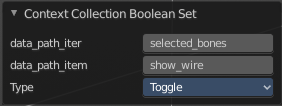
Each of the menu items uses the same Last Operator. With different strings for the booleans.
Show/Hide – Submenu

Show or hide the selected bones in the viewport.
| Entry | What it does |
|---|---|
| Show Hidden | Makes all bones visible again. |
| Hide Selected | Hides the selected bones. |
| Hide Unselected | Hides the not selected bones. The selected bones stays visible. |
Delete Selected Bone(s)
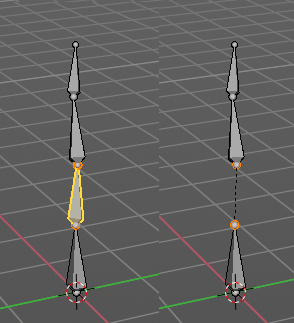
Deletes the selected bones. The hierarchy is kept. The involved bones becomes disconnected.
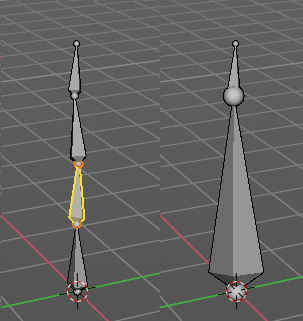
Dissolve Selected Bone(s)
Merges the selected bone or joint with its hierarchical neighbour bones.
Tool Shelf
Tools
Tool Shelf - Armature - Edit Mode
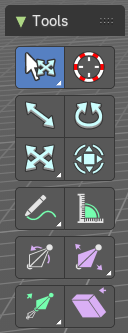
Here you find some tools to edit and extend the armature.
Tweak, Select, 3D Cursor, Transform, Annotate and Measure
The tweak, select, 3D cursor and transform tools and the annotation and measure tool is already described in the chapter Object Mode. So we won't cover it here again.
Roll
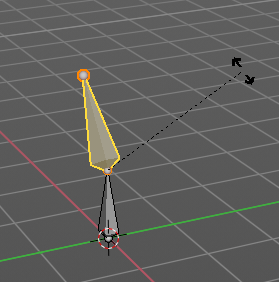
Adjust the bone roll of the selected bone(s).
| Entry | What it does |
|---|---|
| Snapping | Rotate and holding down Ctrl activates temporary global snapping. The rotation snaps every 5 degrees. With holding shift too it snaps every 1 degree. |
| Precision movement | When you hold down shift, then you will have a much slower but also much preciser rotation. |
Header Values

When you move the mouse then you will see some values in the header, which shows the current rotation factor. This value is relative to the starting value, which always starts with 0.
Tool Settings
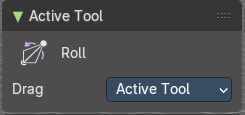
Drag
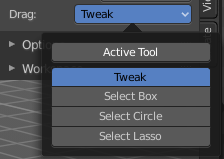
When you click at the widget of the active tool, then you perform the tool action. Adjust what should happen when you click outside of the widget, in the empty area.
| Entry | What it does |
|---|---|
| Active Tool | When you click off the widget then the click still does the same than clicking at the widget. It performs the active tool. |
| Tweak, Select Box, Circle and Lasso | When you choose this options then you will set the off click to the different select methods. Whereas tweak works more than a move tool then. Tweak is the default. |
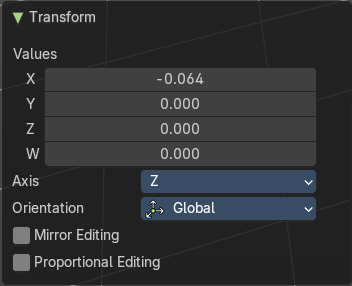
Last Operator Transform
| Entry | What it does |
|---|---|
| Values X, Y Z | The rotation. Attention, the actual world orientation and rotation does not matter here. It always starts with a value of zero, and moves relative to this zero then. For the actual location values have a look in the sidebar in the transform panel. The only relevant setting here is Value X. All other values and settings does not have any effect. |
| Axis | The axis to use. Axis has no effect, the bone axis X is always used. |
Orientation
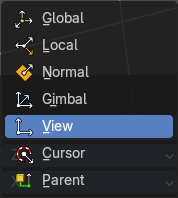
The widget can have different orientations. The menu items should be self explaining.
Orientation has no effect, the bone axis X is always used.
Mirror Editing
Enable Mirror editing.
Proportional editing
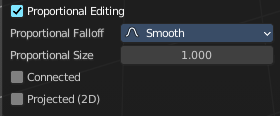
Enables proportional editing. Activating proportional editing reveals further settings.
| Entry | What it does |
|---|---|
| Proportional Falloff | Adjust the falloff methods. |
| Proportional Size | See and adjust the falloff radius. |
| Connected | The proportional falloff gets calculated for connected parts only. |
| Projected(2D) | The proportional falloff gets calculated in the screen space. Depth doesn't play a role. When it's in the radius, then it gets calculated. |
Bone Size / Envelope Tools group
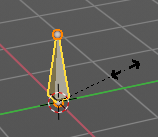
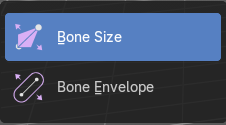
Bone Size
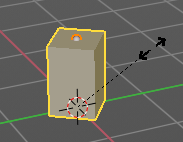
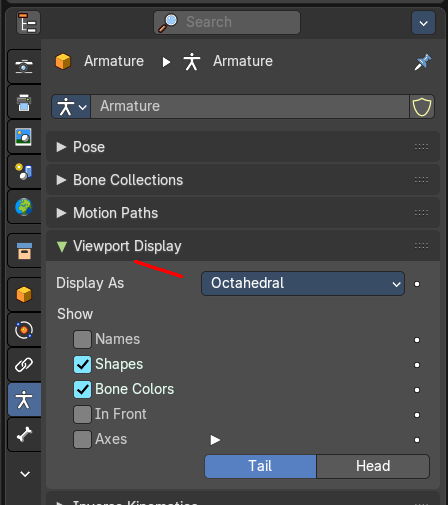
This tool just works with bone display type Bbone. With other bone display types nothing happens. Here you can scale the bbones.
The bone display can be changed in the properties editor in the Object Data tab in the Viewport Display panel.
| Entry | What it does |
|---|---|
| Snapping | Move and holding down Ctrl activates temporary global snapping. The rotation snaps every 5 degrees. With holding shift too it snaps every 1 degree. |
| Precision movement | When you hold down shift, then you will have a much slower but also much preciser rotation. |
Header Values

When you move the mouse then you will see some values in the header, which shows the current rotation factor. This value is relative to the starting value, which always starts with 0.
Tool Settings
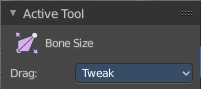
Drag
When you click at the widget of the active tool, then you perform the tool action. Adjust what should happen when you click outside of the widget, in the empty area.
| Entry | What it does |
|---|---|
| Active Tool | When you click off the widget then the click still does the same than clicking at the widget. It performs the active tool. |
| Tweak, Select Box, Circle and Lasso | When you choose this options then you will set the off click to the different select methods. Whereas tweak works more than a move tool then. Tweak is the default. |
Last Operator Transform
| Entry | What it does |
|---|---|
| Values X, Y Z | The rotation. Attention, the actual world orientation and rotation does not matter here. It always starts with a value of zero, and moves relative to this zero then. For the actual location values have a look in the sidebar in the transform panel. The only relevant setting here is Value X. All other values and settings does not have any effect. |
| Axis | The axis to use. Axis has no effect, the bone axis X is always used. |
Orientation
The widget can have different orientations. The menu items should be self explaining.
Orientation has no effect, the bone axis X is always used.
Mirror Editing
Enable Mirror editing.
Proportional editing
Enables proportional editing. Activating proportional editing reveals further settings.
| Entry | What it does |
|---|---|
| Proportional Falloff | Adjust the falloff methods. |
| Proportional Size | See and adjust the falloff radius. |
| Connected | The proportional falloff gets calculated for connected parts only. |
Projected(2D)
The proportional falloff gets calculated in the screen space. Depth doesn't play a role. When it's in the radius, then it gets calculated.
Bone Envelope
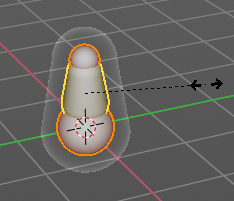
This tool just works with bone display type Bbone. With other bone display types nothing happens. Here you can scale the envelope of the bones.
The bone display can be changed in the properties editor in the Object Data tab in the Viewport Display panel.
| Entry | What it does |
|---|---|
| Snapping | Move and holding down Ctrl activates temporary global snapping. The rotation snaps every 5 degrees. With holding shift too it snaps every 1 degree. |
| Precision movement | When you hold down shift, then you will have a much slower but also much preciser rotation. |
Header Values
When you move the mouse then you will see some values in the header, which shows the current rotation factor. This value is relative to the starting value, which always starts with 0.
Tool Settings
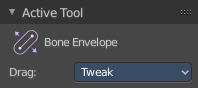
Drag
When you click at the widget of the active tool, then you perform the tool action. Adjust what should happen when you click outside of the widget, in the empty area.
| Entry | What it does |
|---|---|
| Active Tool | When you click off the widget then the click still does the same than clicking at the widget. It performs the active tool. |
| Tweak, Select Box, Circle and Lasso | When you choose this options then you will set the off click to the different select methods. Whereas tweak works more than a move tool then. Tweak is the default. |
Last Operator Transform
| Entry | What it does |
|---|---|
| Values X, Y Z | The rotation. Attention, the actual world orientation and rotation does not matter here. It always starts with a value of zero, and moves relative to this zero then. For the actual location values have a look in the sidebar in the transform panel. The only relevant setting here is Value X. All other values and settings does not have any effect. |
| Axis | The axis to use. Axis has no effect, the bone axis X is always used. |
Orientation
The widget can have different orientations. The menu items should be self explaining.
Orientation has no effect, the bone axis X is always used.
Mirror Editing
Enable Mirror editing.
Proportional editing
Enables proportional editing. Activating proportional editing reveals further settings.
| Entry | What it does |
|---|---|
| Proportional Falloff | Adjust the falloff methods. |
| Proportional Size | See and adjust the falloff radius. |
| Connected | The proportional falloff gets calculated for connected parts only. |
| Projected(2D) | The proportional falloff gets calculated in the screen space. Depth doesn't play a role. When it's in the radius, then it gets calculated. |
Extrude Tools group
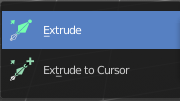
This group contains some extrude tools.
There are some general settings, since they all have some move settings We will cover them all here for all of the tools.
| Entry | What it does |
|---|---|
| Snapping | Holding down Ctrl activates temporary global snapping. |
| Precision movement | When you hold down shift, then you will have a much slower but also much preciser movement. |
Header Values

When you move your object then you will see some values in the header, which defines the current position of the object.
The value m stands for the default metric system. Meters. You can change the units in the Properties editor in the Scene properties in the Units panel. When you choose kilometers here then you will see a km instead m.
The value D stands for the distance of the current selected axis. This can also be two axis. Then you have two d values. The value in the brackets is then the direct distance to the starting point.
These values are always relative to the starting point. You always start with zero, regardless of the real world position.
Move without Widget
You don't have to use the widget to move the object. You can also click aside of it, and drag the object around. The mouse turns into a move cursor. The standard behavior then is to move in screen space. When you want to move into a specific axis, then press X or Y or Z to limit the movement to this axis.
Limit Axis
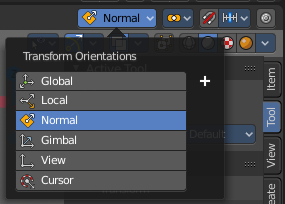

When you want to move along a specific axis, then press X or Y or Z to limit the movement to this axis. You usually start in global orientation. But you can change this in the Orientation settings.
By holding down the mouse button and pressing the X, Y or Z key twice you can toggle this to local. But also to other orientations. This depends in what orientation you start. With normal you can toggle that way between Normal and Global.
Extrude
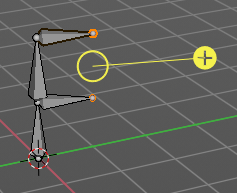
The Extrude tool extrudes out bones from selected joints.
When you activate the tool, then you will by default see a yellow widget at the selection. Drag it to extrude the selection.
Tool Settings
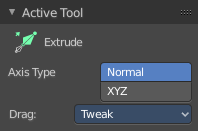
Axis Type
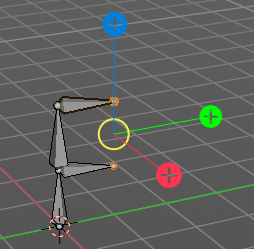
You can choose between the regular axis type. That's the yellow widget with just one handler. It always points in the direction of the middled normals of the selection.
Or you can use the XYZ axis type. That's a handler with three axis. This widget can be aligned with the transform orientation methods.
Drag
When you click at the widget of the active tool, then you perform the tool action. Adjust what should happen when you click outside of the widget, in the empty area.
| Entry | What it does |
|---|---|
| Active Tool | When you click off the widget then the click still does the same than clicking at the widget. It performs the active tool. |
| Tweak, Select Box, Circle and Lasso | When you choose this options then you will set the off click to the different select methods. Whereas tweak works more than a move tool then. Tweak is the default. |
Last Operator Extrude
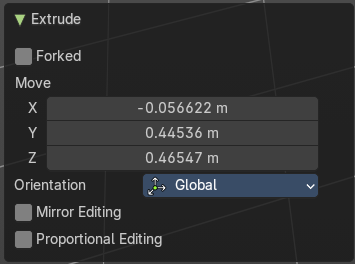
Forked
You need to tick X Axis Mirror. When you tick Forked, then the bone that you extrude to the one side will now be extruded to the other side too. The extrude gets mirrored along the x axis. This allows you to create a symmetrical armature.
Move X , Y, Z
The transform values for the new created joint(s)
Orientation
Orientation is a drop-down box. Choose the type of orientation for the mirroring action.
Mirror Editing
Enable Mirror editing.
Proportional editing
Proportional editing is dysfunctional. You cannot activate it.
Extrude to cursor
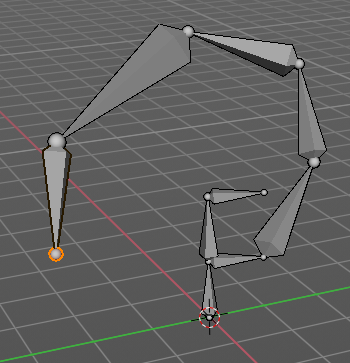
Extrudes the selection towards the mouse cursor by clicking and dragging The extruded geometry will rotate towards the mouse pointer.
Shear
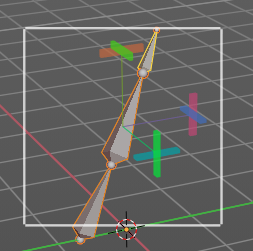
Shear shears the selection. When you activate the tool then you will reveal a widget. This widget allows you to shear the selection in all possible axis.
Tool Settings
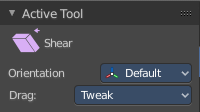
Orientation
Choose the orientation for the shear action.
Drag
When you click at the widget of the active tool, then you perform the tool action. Adjust what should happen when you click outside of the widget, in the empty area.
| Entry | What it does |
|---|---|
| Active Tool | When you click off the widget then the click still does the same than clicking at the widget. It performs the active tool. |
| Tweak, Select Box, Circle and Lasso | When you choose this options then you will set the off click to the different select methods. Whereas tweak works more than a move tool then. Tweak is the default. |
Last Operator Shear
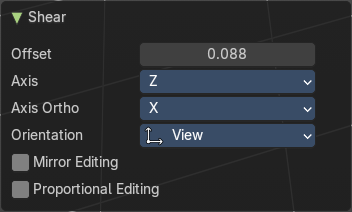
| Entry | What it does |
|---|---|
| Offset | Adjust an offset. |
| Axis | Defines one axis of the imaginary shear axis plane. |
Axis Ortho
Defines the other axis of the imaginary shear axis plane.
| Entry | What it does |
|---|---|
| Orientation | Choose the orientation for the shear action. |
| Mirror Editing | Enable Mirror Editing |
Proportional editing
Enables proportional editing. Activating proportional editing reveals further settings.
| Entry | What it does |
|---|---|
| Proportional Falloff | Adjust the falloff methods. |
| Proportional Size | See and adjust the falloff radius. |
| Connected | The proportional falloff gets calculated for connected parts only. |
| Projected(2D) | The proportional falloff gets calculated in the screen space. Depth doesn't play a role. When it's in the radius, then it gets calculated. |
Context Menus
Armature context menu
Detailed table of context
Edit Mode - Armature Context Menu
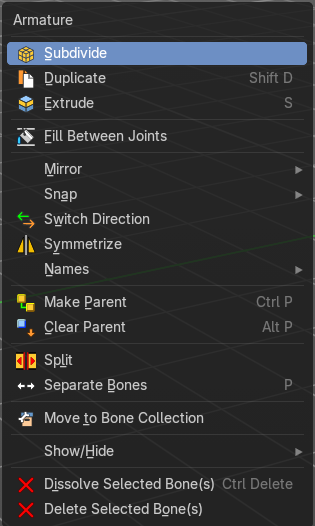
Call this menu with double right click in the 3D viewport. You need to be in Edit mode with a armature object.
Subdivide
Subdivide subdivides the current selection.
Last Operator Subdivide Multi
Number of Cuts
Adjust the number of subdivisions.
Duplicate
Duplicates selected bones.
You are automatically in grab mode, and so you can easily move the object out of position. Which is sometimes wanted, since you can position the duplicate then. But sometimes this is unwanted. A right click after releasing the mouse lets the object snap back into its creation position.
When you drag the duplicate around you will see the position values in the header.
Last Operator Duplicate
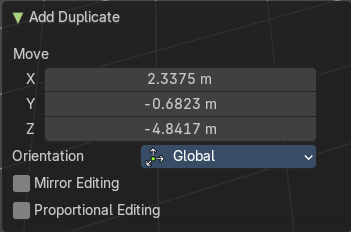
| Entry | What it does |
|---|---|
| Duplicate Objects | Flip Names: Tries to flip the names of the bones. This is a name convention feature. When you have a bone called mybone.R, then it tries to become mybone.L |
| Move X , Y , Z | The Position of the duplicated object. |
Orientation
Orientation is a drop-down box choose the type of orientation for the duplicate action.
| Entry | What it does |
|---|---|
| Mirror Editing | Enable Mirror Editing. |
| Proportional editing | Enables proportional editing. Activating proportional editing reveals further settings. · Proportional Falloff: Adjust the falloff methods. · Proportional Size: See and adjust the falloff radius. · Connected: The proportional falloff gets calculated for connected parts only. · Projected(2D): The proportional falloff gets calculated in the screen space. Depth doesn't play a role. When it's in the radius, then it gets calculated. |
Extrude
Extrudes out a bone from the selected joints.
Last Operator Extrude
Forked
You need to tick X Axis Mirror. When you tick Forked, then the bone that you extrude to the one side will now be extruded to the other side too. The extrude gets mirrored along the x axis. This allows you to create a symmetrical armature.
Move X , Y, Z
The transform values for the new created joint(s)
Orientation
Choose the orientation.
| Entry | What it does |
|---|---|
| Mirror Editing | Enable Mirror Editing. |
| Proportional editing | Enables proportional editing. Activating proportional editing reveals further settings. · Proportional Falloff: Adjust the falloff methods. · Proportional Size: See and adjust the falloff radius. · Connected: The proportional falloff gets calculated for connected parts only. · Projected(2D): The proportional falloff gets calculated in the screen space. Depth doesn't play a role. When it's in the radius, then it gets calculated. |
Fill between Joints
Fill between joints fills a bone between two selected joints.
When there is just one joint selected, then the bone is created between this selected joint and the 3D cursor.
Mirror sub menu
Mirror mirrors the selected geometry along the defined axis.
| Entry | What it does |
|---|---|
| Interactive Mirror | Mirror by hotkeys. You activate the tool, type in x for x global for example, or x x for x local. And the selection gets mirrored. |
| X Global, Y Global etc. | Mirrors the selection around the chosen axis. |
Last Operator Mirror
The Last Operator Mirror panel gives you tools to adjust the mirror action.
Orientation
Orientation is a drop-down box choose the type of orientation for the mirroring action.
Constraint Axis
Constraint Axis gives you again the possibility to define the mirror axis. You can choose more than one axis here.
Snap sub menu
Choose several methods to snap one element to another. The menu items should be self explaining.
Last Operator Snap
Some snap operations shows a last operation panel, some not.
| Entry | What it does |
|---|---|
| Offset | If the selection should snap as a whole, or if each individual element of the selection should snap. |
| Rotation | If the selection should be rotated to match the cursor. |
| Switch Direction | Switches the direction in which the selected bones are pointing. |
Symmetrize
Creates a symmetrical mirrored copy of the currently selected bones along the X axis. The mirror center is the pivot of the armature.
The bones that you want to symmetrize needs to follow the left right name conventions for bones. Bones without this left right naming are not affected by the tool. If there is a lower or upper case “L”, “R”, “left” or “right” with a separating dot in the bone name, then this tool creates and renames the bones names to its counter part. Bone.L becomes Bone.R.
Last Operator Symmetrize
Direction
Define the calculation direction. From -X to + X or from +X to -X
Names sub menu
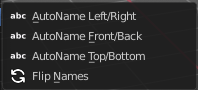
Bforartists has some internal name conventions for a symmetrical armature. Bones are for example named mybone.L or mybone.R, dependent at which side of the mirror axis they are. The Names items allows you to rename the bone names to this name convention.
| Entry | What it does |
|---|---|
| Autoname Left/Right | Renames the bones from left to right. |
| Autoname Front/Back | Renames the bones from front to back. |
Autoname Top/Bottom
Renames the bones from top to bottom.
Last operator Autoname by Axis
Axis
Choose the autoname axis again. Left/Right is X axis, Front/Back is Y axis, and Top/Bottom is Z axis.
Flip Names
When you mirror a half of an armature you end in names like Bone.001.R.001. But what we need is Bone.001.L for a symmetrical armature. Flip names flips the names to follow the left right name conventions.
Last operator Autoname by Axis
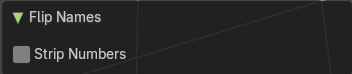
Strip Numbers
Tries to remove the numbers in the names if possible.
Make Parent
Adds a parent relationship.
Select a bone, hold down shift, select the bone that you want to parent it to. Perform Make Parent. In the popup choose the method that you want to use.
Connected
The child bone will jump to the position of the tail joint of the parent bone.
Keep Offset
The bone will remain in its original position. The relationship will be displayed by a black dotted line.
Last Operator Make Parent
Parent Type
Choose between Connected and Keep Offset method again.
Clear Parent
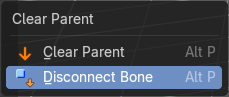
Clears the parent relationship of the selected bone(s). It calls a popup menu choose between two methods.
| Entry | What it does |
|---|---|
| Clear Parent | Clears the parent relationship of the selected bone(s). |
| Disconnect Bone | The parent-ship is kept. Turns a Connected parent relationship into a Keep Offset parent relationship. You can move the disconnected bone around without to pull the parent with it. |
Last Operator Clear Parent
Clear Type
Choose between Clear Parent and Disconnect Bone method again.
| Entry | What it does |
|---|---|
| Split | Split splits the selected bone(s) from connected bones. They are still part of the armature. But the bone is now floating. And you can pull this bone(s) around without pulling the rest of the armature around. |
| Separate Bones | Separate separates the selected bone(s) from the armature. And creates a new, independent, armature. |
Move to Bone Collection
Armature and bones have their own collection system. This menu item opens a popup where you can put the selected bones into a New Collection or an existing Bone Collection.
| Entry | What it does |
|---|---|
| New Bone Collection | Assigns the selected bones to a new Bone Collection. This will prompt to name the new collection. |
| Bone List | Assigns or unassigns the selected bones to or from the collection. The green + icon and red – icon show if you can remove or add a bone to the listed collection. |
Show/Hide sub menu

Sub-menu with shows or hide selection, unselected or hidden operators.
Show Hidden
Makes all geometry in the scene visible again.
Hide Selected
Hides the selected geometry.
Last Operator Hide Selected
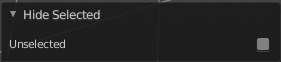
Unselected
Hides the not selected geometry.
Hide Unselected
Hides the not selected geometry. The selected geometry stays visible.
Dissolve selected bones
Merges the selected bone or joint with its hierarchical neighbor bones.
Delete selected bones
Deletes the selected bones. The hierarchy is kept. The involved bones becomes disconnected.