

































































Panels and tabs
A Panel is a container that contains tools and settings. They are used in quite a few locations. In the Properties editor for example. Or in the sidebars.
Panels
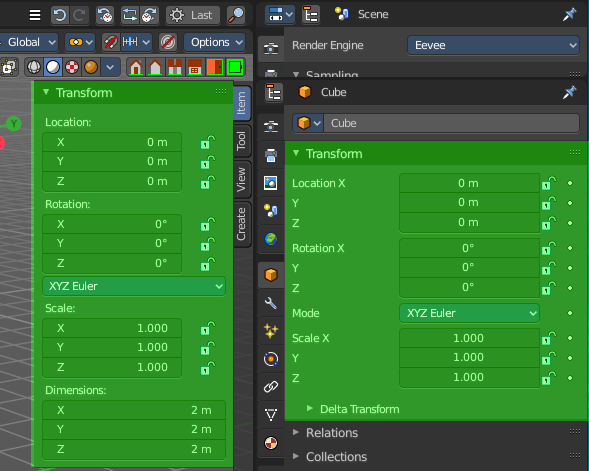
A Panel is a container that contains tools and settings. They are used in quite a few locations. In the Properties editor for example. Or in the sidebars.
Panels can be rearranged in order. Simply drag them over each other to achieve the order that you need.
Panels can be expanded and collapsed by clicking at the title bar.
When you hold down ctrl and click at the title bar then this panel will open, and all other panels will close.
Pinning panels
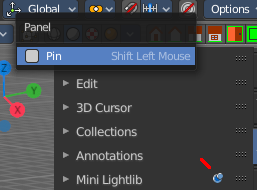
Normally the tabs just displays the panels of the current tab. But you can pin panels so that they display always. This counts also for content from other tabs. Here i have pinned the panel from the Mini Lightlib in the Create tab. And it shows in the View tab now.
Right click at the tab that you want to pin. A menu pops up. Check the Pin checkbox. The tab will now show a pin, and will display permanently.
To unpin the panel simply click at the Pin icon.
Open just one Panel at a time
This can be done by clicking at the header of a panel and holding down ctrl.
Tabs
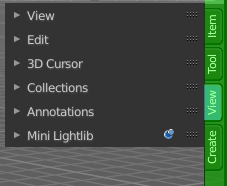
The Sidebars can have Tabs to switch between different content. Also the Properties editor has them. The tabs helps to organize the available tools into categories. In the 3D view it's also a common place where addons adds themselves.