
































































Installation
Download, install and start Bforartists on Windows, Linux and macOS.
Getting Bforartists
Download Bforartists
Bforartists downloads can be downloaded here: https://www.bforartists.de/content/download
Bforartists is available for download for Linux, mac OS and MS-Windows.
You can also download from Flatpak, the Microsoft store and Blender Launcher v2.
Tip: test

There is also the source code available at GitHub. https://github.com/Bforartists/Bforartists
System Requirements
Windows
Minimum:
- OS: Windows 8.1 (64-bit)
- CPU: 4 cores with SSE4.2 support
- RAM: 8 GB
- GPU: 2 GB VRAM with OpenGL 4.3 support
- NVIDIA: GeForce 400 series or newer, Quadro Tesla architecture or newer (including RTX cards)
- AMD: GCN 1st generation or newer
- Intel: Broadwell architecture or newer (latest drivers recommended)
Recommended:
- OS: Windows 10 or Windows 11
- CPU: 8 cores
- RAM: 32 GB
- GPU: 8 GB VRAM or more with OpenGL 4.3 support or better
macOS
Minimum:
- OS: macOS 11.2 (Big Sur)
- CPU: Apple Silicon or Intel
- RAM: 8 GB
- GPU: GPU with Metal 2.2 support (AMD, Apple Silicon, or Intel Skylake and newer)
Recommended:
- OS: macOS 15 (Sequoia)
- CPU: Apple Silicon
- RAM: 32 GB
- GPU: Same as minimum (Metal 2.2 support)
Note: Blender 4.5 LTS is the last version supporting Intel and macOS 11.2 Big Sur.
Blender 5.0 and later require Apple Silicon with macOS 13 or later.
Linux
Minimum:
- OS: Distribution with glibc 2.28 or newer (64-bit)
- CPU: 4 cores with SSE4.2 support
- RAM: 8 GB
- GPU: 2 GB VRAM with OpenGL 4.3 support
- NVIDIA: GeForce 400 series or newer, Quadro Tesla architecture or newer (including RTX cards)
- AMD: GCN 1st generation or newer
- Intel: Broadwell architecture or newer (latest drivers recommended)
Recommended:
- CPU: 8 cores or more
- RAM: 32 GB or more
- GPU: 8 GB VRAM or more with OpenGL 4.3 support or better
AdditionalNotes:
- Always ensure you have the latest GPU drivers installed from your hardware manufacturer.
- Integrated GPUs may work but can have performance or compatibility limitations.
- For GPU rendering with Cycles, CUDA or OptiX support requires Nvidia GPUs and drivers; HIP support requires compatible AMD GPUs
Compiling Bforartists
To compile Bforartists on any supported platform (Linux, Windows, macOS), start by following the official Blender build instructions for your OS to set up all required packages and dependencies.
Once your build environment is ready, clone the Bforartists repository instead of Blender’s:
git clone https://github.com/Bforartists/Bforartists.git
cd Bforartists
From here, basic compilation commands are:
- make — compile Bforartists with default options (no CUDA/OptiX/HIP/Intel binaries)
- make release — compile a full release build including optional platform-specific features
- make lite — compile a minimal build for faster iteration (useful for GUI or minor changes)
- make update — update your local source and dependencies
Additional notes for Windows users:
- Use the official Blender Windows build guide to install Visual Studio and required tools.
- Ensure you have the correct Windows SDK and CMake installed.
- CUDA and OptiX support requires Nvidia drivers and manual setup.
Additional notes for macOS users:
- Follow Blender’s macOS build instructions for installing Xcode, Homebrew, and dependencies.
- Make sure you have the required SDKs and developer tools installed.
- Some optional features may require additional setup or are currently unsupported.
Additional notes for Linux users:
- We recommend Rocky Linux 8 for building and distributing Bforartists, as its glibc version is compatible with many Linux distros.
- Our repository includes linux_rocky8_setup.sh to automate environment setup on Rocky 8.
- Some components, like Nvidia OptiX, require manual installation due to download restrictions.
If you have questions or need help building on any platform, feel free to reach out on our Discord!
Linux
Binaries
We offer currently a Tar.gz file, a Deb, an Appimage as a download. All compiled at Rocky 8. And there is an external Flatpak version too. So pick your version, download it, and execute it.
Running from the terminal
To run Bforartists from the terminal without needing to be in the executable directory, add the extracted folder to the environment PATH.
Add the following command to .bash_rc or .bash_profile with Bforartists’s binary:
export PATH=$/path/to/Bforartists-VERSION-linux-glibcVERSION-ARCH:$PATH
Tip: If you use daily builds and update Bforartists frequently, you can link or always rename your folder to ‘Bforartists’ and use this name for the PATH environment variable and for keeping the window manager menu up to date.
Avoiding Alt+Mouse Conflict
Many Window Managers default to Alt + LMB for moving windows, which is a shortcut that Bforartists uses to simulate a 3 button mouse. You can either have this feature disabled or you can change the Window Manager settings to use the Meta key instead (also called Super or Windows key):
- KDE: System Settings > Window Behavior > Window Behavior > Window Actions , Switch ‘Alt’ for ‘Meta’ key
- Unity/Gnome: enter the following in a command line (effective at next login):
gsettings set org.gnome.desktop.wm.preferences mouse-button-modifier '<Super>'
Mac
Binaries
We offer three versions at the moment. A universal installer, one for the Intel architecture. And one for the new Silicon architecture. Note that the Intel installer, and so also the Universal installer, will vanish soon. Intel architecture is deprecated.
After downloading Bforartists for Mac-OS X, uncompress the file and drag Bforartists.app onto the Applications folder.
Tip: Because Bforartists doesn’t use the standard OS menu system, you likely have a redundant menu-bar at the top.
To remove it see this post on Macworld, but beware that it is somewhat complex. As an alternative: simply make Bforartists full screen by Alt + F11 or by screen.
In case the Silicon version does not start, make sure the App Store and Identified Developers option is ticked. And check if the files and folders tab to see Bforartists is listed and has permissions. Further informations can be found here: support.apple.com/en-au/HT202491
And here: https://www.macworld.com/article/672947/how-to-open-a-mac-app-from-an-unidentified-developer.html
In case it still does not work, try to launch from the terminal with xattr -cr since we don’t have a signed license yet.
Note: The default Bforartists keymap is not mapped to the oskey keys, but ctrl instead. It works fine for Linux and Windows but not with a Mac. You need to switch to the Bforartists-macOS keymap. It is mapped to the oskey keys.
MS-Windows
Binaries
We currently offer an installer, and a zipped portable version.
Exe
Download the installer, and execute it. Follow the advice of the installer.
Uninstalling previous versions
Bforartists 1 and 2 have different folders and settings. This will not conflict. And you can have them installed side by side.
But in case you want to install a new version of Bforartists 2, and have an earlier version of Bforartists 2 already installed, then please uninstall this previous version first. Bforartists is in permanent development. And so lots of things can change with every version. Like which ad don is in what folder, or the number of add-ons at all. And this can lead to dysfunctional or a double set of add-ons or files then when you simply install over the old installation.
Changes at the settings are not affected by uninstalling the software. They are stored in the appdata directory, and will remain. You can work with the old settings, see point below. But there is no guarantee that everything works flawless then. Old settings may or may not work proper.
Zip
Download the .zip file.
Place the zip file where you want Bforartists to be. This can be everywhere at your system. Then extract the zip file. To start Bforartists you have to double click at the exe file inside the created folder now.
It is also recommend to make a shortcut towards this executable. So that you don't have to navigate to the folder all the time when you want to start Bforartists. Place this shortcut at the desktop or the quickstart taskbar.
Import Existing settings
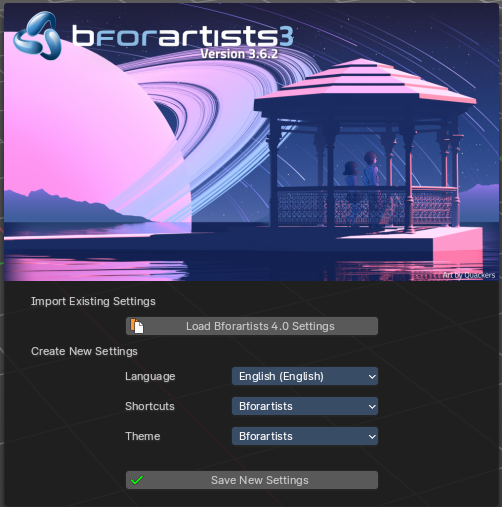
When you install a new version of Bforartists and had an older version installed, then you might experience that your old settings are gone, and Bforartists starts with the factory settings again.
Have a look at the splash screen. When there is a Import Existing setttings field at the top, then this means that you run a new version the first time, and the old settings from the previous version is available. And that you can import it. Which can be done with a click at the Load Bforartists xxx Settings button.
Bforartists is based at Blender. And follows under the hood the naming conventions of Blender. So the number that you can see at the button here is the Blender version number that was used for the old settings.
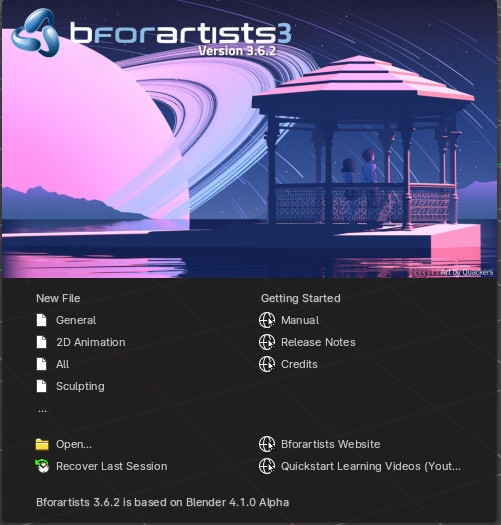
This just works for the former version. You can import 2.81 settings in 2.82. Or 3.6.2 settings in 4.0. And 4.0 settings in 4.1. But settings from former versions older than the previous version does not show.
Beware of possible conflicts. The key map is still in change here and there. New add-ons or code might conflict with the ones that you have installed.
Configuration
Here are some quick preferences that you may wish to set as quickly as possible. The full list and explanation of the preferences is in the section User Preferences.
Language
At , enable International Fonts to choose the Language and what to translate from Interface, Tool tips and New Data. See more at Internationalization
Input
If you have a compact keyboard without a separate number pad enable .
If you don’t have a middle mouse button you can enable .
File and Paths
At you can set options such as what external Image Editor to use, such as GIMP or Krita, and the Animation Player.
The Temp directory sets where to store files such as temporary renders and autosaves.
Tip: // at the start of a path in Bforartists means the directory of the currently opened .blend file, used to reference relative-paths.
If you trust the source of your .blend files, you can enable Auto Run Python Scripts. This option is meant to protect you from malicious Python scripts that someone can include inside a Bforartists file. This would not happen by accident, and most users leave this option on to automatically run scripts such as Rigify that controls the skeleton of a human rig.
Input Devices
Bforartists supports various types of input devices:
Keyboard (recommended: keyboard with numeric keypad, English layout works best)
Mouse (recommended: 3 button mouse with scroll wheel)
NDOF Devices (also known as 3D Mouse)
Graphic Tablets
Mice
Mouse Button Emulation
If you do not have a 3 button mouse, you will need to emulate it by checking the option in the User Preferences.
The following table shows the combinations used:
| 3-button Mouse | LMB | MMB | RMB |
| 2-button Mouse | LMB | Alt + LMB | RMB |
Keyboards
Numpad Emulation
If you do not have a numeric Numpad on the side of your keyboard, at a laptop for example, you may want to emulate one (uses the numbers at the top of the keyboard instead, however, removes quick access to layer visibility).
Non-English Keyboards
Bforartists defaults are made for an English keyboard layout. It works fine at non-English keyboards in most cases. But in the input manager in the user preferences you may stumble across some oddities.
Graphic Tablets
Graphics tablets can be used to provide a more traditional method of controlling the mouse cursor using a pen. This can help to provide a more familiar experience for artists who are used to painting and drawing with similar tools, as well as provide additional controls such as pressure sensitivity.
3D Mice
3D Mice or NDOF devices are hardware that you can use to navigate a scene in Bforartists. Currently only devices made by 3Dconnexion are supported. These devices allow you to explore a scene, as well as Walk/Fly modes.
Configuring Directories
There are three different directories Bforartists may use, their exact locations are operating system dependent.
LOCAL
Location of configuration and runtime data (for self contained bundle)
USER
Location of configuration files (normally in the user’s home directory).
SYSTEM
Location of runtime data for system wide installation (may be read-only).
For system installations both SYSTEM and USER directories are needed.
For locally extracted Bforartists distributions, the user configuration and data runtime data are kept in the same sub-directory, allowing multiple Bforartists versions to run without conflict, ignoring the USER and SYSTEM files.
Note: You may need to have the “show hidden files” option checked in your file browser settings.
Platform Dependent Paths
Every OS handles the peripheral paths a bit different. The default locations for each system are as follow. Note that he path ./|BFORARTISTS_VERSION|/ is relative to the Bforartists executable.
Linux
LOCAL
./2.80/
USER
$HOME/.config/Bforartists/2.80/
SYSTEM
/usr/share/Bforartists/2.80/
Note: The USER path will use $XDG_CONFIG_HOME if its set:
$XDG_CONFIG_HOME/Bforartists/2.80/
Mac OSX
LOCAL
./2.80/
USER
/Users/$USER/Library/Application Support/Bforartists/2.80/
SYSTEM
/Library/Application Support/Bforartists/2.80/
Note: OSX stores the Bforartists binary in ./Bforartists.app/Contents/MacOS/Bforartists, so the local path to data & config is:
./Bforartists.app/Contents/MacOS/2.80/
MS-Windows
LOCAL
.\2.80\.
USER
C:\Documents and Settings\$USERNAME\AppData\Roaming\Bforartists\Bforartists\2.80\
SYSTEM
C:\Documents and Settings\All Users\AppData\Roaming\Bforartists\Bforartists\2.80\
Path Layout
This is the path layout which is used within the directories described above.
Where ./config/startup.blend could be ~/.Bforartists/2.80/config/startup.blend for example.
./autosave/ ...
Autosave blend file location. Windows only, temp directory used for other systems.
Search order: LOCAL, USER.
./config/ ...
Defaults & session info.
Search order: LOCAL, USER.
./config/startup.blend
Default file to load on startup.
./config/userpref.blend
Default preferences to load on startup.
./config/bookmarks.txt
File selector bookmarks.
./config/recent-files.txt
Recent file menu list.
./datafiles/ ...
Runtime files.
Search order: LOCAL, USER, SYSTEM
./datafiles/locale/{language}/
Static precompiled language files for UI translation.
./datafiles/icons/*.png
Icon themes for Bforartists user interface. Not currently selectable in the theme preferences.
./datafiles/brushicons/*.png
Images for each brush.
./scripts/ ...
Python scripts for the user interface and tools.
Search order: LOCAL, USER, SYSTEM.
./scripts/addons/*.py
Python add-ons which may be enabled in the user preferences, includes import/export format support, render engine integration and many handy utilities.
./scripts/addons/modules/*.py
Modules for add-ons to use (added to Python’s sys.path).
./scripts/addons_contrib/*.py
Another add-ons directory which is used for community maintained add-ons (must be manually created).
./scripts/addons_contrib/modules/*.py
Modules for addons_contrib to use (added to Python’s sys.path).
./scripts/modules/*.py
Python modules containing our core API and utility functions for other scripts to import (added to Python’s sys.path).
./scripts/startup/*.py
Scripts which are automatically imported on startup.
./scripts/presets/{preset}/*.py
Presets used for storing user defined settings for cloth, render formats etc.
./scripts/templates/*.py
Example scripts which can be accessed from: Text Space’s Header –> Text –> Script Templates.
./python/ ...
Bundled Python distribution, only necessary when the system Python installation is absent or incompatible.
Search order: LOCAL, SYSTEM.
Temporary Directory
The temporary directory is used to store various files at run-time (including render layers, physics cache, copy-paste buffer and crash logs).
The temporary directory is selected based on the following priority:
- User Preference
- Environment variables (TEMP on MS-Windows, TMP & TMP_DIR on other platforms).
- The */tmp/*directory.