

































































About Documentation
How this documentation is organised, how to move around it, print it and download it.
The question of how to use the manual sounds odd in the first moment. Yousimply read it! But there are a few things to know before you canreally find easily what you are looking for. Because using a 3dsoftware requires some special 3d knowledge. And it needs a bit ofknowledge about Bforartists to understand the structure of themanual. So that you can find what you need, both, from coming thesoftware side, and from coming the manual side.
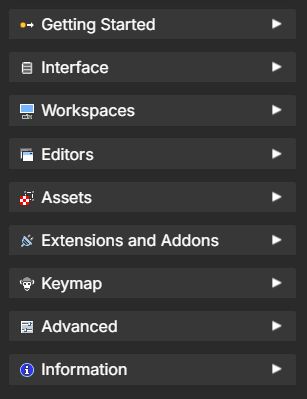
The manual is organized into groups of chapters to help you find information quickly.
Here are some descriptions of the chapter groups:
Getting Started
Covers the basics of Bforartists. Here you’ll find installation steps, first launch guidance, and a quick overview of the interface fundamentals. This also helps migrating from Blender and using your Blender settings. It’s the best place for new users to begin.
Interface
Explains the layout and controls of the software. This includes windows, areas, editors, shelves, menus, and panels. It helps you understand how the program is organized visually and functionally.
Workspaces
Introduces workspace editor presets that group editors, modes and tools for specific tasks, such as modeling, animation, or compositing. Workspaces let you switch quickly between different workflows. These are also short hands to different parts of the documentation for in-depth exploration.
Editors
Details each editor type in Bforartists, from the 3D View to the Node Editor. Every editor has its own chapter explaining its areas, modes, object types, shelves, menus, properties and tools.
Assets
Covers the Asset Browser and how to manage reusable content like materials, objects, and node groups. Assets make it easier to get working quickly.
Extensions and Addons
Explains how to install and use addons and extensions. These expand the functionality of Bforartists, adding new tools or automating workflows.
Keymap
Documents the keyboard shortcuts and input system. It shows the default keymap and how to customize it to fit your personal workflow.
Advanced
Provides specialized topics such as scripting, data structures, and performance optimization. This section is aimed at users who want to go deeper into technical control.
Information
Contains miscellaneous references such as version details, credits, and background information about the project. It’s the place for general notes and supporting material.
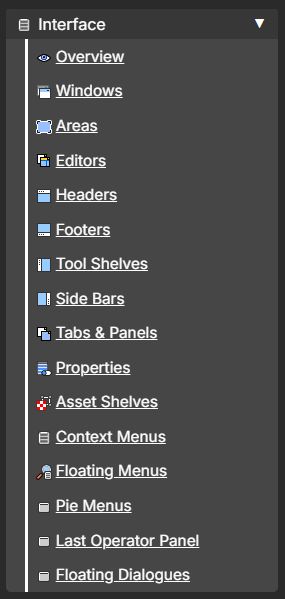
Before diving into each editor, it’s important to understand the shared interface elements. These appear across nearly all editors in Bforartists and give the software a consistent structure. Knowing them will help you navigate any editor more easily.
Windows
Windows are the main containers of the interface. Each window can hold one or more editors, and you can split or join them to customize your workspace. Here you can learn how to manage the main window and secondary windows.
Areas
Areas are subdivisions inside a window. Each area hosts an editor, and you can resize or rearrange them to fit your workflow. Here you can learn how to resize, duplicate, split and float areas.
Editors
Editors are the functional parts of the interface. Examples include the 3D View, Outliner, Properties Editor, and Timeline. Each editor has its own tools and purpose.
Headers
The header runs along the top of an editor. It contains menus, options, and tool settings. This is where you’ll find commands specific to the editor you’re working in.
Footers
Some editors include a footer at the bottom. It often provides status information or additional controls related to the editor’s content.
Tool Shelves
On the left side, many editors have a tool shelf. This is where you’ll find the main tools and operators for direct interaction.
Side Bars
On the right side, editors often include a sidebar. It contains panels and tabs for adjusting properties, transforms, and add‑on settings.
Tabs & Panels
Tabs group related tools, while panels provide detailed controls. They keep complex options organized and easy to access.
Properties
Editors often display properties related to the active object, tool, or mode. These properties let you adjust values directly for precise control.
Asset Shelves
Some editors include an asset shelf, giving quick access to materials, objects, or node groups stored in the Asset Browser.
Context Menus
Right‑clicking opens a context menu. These menus provide quick access to relevant commands based on your selection.
Floating Menus
Certain actions open floating menus, temporary overlays that give you fast access to tools without leaving the viewport.
Pie Menus
Pie menus are radial menus that let you select options quickly with directional input. They are designed for speed and efficiency.
Last Operator Panel
After performing an action, the Last Operator panel appears to the bottom left of the Editor. It lets you adjust the values of the most recent operation, such as moving, scaling, or extruding.
Floating Dialogues
Some tools open floating dialogues with additional options. These appear when a tool requires more input before it can be applied such as warnings, wizards or dialogues.
The search panel at the top left is your fastest way to find specific topics. Type in keywords like “Curves,” “Modifiers,” or “Animation,” and the search will return relevant chapters and sections. The Discover button helps you explore related content, making it easier to learn beyond your initial query.
Search Query
Here you can write what you will like to find.
Discover Button
This will ill load a new page showing results from the search, linking to relevant chapters by keywords.
The left sidebar is the main index of the manual. It organizes chapters into expandable sections such as Getting Started, Interface, and Editors. This is your primary navigation tool for browsing the manual. You can expand or collapse sections to focus on the topics most relevant to your workflow.
Panels
Each panel has a group of chapters related to a central topic. If you click on the panel title, it will take you to an index page giving a short description of each chapter.
You can also click on the arrow to collapse the panel and momentarily hide it foe easier focus on different groups of chapters.
Chapters
Each link in each panel are the top level chapters. Each chapter is a new page with sub-section you can navigate later. When you click on the link, you will be able to discover more.
On the right side of each page, you’ll find the chapter section navigation. This lists the headings and sub‑headings for the current page, allowing you to jump directly to the part you need. It’s especially useful for long chapters with multiple panels or operators.
Section Panels
These panels show each chapter section headers, so you can see a hierarchy of points and sub-points.
Sub-sections by Header links
Here you can click and it will take you to a page anchor for that section and sub-section header.
The button in the top left corner provides additional controls for how you view the documentation.
- Collapse all navigation panels to maximize reading space.
- Print the page directly for offline reference or study.
- Expand the view again when you need the sidebars back.
These button are designed to give you flexibility, whether you prefer a clean reading experience or a fully navigable interface.
WIP
By combining breadcrumbs, search, the main index, section navigation, and utility controls, the documentation interface ensures you can always find your way, whether you’re exploring for the first time or diving deep into advanced topics. It’s built to be approachable, efficient, and supportive of both quick lookups and extended study. Hope you like it!
This chapter explains how to use the Bforartists documentation effectively. Here we introduces the manual documentation interface, showing you how to navigate chapters, find information quickly, and make the most of the tools available on this website.
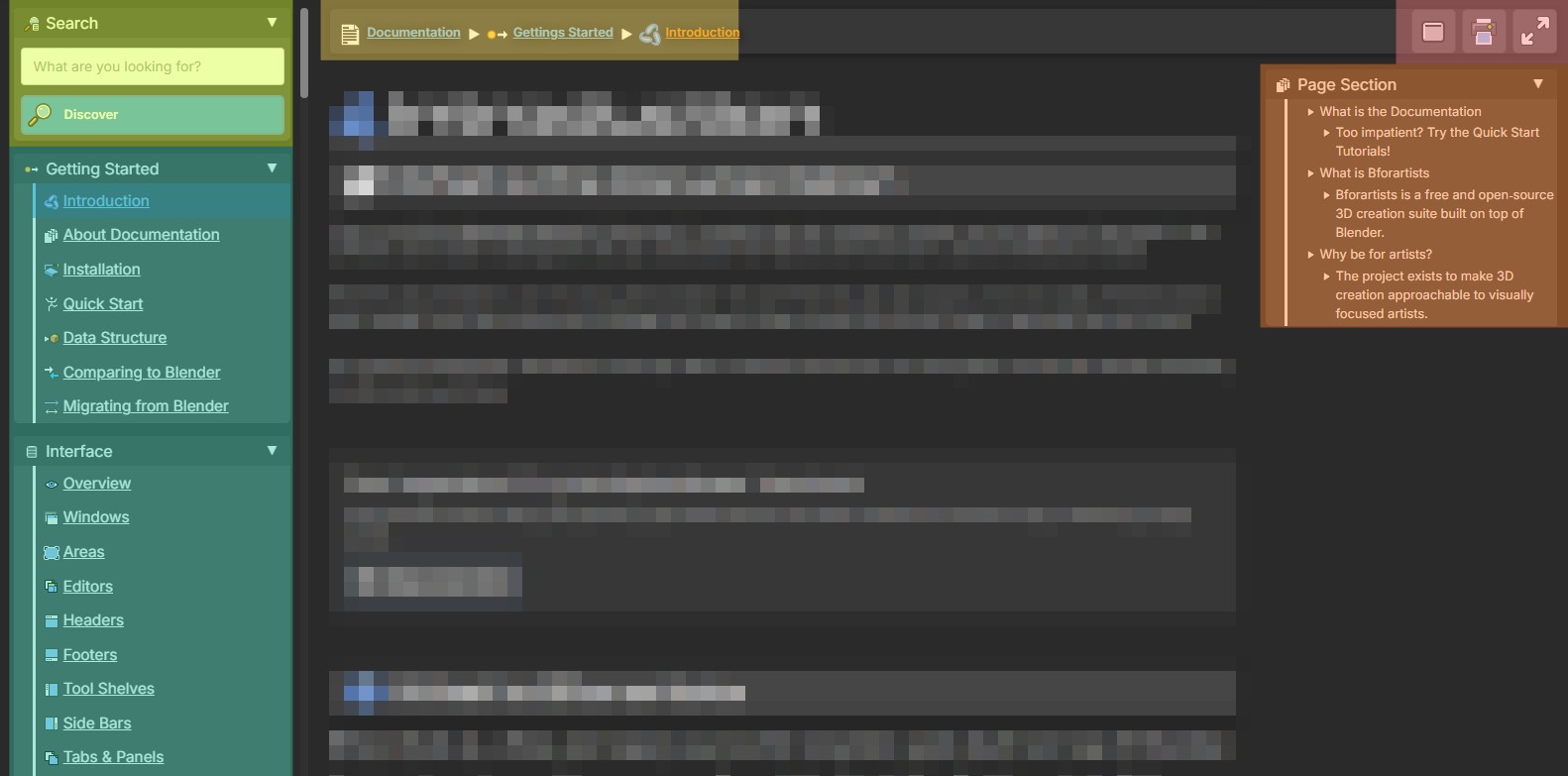
🟨Breadcrumbs (yellow)
Use this to go back in chapter hierarchy or to top level indices.
🟩Search Panel (green)
Use this to search for particular chapters based on a subject.
🟦Main Index Sidebar (blue)
This is the full chapter list. Use this to navigate all groups of chapters and sub-chapters.
🟧Chapter Sections Sidebar (orange)
Use this to navigate sections within chapters, based on headers hierarchies.
🟥Utility Buttons (red)
Use these to eitehr collapse navigation panels, print the page to PDF or expand view for a focused view.
These are not available in mobile mode, only desktop.
Breadcrumbs appear at the top of every documentation page. They show your current location within the manual and provide quick links back to higher‑level sections. This makes it easy to retrace your steps or jump between related chapters without losing context.

Blue Links
The blue links are plages you can go, where the top link is the documentation top level.
Orange Links
The orange link is the page you are already located
The search panel at the top left is your fastest way to find specific topics. Type in keywords like “Curves,” “Modifiers,” or “Animation,” and the search will return relevant chapters and sections. The Discover button helps you explore related content, making it easier to learn beyond your initial query.
Search Query
Here you can write what you will like to find.
Discover Button
This will ill load a new page showing results from the search, linking to relevant chapters by keywords.
The left sidebar is the main index of the manual. It organizes chapters into expandable sections such as Getting Started, Interface, and Editors. This is your primary navigation tool for browsing the manual. You can expand or collapse sections to focus on the topics most relevant to your workflow.
Panels
Each panel has a group of chapters related to a central topic. If you click on the panel title, it will take you to an index page giving a short description of each chapter.
You can also click on the arrow to collapse the panel and momentarily hide it foe easier focus on different groups of chapters.
Chapters
Each link in each panel are the top level chapters. Each chapter is a new page with sub-section you can navigate later. When you click on the link, you will be able to discover more.
On the right side of each page, you’ll find the chapter section navigation. This lists the headings and sub‑headings for the current page, allowing you to jump directly to the part you need. It’s especially useful for long chapters with multiple panels or operators.
Section Panels
These panels show each chapter section headers, so you can see a hierarchy of points and sub-points.
Sub-sections by Header links
Here you can click and it will take you to a page anchor for that section and sub-section header.
The button in the top left corner provides additional controls for how you view the documentation.
- Collapse all navigation panels to maximize reading space.
- Print the page directly for offline reference or study.
- Expand the view again when you need the sidebars back.
These button are designed to give you flexibility, whether you prefer a clean reading experience or a fully navigable interface.
WIP
By combining breadcrumbs, search, the main index, section navigation, and utility controls, the documentation interface ensures you can always find your way, whether you’re exploring for the first time or diving deep into advanced topics. It’s built to be approachable, efficient, and supportive of both quick lookups and extended study. Hope you like it!
From the .odt manual (1.1 How to use the Manual)
Note: The earlier text of this page from the .odt manual, kept word for word. It is merged with the text above in the Refine phase, after the full migration.
How to use the Manual
The question of how to use the manual sounds odd in the first moment. You simply read it! But there are a few things to know before you can really find easily what you are looking for. Because using a 3d software requires some special 3d knowledge. And it needs a bit of knowledge about Bforartists to understand the structure of the manual. So that you can find what you need, both, from coming the software side, and from coming the manual side.
In worst case a manual chapter looks like this:
7.3.14 Editors - 3D View - Sidebar - Tool Tab - Grease Pencil - Weight Paint Mode
How do you supposed to find the needed information here? Why is this title so long? What is a mode, what is a sidebar, a tab? And what is a grease pencil?
Well, the manual chapter names are some sort of breadcrumbs. And you can follow this breadcrumbs. It is always the same pattern, at least for the chapters about the editor types and their tools.
Chapter number - Editor type - Editor area - Tab and panel if available - Object type - and the Mode in which the object needs to be to show the tool.
And with this knowledge you should now easily be able to find what you are looking for. And this in both directions. Coming from the software and searching in the manual. And coming from the manual and searching the tool in the software.
Let's talk about the details.
General Manual structure
Chapter 1 to 6 contains some general information. Like the official key map. Or the general interface. The different single editor types starts with chapter 7. And at the end you will find some miscellaneous information.
Editor Type
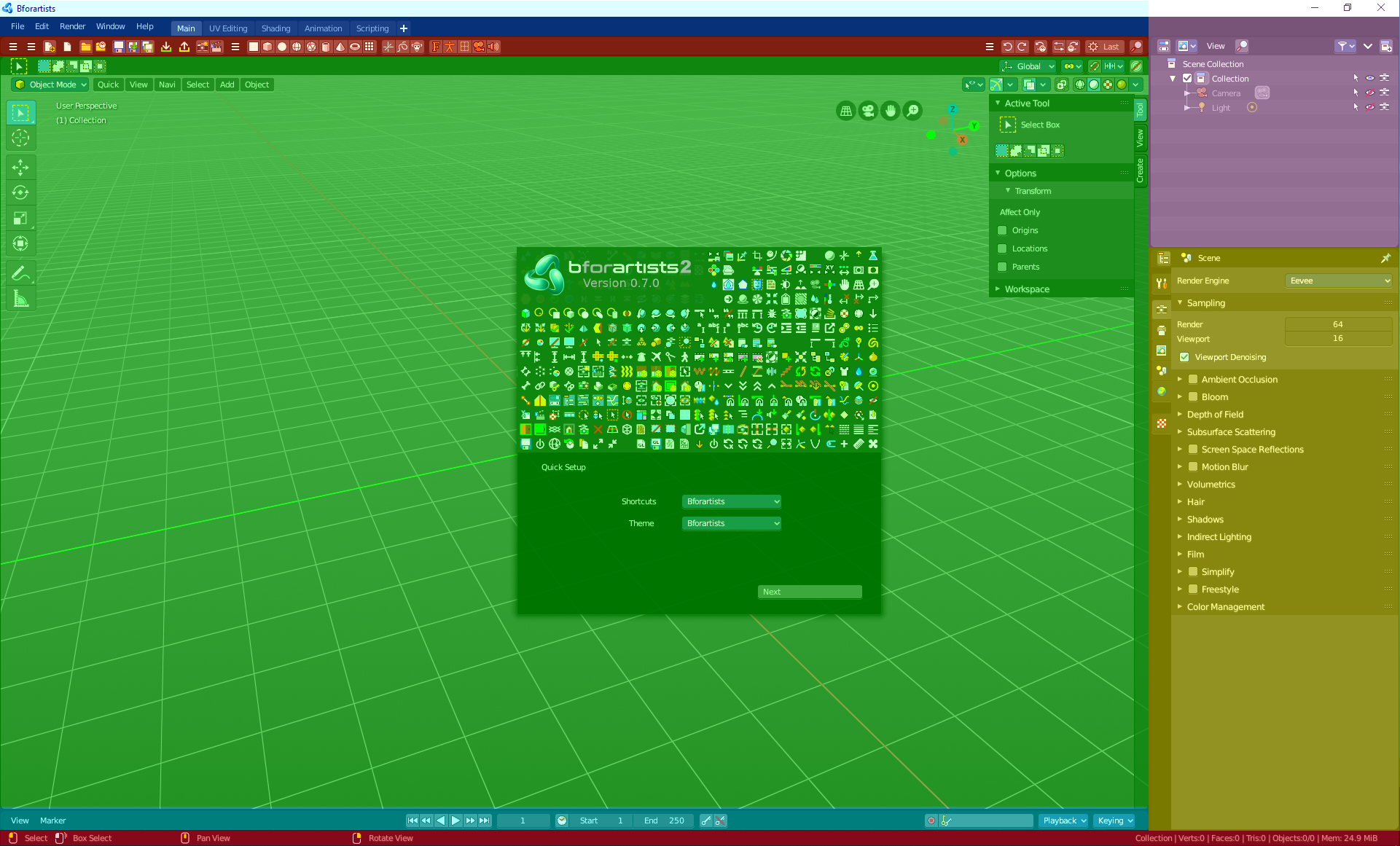
The different editor types is the first thing that brings structure into the manual. The different Editor types.
In the shot at the right you see that Bforartists is made of several areas. These are the several editor types. They all have their purpose. You have one editor type for the 3d view. One for the file browser, one for the UV editing, one for the Node editor, and so on. In this shot we see the 3D view (green), Toolbar editor (red), Outliner (pink), the Properties Editor (yellow), at the bottom the Timeline editor (blue). And the header and footer.
Each editor type has its own main chapter.
Chapter 7 is all about the 3D view. So every chapter that starts with a 7 is a chapter for the 3D view.
Chapter 8 is all about the Image Editor.
Chapter 9 is all about the UV Editor, and so on.
Please have a look in the manual chapter 6 Editors Introduction. Here we list and describe all the different Editor types.
| Conclusion |
| The manual chapter for the editors starts with the number. Followed by the editor type. Example: 7 Editors - 3D View |
Editor Area
Each editor can have several areas. The header, a toolbar at the left, a sidebar at the right, A tools area, the viewport to display and modify the content, some navigation elements, a panel where you can adjust some operations, and maybe even a footer.

Here as an example the 3D view.
At the top is the Tool Settings. Marked with blue. Here you can find settings for the currently active tool.
Below the tool settings is the Header. Marked with pink. It contains menus, tools and settings.
In the middle is the actual viewport. Here you see and modify for example your mesh data.
At the left you can find the Tool Shelf. Marked with green. It contains all the tools.
The yellow area is the navigate widgets.
At the right of it you can find the Sidebar. Marked with blue again. It contains settings and transform values. And it is the place where ad dons adds its panels.
At the bottom left you can find the Adjust Last Operation panel. Marked with red. This panel appears when you do an operation, like move the mesh to another location, and allows you to adjust the values for the operation afterwards.
| Conclusion |
| The manual chapter for the editors starts with the number. Followed by the editor type. Followed by the area type. Example: 7.1 Editors - 3D View - Header |
Menus, options, tabs and panels
Text menus and options are usually to find in the Header. So this are logical sub chapters for all header chapters.
Tabs and panels are usually to find in the sidebar. So this is the logical sub chapters for all sidebar chapters.
| Conclusion |
| The manual chapter for the editors starts with the number. Followed by the editor type. Followed by the area type. Followed by the sub types in this area. Example: 7.1.5 Editors - 3D View - Header - Select Menu Example: 7.3.2 Editors - 3D View - Sidebar - Tool Tab |
Object Types and their modes
There are several object types in Bforartists that you can work with. One of the most common object types is the mesh object.
Each object can have several modes to modify this object type. The mesh object has for example an edit mode where you can modify the mesh. A sculpt mode where you can sculpt the mesh. A vertex paint mode, a weight paint and a texture paint mode.
Each mode has its own tool set. This means that some tools just shows with specific object types and being in a mode where these tools shows.
And this is the last and very important breadcrumb in our manual chapter titles. Object type and required mode.
| Conclusion |
| The manual chapter for the editors starts with the number. Followed by the editor type. Followed by the area type. Followed by the sub types in this area. Followed by object type and needed mode to show these tools. Example: 7.3.7 Editors - 3D View - Sidebar - Tool Tab - Mesh - Vertex Paint Mode |
About this Manual
Bforartists is a fork of the open source software Blender. And every software needs a manual. Bforartists 1 was equal enough to use the Blender manual in big parts for that. But even when the tools are the same than in Blender, the user interface differs quite a bit.
From Bforartists 2 on we did a complete rewrite, and so our manual does not contain any parts from the Blender manual anymore.
Editing the Bforartists Manual
The Bforartists Manual is a community driven effort to which anyone can contribute.
And this very easy, since the manual comes not only as PDF files, but also as editable *.odt files. That's the file format for Libre and Open Office. Both free and open source Office solutions. To manipulate or to fix a typo, a word, a sentence or even a whole chapter is as easy as manipulating the text in Libre Office or Open Office, commit the changes to the manual repository, and tell the Bforartists developers to put it online.
The repository with the ODT files can be found here: https://github.com/Bforartists/Manual
License
The Bforartists’s Manual is free and published under Public Domain*
This means that anyone is free to download, edit and share the manual. It also means that when contributing to the manual you don’t hold exclusive copyright to your text. You are, of course, acknowledged and appreciated for your contribution. However others can change and improve your text in order to keep the manual consistent and up to date.
* As of writing this part here the Blender manual for 2.77 and below was put under a Public Domain AS CC0 license. Which is simply invalid. You can have either Public domain. Or CC0. Those two licenses contradicts each other.
It also seems that the Blender manual was put under CC0 and then once more under CC0 BY-SA without asking all involved persons if they wanted to do so. The original manual was under OCL license. Another license breach.
So we choose the license type that seems to fit most here, especially when looking at the old licensing. Public Domain. The old Blender manual parts are still under OCL license.
The Bforartists 2 manual should not contain any old Blender manual material anymore, and is fully licensed under Public Domain.