

































































Timeline viewport
Navigation in the viewport happens by mouse or hotkeys. Some of them does not have a menu entry. And needs to be explained here.
Viewport Navigation
Navigation in the viewport happens by mouse or hotkeys. Some of them does not have a menu entry. And needs to be explained here.
Viewport navigation
Right mouse button moves the frame marker.
Clicking left at the number bar moves the frame marker.
Middle mouse button pans the view.
Holding Ctrl + MMB zooms the view.
Scroll Wheel zooms the view.
To drag a keyframe click at it and drag the mouse.
Dope Sheet Context Menu
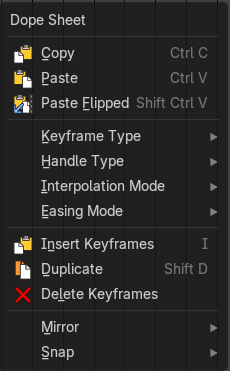
When you right click into the timeline viewport then you will call the Dope Sheet context menu. Despite being in the time line.
| Menu entry | What it does |
|---|---|
| Copy | Copies the currently selected keyframe(s). |
| Paste | Pastes copied keyframe(s) |
| Paste Flipped | Pastes copied keyframe(s), but flipped. |
Keyframe Type submenu
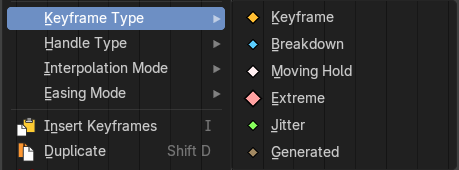
Recolor the currently selected keyframes.
Handle Type submenu
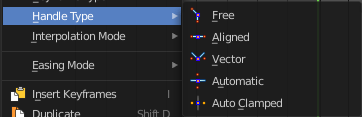
Set the handle type for the currently selected keyframes.
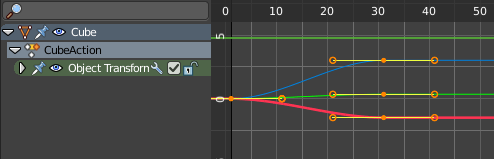
This is a feature for the Graph editor, where each curve point has its own handler with which you can influence the curve behavior. But the handler type also influences how the animation curve acts at the chosen keyframes. So it has its use in the dope sheet editor too.
Interpolation Mode submenu
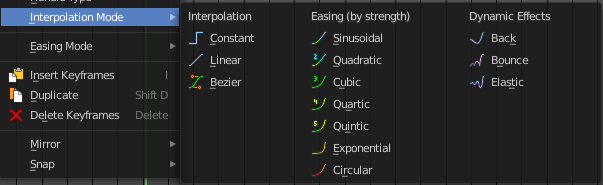
The Interpolation mode defines how the curve acts from keyframe to keyframe. You can have a linear curve between two keyframes instead of a bent one for example.
The easing methods here in the interpolation mode menu are for the easing shape. There is also an easing menu where you can choose a easing method.
Easing Mode submenu
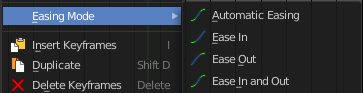
The easing methods in the interpolation mode menu are for the easing shape. This menu allows you to choose an easing method.
| Menu entry | What it does |
|---|---|
| Insert Keyframes | Insert a keyframe at the current position. |
| Duplicate | Duplicate the selected keyframe(s). |
| Delete Keyframes | Delete the selected keyframe(s). |
Mirror submenu

Mirrors the animation by the given method.
Snap submenu
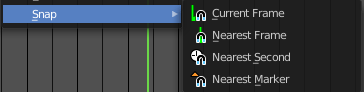
Snaps the selected keyframes by the given method.
Slider snapping

Snapping also works at sliders. Hover with the mouse over the slider, start to slide, and holding down Ctrl will snap the sliders in incremental steps.
When it's a default value between 0 and 1 then it usually snaps in 0.1 steps. When it's a default value over 1 then it usually snaps in steps of 10.
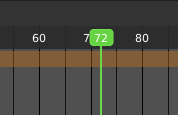
The increment snapping also works at the frame slider. here the incremental snapping happens by the frame rate that you have defined. With a frame rate of 24 it will snap in steps of 24 frames when holding down ctrl.
Quick Favorites menu
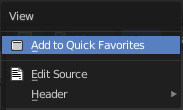
When you right click at a menu or a button, then a right click menu will open. Tools have usually a Add to Quick Favorites menu entry.
The Quick Menu is empty by default. With Add to Quick favorites you can add this menu to the Quick menu.
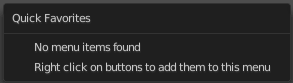
In the 3D view we have a menu called Quick in the header, which shows this content then. In the Dope Sheet Editor you can just call it with its hotkey. Q. It has no regular menu entry here.