

































































Timeline channel list
The channel list contains your objects and their animation channels. It is basically the same list than the one in the dope sheet editor.The timeline has no modes like the Dope Sheet though. And so you will just see the…
Timeline - Channel List
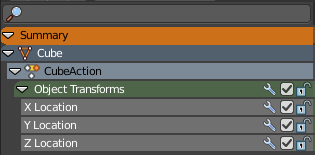
The channel list contains your objects and their animation channels. It is basically the same list than the one in the dope sheet editor.The timeline has no modes like the Dope Sheet though. And so you will just see the content from the dope sheet mode. And not shape key animation or grease pencil edit mode animation for example.
The channel list area is hidden by default. You need to reveal it by clicking at the small button up left. It can be resized by dragging the right border to left or right.
The list has several elements, to turn on or off different features, Or to expand or collapse the hierarchy.
Hotkeys
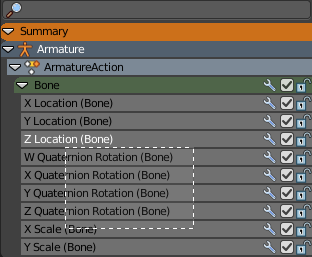
Hotkey A selects all channels.
Hotkey Alt A deselects everything.
Left mouse and dragging activates box select.
Clicking at a channel selects it.
Clicking at a channel while holding down shift adds to the selection or removes from the selection.
Search field
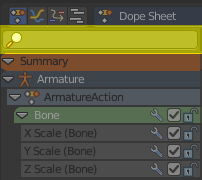
At the top is a search field that allows you to filter the channel list by search terms.
Expand / collapse triangle
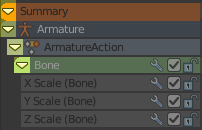
The triangle icon at the left allows you to expand or collapse the hierarchy.
Object type Icon
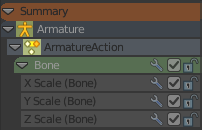
This icon shows what kind of object this channel belongs to. These icons have no functionality.
Channel name
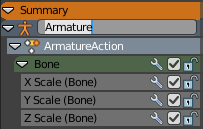
The name of the channel name and element. Some elements can be renamed. Like the action or object type.
To rename an element double click at it. Type in the new name. Then press Enter or click elsewhere.
Enable F-Curve Modifiers
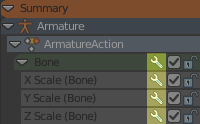
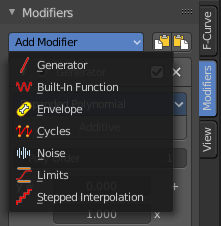
In the Graph editor you can add F-Curve modifiers. In the other animation editor types, like the Dope Sheet editor, you can enable or disable these modifiers by the Enable F-Curve Modifiers setting in the channel list.
For further informations about the F-Curve modifiers see the graph editor chapters.
Mute Channel
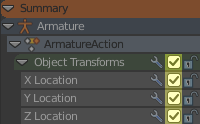
Mutes the selected channel. It will not be calculated.
Lock Channel
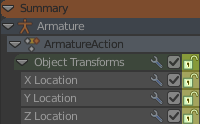
Locks the selected channel. It is not longer editable.
Channel Context Menu
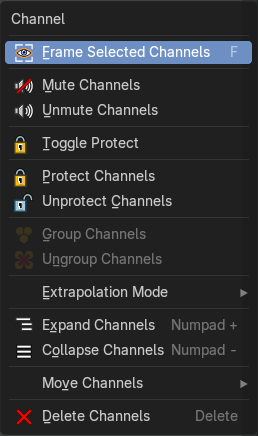
When you right click into the channel area, then you will call the Channel context menu.
| Menu entry | What it does |
|---|---|
| Frame selected channels | Centers the selected channels in view. |
| Mute Channel | This channel is not calculated. |
| Unmute Channel | This channel is calculated. |
| Protect Channels | Protect channels from editing. |
| Unprotect Channels | Enables editing of channels again. |
| Group Channels | Groups channels together. |
| Ungroup Channels | Ungroup grouped channels. Beware, the channels will not return to their initial group. |
| Toggle Channel Editability | Protects or unprotects the selected channels. |
| Extrapolation Mode submenu | — |
Extrapolation Mode
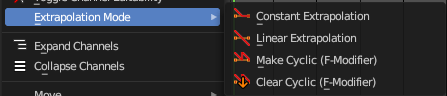
Sets the extrapolation mode for the selected F-Curves. Means how the curve acts at the beginning and the end of the F-Curve.
| Menu entry | What it does |
|---|---|
| Constant Extrapolation | The animation curve continues straight at the end. |
| Linear Extrapolation | The animation curve continues the last direction. |
| Make Cyclic | Makes the animation loopable. The interpolation curves are adjusted so that the first frame fits to the last frame. |
| Clear Cyclic | Removes the cyclic extrapolation. |
| Menu entry | What it does |
|---|---|
| Expand Channels | Expands the channels. |
| Collapse Channels | Collapses the channels. |
Move Channels submenu
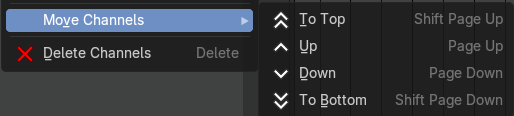
Sort the order of the channels. The menu items should be self explaining.
Delete Channels
Removes the selected channels.