

































































Timeline
The Timeline Editor is the editor type that contains playback and record elements and some further animation settings. The Timeline editor is part of five editor types that deals with your animation data.
The Timeline Editor is the editor type that contains playback and record elements and some further animation settings. The Timeline editor is part of five editor types that deals with your animation data.
The Dope sheet editor has several areas. Usually you will just see the header. To reveal the rest of it you have to pull the upper border of the timeline editor upwards.

- Header (green)
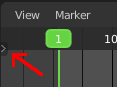
- Channel list (yellow): This channel list panel is hidden by default. You have to click at the small button up left to reveal it.
- Viewport (no color)
The header is divided into three parts too. Left tools and menus. Right Options. And in the middle the playback elements for the animation.

- Menus (yellow)
- Playback tools (green)
- Options (blue)
Time cursor
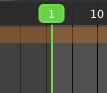
The Time Cursor is the green line. It is used to set and display the current time frame.
Keyframes
The timeline displays the keyframes. Different from the Dope Sheet it displays all keyframe type with one icon. A rhombus shape.
Markers
Markers are visible hints to denote frames with key points or significant events within an animation. A marker could mark a character’s animation starts, the position change of a camera, or a door that opens.
Markers can be added, deleted and renamed from the Marker menu. Once created they reside at the bottom of the viewport.
To select a marker click at it.
To move a marker click and drag.
The active marker is highlighted, and shows a dotted line upwards.
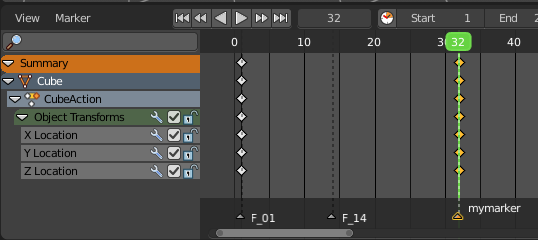
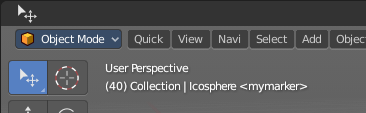
When a frame matches the marker position then the info string in the 3D view shows the name of this marker too.