

































































Physics modifiers (Mesh)
Physics modifiers are available for Mesh object, Curve + Text object and Lattice Object
Physics modifiers are available for Mesh object, Curve + Text object and Lattice Object
Cloth
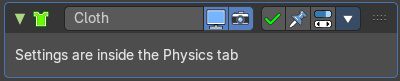
The cloth modifier gets added into the modifier stack when you add a cloth physics in the Physics tab. It enables cloth simulation for the mesh.
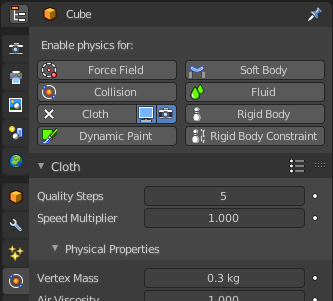
All the cloth settings and adjustments happens in the Physics tab. The cloth modifier has no further settings.
The modifier can only be removed in the physics tab by clicking the cloth button.
Collision

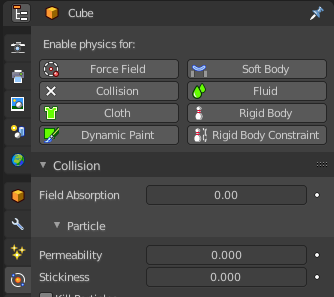
The collision modifier gets added into the modifier stack when you add a collision physics in the Physics tab. It enables collision for the mesh.
All the collision settings and adjustments happens in the Physics tab. The collision modifier has no further settings.
The modifier can only be removed in the physics tab by clicking the collision button.
Dynamic Paint

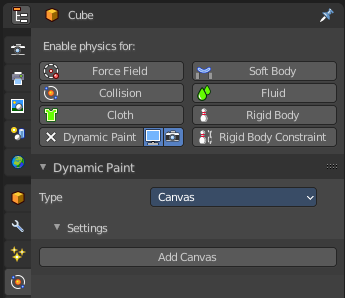
The dynamic paint modifier gets added into the modifier stack when you add a dynamic paint physics in the Physics tab. It enables dynamic painting. Which turns objects into paintable canvasses to modify vertex colors or displacement. Like footsteps in snow.
All the collision settings and adjustments happens in the Physics tab. The dynamic paint modifier has no further settings.
The modifier can only be removed in the physics tab by clicking the dynamic paint button.
Explode
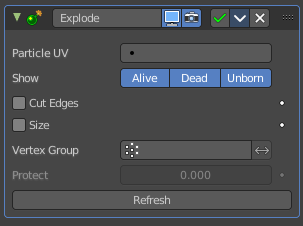
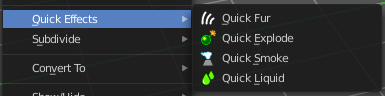
The Explode modifier gets added into the modifier stack when you add a Quick Explode quick effect, together with a particle system. It splits the object apart, and uses the split parts as particles for an explosion like particle animation.
The modifier requires particles to work. The particles effect controls how the explosion looks like. And the explode modifier must come after the particles modifier.
The Explode modifier has some further settings. But all the particles settings and adjustments happens in the Physics tab.
Particle UV
The UV map to change with particle age. The U value of the coordinates in that UV map will be overwritten with the age of the particle attached to the matching mesh face. In proportion, from 0 for not yet born particles, to 1 for dead ones.
The V value is set to a constant 0.5 value.
This allows to make the color of a fragment (face) vary during it ‘explosion’ phase, by using a texture with a gradient of colors along its U axis.
| Property | What it changes |
|---|---|
| Alive / Dead / Unborn | Alive: Show faces when their attached particles are alive. · Dead: Show faces when their attached particles are dead. · Unborn: Show faces when their attached particles are unborn. |
| Cut Edges | Split the mesh in pieces based on location of emitted particles, instead of using existing faces. This will produce a splitting that appears more random. |
| Size | Scale each face using the size of its attached particle, once that particle is alive. |
| Vertex Group | Limit the modifier effect to a vertex group. · Invert: Inverts the influence of the selected vertex group. · Protect: Clean vertex group edges. Depending on the weights assigned to that vertex group. A value of 1 completely protect those faces from being affected by the Explode modifier. A value of 0 fully applies the modifier to the faces. |
| Refresh | Refresh data in the Explode modifier. |
Fluid
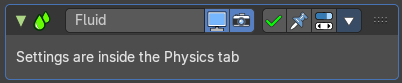
The fluid modifier gets added into the modifier stack when you add a fluid physics in the Physics tab. It enables fluid simulations.
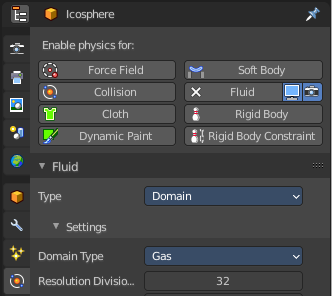
All the settings and adjustments happens in the Physics tab. The fluid modifier has no further settings.
The modifier can only be removed in the physics tab by clicking the fluid button.
Ocean
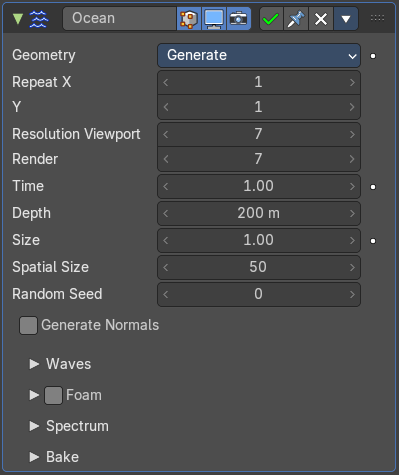
The Ocean modifier is a tool to simulate and generate a deforming ocean surface. It is intended to simulate deep ocean waves and foam.
By default, the simulator only generates displacement data, since it takes the least amount of work and gives the fastest feedback. Additional simulation data can be generated for rendering as well.
Geometry
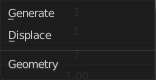
| Property | What it changes |
|---|---|
| Generate | Creates a tiled mesh grid. The existing mesh object is replaced by the ocean grid. The generated mesh comes with UV mapping. |
| Displace | The ocean modifier displaces the existing mesh. |
Repeat X, Repeat Y
How often the grid is tiled in X and Y directions. The UV's gets repeated.
Resolution
The resolution of the internal 2D grids generated by the simulation.
The internal grids are powers of two of the resolution value. So a resolution value of 16 will create simulation data of size 256×256. The higher the resolution, the more details will be produced, but the slower it will be to calculate.
Note: When using the Generate modifier geometry option, this resolution value also determines the resolution of the generated mesh surface, equal to the resolution of the internal simulation data.
| Property | What it changes |
|---|---|
| Time | The time at which the ocean surface is being evaluated. To make an animated ocean, you will need to animate this value by adding keyframes. The speed that the time value is changing will determine the speed of the wave animation. |
| Depth | The constant depth of the ocean floor under the simulated area. Lower values simulate shallower waters by producing higher frequency details and smaller waves. |
| Size | A simple scaling factor that does not affect the height of the waves or behavior of the simulation. |
| Spatial Size | The width of the ocean surface area being simulated, in meters. This also determines the size of the generated mesh, or the displaced area. Of course, you can scale the object with the Ocean modifier in Object Mode to tweak the apparent size in your scene. |
| Random Seed | A different seed will produce a different simulation result. |
| Generate Normals | Simulates additional normal map data. When mapped to Normals, this can be used by the Ocean texture as a bump map. And enables generating normal map image sequences when baking. |
Waves
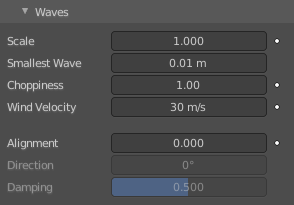
| Property | What it changes |
|---|---|
| Scale | An overall scale control for the amplitude of the waves. It approximates the height or depth of the waves above or below zero. Rather than just scaling the ocean object in Z, it scales all aspects of the simulation, displacement in X and Y, and corresponding foam and normals too. |
| Smallest Wave | A minimum limit for the size of generated waves. Acts similarly to a low-pass filter, removing higher frequency wave detail. |
| Choppiness | The choppiness of the wave peaks. With a choppiness of 0, the ocean surface is only displaced up and down in the Z direction, but with higher choppiness, the waves are also displaced laterally in X and Y, to create sharper wave peaks. |
| Wind Velocity | Wind speed in meters/second. With a low velocity, waves are restricted to smaller surface waves. |
| Alignment | The directionality of the wave shapes due to wind. At a value of 0, the wind and waves are randomly, uniformly oriented. With higher Alignment values, the wind is blowing in a more constant direction, making the waves appear more compressed and aligned to a single direction. |
| Direction | The direction in degrees that the waves are aligned to. X axis is used as reference. |
| Damping | The amount that inter-reflected waves are damped out. This has the effect of making the wave motion more directional, and not just the wave shape. With a Damping of 0.0, waves are reflected off each other in every direction, with a Damping of 1.0, these inter-reflected waves are damped out, leaving only waves traveling in the direction of the wind. |
Foam
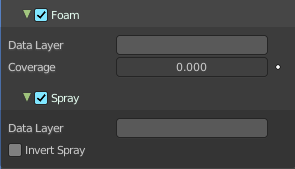
Simulate extra foam data.
Data Layer
Type in a name. This name defines a vertex data layer which is used by the Ocean Modifier to store a foam map as vertex colors. This name is then used to access this vertex data layer by an Attribute node in the ocean material.
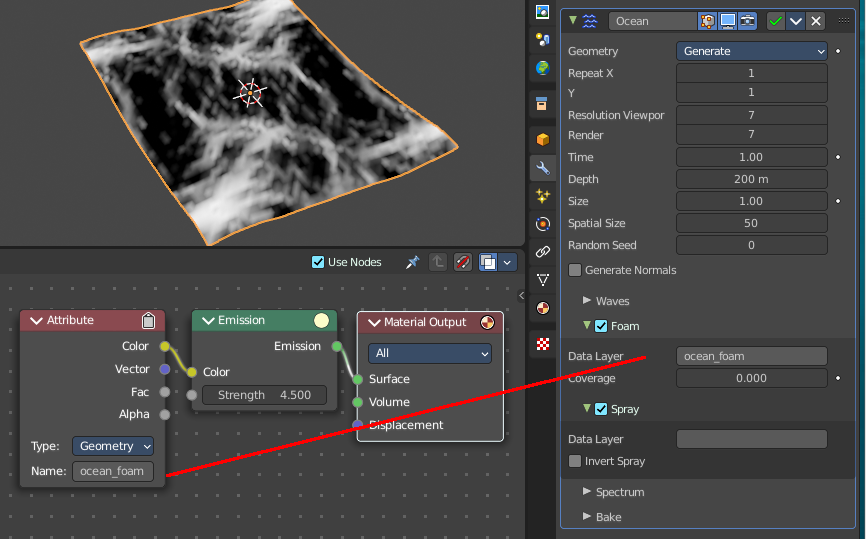
Note that creating the full working ocean material is an own chapter, which cannot be covered here.
| Property | What it changes |
|---|---|
| Coverage | The amount of foam covering the waves. Negative values will reduce the amount of foam, and leave only the topmost peaks. Positive values will add to it. |
| Spray | — |
Data Layer
Type in a name. This name defines a vertex data layer which is used by the Ocean Modifier to store a spray direction map as vertex colors. This name is then used to access this vertex data layer by an Attribute node in the ocean material.
Invert
Inverts the spray direction map.
Spectrum
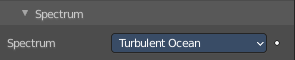
Spectrum
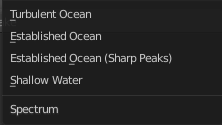
What wave spectrum model to use. Wave spectra are used to describe how energy moves through the waves at different frequencies. Energy travels through waves differently depending on the depth of the water and the wind speed.
| Property | What it changes |
|---|---|
| Turbulent Ocean | Use for turbulent seas with foam (Phillips). |
| Established Ocean | Use for a large area, established ocean where the ocean would extend for miles with wind blowing for days allowing the waves to reach a point of equilibrium (Pierson-Moskowitz method). |
| Established Ocean (Sharp Peaks) | Similar to regular Established Ocean however, waves will continue to grow with time creating sharper peaks (JONSWAP and Pierson-Moskowitz method). An extra parameter is used to define the sharpness of these peaks. |
| Shallow Water | Use for shallow water with depths less than about 10 meters which makes it great for small lakes and ponds without heavy wind (JONSWAP and TMA – Texel-Marsen-Arsloe methods). |
Bake
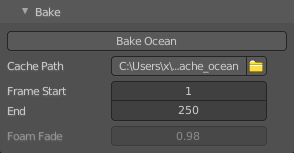
The data for the ocean modifier can be baked to files in a given directory. When a simulation is baked, the simulator engine is completely bypassed, and the modifier/texture retrieves all information from the baked files. Baked files are faster, allows rendering in external renderers, and enables more advanced foam maps.
The created images are stored in exr format. And can be opened and modified in any graphics software that is able to handle the format.
| Property | What it changes |
|---|---|
| Bake Ocean | Bake an image sequence of ocean data. |
| Cache Path | Folder to store the baked EXR files in. The sequences will be in the form disp_####.exr, normal_####.exr, and foam_####.exr, where #### is the four digit frame number. If the cache path folder does not exist, it will be created. |
| Frame Start, End | Frames of the simulation to bake (inclusive). The start and end frames of the bake are repeated when accessing frames outside of the baked range. |
| Foam Fade | How much the foam accumulates over time. This feature is for baked ocean only. |
Particle Instance
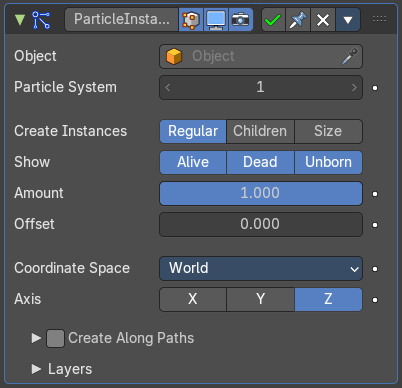
Adds a copy of the mesh to the particle positions of a particle system. This happens relative to the object origin.
To use this modifier you must have at least one other object that has a Particles System attached.
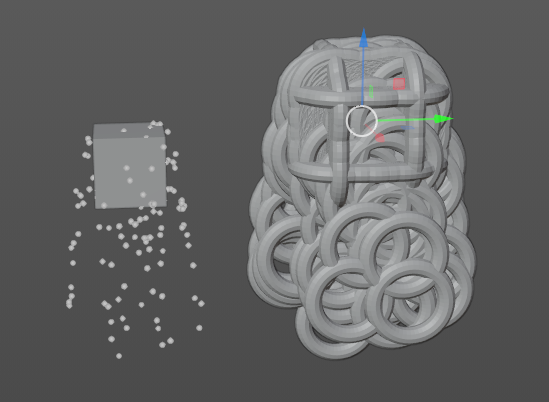
Because of how the Particle Instance modifier influences the underlying particle systems on other objects, some of the effects generated by the modifier can look and act different. This depends on the underlying settings of the particle systems it is associated with.
Object

Add the target object with the particle system.
Particle System
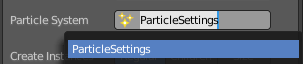
The particle system from the target Object to use.
| Property | What it changes |
|---|---|
| Create Instances | Instance settings. |
| Regular | The modifier will use the regular (parents) particles to duplicate the mesh of the modified object. |
| Children | The modifier will use the children particles to duplicate the mesh of the modified object. |
| Size | Scale the instanced copies of the mesh by the particle size attribute. When disabled, all the copies appear the same size as the origin. |
| Show | Particle display settings. · Unborn: Use the unborn particles to duplicate the mesh to. · Alive: Use the alive particles to duplicate the mesh to. · Dead: Use the dead particles to duplicate the mesh to. |
Amount
Allows you to randomly skip particles to adjust the amount of instances.
Warning: The random algorithm used currently only ensures that relative amount to be respected statistically. The actual amount of instances generated will differ from the theoretical one, depending on the Seed value of the target particle system (and the Offset value described below, too).
That deviation is not significant with high number of particles, but it will be highly noticeable with low numbers (e.g. with 100 particles in the target system, and an Amount value of 0.1, it can generate either up to 15 or 5 instances, instead of the 10 expected).
Offset
A relative offset in the range of particles used for instantiation. Allows you to avoid overlapping of the used particles, when the same particle system is used in multiple modifier instances.
Tip: If you want to fully avoid overlaps, your Offset value must be at least as high as your Amount value.
Coordinate Space
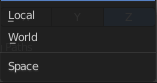
What coordinate system to use for the target object. World space or Local space.
With World space the locations of the copies of the modified mesh will depend on the location of the modified object and of the target object.
With Local space the locations of the copies of the modified mesh will depend only on the location of the modified object.
Axis
Which axis of the modified object to use as pole axis to apply the rotation from the instantiated particles. Only one axis can be chosen.
Create Along Paths
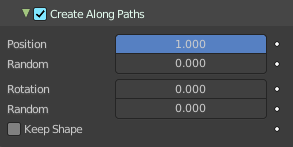
By default, the instances are placed depending on the particles position in the current frame. By enabling Create Along Paths, the instance of the modified object follows deforms its shape along the particle path (or the hair strand). This allows you to select the position along the particles path regardless of the current frame.
Tip: You can adjust the path of particles on the Render panel of the Particle System tab by adjusting the Path visualization type Note: When the type is not Hair or Keyed Physics, the particle system must be baked. Note: When you use Strands you must also have Dead activated in the Show settings. Since they die immediately.
| Property | What it changes |
|---|---|
| Position | What percentage of the path that the instance fills. Or the position on the path if the Keep Shape option is enabled. · Random: Adds randomness to the Position value of each instance. |
| Rotation | Specifies the rotation around the path. · Random: Adds randomness to the Rotation value of each instance. |
| Keep Shape | Enabling this prevents the instance from being deformed, and places it on the path according to the Position value. |
Layers
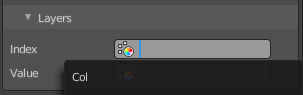
Select vertex color layers. These layers will be filled with colors based on the particles information. And can be used in a shader to add variance to a material.
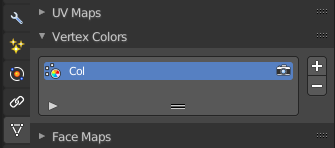
You can create vertex color layers in the Object Data properties in the Vertex Colors panel.
| Property | What it changes |
|---|---|
| Index | A vertex color layer for values based on the particles index. |
| Value | A vertex color layer for random per-particle values. |
Particle System
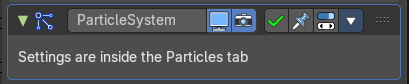
The Particle System modifier gets added into the modifier stack when you add a particle system in the Particles tab. It enables particle simulation at the object.
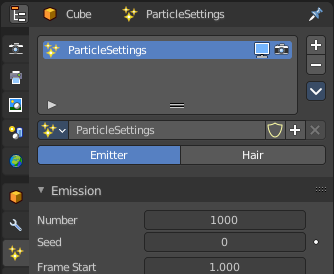
All the particle settings and adjustments happens in the Particles tab. The Particle System modifier has no further settings.
The modifier can only be removed in the particle tab in the particle settings list.
Soft body

The Soft body modifier gets added into the modifier stack when you add a Soft Body physics in the Physics tab. It enables Soft Body simulation for the mesh.
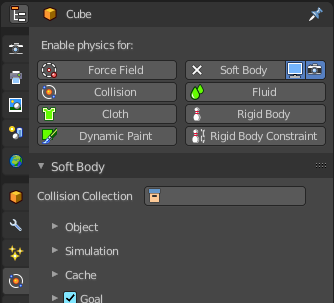
All the Soft body settings and adjustments happens in the Physics tab. The Soft body modifier has no further settings.