

































































Generate modifiers (Mesh)
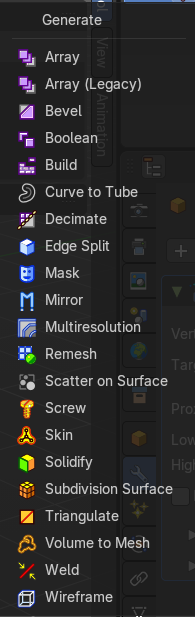
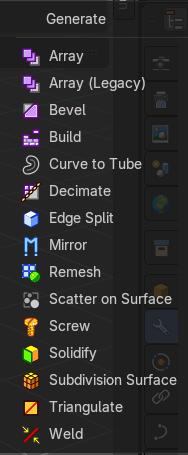
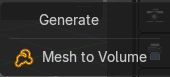
Generate modifiers are available for mesh objects, curve + text objects and volume objects.
Generate modifiers are available for mesh objects, curve + text objects and volume objects.
Array
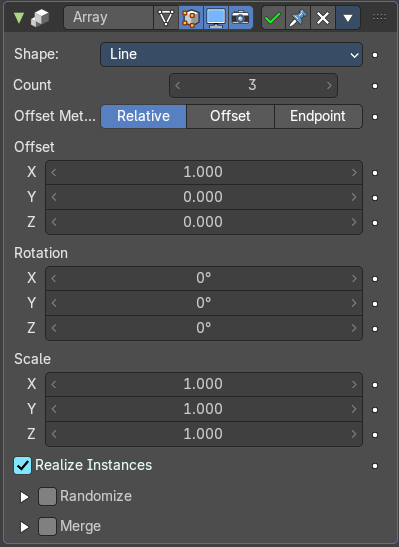
The Array modifier creates an array of copies of the base object. Each copy can offset from the previous one in any of a number of possible ways. Vertices in adjacent copies can be merged if they are nearby, allowing smooth Subdivision Surface frameworks to be generated.
Multiple Array modifiers may be active for an object at the same time. This allows to create complex three-dimensional constructs.
Hint for Offset Calculation. The transformation applied from one copy to the next is calculated as the sum of the three different components (Relative, Constant and Object), each of which can be enabled/disabled independently of the others. This allows, for example, a relative offset of (1.0, 0.0, 0.0) and a constant offset of (0.1, 0.0, 0.0), giving an array of objects neatly spaced along the X axis with a constant 0.1 unit between them, whatever the original object’s size.
Shape
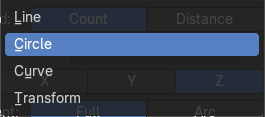
Method used to arrange the duplicates.
Method Line
| Property | What it changes |
|---|---|
| Count | The number of copies to generate. |
| Offset Method | How to offset the copies. |
| Offset | The actual offset vector of the copies. |
| Rotation | The rotation vector of the copies. |
| Scale | The scale vector of the copies. |
| Realize Instances | Turn the output into a single geometry. |
Randomize subpanel
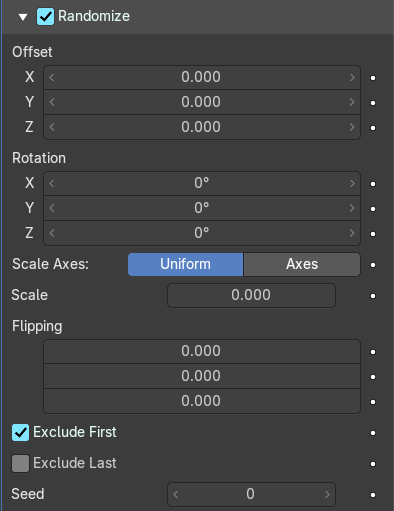
Randomize the copies.
| Property | What it changes |
|---|---|
| Offset | Random offset amount. |
| Rotation | Random rotation amount. |
Scale Axes
| Property | What it changes |
|---|---|
| Method Uniform | randomizes uniform and equlaly along all axes. |
| Method Axes | randomizes each axis individually. · Scale: Random scale amount. · Flipping: Random flipping amount. · Exclude First: Exclude the first copy. · Exclude Last: Exclude the last copy. · Seed: The seed to use for the randomness. |
Merge subpanel

Merges the vertices below the given threshold. Realize Instances needs to be activated.
Distance
The threshold distance. Everything below this distance will be merged.
Method Circle
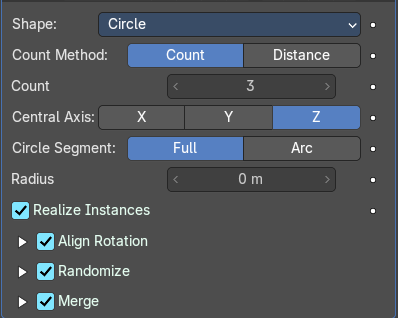
| Property | What it changes |
|---|---|
| Count Method | The method to choose the number of duplicates. |
| Count | The number of copies to generate. |
| Central Axis | The axis to rotate the geometry around. |
Sweep Angle
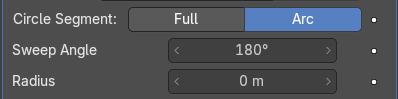
Just with method Arc. The sweep angle for the arc.
| Property | What it changes |
|---|---|
| Circle segment | Generate a full circle, or an arc of elements. |
| Radius | The distance of the elements to the origin. |
Align Rotation subpanel
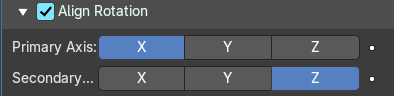
Rotate instances based on the circle shape.
| Property | What it changes |
|---|---|
| Primary Axis | The forward direction along the curve. |
| Secondary Axis | The secondary direction along the curve. |
Randomize subpanel
Randomize the copies.
| Property | What it changes |
|---|---|
| Offset | Random offset amount. |
| Rotation | Random rotation amount. |
Scale Axes
| Property | What it changes |
|---|---|
| Method Uniform | randomizes uniform and equlaly along all axes. |
| Method Axes | randomizes each axis individually. · Scale: Random scale amount. · Flipping: Random flipping amount. · Exclude First: Exclude the first copy. · Exclude Last: Exclude the last copy. · Seed: The seed to use for the randomness. |
Merge subpanel
Merges the vertices below the given threshold. Realize Instances needs to be activated.
Distance
The threshold distance. Everything below this distance will be merged.
Method Curve
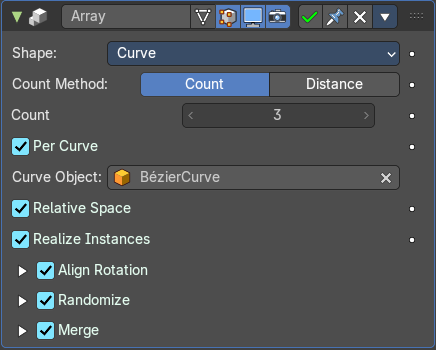
Distributes the duplicates along a selected curve.
| Property | What it changes |
|---|---|
| Count Method | The method to choose the number of duplicates. |
| Count | The number of copies to generate. |
| Per Curve | Specify the number of copies for each curve separately. |
| Curve Object | Select the curve object. You need to have a curve in the scene. |
| Relative Space | Use relative space for the input geometry. This makes sure that the transform of both inputs in relation are considered. |
| Realize Instances | Turn the output into a single geometry. |
Align Rotation subpanel
Rotate instances based on the circle shape.
| Property | What it changes |
|---|---|
| Primary Axis | The forward direction along the curve. |
| Secondary Axis | The secondary direction along the curve. |
Randomize subpanel
Randomize the copies.
| Property | What it changes |
|---|---|
| Offset | Random offset amount. |
| Rotation | Random rotation amount. |
Scale Axes
| Property | What it changes |
|---|---|
| Method Uniform | randomizes uniform and equlaly along all axes. |
| Method Axes | randomizes each axis individually. · Scale: Random scale amount. · Flipping: Random flipping amount. · Exclude First: Exclude the first copy. · Exclude Last: Exclude the last copy. · Seed: The seed to use for the randomness. |
Merge subpanel
Merges the vertices below the given threshold. Realize Instances needs to be activated.
Distance
The threshold distance. Everything below this distance will be merged.
Method Transform
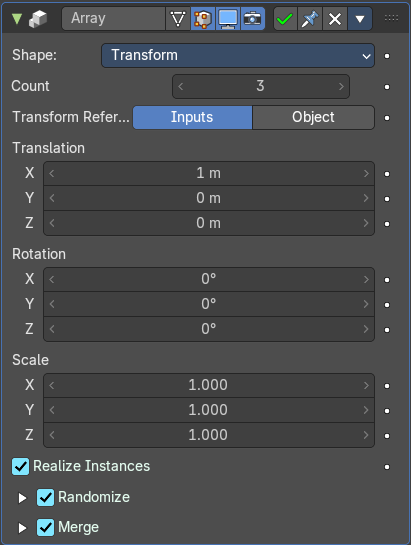
| Property | What it changes |
|---|---|
| Count | The number of copies to generate. |
| Transform Reference | How to define the transform. Locally (Input), or by an object. |
| Translation | The actual translaten vector of the copies. |
| Rotation | The rotation vector of the copies. |
| Scale | The scale vector of the copies. |
| Realize Instances | Turn the output into a single geometry. |
Randomize subpanel
Randomize the copies.
| Property | What it changes |
|---|---|
| Offset | Random offset amount. |
| Rotation | Random rotation amount. |
Scale Axes
| Property | What it changes |
|---|---|
| Method Uniform | randomizes uniform and equlaly along all axes. |
| Method Axes | randomizes each axis individually. · Scale: Random scale amount. · Flipping: Random flipping amount. · Exclude First: Exclude the first copy. · Exclude Last: Exclude the last copy. · Seed: The seed to use for the randomness. |
Merge subpanel
Merges the vertices below the given threshold. Realize Instances needs to be activated.
Distance
The threshold distance. Everything below this distance will be merged.
Array ( Legacy )
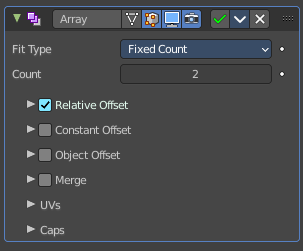
The Array modifier creates an array of copies of the base object. Each copy can offset from the previous one in any of a number of possible ways. Vertices in adjacent copies can be merged if they are nearby, allowing smooth Subdivision Surface frameworks to be generated.
This modifier can be useful when combined with tillable meshes for quickly developing large scenes. It is also useful for creating complex repetitive shapes.
Multiple Array modifiers may be active for an object at the same time. This allows to create complex three-dimensional constructs.
Hint for Offset Calculation. The transformation applied from one copy to the next is calculated as the sum of the three different components (Relative, Constant and Object), each of which can be enabled/disabled independently of the others. This allows, for example, a relative offset of (1.0, 0.0, 0.0) and a constant offset of (0.1, 0.0, 0.0), giving an array of objects neatly spaced along the X axis with a constant 0.1 unit between them, whatever the original object’s size.
Fit Type
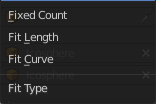
Controls how the length of the array is determined.
Fixed Count
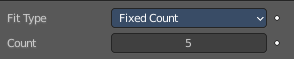
Generates the number of copies specified in Count.
Fit Length

Generates copies to fit within the fixed length given by Length.
Fit Curve
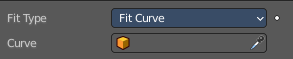
Generates copies to fit within the length of the curve object specified in Curve. You need to select a curve object.
Note: Both Fit Curve and Fit Length use the local coordinate system size of the base object, which means that scaling the base object in Object Mode will not change the number of copies generated by the modifier.
Fit Length uses the local coordinate system length of the curve, which means that scaling the curve in Object Mode will not change the number of copies generated by the modifier.
Applying the scale can be useful for both.
Relative Offset
Factor X/Y/Z
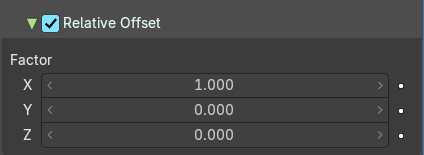
Adds a translation equal to the object’s bounding box size along each axis to the offset, multiplied by a scaling factor. X, Y and Z scaling factors can be specified.
Constant Offset
Distance X/Y/Z
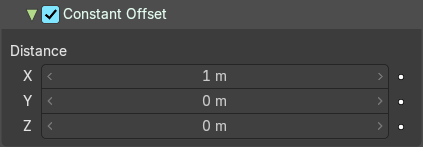
Adds a constant translation component to the duplicate object’s offset. X, Y and Z constant components can be specified.
| Property | What it changes |
|---|---|
| Object Offset | Adds a transformation taken from a chosen object relative to the current object to the offset. · Object: Choose an object. |
| Merge | If enabled, vertices in each copy will be merged with vertices in the next copy that are within the given Distance. · Distance: The merge distance between the vertices. Vertices below this distance will be merged. · First and Last Copies: Merge vertices in first and last duplicates. |
UV's
Offset U/V
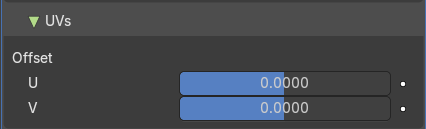
Shifts UV's of each new duplicate by a settable amount.
Caps
Cap Start / End
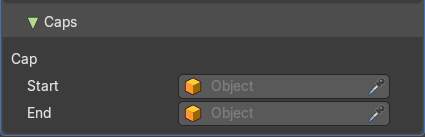
Adds a chosen mesh at the start and end of the array. The start object is added at position -1. The end object at position +1. When Merge is activated, and the cap vertices are within the Distance threshold, they will be merged.
Note: The start/end cap objects currently do not support the First and Last Copies option.
Bevel
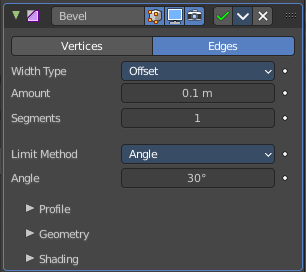
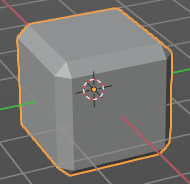
The Bevel modifier bevels the edges of the mesh. It is a non-destructive alternative to the Bevel Operation in Edit Mode.
Affect
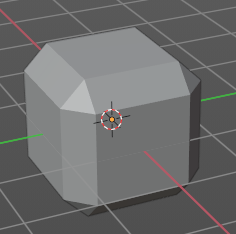
Vertices
Only the areas near vertices are beveled, the edges remain unchanged.
Edges
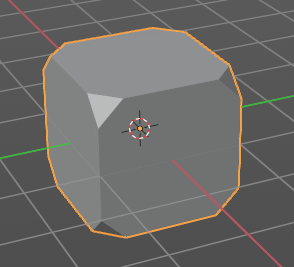
Bevels both edges and vertices.
Width Type
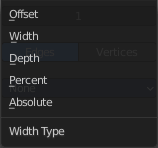
Defines how Width will be interpreted to determine the amount of bevel.
Offset
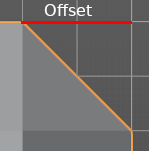
Value is interpreted as the distance from the original edge to the edge of the beveled face.
Width
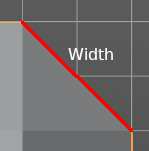
Value is interpreted as the distance between the two new edges formed by the bevel.
Depth
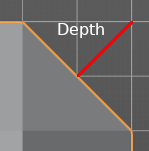
Value is the perpendicular distance from the new bevel face to original edge.
| Property | What it changes |
|---|---|
| Percent | Similar to Offset but the value is interpreted as a percentage of the adjacent edge length. |
| Absolute | Amount is absolute along adjacent edge. |
| Property | What it changes |
|---|---|
| Amount | The bevel amount. |
| Segments | The number of edge loops added along the bevel’s face. |
Limit Method
Used to control where a bevel is applied to the mesh.
None

No limit, all edges will be beveled.
Angle

Only edges where the adjacent faces form an angle smaller than the defined threshold will be beveled. Intended to allow you to bevel only the sharp edges of an object without affecting its smooth surfaces.
Angle
The angle above which to bevel.
Weight
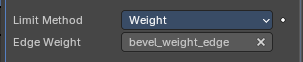
Use each edge’s bevel weight to determine the width of the bevel. When the bevel weight is 0.0, no bevel is applied.
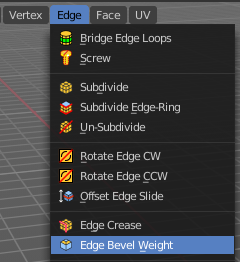
Edge bevel weight can be set in Edit mode in the Edge menu with the Edge Bevel Weight tool.
Edge Weight
The geometry attribute that is used for the weight method. The geometry attribute is bevel_weight_edge, but you can use any attribute defined by Geometry Nodes here.
Vertex Group

Use weights from a vertex group to determine the width of the bevel. When the vertex weight is 0.0, no bevel is applied. An edge is only beveled if both of its vertices are in the vertex group. See here about adjusting vertex group weights.
| Property | What it changes |
|---|---|
| Vertex Group | Choose the vertex group. |
| Invert | Inverts the influence of the selected vertex group. |
Profile subpanel
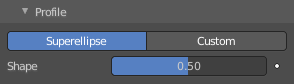
The profile defines the shape of the bevel. Profile has no effect if the number of segments is below 2.
Super Ellipse
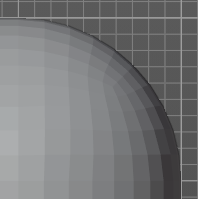
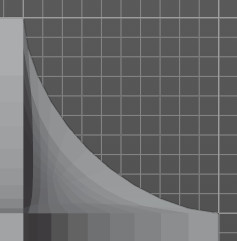
Defines a rounded bevel corner.
Shape
The shape of the rounded bevel corner. A value close to 0 bends the roundness to inside. A value towards 1 bends the curve to outside. A value of 0.5 defines a radius around the center point of the bevel.
Custom
Here you can define a custom shape profile for the bevel.
Miter Shape
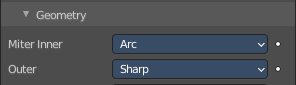
The shape of the custom bevel corner. Has no effect when the miter type is sharp. You need to set it to Arc in the geometry section.
Custom Profile
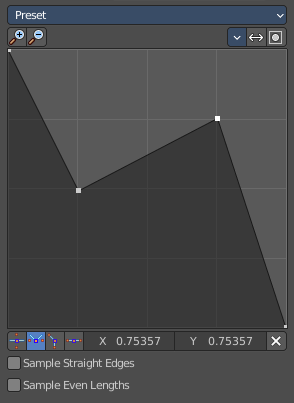
Choose and adjust a custom bevel profile. This feature needs more than one segment to work.
Preset
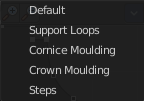
Choose some profile presets.
| Property | What it changes |
|---|---|
| Zoom in | Zooms into the curve view. |
| Zoom out | Zooms out of the curve view. |
Tools
Reset View
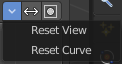
Resets the zoom factor of the curve view.
Reset Curve
Resets the curve to the defaults. This means when you choose a curve preset to reset it to the values of the latest chosen preset.
| Property | What it changes |
|---|---|
| Reverse Path | The path gets reversed. The first point becomes the last and vice versa. |
| Toggle Profile Clipping | Toggles the profile clipping. |
Curve view
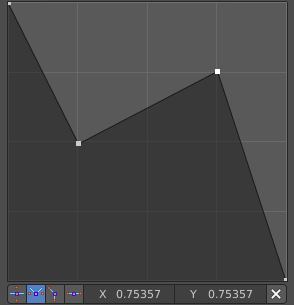
Adjust the profile curve.
Left click where no point is adds a new point. Left click at a point allows you to move it.
Holding down Shift while moving a node point activates precision movement.
Holding down ctrl while moving activates temporary snapping.
When a point is selected then the curve view reveals a sub menu at the bottom.
| Property | What it changes |
|---|---|
| Handle Type Auto Handle | Sets the handle type of this curve point to smooth. |
| Handle Type Vector Handle | Sets the handle type of this curve point to sharp. |
| Handle Type Free Handle | Sets the handle type of this curve to Free handles. The curve point has now two handles with which you can adjust the curve before and after the point each. |
| Handle Type Aligned Free Handle | Sets the handle type of this curve to Free handles. The curve point has now a handle with which you can adjust the curve. |
| Property | What it changes |
|---|---|
| X Y Values | The position of the currently selected curve point. |
| Delete | Delete the selected curve point. |
| Sample Straight Edges | Sample edges with vector handles. |
| Sample Even Lengths | Sample edges with even lengths. |
Geometry subpanel
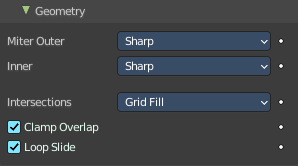
Miter Inner
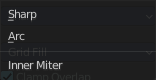
How the inner miter is set. Miter is how the bevel rounding at a corner is done.
Sharp
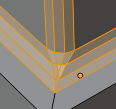
Creates a sharp miter.
Arc
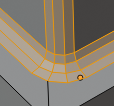
This replaces the vertex of a miter with 2 vertices, joined by an arc. A separate Spread parameter says how far to move the vertices away from their original position.
Outer
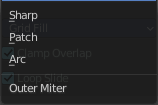
How the outer miter is set. Miter is how the bevel rounding at a corner is done.
Sharp
Creates a sharp miter.
Patch
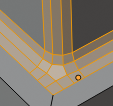
This replaces the outside vertex of a miter with 3 vertices. And uses a patch pattern there.
Arc
This replaces the vertex of a miter with 2 vertices, joined by an arc. A separate Spread parameter says how far to move the vertices away from their original position.
Intersections
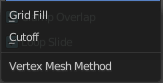
If a bevel corner is filled or not. Needs minimum two segments to have effect.
When the inner corners of the cutoff profiles faces meet at the same location with a three way intersection, then no center face is created.
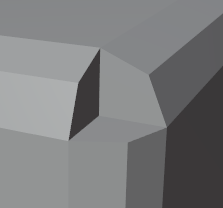
The direction of the cutoff faces depends on the original vertex’s normal.
| Property | What it changes |
|---|---|
| Clamp Overlap | Limits the width of each beveled edge so that edges cannot cause overlapping intersections with other geometry. |
| Loop Slide | If there are unbeveled edges along with beveled edges into a vertex, the bevel tries to slide along those edges when possible. Turning the option off can lead to more even bevel widths. |
Shading subpanel
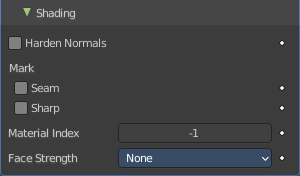
Harden Normals
Match normals of new faces to adjacent faces.
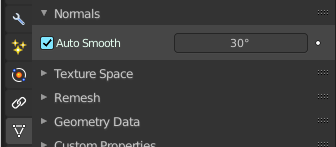
Autosmooth needs to be enabled for this feature. And the shading needs to be smooth.
| Property | What it changes |
|---|---|
| Mark | Seam: When the beveled edge is a seam edge, then the bevel will also contain a seam to keep the seam into account. · Sharp: When the beveled edge is a sharp edge, then the bevel will also contain a sharp edge to keep the sharp edge into account. |
| Material Index | The index of the material slot to use for the bevel. When set to -1, the material of the nearest original face will be used. |
Face Strength
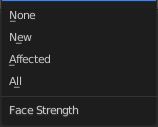
Set the Face Strength on the faces involved in the bevel by the mode specified here.
This face strength then can be used in conjunction with a following Weighted Normals modifier (with the Face Influence option checked).
| Property | What it changes |
|---|---|
| None | Do not set face strength. |
| New | Set the face strength of new faces along edges to Medium, and the face strength of new faces at vertices to Weak. |
| Affected | In addition to those set for the New case, also set the faces adjacent to new faces to have strength Strong. |
| All | In addition to those set for the Affected case, also set all the rest of the faces of the model to have strength Strong. |
Boolean
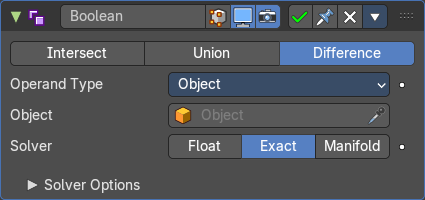
The Boolean modifier uses one of the three available Boolean operations to create a single mesh out of two mesh objects. Union, Difference and Intersect. This modifier needs a second object to be the target of the operation.
Boolean operations may or may not deliver useful results. And requires nearly always manual cleanup afterwards since it tends to create N-Gon geometry and can create micro triangles. You should also avoid co-planar faces. Manifold meshes works best.
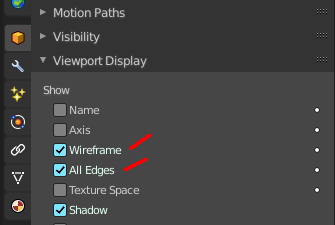
Tip: Tick Wireframe, and All Edges in the Viewport Display panel to see the bool result in realtime happen. And hide the bool object. That way you can tweak the positions of the objects if needed.
Operation

The Boolean operation to use.
Demonstrated at a cube with the modifier applied, and a sphere as the target object.
Intersect
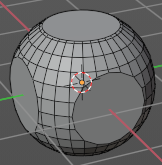
Keeps the intersecting geometry, removes the non intersecting geometry.
Union
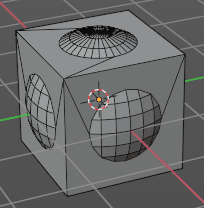
The target mesh is added to the modified mesh.
Difference
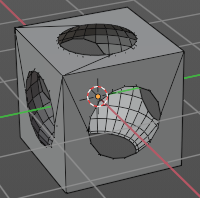
Keeps the non intersecting geometry, removes the intersecting geometry.
Operand Type
| Property | What it changes |
|---|---|
| Object | The target mesh object. You need to choose a target mesh object for the boolean operation. |
| Solver | Fast, Exact or Manifold. Manifold works only on manifold meshes. |
Solver Options sub panel
With solver method fast
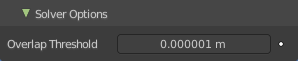
Overlap Threshold
The threshold for overlapping geometry. This value determines above which value a boolean operation happens.
With Solver Method Exact
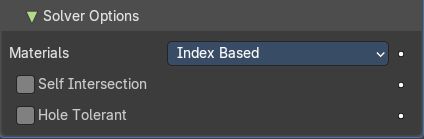
Materials
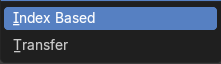
Method for setting the materials on new faces.
| Property | What it changes |
|---|---|
| Self Intersection | Allow self intersection in operanding objects. |
| Hole Tolerant | Better results when the mesh contains holes. |
With Solver Method Manifold

Materials
Method for setting the materials on new faces.
Build
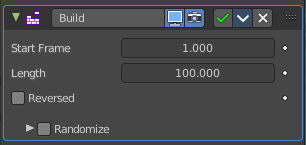
The Build modifier lets the faces of the mesh object to appear or disappear one after the other over time when you play the animation.
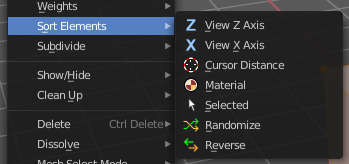
By default, faces appear in the order in which they are stored in memory, which follows the order how they are created. This face/vertex order can be altered in Edit Mode by using Sort Mesh Elements in the Mesh menu.
| Property | What it changes |
|---|---|
| Start | The start frame of the building process. |
| Length | The number of frames over which to rebuild the object. |
| Reversed | The modifier will operate in reverse, and start with the full mesh. And deconstruct it towards the end frame. |
| Randomize | Randomizes the order in which the faces are built. · Seed: The random seed. Changing this value gives a different “random” order when Randomize is checked. This order is always the same for a given seed/mesh set. |
Decimate
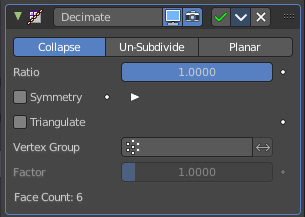
The Decimate modifier allows you to reduce the vertex/face count of a mesh with minimal shape changes. The result is just displayed in Object mode. In Edit mode the unaltered mesh is shown.
Mode
Collapse
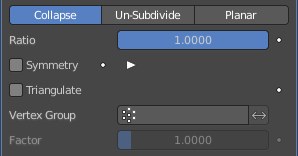
This algorithm uses progressive merging of vertices, taking the shape of the mesh into account.
Ratio
The ratio of faces to keep after decimation. 1.0 is not altered. The lower the value the stronger the reduction.
Note: Although the Ratio is directly proportional to the number of remaining faces, triangles are used when calculating the ratio.
This means that if your mesh contains quads or other polygons, the number of remaining faces will be larger than expected, because those will remain unchanged if their edges are not collapsed.
This is only true if the Triangulate option is disabled.
Symmetry

Maintains symmetry on a single axis.
| Property | What it changes |
|---|---|
| Triangulate | Keeps any resulting triangulated geometry from the decimation process. |
| Vertex Group | A vertex group that controls what parts of the mesh are decimated. · Invert: Decimate the geometry except the vertex group. · Factor: The influence factor of the vertex group. |
Un-Subdivide
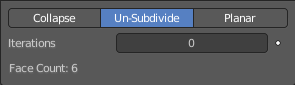
This algorithm tries to unsubdivide divided faces.
Iterations
The number of times to perform the unsubdivide operation. Two iterations is the same as one subdivide operation, so you will usually want to use even numbers.
Planar
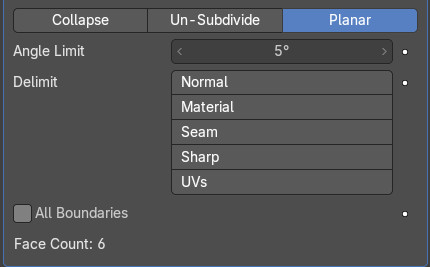
This algorithm reduces details by unioning adjacent faces that are below an angle limit.
| Property | What it changes |
|---|---|
| Angle Limit | Dissolve geometry which form angles (between surfaces) higher than this setting. |
| Delimit | Prevent dissolving geometry in certain places. · Normal: Does not dissolve edges on the borders of areas where the face normals are reversed. · Material: Does not dissolve edges on the borders of where different materials are assigned. · Seam: Does not dissolve edges marked as seams. · All Boundaries: When enabled, all vertices along the boundaries of faces are dissolved. |
Face Count
The face count of the decimated mesh.
Edge Split
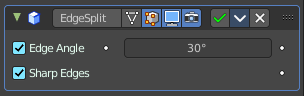
The Edge Split modifier splits single edges into two independent edges when the adjacent faces are below the defined angle. Or when the edge is marked as sharp. Which can be done in edit mode in the Edge menu with the Mark Sharp tool.
Splitting an edge affects vertex normal generation at that edge, and makes the edge appear sharp. So this modifier can be used to achieve the same effect as Auto Smooth. And make edges appear sharp when their angle is above a certain threshold. It can also be used for manual control of the smoothing process, where the user defines which edges should appear smooth or sharp (see Mesh Smoothing for other ways to do this). If desired, both modes can be active at once.
Note: This modifier is kept mostly for historical/compatibility reasons. Everything it can do in shading, and much more, can now be achieved using custom normals. Unless you really need the topology changes it generates, it is not advised to use it in new projects.
| Property | What it changes |
|---|---|
| Edge Angle | The angle above which to split edges. |
| Sharp Edges | When you have marked edges as sharp, then these edges will be split. Note! Non-manifold edges will always be split. |
Mask
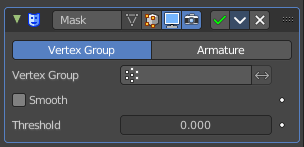
The Mask modifier allows to hide vertices of an object dynamically based on vertex groups or an Armature.
| Property | What it changes |
|---|---|
| Mode | Use Vertex Groups or an armature to hide the mesh Vertex Group works in Object mode. Armature works in Pose mode, and uses the active bone for masking. |
| Vertex Group | Here you can select the vertex group that you want to use for masking. The geometry from this vertex group is shown. |
| Smooth | Use vertex group weighs to cut faces at the weight contour. |
| Armature | When in Pose Mode, vertices belonging to the vertex group associated with the active bone (same names) will be visible. Vertices not in that group will be hidden. · Invert: Show the not selected geometry instead of the selected. |
| Threshold | Vertices with weights less or equal to this value will be hidden. |
Mirror
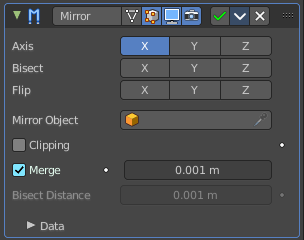
The Mirror modifier mirrors a mesh along its local X, Y and/or Z axes, across the Object Origin. It can also use another object as the mirror center, then use that object’s local axes instead of its own.
| Property | What it changes |
|---|---|
| Workflow | Usually this modifier is used for mirror modeling in edit mode. In Edit mode just the original side is editable then. Recommend is to remove half of the mesh before starting. The missing part will then be added by the Mirror modifier. But you can also use the Bisect feature. |
| Axis | The axis to mirror along. You can select more than one of these axes. And will then get more mirrored copies. With one axis you get a single mirror, with two axes four mirrors, and with all three axes eight mirrors. |
| Bisect | If the mesh is already on both sides of the mirror plane, it is cut by that plane. And only one side (the “negative” one by default) is kept to perform the mirror process. Note. When you turn Bisect on and pull at the mirror part, then you won't have the mirroring effect to the original side. |
| Flip | When Bisect is enabled on an axis, you can use this setting to switch the side kept and mirrored (i.e. when it is enabled, the “positive” side will be kept, instead of the “negative” one). |
| Mirror Object | An Object Selector to select an object (usually an empty), which position and rotation will be used to define mirror planes (instead of using the ones from the modified object). You can animate it to move the mirror axis. |
Clipping
Prevents vertices from moving through the mirror plane(s) when you transform them in Edit Mode.
If it is enabled but vertices are beyond the mirror plane and outside of the Merge Distance, the vertices will not be merged. But as soon as the vertices are within Merge Distance they are snapped together and cannot be moved beyond the mirror plane.
Note: Vertices on the mirror plane will be unable to move away from the mirror plane as long as Clipping is enabled. You must disable it to be able to move the vertices along the mirror axis again.
| Property | What it changes |
|---|---|
| Merge | Where a vertex is in the same place (within the Merge Distance) as its mirror it will be merged with the mirrored vertex. |
| Bisect Distance | Vertices are removed up to this distance from the bisect plane. · Merge Distance: The maximum distance between a vertex and its mirror copy at which they are merged together (being snapped on the mirror plane). Needs Merge to be enabled. |
Data subpanel
Mirror UV
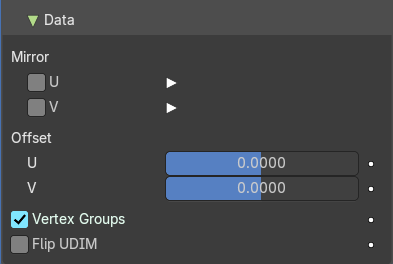
Mirror the UV texture coordinates across the middle of the image.
| Property | What it changes |
|---|---|
| Offset UV | Mirrored UV Offset along u and v axis. |
| Vertex Groups | Try to mirror existing vertex groups. Note! The vertex groups you want to mirror must be named following the usual left/right pattern (i.e. with suffixes like “.R”, “.right”, “.L”, etc.). The mirror side vertex group must already exist (it will not be created automatically). It must also be completely empty (no vertices assigned to it). |
| Flip UDIM | Mirror the texture coordinates around each tile center. |
Multiresolution
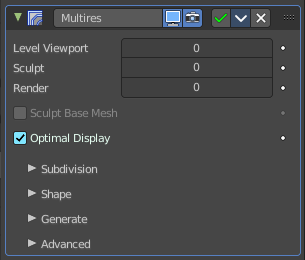
The Multiresolution modifier, in short “Multires”) allows you to subdivide a mesh similarly to the Subdivision Surface modifier, but also allows you to edit the new subdivision levels in Sculpt Mode.
Note: Multiresolution cannot be re-positioned in the stack after any modifier that will change geometry or other object data (This means all Generate, some Modify and some Simulate modifiers cannot come before the Multiresolution modifier). It needs to work at the unaltered base mesh.
Workflow
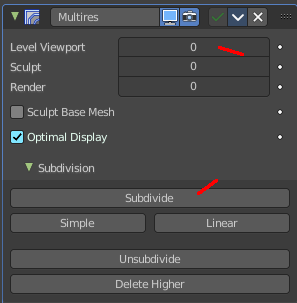
Add the modifier. Switch to Sculpt mode. Click at the Subdivide button. The Levels sculpt slider will now turn to 1. Do some sculpting. Click at the Subdivide button again. The Levels sculpt slider will now turn to 2. You have added a second sds layer now. Do some sculpt now. Click at the Subdivide button again, and you have a third sds sculpting level. Do some sculpt now.
To work at level 1 SDS simply change the Levels sculpt value back to 1. Or to 2 when you want to work at layer 2.
| Property | What it changes |
|---|---|
| Level Viewport | Number of subdivisions in the viewport when not in sculpt mode. |
| Sculpt | Number of subdivisions to use in sculpt mode. |
| Render | Number of subdivisions when rendering the image. |
| Sculpt Base Mesh | Sculpt at the base mesh, not at the multires sds layer. Note that this property is greyed out when you are not in sculpt mode. |
| Optimal Display | In object mode the subdivided edges will not be drawn. Only the edges of the base geometry. |
Subdivision Subpanel
| Property | What it changes |
|---|---|
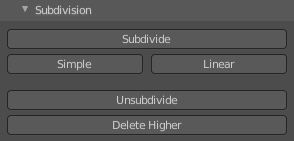
| Subdivision Mode | Subdivide: Adds another layer of subdivision. This subivision method divides the mesh smooth with the catmull clark algorithm. · Simple: Adds another layer of subdivision. The simple method just divides the existing faces. · Linear: Adds another layer of subdivision. The linear method divides the existing faces and interpolates linear. |
| Unsubdivide | Removes all subdivision layers. |
| Delete Higher | Removes the highest subdivision layer. |
Shape subpanel
| Property | What it changes |
|---|---|
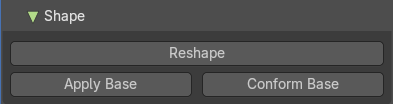
| Reshape | Copies vertex coordinates from another mesh. Usage: first select a different mesh object with matching topology and vertex indices. Shift select the object you wish to copy vertex coordinates to. Click Reshape. |
| Apply Base | Modifies the original unsubdivided mesh to match the form of the subdivided sculpted mesh. |
| Conform Base | Modifies the base mesh to conform to the displaced mesh. |
Generate Subpanel
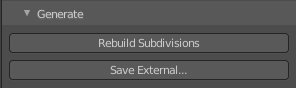
Rebuild all possible sds levels to generate a lower resolution base mesh
Save Externall
Saves displacements to an external .btx file. The Multiresolution sds information is then stored externally, so that the blend files doesn't become too big.
File path

Once saved you will see the path to the btx file below the save external button. The save external button has turned into Pack external then.
| Property | What it changes |
|---|---|
| Type | Sets the type of subdivision. Note! You need to set the subdivision type before you start. You can't change it afterwards. · Catmull-Clark: Creates a smoothed surface, using the standard Catmull-Clark subdivision surface algorithm. · Simple: Maintains the current shape, and simply subdivides edges. |
| Levels Sculpt | The subdivision layer. |
| Viewport | Set the level of subdivisions to show in Object Mode. In Sculpt mode this value has no effect. |
| Render | Set the level of subdivisions to show when rendering. |
Advanced Subpanel
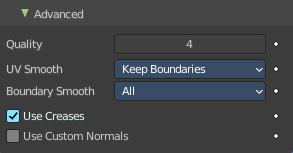
Quality
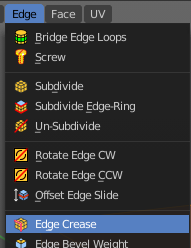
How precisely the vertices are positioned. This settings becomes active when you have an edge crease applied. This can be done in edit mode in the edge menu.
| Property | What it changes |
|---|---|
| UV Smooth | How to handle UV's during subdivision. · Smooth, keep corners: UV islands are smoothed, but their boundary remain sharp. · Sharp: UV remain unchanged. |
| Use Creases | Use the crease information. This settings becomes active when you have an edge crease applied. |
Remesh
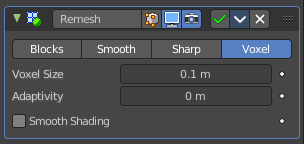
The Remesh modifier generates new mesh topology. The output follows the surface curvature of the input. But its topology contains quads.
The output and also the settings of the three basic modes Blocks, Smooth and Sharp is almost identical. Except the smoothing.
| Property | What it changes |
|---|---|
| Blocks, Smooth, Sharp | Blocks has no smoothing at all. Smooth outputs a smooth surface. Sharp outputs a smooth surface but preserves sharp edges and corners. · Octree Depth: The resolution of the Octree. Higher values gives finer details. · Scale: The ratio of the largest dimension of the model over the size of the grid. · Sharpness: Sharp mode only. Tolerance for outliers. Higher values produce edges more similar to the input, while lower values filter out noise. · Remove Disconnected: Filter out small disconnected pieces of the output. · Threshold: Use this to control how small a disconnected component must be to be removed. · Smooth Shading: Output faces with smooth shading. The smooth/flat shading of the input faces is not preserved. |
| Voxel | Generate a new manifold mesh from the current geometry while trying to preserve the mesh’s original volume. · Voxel Size: The voxel size. Defines the resolution of the created mesh. · Adaptivity: Reduces the final face count by simplifying geometry where detail is not needed. This feature triangulates faces that do not need as much detail. · Smooth Shading: Output faces with smooth shading. The smooth/flat shading of the input faces is not preserved. |
Screw
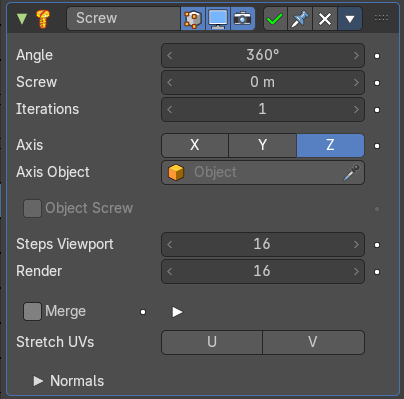
The Screw modifier takes a profile object, a mesh or a curve, to create a helix-like shape.
The profile should be properly aligned to the cardinal direction of the object.
| Property | What it changes |
|---|---|
| Angle | Degrees for a single helix iteration. |
| Screw | Offsets the iteration along its axis. |
| Iterations | Number of iterations. |
| Axis | The axis along which the helix will be built. |
| Screw | The height of one helix iteration. |
| Axis Object | Pick an object to define the axis direction. The helix will then point into the direction of this object. |
| Object Screw | Use the distance from the Axis Object to define the height of one helix iteration. |
| Steps Viewport | Number of steps used for a single revolution displayed in the 3D Viewport. |
| Render | Number of steps used for a single revolution used during render time. Higher values gives higher quality. |
Merge

Merge vertices that lie on the axis of rotation. Closes off end points with a triangle fan.
Merge Distance
Vertices under this distance to the axis are merged.
Stretch UV's
Stretch the UV coordinates from (0.0 to 1.0) when UV's are present.
Normals
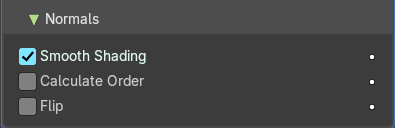
| Property | What it changes |
|---|---|
| Smooth Shading | Output faces with smooth shading. The smooth/flat shading of the input geometry is not preserved. |
| Calculate Order | Order of edges is calculated to avoid problems with normals and shading. Only needed for meshes, not curves. |
| Flip | Flip normals direction. |
Skin
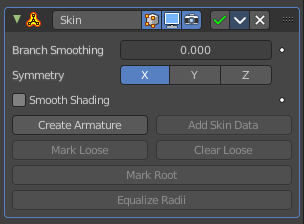
The Skin modifier uses vertices and edges to create a skinned surface. The output is mostly quads. But intersections can also produce triangles.
You can use geometry with faces as the base geometry. But the modifier just uses the vertices and edges information.
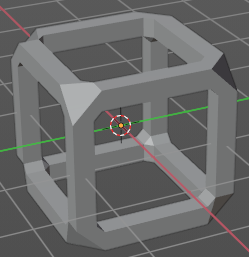
Note: Faces in the original geometry are ignored. The modifier works with the edges and vertices of the geometry. The faces of a cube for example gets removed. The new geometry appears around the edges.
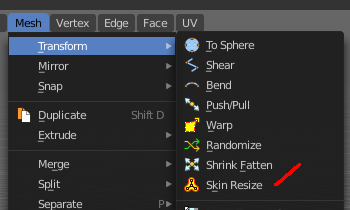
Note: The thickness of the created geometry can be adjusted in Edit mode with the Skin Resize tool. Note: The Edit mode also activates most of the in Object mode greyed out tools.
| Property | What it changes |
|---|---|
| Branch Smoothing | A branch point is a vertex with three or more connected edges. These areas tend to produce more complicated topology, some of which may overlap. This setting relaxes the surface around these points, with the side effect of shrinking it. |
| Symmetry Axes X/Y/Z | Keep the output topology symmetrical in their here chosen axes. Note! They do not add geometry flipped across an axis. For that, the Mirror modifier should be used, typically placed above the Skin modifier. |
| Smooth Shading | Output faces with smooth shading rather than flat shading. The smooth/flat shading of the input geometry is not preserved. |
Create Armature
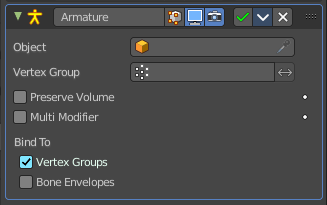
Creates an armature modifier below the Skin modifier. Each edge becomes a bone. And the generated mesh of the Skin modifier is assigned to this armature, with automatic weights. Deforming the armature will then deform the mesh.
Note: If the root vertex has more than one adjacent edge, an extra bone will be created to serve as the root.
| Property | What it changes |
|---|---|
| Add Skin Data | The Skin modifier uses a custom set of data in the mesh. This data is generated automatically when you add the Skin modifier the first time. There are use cases where this data can get lost, and the Skin modifier quits working. Add Skin Data then becomes available, and you can update the data. |
| Mark / Clear Loose | You need to be in Edit Mode to make this tool active. By default, a branch vertex (vertex with three or more connected edges) will generate extra edge loops along adjacent edges in order to keep the output tight. Branches can be made loose by clicking Mark Loose, which will allow the output to stretch between all adjacent vertices. This can be disabled again by clicking Clear Loose. |
Mark Root
You need to be in Edit Mode to make this tool active.
Marking a vertex as root causes that vertex to be used for calculating rotations for connected limbs. Root vertices also affect the armature output, they will be used as the origin for the root bones.
Each set of connected vertices should have one root node (one is selected by default if you do not assign any manually). Mark Root enforces the one-root per set rule, so it is not necessary to manually unmark roots.
Equalize Radii
You need to be in Edit Mode to make this tool active.
Makes the skin radii of selected vertices equal on each axis.
Solidify
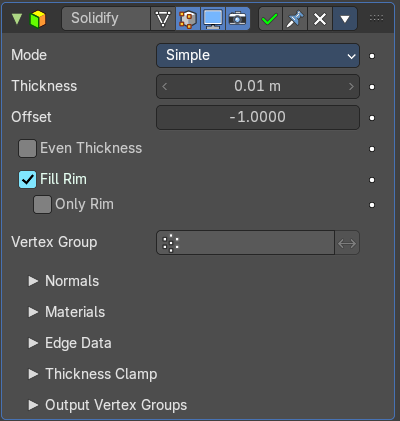
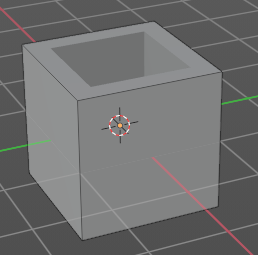
The Solidify modifier adds depth and thickness to the faces of a geometry.
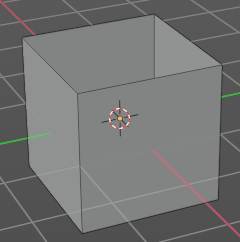
Example. A cube with one face removed.
Mode
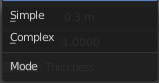
Simple
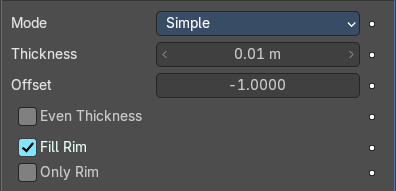
This algorithm simply extrudes the geometry. It does not work on geometry where edges have more than two adjacent faces.
Important: Simple mode will not be able to solidify the boundary between two adjacent faces that does not point into the same direction.
| Property | What it changes |
|---|---|
| Thickness | The extrude amount. |
| Offset | A value between (-1 to 1) to locate the solidified output inside or outside the original mesh. The inside and outside is determined by the face normals. Set to 0.0, the solidified output will be centered on the original mesh. |
| Even Thickness | Maintain the thickness by adjusting for sharp corners. Note! Solidify thickness is an approximation. The final wall thickness is not guaranteed. The best option to preserve wall thickness is complex mode with constraints thickness mode. But even this is not guaranteed to work perfect in every case. |
| Fill Rim | Fills the gap between the inner and outer edges. Note! Fill Rim and Only Rim only make a difference on Non-manifold objects, since the rims are generated from the borders of the original geometry. · Only Rim: Will not extrude surfaces parallel to the original one, but instead will only add the perpendicular rim. |
Complex
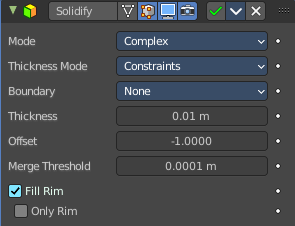
This solidify algorithm can handle every geometric situation to guarantee a manifold output geometry. It is able to solidify shapes like Möbius strips, Klein bottles, architectural wall layouts and many more which the Simple Mode isn’t able to do.
If the special cases are not present it is recommended to choose Simple because the extra logic makes this algorithm much slower.
Note: There are no options for crease in the Modifier tab because crease is handled in a dynamic way. The modifier will transfer the creases of the original mesh in a smart way to the output mesh to work with the Subdivision Surface modifier.
| Property | What it changes |
|---|---|
| Thickness Mode | Choose the kind of thickness handling. · Fixed: The new vertices are always in a fixed distance to the old ones. · Even: Adjusts for sharp corners, but may not always work when more than three faces come together. · Constraints: For up to three faces it is always guaranteed to find an optimal solution. |
| Boundary | Choose the kind of boundary handling. · None: No boundary fix is applied. Results are stable. · Round: Adjusts the boundary for an opening to face inwards (like a hole in an egg). · Flat: Adjusts the boundary of a planar opening to be a flat (like a cut sphere). |
| Thickness | The extrude amount. Important! The modifier thickness is calculated using local vertex coordinates. If the object has a non-uniform scale, the thickness will vary on different sides of the object. To fix this, either Apply or Clear the scale. |
| Offset | A value between (-1 to 1) to locate the solidified output inside or outside the original mesh. The inside and outside is determined by the face normals. Set to 0.0, the solidified output will be centered on the original mesh. |
| Merge Threshold | The distance within which degenerated geometry is merged. |
Rim
Note: Fill and Only Rim only make a difference on Non-manifold objects, since the rims are generated from the borders of the original geometry.
Fill Rim
Fills the gap between the inner and outer edges.
Only Rim
Will only leave the generated perpendicular rim
Note: Fill and Only Rim only make a difference on Non-manifold objects, since the rims are generated from the borders of the original geometry.
Vertex Group
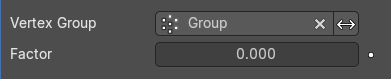
Only vertices in this group are solidified. Their weights are multiplied by the thickness, so vertices with lower weights will be less thick.
| Property | What it changes |
|---|---|
| Invert | Reverses the vertex group, so that only vertices which are not in the vertex group are solidified. |
| Factor | How much the vertex weights are taken into account. You need to have a vertex group assigned to activate this item. On 0.0, vertices with zero weight will have no thickness at all (creates duplicate vertices). On 0.5, vertices with zero weight will be half as thick as those with full weight. On 1.0 , the weights are ignored and the Thickness value is used for every vertex. |
Flat Faces
Just in Complex Mode. Use the minimal vertex weight assigned to the vertices of a face to make sure that new faces stays parallel to their original ones. This is slow, so disable it when it is not needed.
Normals subpanel
Flip Normals
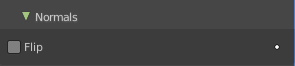
Reverse the normals of all geometry (both the inner and outer surfaces).
High Quality Normals
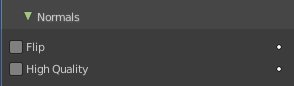
Just Simple Mode. Normals are calculated to produce a more even thickness.
Materials subpanel
Material Offset
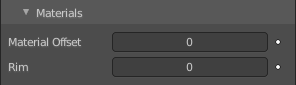
Choose a different material for the new geometry. This is applied as an offset from the original material of the face from which it was solidified.
A value of 0 means it will use the same material.
A value of 1 means it will use the material immediately below the original material.
A value of -2 means the material two positions above the original material will be used.
These values are clamped to the top-most and bottom-most material slots.
Rim
Choose a different material for the rim faces.
Edge Data
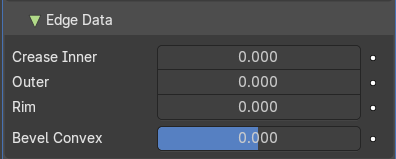
Inner, Outer and Rim are simple mode only.
| Property | What it changes |
|---|---|
| Inner | Set a crease to the inner edges. |
| Outer | Set a crease to the outer edges. |
| Rim | Set a crease to the rim. |
| Bevel Convex | Edge bevel weight to be added to outside edges. |
Thickness Clamp
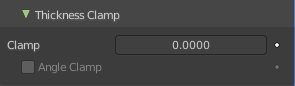
Clamp
A value between (0 to 2) to clamp offsets to avoid self-intersection. The amount is determined by the length of the shortest adjacent edge.
Angle Clamp
If enabled clamping will also consider angles in the geometry, not only lengths. Becomes active when the clamp value is above 0.0.
Output Vertex Groups
Shell
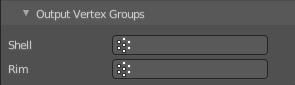
Vertex group that the generated shell geometry will be weighted to. This allows you to use other modifiers to only affect the shell geometry by using a that modifier’s vertex group influence control.
Rim
Same as Shell Vertex Group, but for the generated rim geometry.
Subdivision Surface
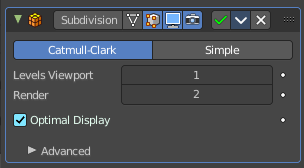
The Subdivision Surface modifier subdivides the faces of the mesh. With Simple it just divides the faces. The Catmull-Clark algorithm allows you to smoothen the result.
Type
Catmull-Clark
Subdivides and smooths the surfaces.
Note: Catmull-Clark subdivision rounds off edges. And sometimes this is not what you want. There are several solutions that allow you to control the subdivision. You can add a so called support edge or a support loop to keep the edge sharp.
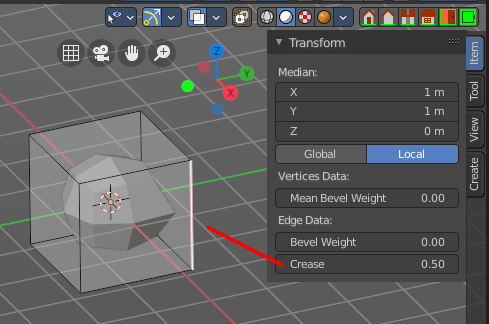
Or you can change the crease of the edges in question. Edge Crease can be adjusted in the Transform panel in the Item tab of the sidebar in the 3D view. You need to be in Edit mode.
Note: Abrupt normal changes in the surface can produce ugly black gouges, even when these flipped normals are not an issue for the shape itself. A quick way to fix this is to use the Recalculate Normals operation in Edit Mode. If you still have some ugly black gouges you can try to manually flip the normals in question.
Simple
Only subdivides the surfaces, without any smoothing.
| Property | What it changes |
|---|---|
| Levels Viewport | The number of subdivision levels shown in the 3D Viewport. |
| Render | The number of subdivision levels shown in the final render. |
| Optimal Display | When rendering the wire frame of this object, the wires of the new subdivided edges will be skipped. Only the edges of the original geometry will be displayed. |
Adaptive Subdivision (Cycles Experimental Feature Set)
Dicing Scale
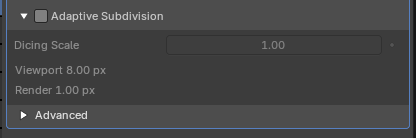
Multiplier for scene dicing rate
| Property | What it changes |
|---|---|
| Viewport | Current dicing rate for Viewport (Adjustable via the Subdivision Panel under Render Properties Tab) |
| Render | Current dicing rate for Render (Adjustable via the Subdivision Panel under Render Properties Tab) |
Advanced
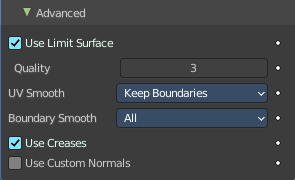
Quality
How precisely the vertices are positioned, relatively to their theoretical position of an infinitely subdivided mesh.
Note: This value can have an affect on how accurate Edge Creases can be. Using a higher Quality value will allow for a wider range of crease values to work accurately.
UV Smooth
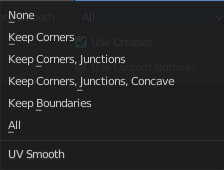
How to handle UV's during subdivision.
| Property | What it changes |
|---|---|
| None | Uvs are not smoothed, boundaries are kept sharp. |
| Keep Corners | UV's are smoothed, corners on discontinued boundaries are kept sharp. |
| Keep Corners, Junctions | UV's are smoothed, corners on discontinued boundaries are kept sharp. And conjunctions of three or more regions are kept sharp. |
| Keep Corners, Junctions, Concave | UV's are smoothed, corners on discontinued boundaries are kept sharp. And conjunctions of three or more regions and darts and concave corners are kept sharp. |
| Keep Boundaries | UV's are smoothed, boundaries are kept sharp. |
| All | UV's and boundaries are smoothed. |
| Smooth, keep corners | UV islands are smoothed, but their boundary remain sharp. |
| Sharp | UV remain unchanged. |
Boundary Smooth
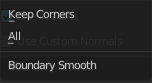
| Property | What it changes |
|---|---|
| Keep Corners | Smooth boundaries, but corners are kept sharp. |
| All | Smooth boundaries, including corners. |
| Property | What it changes |
|---|---|
| Use Creases | Use the Weighted Edge Creases values stored in edges to control the smoothness of the edges. |
| Use Custom Normals | Interpolates existing custom normals to resulting mesh. |
Triangulate
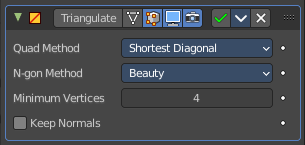
The Triangulate modifier triangulates all faces in a mesh.
Quad Method
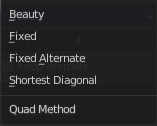
How to triangulate quads.
| Property | What it changes |
|---|---|
| Beauty | Tries to split the quads in a way that takes the topology into account. |
| Fixed | Split the quads on their 1st and 3rd vertices. |
| Fixed Alternate | Split the quads on their 2nd and 4th vertices. |
| Shortest Diagonal | Split the quads based on the diagonal distance between their vertices. |
N-Gon Method
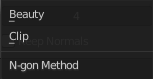
How to triangulate N-Gons.
| Property | What it changes |
|---|---|
| Beauty | Tries to split the N-Gons in a way that takes the topology into account. |
| Clip | Split the N-Gons by using an ear-clipping algorithm |
Minimum Vertices
Minimum number of vertices a face must have to be triangulated. For example, setting this value to 5, will prevent triangulation of Quads and only triangulate N-gons.
Volume to mesh
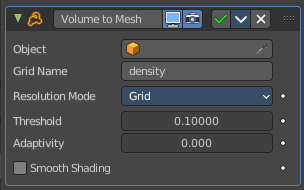
This modifier is the inverse of the Mesh to Volume modifier. It takes an existing volume object and converts one of its grids to a mesh. Only scalar grids (such as the density grid) can be converted.
Tip: To copy and move the generated mesh separately from the volume object, use a collection instance.
| Property | What it changes |
|---|---|
| Object | The source volume object. Pick the volume object here. |
| Grid Name | The name of the grid to convert. The grid has to be a scalar grid. |
Resolution Mode
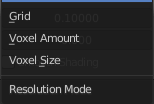
How the resolution of the final mesh is controlled.
| Property | What it changes |
|---|---|
| Grid | This makes the resolution dependent on the resolution of the grid that is converted. Higher resolution grids result in a higher resolution mesh. In many cases, that is the most efficient mode. |
| Voxel Amount | Specifies the approximate resolution of the final mesh. The voxel size is adapted to the size of the entire volume. |
| Voxel Size | Use a fixed resolution that does not change when the volume changes. |
| Property | What it changes |
|---|---|
| Threshold | Voxels with a larger value are considered to be inside the mesh and all other voxels outside. The mesh will be generated on the boundary of inside and outside voxels. This is sometimes also called the “iso value”. |
| Adaptivity | This is similar to decimating the final to reduce resolution where it is not needed. |
| Smooth Shading | Enables smooth shading on the generated mesh. |
Weld
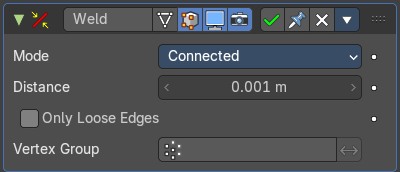
The Weld modifier merges vertices within a threshold.
Mode
All
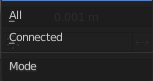
Full merge by distance.
Connected
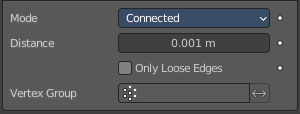
Just along the edges.
| Property | What it changes |
|---|---|
| Distance | The maximum distance to merge vertices. |
| Only Loose Edges | Just with Connected. Welds only loose edges. |
| Vertex Group | Only merge vertices from this vertex group. · Invert: Inverts the influence of the selected vertex group. Only vertices outside of this vertex group will be merged. |
Wireframe
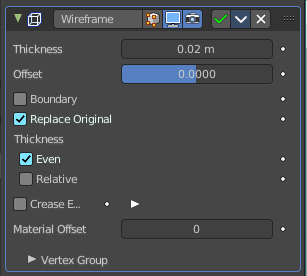
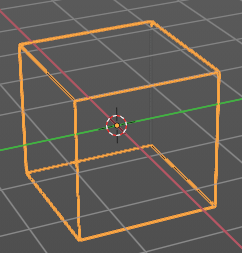
The Wireframe modifier hides the faces of a mesh, and turns the edges into four sided polygon geometry. The result then looks like you would have a wire frame view of the mesh.
The mesh needs to have faces.
| Property | What it changes |
|---|---|
| Thickness | The depth or size of the wire frames. |
| Offset | A value between (-1 to 1) to change whether the wire frames. are generated inside or outside of the original mesh. Set to zero, Offset will center the wire frames. around the original edges. |
| Boundary | Creates wire frames. on mesh island boundaries. |
| Replace Original | Replace the original mesh by the generated wire frame mesh. If not, the wire frame is generated on top of it. |
Thickness
Warning: Wireframe thickness is an approximation. While Even Thickness should yield good results in many cases, skinny faces can cause ugly spikes. In this case you can either reduce the extreme angles in the geometry or disable the Even Thickness option.
| Property | What it changes |
|---|---|
| Even | Maintain thickness by adjusting for sharp corners. Sometimes improves quality but also increases computation time. |
| Relative | Determines the edge thickness by the length of the edge. Longer edges will be thicker. |
| Property | What it changes |
|---|---|
| Crease Edges | This option is intended for usage with the Subdivision modifier. Enable this option to crease edges on their junctions and prevent large curved intersections. |
| Crease Weight | Define how much crease (0 to 1, nothing to full) the junctions should receive. |
| Material Offset | Uses the chosen material index as the material for the wire frame; this is applied as an offset from the first material. |
Vertex Group
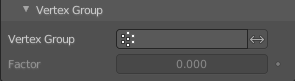
Restrict the modifier to only this vertex group, and use its weighting for thickness.
| Property | What it changes |
|---|---|
| Invert | Inverts the vertex group weights. |
| Factor | Percentage that the vertex has influence over the final wire frame result. |
Mesh to Volume
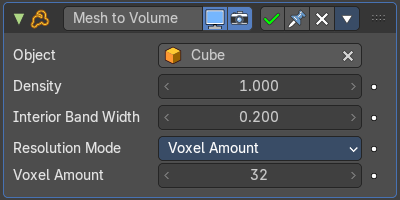
You need a volume object.
The Mesh to Volume modifier uses a mesh to create a new volume grid. All previously existing volume grids on the volume object are discarded. So this modifier is usually added to an empty volume object. The new volume grid is called “density”.
Tip: To copy and move the generated volume separately from the mesh object, use a collection instance.
| Property | What it changes |
|---|---|
| Object | The mesh object to use for the volume generation. Pick a mesh object here. |
| Density | Makes the generated volume appear denser or less dense when rendering. |
| Interior Band Width | The maximum distance of the included voxels to the surface on the inside of the mesh. Activating Fill Volume is similar to increasing the interior band width to a high number. |
Resolution Mode
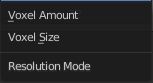
Mode for how the voxel size is specified.
| Property | What it changes |
|---|---|
| Voxel Amount | This allows setting an approximate number of voxels that will be used to represent mesh along its diagonal. When the dimensions of the mesh changes, the voxel size will change as well. For final rendering of animations, it’s better to specify the voxel size explicitly to avoid artifacts. |
| Voxel Size | This allows setting the exact voxel size that will be used. This is idea for rendering when the voxel size should not change between frames. |