

































































Deform modifiers (Mesh)
An armature system allows to deform objects accurately by posing bones. The Armature modifier contains the armature settings at the mesh end.
Armature
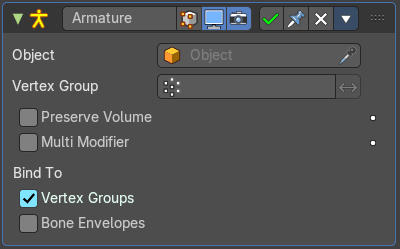
An armature system allows to deform objects accurately by posing bones. The Armature modifier contains the armature settings at the mesh end.
This modifier gets created automatically when you parent a mesh to an armature.
Object
The name of the armature object used by this modifier.
Vertex Group
A vertex group of the object, which weights will be used to determine the influence of this modifier’s results when mixing it with the results from other Armature ones.
This is only of use when having at least two of these modifiers on the same object, with Multi Modifier activated.
Invert
Inverts the influence set by the vertex group.
| Property | What it changes |
|---|---|
| Preserve Volume | Use quaternions for preserving volume of object during deformation. Without Preserve Volume, rotations at joints tend to scale down the neighboring geometry, up to nearly zero at 180 degrees from rest position. With it, the geometry is no longer scaled down, but there is a discontinuity when reaching 180 degrees from rest position. |
| Multi Modifier | You can parent an object to more than one armature. The Multi Modifier allows you to use several armatures to deform the same object, all based on the “non-deformed” data. The results of the Armature modifiers are then mixed together, using the weights of the Vertex Group as “mixing guides”. |
Bind to
Vertex Groups
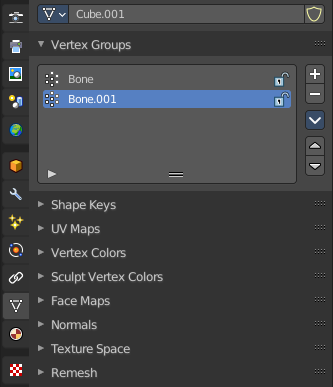
Meshes and lattices only. Use Vertex groups for deforming the mesh. A bone named “forearm”, will only affect the vertices in the “forearm” vertex group. The influence of one bone on a given vertex is controlled by the weight of this vertex in the relevant group.
The vertex groups are located in the Object Data Properties in the Properties editor.
Bone Envelopes
Use the Bone envelopes to deform vertices or control points near them, defined by each bone’s envelope radius and distance.
When envelopes are disabled, Blender uses the set of existing vertex group names to determine which bones influences what mesh part.
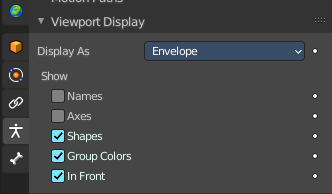
Bone envelopes display can be turned on in the Viewport Display panel in the Object Data properties tab in the Properties Editor. Display as ...
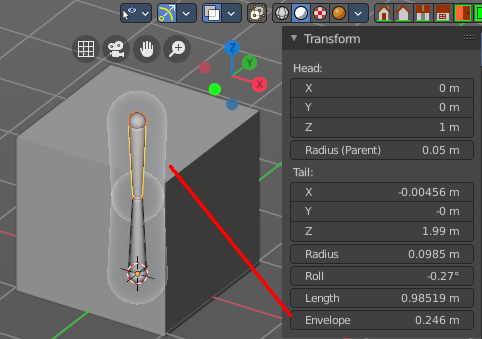
And can be adjusted in the Transform panel in the sidebar of the 3D View, in Edit mode.
Cast
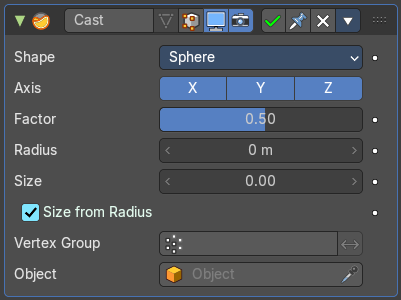
The Cast modifier shifts the shape of a mesh, curve, surface or lattice object, towards predefined shapes. Sphere, cylinder, cuboid.
Note: For performance reasons, this modifier only works with local coordinates. If the modified object looks wrong, you may need to apply its transformations, especially when casting to a cylinder.
Shape
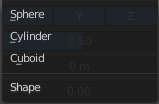
Choose the target shape of the projection: Sphere, Cylinder or Cuboid.
| Property | What it changes |
|---|---|
| Axis | The directions in which the modifier works. For a Cylinder shape the Z axis remains unaffected. |
| Factor | The factor to control blending between original and cast vertex positions. The factor is a linear interpolation. 0.0 gives original coordinates, and the modifier has no effect then. 1.0 casts to the target shape. Values below 0.0 or above 1.0 exaggerate the deformation. |
| Radius | A value above 0.0 defines a sphere of influence. Vertices outside it are not affected by the modifier. |
| Size | Alternative size for the projected shape. If zero, it is defined by the initial shape and the control object, if any. |
| Size from Radius | Calculate Size from Radius. Can give smoother results. |
| Vertex Group | Restrict the effect to the vertices in that vertex group. · Invert: Inverts the influence of the selected vertex group. |
| Object | The name of an object to control the effect. The location of this object’s origin defines the center of the projection. And its size and rotation transform the projected vertices. |
Curve
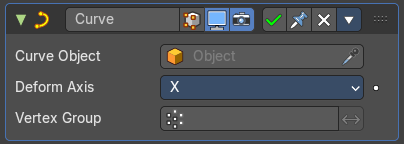
The Curve modifier deforms a mesh along a curve object. You need to have a curve object in the scene, and choose it as the curve object.
The modifier works in global space on a dominant axis, X, Y, or Z. When you move your mesh in the dominant direction, the object will move along the curve. When you pull into the other axis directions then the object will move away from the dominant axis, and deform.
When you move the object beyond the curve’s ends, the object will keep the deformation from the latest curve point.
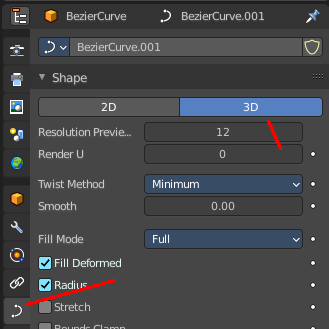
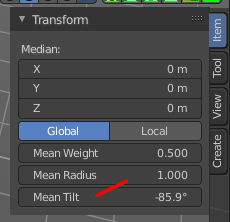
If the curve is 3D, then the rotation of the object can be controlled by the mean tilt of the curve control points. The mean tilt can be found in edit mode in the sidebar in the Transform panel. Other options in the Shape panel can also have an influence at the deforming result. Like Stretch.
Curve Object
The name of the curve object that will affect the deformed object.
Deformation Axis
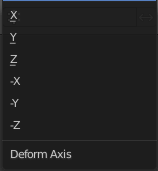
The axis to deform along.
Vertex Group
Restrict the effect to the vertices in that vertex group.
Invert
Inverts the influence of the selected vertex group.
Displace
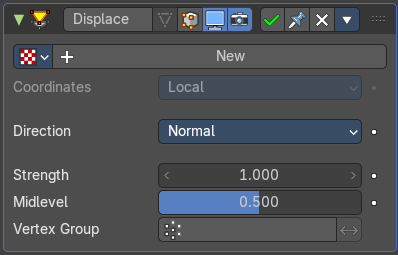
The Displace modifier displaces vertices in a mesh based on the greyscale values of a texture. You can use image textures or procedural textures.
Workflow
Create a texture. Switch to the Texture tab. Load an image texture, or change the type to any procedural image type that fits your needs. Like Clouds.
Texture
The name of the texture from which the displacement for each vertex is derived. If this field is empty, the modifier defaults to 1.0 (white).
Texture Prop
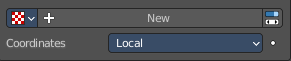
Texture browser
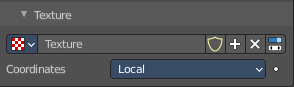
A list of the available textures
| Property | What it changes |
|---|---|
| Texture Edit Box | The name of the currently active texture. Allows to rename the texture too. |
| Fake User | Keep this data even when it has no user in the scene. |
| Add Texture | Add a new texture. |
| Remove | Removes the texture. Note that the texture is still in the browser list. |
| Change Context | Jump to texture tab and show the texture. |
Coordinates
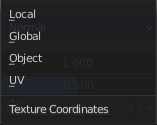
The texture coordinate system to use for the displacement.
The displacement can be along a particular local axis, along the vertex normal. Or the separate RGB components of the texture can be used to displace vertices in the local X, Y and Z directions simultaneously. This is called Vector Displacement.
Direction
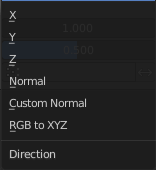
The direction along which to displace the vertices.
X, Y, Z
Displace along an axis.
Space
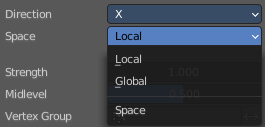
With a direction set to X, Y, Z, or XYZ the modifier can either displace along local or global axes.
| Property | What it changes |
|---|---|
| Normal | Displace along the vertex normal. |
| Custom Normal | Displace along (averaged) custom normals, instead of vertex normals. |
RGB to XYZ
Displace along local XYZ axes individually using the RGB components of the texture. Red values displaced along the X axis, Green along the Y, Blue along the Z axis.
Space
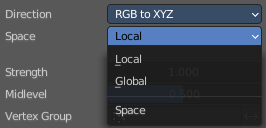
With a direction set to X, Y, Z, or XYZ the modifier can either displace along local or global axes.
| Property | What it changes |
|---|---|
| Strength | The strength of the displacement. A negative strength inverts the effect of the modifier. After offsetting by the Mid level value, the displacement will be multiplied by the Strength value to give the final vertex offset. vertexoffset = displacement × Strength |
| Mid level | The texture value which will be treated as no displacement by the modifier. Texture values below this threshold will result in negative displacement along the selected direction, while texture values above it will result in positive displacement. displacement=texturevalue-Midlevel Note that that color/luminosity values are typically between (0.0 to 1.0) in Blender, and not between (0 to 255). |
| Vertex Group | Use a vertex group to control the influence of the modifier. · Invert: Inverts the influence of the selected vertex group. |
Hook
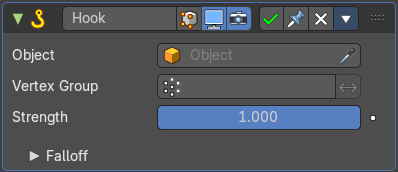
The Hook modifier is used to deform a mesh, curve or lattice by another object. When you move this hook object, then it pulls vertices or control points with it.
Assigning the hook object to specific vertices of the target object is done in Edit mode. The modifier shows a set of buttons then.
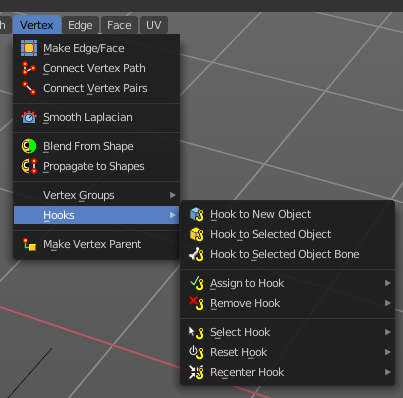
This modifier is automatically created when you add a Hook from the Hooks menu in the Edge menu in edit mode.
Some settings just exists in Edit mode.
Warning: The Hook Modifier stores vertex indices from the original mesh to determine what to affect. Modifiers that generate geometry, like Subdivision Surface, should always be put after the Hook modifier in the stack. Otherwise, the generated geometry can‘ t be affected by the hook’s influence.
| Property | What it changes |
|---|---|
| Object | The name of the object to hook vertices to. |
| Vertex Group | Allows you to define the influence per vertex. · Invert: Inverts the influence of the selected vertex group. |
| Strength | Adjust this hooks influence on the vertices. |
Reset
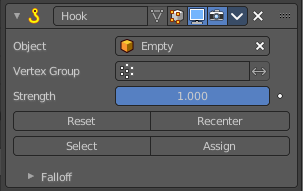
In Edit mode. Recalculate and clear the offset transform of the hook.
| Property | What it changes |
|---|---|
| Recenter | In Edit mode. Set the hook center to the 3D cursor position. |
| Select | In Edit mode. Select the vertices affected by this hook. |
| Assign | In Edit mode. Assigns selected vertices to this hook. |
Falloff
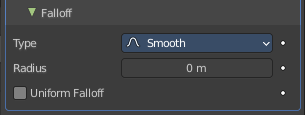
| Property | What it changes |
|---|---|
| Type | This can be used to adjust the kind of influence curve that the hook has on the mesh. You can also define a custom curve to get a much higher level of control. |
| Radius | The size of the hooks influence. |
| Uniform Falloff | Compensate non uniform scale, and use a uniform falloff. |
Laplacian Deform
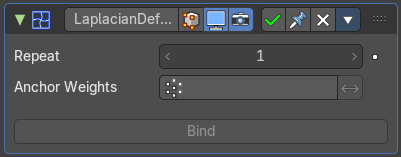
The Laplacian Deform modifier allows you to pose a mesh by using some anchor vertices and moving them around. The modifier takes care for a proper deformation of the rest of the vertices.
This modifier needs a hook modifier to move the geometry.
Note: With a dense mesh above 100k the algorithm may fail.
Workflow
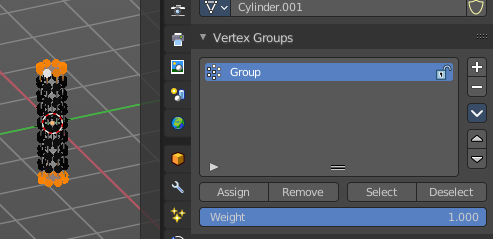
Switch to Edit mode. Create a single vertex group, and add the vertices that you want to use as the anchor areas.
You need at least two anchor areas.
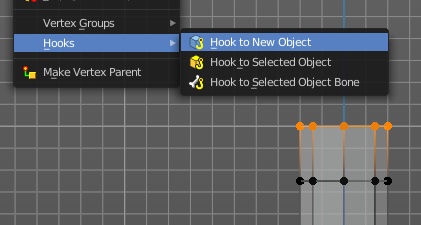
Add a hook to each of this anchor areas. In our case one to the top of the cylinder, and one to the bottom of the cylinder.
I add the hook by Hook to New Object from the Vertex menu here, which creates an empty.
You should now have two hook objects in the modifier stack of the cylinder. And two empties.
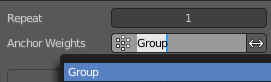
Switch back to object mode. Select the cylinder. Add a Laplacian Deform modifier. In the Anchor Weights edit box select the vertex group that we have created.

Click at Bind to bind the vertex group to the modifier. Note! Binding happens with the current deformation. Not to the unmodified base mesh. When you have moved the hooks already to deform the mesh, then this will be the base for the calculation.
Now move the hooked empties.
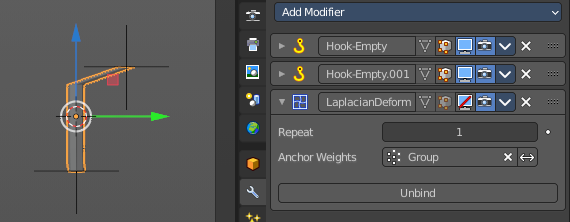
Without the Laplacian deform modifier moving the hooked empties will now only pull the vertices that are hooked.
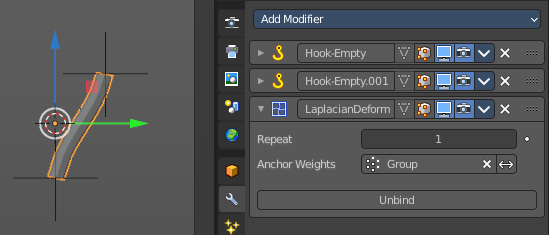
With the Laplacian deform modifier the deformation affects all geometry, which allows you to pose the mesh. The algorithm tries to interpolate the result to give the best possible fitting deformation.
| Property | What it changes |
|---|---|
| Repeat | How many iterations to use to improve the deformation. More iterations improves detail and calculation time. |
| Anchor Weights | The group of vertices to use for the transformation. The weight of each vertex does not affect the behavior of the modifier. The method only calculates vertices with a weight greater than 0. |
| Invert | Inverts the influence of the selected vertex group. |
| Bind | Bind the vertex group to the modifier. Note! Binding happens with the current deformation. Not to the unmodified base mesh. When you have moved the hooks to deform the mesh, then this will be the base for the calculation. |
| Unbind | Unconnect the vertex group from the modifier. |
| Error Messages | Vertex group group_name is not valid: This message is displayed when a user deletes the vertex group or changes its name. · Vertices changed from X to Y: This message is displayed when a user adds or deletes vertices to/from the mesh. · Edges changed from X to Y: This message is displayed when a user adds or deletes edges to/from the mesh. · The system did not find a solution: This message is displayed if the solver could not find a solution. |
Lattice
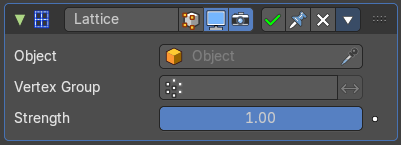
The Lattice modifier deforms the base object by the shape of a Lattice object. It can be used at meshes, curves, surfaces, text, lattices and even particles.
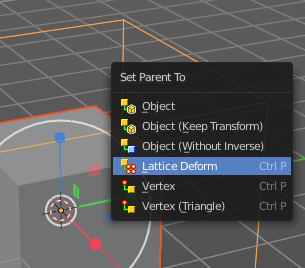
A Lattice modifier with valid settings can be added by selecting the object, holding down shift, select the target lattice object, and then choose Lattice Deform in the Parent menu.
Note: When you want to use a lattice to deform particles, then you need to place the Lattice modifier after the Particle System modifier.
| Property | What it changes |
|---|---|
| Object | The Lattice object that deforms the base object. |
| Vertex Group | Limit the modifier’s effect to a vertex group of the base mesh. · Invert: Inverts the influence of the selected vertex group. |
| Strength | A factor to control blending between original and deformed vertex positions. |
Mesh Deform
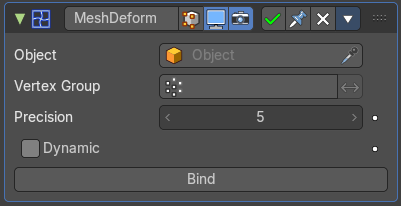
The Mesh Deform modifier allows an arbitrary mesh of any closed shape to act as a deformation cage around another mesh.
Note: The changes are not displayed in edit mode. But Edit mode is where you deform your cage object. Note: This modifier can run out of memory and crash.
| Property | What it changes |
|---|---|
| Object | The name of the mesh object to be used as the deforming cage. |
| Vertex Group | Restrict the affected vertices to a vertex group. · Invert: Inverts the influence of the selected vertex group. |
| Precision | Controls the accuracy with which the deform mesh cage alters the deformed object when the points on the cage are moved. Higher values means better precision and higher calculation time. This setting is unavailable once a cage has been bound. |
| Dynamic | When activated, other mesh altering features (such as other modifiers and shape keys) are taken into account when binding. This increases the deformation quality. This setting is unavailable once a cage has been bound. |
| Bind | Bind the current vertex positions of both, the modified geometry and the deforming Object, together. An unbound Mesh Deform modifier has no effect. It must be bound so that altering the shape of the deform mesh cage is able to alter the shape of the modified object. Warning! It can take a long time for the operation to complete. And the software may not respond for a pretty while. |
| Unbind | Unbind the meshes. The deformed object will reset back to its original shape that it had before it was bound to the deform mesh cage. |
Shrinkwrap
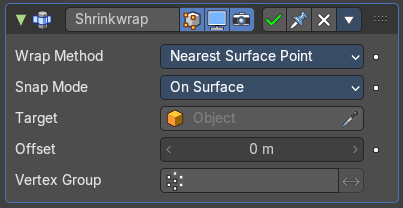
The Shrinkwrap modifier allows an object to “shrink” to the surface of another object. It moves each vertex of the object to the closest position on the surface of the target object.
It can be applied to meshes, lattices, curves, surfaces and texts.
Wrap Method
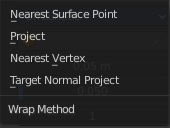
The method to determine the nearest point on the target’s surface for each vertex of the object.
Nearest Surface Point + Target Normal Project
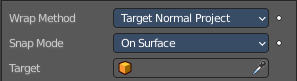
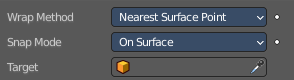
Nearest Surface Point selects the nearest point at the surface. Additionally, Target Normal Project tries to match the interpolated normals of the surface.
Snap Mode
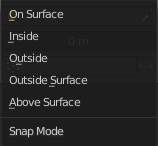
How the vertex snaps to the surface. The methods should be self explaining.
Target
The target mesh to shrink to.
Project
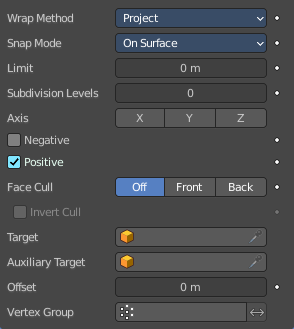
Projects all vertices along a chosen axis until they hit the surface of the target object.
Vertices that never hits the surface are not calculated.
Snap Mode
How the vertex snaps to the surface. The methods should be self explaining.
| Property | What it changes |
|---|---|
| Limit | A distance limit between original vertex and surface. If the distance is larger than this limit vertex would not be projected onto the surface. |
| Subdivision Levels | This applies a (temporary) Catmull-Clark subdivision to the modified object’s geometry, before computing the wrap. |
| Axis | Along which local axis of the modified object the projection is done. These options can be combined with each other, yielding a “median axis” of projection. If none are selected, the normal direction is used. |
| Negative/Positive | This allows you to select the allowed direction(s) of the shrink along the selected axis. If both options are enabled, both ways are evaluated and the closest hit is selected. |
Face Cull
Allows you to prevent any projection over the “front side” or the “back side” of the target’s faces. The “side” of a face is determined by its normal.
Invert Cull
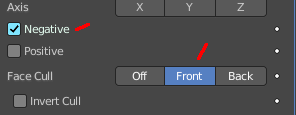
When projecting in the negative direction then invert culling.
You need to have negative ticked and face cull either front or back to set this property active.
| Property | What it changes |
|---|---|
| Target | The target mesh to shrink to. |
| Auxiliary Target | An additional object to project to. |
Nearest Vertex
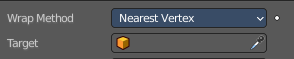
Snaps to the nearest vertex instead of the nearest surface point.
Target
The target mesh to shrink to.
| Property | What it changes |
|---|---|
| Offset | An offset distance to keep to the target surface. |
| Vertex Group | Restrict the affected vertices to a vertex group. · Invert: Inverts the influence of the selected vertex group. |
Simple Deform
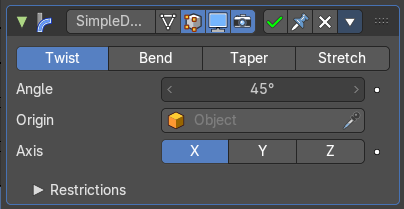
The Simple Deform modifier allows simple deforming of an object of type Mesh, lattice, curve, surface and text.
The deformation is calculated in local coordinate space.
Deform Method
| Property | What it changes |
|---|---|
| Twist | Twist rotates the object around an axis. Vertices in the same plane as the origin are not rotated. Above the origin the rotation is clockwise. Below the origin the rotation is negative. The amount of rotation is dependent of the distance to the origin. Closer vertices rotates not so strong. |
| Bend | Bend bends the object over an axis. |
| Taper | Taper tapers the object across its origin. The scaling factor is weighted by the distance from the origin of the object in the deform axis. |
| Stretch | Stretch scales the object along an axis. Angle (Twist & Bend) / Factor (Taper & Stretch) The total amount of deformation. A negative value reverses the deformation. |
Origin
Pick an object to use its origin as the origin for the simple deformation.
Restrictions
Limits
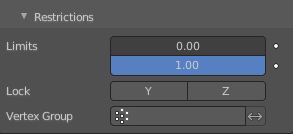
You can set lower and upper limits for the deformation. The upper limit cannot be lower than the lower one. These limits are mapped on the Deform axis.
| Property | What it changes |
|---|---|
| Lock | Not for Bend. Do not allow deformations along these axis. |
| Vertex Group | Limit the deformation to a vertex group. |
Smooth
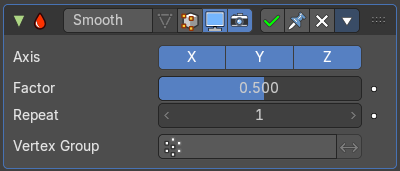
The Smooth modifier smoothens a mesh by flattening the angles between adjacent faces.
| Property | What it changes |
|---|---|
| Axis | The axis to modify. |
| Factor | The smoothing amount. Higher values will increase the effect. Values outside expected range (above 1.0 or below 0.0) will distort the mesh. |
| Repeat | The number of smoothing iterations. |
| Vertex Group | Limit the modifier to a vertex group. · Invert: Inverts the influence of the selected vertex group. |
Smooth Corrective
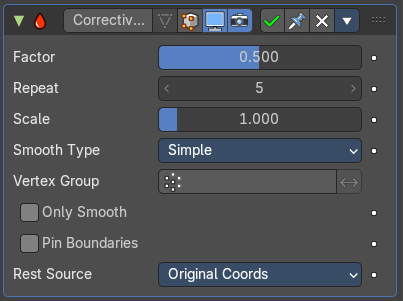
The Smooth Corrective modifier tries to reduce highly distorted areas of a mesh. Like an armature with distortions at bent knees.
| Property | What it changes |
|---|---|
| Factor | The factor to control the smoothing amount. Higher values will increase the effect. Values outside expected range (above 1.0 or below 0.0) will distort the mesh. |
| Repeat | The number of smoothing iterations, equivalent to executing the Smooth tool multiple times. |
| Scale | Additional scaling factor to increase the size of the mesh. This is useful because sometimes the Smooth Corrective modifier will introduce volume loss, especially when used with a rig. |
| Smooth Type | The smoothing method. · Simple: Relaxes vertices to their connected edges. · Length Weight: Weights by the distance of surrounding vertices. This option can give higher quality smoothing in some cases, by better preserving the shape of the original form. |
| Vertex Group | Restrict the effect to a vertex group. · Invert: Inverts the influence of the vertex group. |
| Only Smooth | Preview the smoothing used, before correction is applied. |
| Pin Boundaries | Prevent boundary vertices from smoothing. |
Rest Source
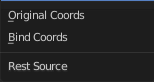
Select the source for reference vertex positions that defines the undeformed state.
| Property | What it changes |
|---|---|
| Original Coordinates | Use the original input vertex positions. This relies on the original mesh having the same number of vertices as the input, modified mesh. |
| Bind Coordinates | Optionally you may bind the modifier to a specific state. This is required when there are constructive modifiers such as Subdivision Surface or Mirror in the stack before this modifier. |
Smooth Laplacian
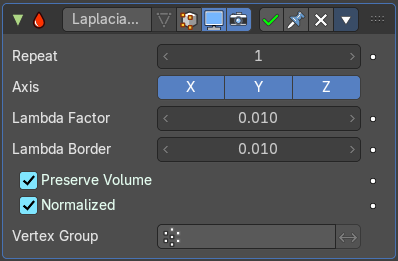
The Smooth Laplacian modifier tries to reduce noise on a mesh’s surface with minimal changes to its shape. It can also exaggerate the shape using a negative Factor.
| Property | What it changes |
|---|---|
| Repeat | Repeat the smoothing operation multiple times. Each repetition causes the flow curvature of the mesh to be recalculated again, and as a result it removes more noise with every new iteration using a small Factor < 1.0. With a value of 0, no smoothing is done. |
| Axis | Enable deforming in single axis directions. The axis are in world space. |
| Lambda Factor | Controls the amount of displacement of every vertex along the flow curvature. |
| Lambda Border | Border edges must be controlled separately. Border edges are controlled by the lambda border value. |
| Preserve Volume | The smoothing process can shrink the volume. Presever Volume tries to prevent that. |
| Normalized | Normalize the results dependent on face sizes. When disabled, geometry spikes may occur. |
| Vertex Group | Limit the modifier effect to a vertex group. · Invert: Inverts the influence of the vertex group. |
Surface Deform
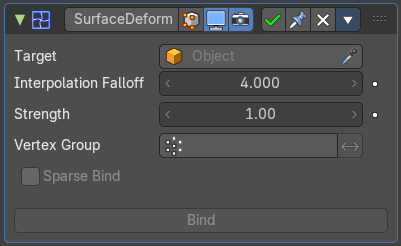
The Surface Deform modifier allows an arbitrary mesh surface to control the deformation of another object.
A use case is to use a cloth simulation of a low poly mesh to drive the motion of your final mesh.
The target mesh:
- Must not contain edges with more than two faces.
- Must not contain concave faces.
- Must not contain overlapping vertices (doubles).
- Must not contain faces with co-linear edges.
Note: The meshes are bound in global coordinates. But later transformations on the objects are ignored. This means that one can freely transform the target or modified object after binding, without affecting the modified object. The modified mesh will only pick up changes to the target object’s mesh itself. Note: The more a mesh surface differs from the target mesh surface, the more likely it will show undesirable artifacts. So it is recommended to have reasonably well matching meshes to get a good bind.
| Property | What it changes |
|---|---|
| Workflow | Create a cloth simulation at your low poly object. Create the high poly version. Add the Surface Deform modifier. Choose the object with the cloth simulation as the target. Click at the Bind button to make the deformation real. The object with the modifier applied will now deform, following the vertice motion of the source object. |
| Target | The object with the cloth deform animation. |
| Interpolation Falloff | How much a vertex bound to one face of the target will be affected by the surrounding faces. This essentially controls how smooth the deformations are. This setting becomes unavailable after binding. Note! Lower values result in smoother deformations, but may also introduce artifacts. |
| Strength | The overall amount of influence the modifier has on deforming the mesh. |
| Vertex Group | Limit the influence to a vertex group. · Invert: Inverts the influence of the selected vertex group. |
| Sparse Bind | Requires to choose a vertex group. Only record binding data for vertices matching the vertex group at the time of bind. |
| Bind | Bind the current state of the modified mesh to the current state of the target mesh. Any later change in the target mesh will deform the source mesh then. Bind is required to make the modifier work. |
| Unbind | Unbind the source mesh from the target mesh. |
Warp
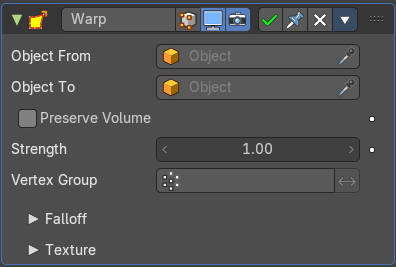
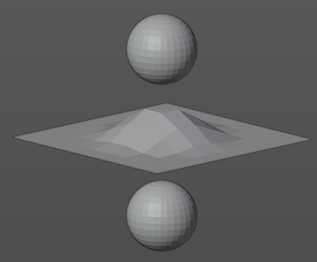
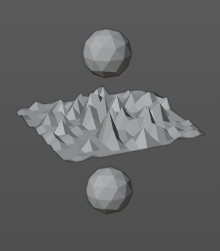
The Warp modifier warps parts of a mesh to a new location by using two target objects. The deformation goes into the direction from the first target object to the second target object. This target objects can be of any type. Empty, Lamp, Camera, etc. For demonstration purposes two spheres are used.
| Property | What it changes |
|---|---|
| Object From | The object to define the origin transformation of the warp. |
| Object To | The object to define the destination transformation of the warp. |
| Preserve Volume | Enables volume preservation when rotating one of the transforms. |
| Strength | Sets how strong the effect is. |
| Vertex Group | Limit the modifier to a vertex group. · Invert: Inverts the influence of the selected vertex group. |
Falloff
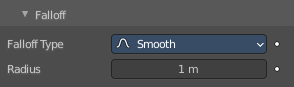
Falloff Type
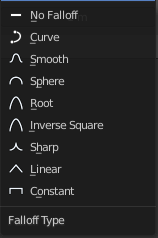
The falloff type. How the strength of the warp changes as it goes from the center of the transform to the Radius value.
Radius
The distance from the transforms that can be warped by the transform handles.
Texture
A texture allows you to control how the vertices are affected by the modifier.
Usage
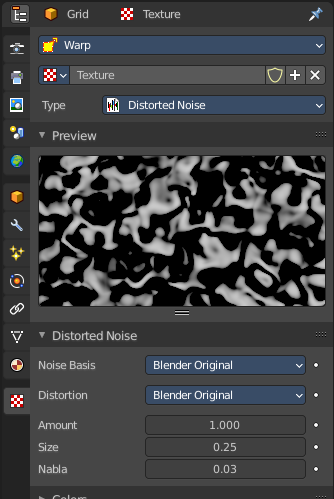
Add a texture.
Head over to the Texture tab.
In the texture tab either load an existing texture. Or create one. A procedural Noise texture for example.
Texture Prop
Texture browser
A list of the available textures
| Property | What it changes |
|---|---|
| Texture Edit Box | The name of the currently active texture. Allows to rename the texture too. |
| Fake User | Keep this data even when it has no user in the scene. |
| Add Texture | Add a new texture. |
| Remove | Removes the texture. Note that the texture is still in the browser list. |
| Change Context | Jump to texture tab and show the texture. |
Coordinates
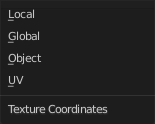
What texture coordinate system to use.
Wave
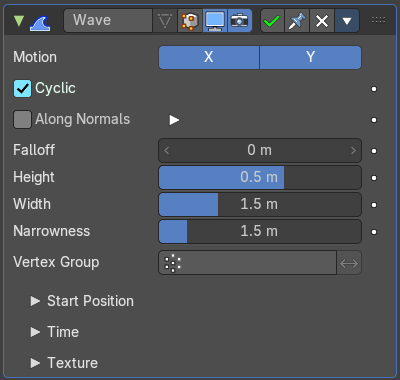
The Wave modifier adds a ripple-like shape to an object’s geometry. The shape can be animated by playing the animation.
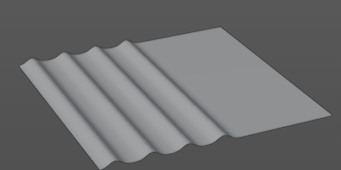
This modifier works with meshes, lattices, curves, surfaces and texts.
Important: All the values are in local object space. They must be multiplied with the corresponding Scale values of the object to get the real dimensions.
To obtain a nice wave effect similar to sea waves and close to a sinusoidal wave, make the distance between following ripples and the ripple width equal. That is, the Narrowness value must be equal to 2 / Width. E.g. for Width to be 1, set Narrow to 2.
Motion
The wave effect deforms vertices/control points in the Z direction. The initial start point is the object origin. The direction is then in X or Y direction. With both activated you get a circle shape.
Cyclic
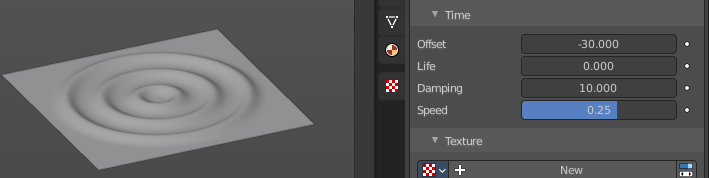
Repeats the waves.
When you want to have more circles at frame 1 already, then use a negative Offset in the Time subpanel.
Along Normals

For meshes only. Displaces the mesh along the surface normals (instead of the object’s Z axis).
X/Y/Z
Restrict displacement along normals to the selected local axes.
| Property | What it changes |
|---|---|
| Falloff | Controls how fast the waves fade out as they travel away from the starting point. |
| Height | The height or amplitude of the ripple. |
| Width | Distance between the waves. If the pulses are too near to each other, the wave may not reach the zero Z position. In this case the whole wave gets lowered so that the minimum is zero, and the maximum is lower than the expected amplitude. |
| Narrowness | The actual width of each pulse. The higher the value the narrower the pulse. The actual width of the area for a single is given by 4 / Narrowness. |
| Vertex Group | Limit the effect of the modifier to a vertex group. · Invert: Inverts the influence of the selected vertex group. |
| Start Position | Object: Use the origin of another object as the starting point. · Start Position X/Y: Coordinates of the center of the waves, in object’s local space. |
Time
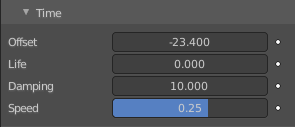
Settings to control the animation.
| Property | What it changes |
|---|---|
| Offset | Time offset in frames. The frame at which the wave begins (if Speed is positive), or ends (if Speed is negative). Use a negative frame number to prime and pre-start the waves. |
| Life | Duration of animation in frames. With a value of zero the animation loops forever. |
| Damping | An additional number of frames in which the wave slowly damps from the Height value to zero after Life is reached. The dampening occurs for all the ripples and begins in the first frame after the Life is over. Ripples disappear over Damping frames. |
| Speed | The speed per frame, of the ripple. |
Texture subtab
A texture allows you to control how the vertices are affected by the modifier.
Usage
Add a texture.
Head over to the Texture tab.
In the texture tab either load an existing texture. Or create one. A procedural Noise texture for example.
Texture Prop
Texture browser
A list of the available textures
| Property | What it changes |
|---|---|
| Texture Edit Box | The name of the currently active texture. Allows to rename the texture too. |
| Fake User | Keep this data even when it has no user in the scene. |
| Add Texture | Add a new texture. |
| Remove | Removes the texture. Note that the texture is still in the browser list. |
| Change Context | Jump to texture tab and show the texture. |
Coordinates
What texture coordinate system to use.
Volume Displace
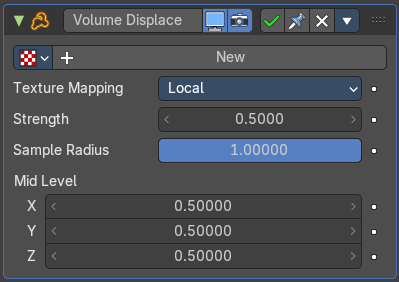
The Volume Displace modifier displaces existing volume grids by a 3D texture. It uses the RGB color channels of the texture to displace the volume into the X, Y and Z direction.
Texture Prop
The texture to use for the displacement of the voxels. For a three dimensional displacement colored textures should be used. Greyscale images just displaces into one direction. Colored images into all three directions.
Texture Browser
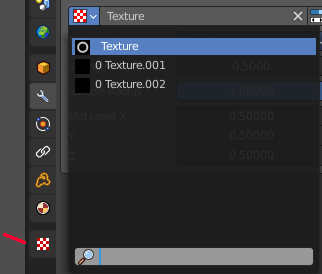
A list of the available textures in the scene. Textures can be added in the Texture tab in the Properties Editor.
Edit Box
The name of the texture. Here you can also rename the texture.
Change Context
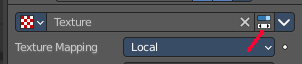
Jump to the Texture tab to load a texture.
Unlink
Removes the currently active texture.
File selector menu
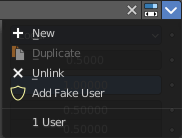
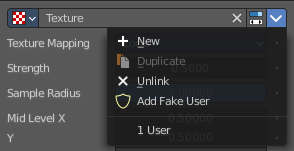
| Property | What it changes |
|---|---|
| New | Creates a new texture slot. It is blank. You first need to load a texture, which can be done in the Texture tab in the Properties Editor. |
| Duplicate | Not active in this context. |
| Unlink | Removes the currently active texture. |
| Add Fake User | Wit this button you assign a fake user to this selected world. Data, like worlds, that is not longer linked to anything else gets removed when you save and reload a scene. Bforartists has the concept of fake users to go around this behavior. An image with a fake user is in fact linked to something. And so it is not lost when you save and reload the scene. |
| User | The number of users that uses this data. Data with a user number of 0 will be removed with closing Bforartists. |
Texture Mapping
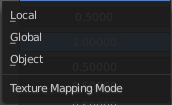
What space to use to map the texture onto the object.
| Property | What it changes |
|---|---|
| Strength | Controls how far voxels are displaced. |
| Sample Radius | Smaller values result in better performance, but might cut off the volume outside. |
| Mid Level X Y Z | This should be modified if the texture offsets the entire volume in one direction and you want to center it again. For performance reasons, the displaced volume should stay close to its original position. |