

































































Edit modifiers (Grease Pencil)
The Texture Mapping Modifier changes the strokes texture UV position.
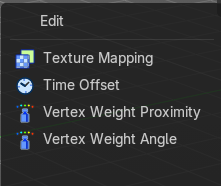
Texture Mapping
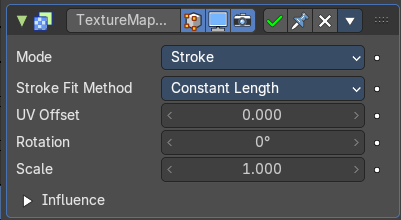
The Texture Mapping Modifier changes the strokes texture UV position.
Mode
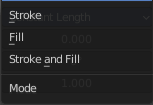
The texture transformation will be applied to the stroke/fill or stroke UVs.
Stroke
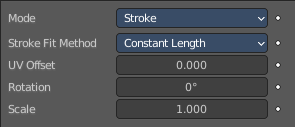
Stroke Fit Method
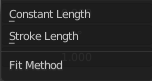
The texture fitting method.
| Property | What it changes |
|---|---|
| Constant Length | The texture keep a consistent length along the strokes. |
| Stroke Length | The texture is normalized to fit the stroke length. |
| Property | What it changes |
|---|---|
| UV Offset | Moves the texture along the strokes. |
| Rotation | Rotates the points of the strokes. Note that the Rotation option is limited to a range of -90 to 90 degrees. |
| Scale | Factor for the texture scale. |
Fill
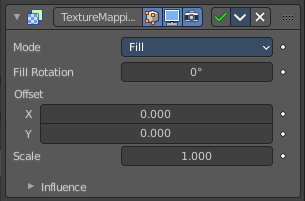
| Property | What it changes |
|---|---|
| Fill Rotation | Sets the texture angle. |
| Offset X / Y | Moves the texture origin in x and/or y direciton |
| Scale | Factor for the texture scale. |
Stroke and Fill
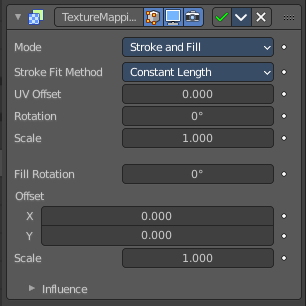
See both single chapters above.
Influence Subpanel
Influence
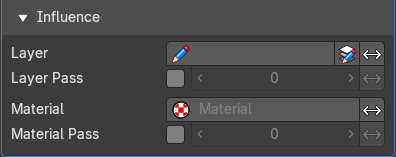
| Property | What it changes |
|---|---|
| Layer | Restricts the effect only to one layer or to any layers that share the same pass index. Click to pick the layer that you want to use. · Invert: Inverts the influence. |
| Layer Pass | The layer pass index. · Invert: Inverts the influence. |
| Material | Restricts the effect only to one layer or to any layers that share the same material index. Click to pick the layer that you want to use. · Invert: Inverts the influence. |
| Material Pass | The layer pass index. · Invert: Inverts the influence. |
| Vertex Group | Restricts the effect only to one vertex group. Click to choose the vertex group. · Invert: Inverts the influence. |
Time Offset Modifier
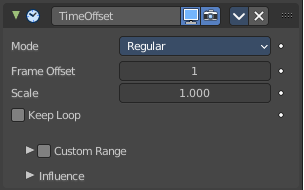
Grease Pencil object only. The Time Offset Modifier offsets the position of Grease Pencil keyframes.
Mode
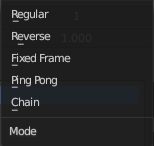
| Property | What it changes |
|---|---|
| Regular | Offsets keyframes in default animation playback direction (left to right). |
| Reverse | Offsets keyframes in inverse animation playback direction (right to left). |
| Fixed Frame | Keep the selected frame fixed and do not change over time. |
| Ping Pong | Plays forwards then backwards in a loop. |
| Chain | List of chai9ned animation elements. |
| Property | What it changes |
|---|---|
| Frame Offset | Number of frames to offset the original keyframes. |
| Scale | Evaluation time (in seconds). |
| Keep Loop | Moves end frame to the animation start to keep animation in a loop. The following just shows with Mode Chain: |
Segment List
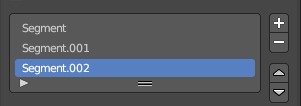
Here you can define animation segments that you want to chain.
| Property | What it changes |
|---|---|
| Add /Remove Segment | Add or remove a segment. |
| Move Up / Down | Move a segment up or down in the list. |
Mode
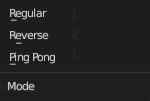
The mode of the segment.
| Property | What it changes |
|---|---|
| Regular | Offsets keyframes in default animation playback direction (left to right). |
| Reverse | Offsets keyframes in inverse animation playback direction (right to left). |
| Ping Pong | Plays forwards then backwards in a loop. |
Frame Start
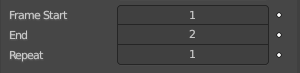
The start frame of the segment.
| Property | What it changes |
|---|---|
| End | The end frame of the segment. |
| Repeat | How often to repeat the segment. |
| Property | What it changes |
|---|---|
| Custom Range subpanel | Use a custom range of frames. · Frame Start / End: Sets the range start and end frames. |
| Influence Subpanel | — |
Influence
| Property | What it changes |
|---|---|
| Layer | Restricts the effect only to one layer or to any layers that share the same pass index. Click to pick the layer that you want to use. · Invert: Inverts the influence. |
| Layer Pass | The layer pass index. · Invert: Inverts the influence. |
| Material | Restricts the effect only to one layer or to any layers that share the same material index. Click to pick the layer that you want to use. · Invert: Inverts the influence. |
| Material Pass | The layer pass index. · Invert: Inverts the influence. |
| Vertex Group | Restricts the effect only to one vertex group. Click to choose the vertex group. · Invert: Inverts the influence. |
Vertex Weight Proximity
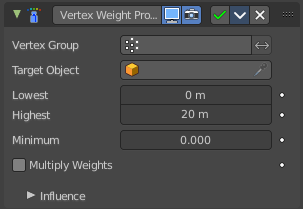
This modifier sets the weights of the given vertex group, based on the distance between the object (or its vertices), and another target object (or its geometry).
Warning1 This modifier does implicit clamping of weight values in the standard (0.0 to 1.0) range. All values below 0.0 will be set to 0.0, and all values above 1.0 will be set to 1.0.
Note: You can view the modified weights in Weight Paint Mode. This also implies that you will have to disable the Vertex Weight Proximity modifier if you want to see the original weights of the vertex group you are editing.
| Property | What it changes |
|---|---|
| Vertex Group | The vertex group to affect. |
| Target Object | The object from which to compute distances. |
| Lowest | Distance mapping to 0.0 weight. Tip! Lowest can be set above Highest to reverse the mapping. |
| Highest | Distance mapping to 1.0 weight. |
| Minimum | Minimum value for vertex weight. |
| Multiply Weights | Multiply the calculated weights with the existing values of the vertex group. |
| Influence Subpanel | — |
Influence
| Property | What it changes |
|---|---|
| Layer | Restricts the effect only to one layer or to any layers that share the same pass index. Click to pick the layer that you want to use. · Invert: Inverts the influence. |
| Layer Pass | The layer pass index. · Invert: Inverts the influence. |
| Material | Restricts the effect only to one layer or to any layers that share the same material index. Click to pick the layer that you want to use. · Invert: Inverts the influence. |
| Material Pass | The layer pass index. · Invert: Inverts the influence. |
| Vertex Group | Restricts the effect only to one vertex group. Click to choose the vertex group. · Invert: Inverts the influence. |
Vertex Weight Angle
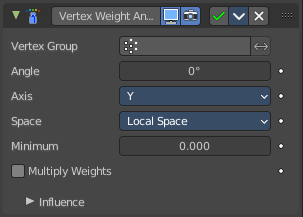
This modifier sets the weights of a vertex group based of the angle of the geometry.
Warning: This modifier does implicit clamping of weight values in the standard (0.0 to 1.0) range. All values below 0.0 will be set to 0.0, and all values above 1.0 will be set to 1.0. Note: You can view the modified weights in Weight Paint Mode. This also implies that you will have to disable the Vertex Weight Proximity modifier if you want to see the original weights of the vertex group you are editing.
| Property | What it changes |
|---|---|
| Vertex Group | Which vertex group to use. |
| Angle | Distance angle to 0.0 weight. Tip! Lowest can be set above Highest to reverse the mapping. |
Axis
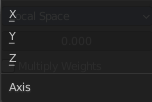
Which axis to use.
Space
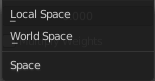
In which space to calculate. Local or Global.
| Property | What it changes |
|---|---|
| Minimum | Minimum value for vertex weight. |
| Multiply Weights | Multiply the calculated weights with the existing values of the vertex group. |
| Influence Subpanel | — |
Influence
| Property | What it changes |
|---|---|
| Layer | Restricts the effect only to one layer or to any layers that share the same pass index. Click to pick the layer that you want to use. · Invert: Inverts the influence. |
| Layer Pass | The layer pass index. · Invert: Inverts the influence. |
| Material | Restricts the effect only to one layer or to any layers that share the same material index. Click to pick the layer that you want to use. · Invert: Inverts the influence. |
| Material Pass | The layer pass index. · Invert: Inverts the influence. |
| Vertex Group | Restricts the effect only to one vertex group. Click to choose the vertex group. · Invert: Inverts the influence. |