

































































Deform modifiers (Grease Pencil)
An armature system allows to deform objects accurately by posing bones. The Armature modifier contains the armature settings at the mesh end.
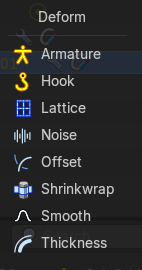
Armature
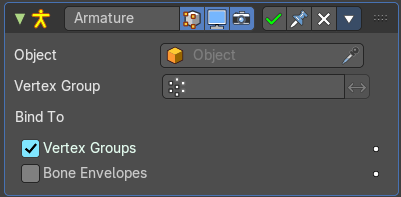
An armature system allows to deform objects accurately by posing bones. The Armature modifier contains the armature settings at the mesh end.
This modifier gets created automatically when you parent a grease pencil to an armature.
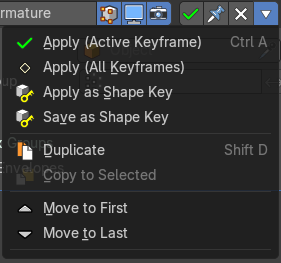
The armature modifier has some extra entries in the dropdown menu in the header.
| Property | What it changes |
|---|---|
| Apply ( Active Keyframe) | Applies the active keyframe. |
| Apply ( All Keyframes) | Applies all keyframes. |
| Apply as Shape Key | Apply the modifier as a new shapekey to the mesh, and remove the armature modifier. |
| Save as Shape Key | Apply the modifier as a new shapekey to the mesh, but keep the armature modifier. |
| Object | The name of the armature object used by this modifier. |
Vertex Group
A vertex group of the object, which weights will be used to determine the influence of this modifier’s results when mixing it with the results from other Armature ones.
This is only of use when having at least two of these modifiers on the same object, with Multi Modifier activated.
Invert
Inverts the influence set by the vertex group.
Bind to
Vertex Groups
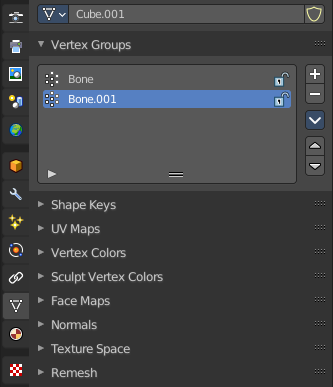
Meshes and lattices only. Use Vertex groups for deforming the mesh. A bone named “forearm”, will only affect the vertices in the “forearm” vertex group. The influence of one bone on a given vertex is controlled by the weight of this vertex in the relevant group.
The vertex groups are located in the Object Data Properties in the Properties editor.
Bone Envelopes
Use the Bone envelopes to deform vertices or control points near them, defined by each bone’s envelope radius and distance.
When envelopes are disabled, Blender uses the set of existing vertex group names to determine which bones influences what mesh part.
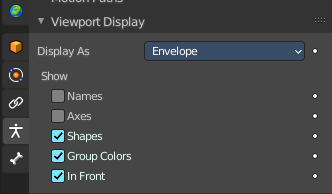
Bone envelopes display can be turned on in the Viewport Display panel in the Object Data properties tab in the Properties Editor. Display as ...
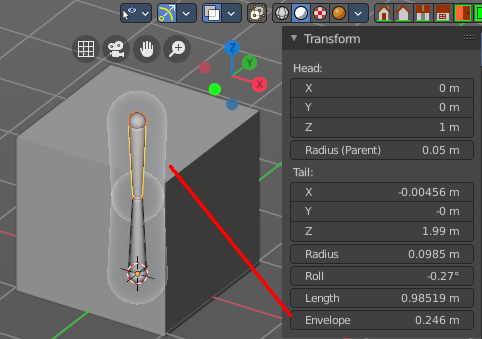
And can be adjusted in the Transform panel in the sidebar of the 3D View, in Edit mode.
Hook
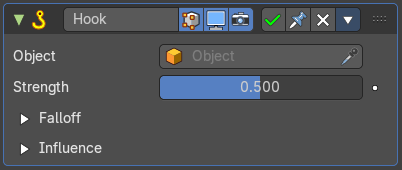
The Hook modifier is used to deform a mesh, curve or lattice by another object. When you move this hook object, then it pulls vertices or control points with it.
Assigning the hook object to specific vertices of the target object is done in Edit mode. The modifier shows a set of buttons then.
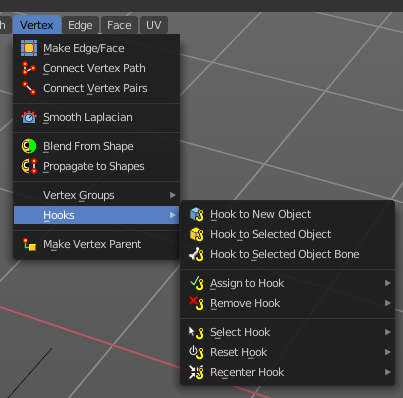
This modifier is automatically created when you add a Hook from the Hooks menu in the Edge menu in edit mode.
Some settings just exists in Edit mode.
Warning: The Hook Modifier stores vertex indices from the original mesh to determine what to affect. Modifiers that generate geometry, like Subdivision Surface, should always be put after the Hook modifier in the stack. Otherwise, the generated geometry can‘ t be affected by the hook’s influence.
| Property | What it changes |
|---|---|
| Object | The name of the object to hook vertices to. |
| Vertex Group | Allows you to define the influence per vertex. · Invert: Inverts the influence of the selected vertex group. |
| Strength | Adjust this hooks influence on the vertices. |
Reset
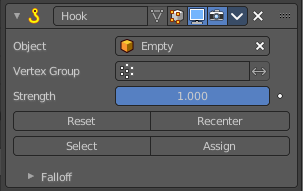
In Edit mode. Recalculate and clear the offset transform of the hook.
| Property | What it changes |
|---|---|
| Recenter | In Edit mode. Set the hook center to the 3D cursor position. |
| Select | In Edit mode. Select the vertices affected by this hook. |
| Assign | In Edit mode. Assigns selected vertices to this hook. |
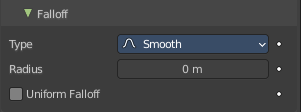
Falloff
| Property | What it changes |
|---|---|
| Type | This can be used to adjust the kind of influence curve that the hook has on the mesh. You can also define a custom curve to get a much higher level of control. |
| Radius | The size of the hooks influence. |
| Uniform Falloff | Compensate non uniform scale, and use a uniform falloff. |
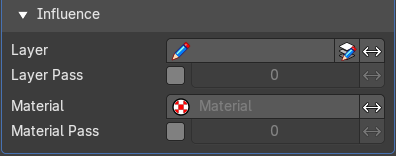
Influence subpanel
| Property | What it changes |
|---|---|
| Layer | Restricts the effect only to one layer or to any layers that share the same pass index. Click to pick the layer that you want to use. · Invert: Inverts the influence. |
| Layer Pass | The layer pass index. · Use Layer pass: Use the layer pass. · Layer pass value: The layer pass value. · Invert: Inverts the influence. |
| Material | Restricts the effect only to material that share the same material or pass index. Click to pick the material that you want to use. · Invert: Inverts the influence. |
| Material Pass | The material pass index. · Use Material pass: Use the Material pass. · Material pass value: The Material pass value. · Invert: Inverts the influence. |
Lattice
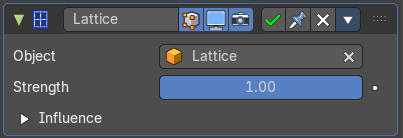
The Lattice modifier deforms the base object by the shape of a Lattice object. It can be used at meshes, curves, surfaces, text, lattices and even particles.
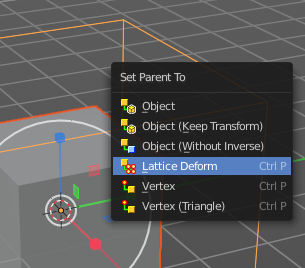
A Lattice modifier with valid settings can be added by selecting the object, holding down shift, select the target lattice object, and then choose Lattice Deform in the Parent menu.
Note: When you want to use a lattice to deform particles, then you need to place the Lattice modifier after the Particle System modifier.
| Property | What it changes |
|---|---|
| Object | The Lattice object that deforms the base object. |
| Strength | A factor to control blending between original and deformed vertex positions. |
Influence subpanel
| Property | What it changes |
|---|---|
| Layer | Restricts the effect only to one layer or to any layers that share the same pass index. Click to pick the layer that you want to use. · Invert: Inverts the influence. |
| Layer Pass | The layer pass index. · Use Layer pass: Use the layer pass. · Layer pass value: The layer pass value. · Invert: Inverts the influence. |
| Material | Restricts the effect only to material that share the same material or pass index. Click to pick the material that you want to use. · Invert: Inverts the influence. |
| Material Pass | The material pass index. · Use Material pass: Use the Material pass. · Material pass value: The Material pass value. · Invert: Inverts the influence. |
Noise
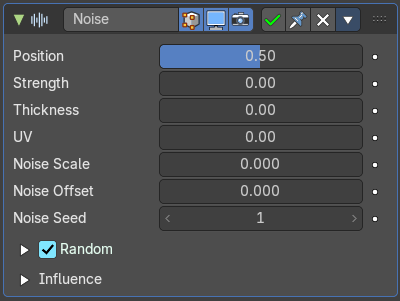
The Noise Modifier adds noise to make the grease pencil line unstable and noisy.
| Property | What it changes |
|---|---|
| Position | Strength of the noise effect over the point location. |
| Strength | Strength of the noise effect over the point strength (opacity). |
| Thickness | Strength of the noise effect over the point thickness. |
| UV | Strength of the noise effect over the point UV rotation. |
| Noise Scale | Control the noise frequency scale. |
| Noise Offset | Offset the noise along the stroke. |
| Noise Seed | Add a random seed. |
| Randomize | Use a random value over time. · Step: Number of frames before using a new random value. |
Influence subpanel
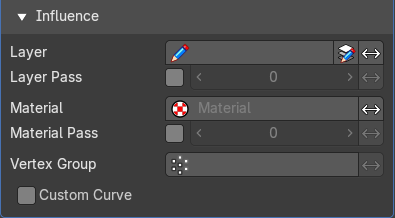
| Property | What it changes |
|---|---|
| Layer | Restricts the effect only to one layer or to any layers that share the same pass index. Click to pick the layer that you want to use. · Invert: Inverts the influence. |
| Layer Pass | The layer pass index. · Use Layer pass: Use the layer pass. · Layer pass value: The layer pass value. · Invert: Inverts the influence. |
| Material | Restricts the effect only to material that share the same material or pass index. Click to pick the material that you want to use. · Invert: Inverts the influence. |
| Material Pass | The material pass index. · Use Material pass: Use the Material pass. · Material pass value: The Material pass value. · Invert: Inverts the influence. |
Custom Curve
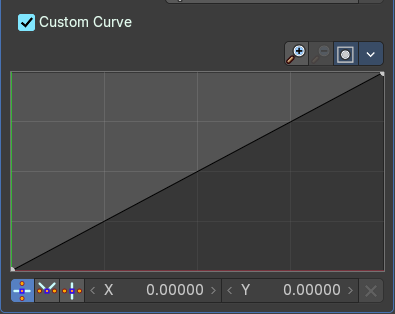
Use a custom curve to define the noise along the strokes.
Navigation elements
The navigation elements at the top are described from left to right.
Zoom in and out
The two buttons with the magnifying glass at it zooms in and out in the curve window.
Clipping
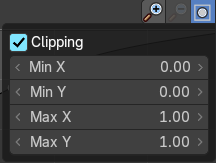
Clipping options. Set up clipping for the stroke.
Tools
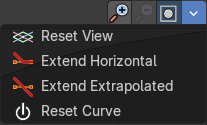
Tools is a menu where you can find some curve related tools.
| Property | What it changes |
|---|---|
| Reset View | Resets the curve windows zoom. |
| Extend Horizontal | Extend the curve points horizontal before the first curve point and after the last curve point. |
| Extend Vertical | Extend the curve points vertical before the first curve point and after the last curve point. |
| Reset Curve | Resets the curve to the initial shape. |
Curve window
Tweak and adjust the falloff curve by clicking at a curve point and dragging it around.
Double click adds a new point.
Holding down ctrl activates temporary snapping.
Holding down shift enables slower movement, which allows more accurate setting.
Vector Handle

Set handle type to Vector.
| Property | What it changes |
|---|---|
| Auto Handle | Set handle type to Auto. |
| Auto Clamped Handle | Set handle type to Auto Clamped. |
| X / Y | The position of the currently selected curve point. · Delete Points: Deletes selected curve points. |
Offset
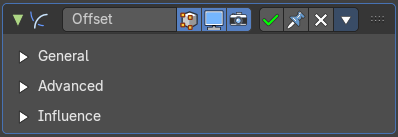
The Offset Modifier changes the strokes location, rotation or scale, starting from the object origin.
General Subpanel
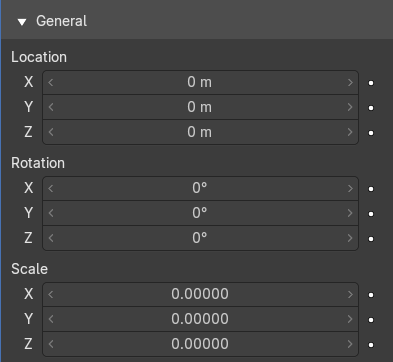
| Property | What it changes |
|---|---|
| Location X, Y, Z | Sets strokes location offset from its object origin. |
| Rotation X, Y, Z | Sets strokes rotation. |
| Scale X, Y, Z | Sets strokes scale. |
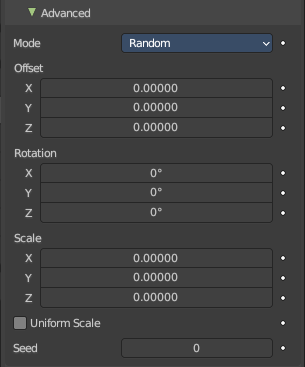
Advanced Subpanel
Mode
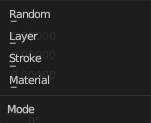
| Property | What it changes |
|---|---|
| Random | Randomize Stroke Offset. |
| Layer | Offset Layers by the same factor. |
| Stroke | Offset stroke by the same factor based on stroke draw order. |
| Material | Offset materials by the same factor. |
| Property | What it changes |
|---|---|
| Offset | Randomize the offset in x y and z axis. |
| Rotation | Randomize the rotation in x y and z angle. |
| Scale | Randomize the size in x y and z axis. |
| Uniform Scale | Mode random. Use the same random seed for each scale axis for a uniform scale. |
| Seed | Mode Random. The random seed for the uniform scale. |
| Layer Step | Mode Seed. Number of elements that will be grouped. |
| Layer Offset | Mode Seed. Offset Starting Point. |
| Stroke Step | Mode Stroke. Number of elements that will be grouped. |
| Stroke Offset | Mode Stroke. Offset Starting Point. |
| Material Step | Mode Material. Number of elements that will be grouped. |
| Material Offset | Mode Material. Offset Starting Point. |
Influence subpanel
| Property | What it changes |
|---|---|
| Layer | Restricts the effect only to one layer or to any layers that share the same pass index. Click to pick the layer that you want to use. · Invert: Inverts the influence. |
| Layer Pass | The layer pass index. · Use Layer pass: Use the layer pass. · Layer pass value: The layer pass value. · Invert: Inverts the influence. |
| Material | Restricts the effect only to material that share the same material or pass index. Click to pick the material that you want to use. · Invert: Inverts the influence. |
| Material Pass | The material pass index. · Use Material pass: Use the Material pass. · Material pass value: The Material pass value. · Invert: Inverts the influence. |
Shrinkwrap
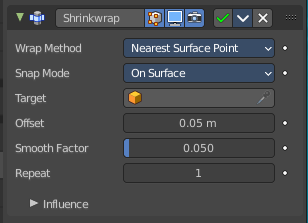
Shrinks the geometry to the surface of another object.
Wrap Method
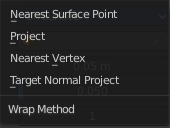
The method to determine the nearest point on the target’s surface for each vertex of the object.
Nearest Surface Point + Target Normal Project
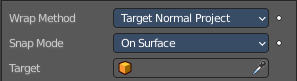
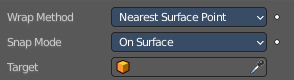
Nearest Surface Point selects the nearest point at the surface. Additionally, Target Normal Project tries to match the interpolated normals of the surface.
Snap Mode
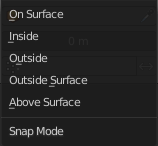
How the vertex snaps to the surface. The methods should be self explaining.
Target
The target mesh to shrink to.
Project
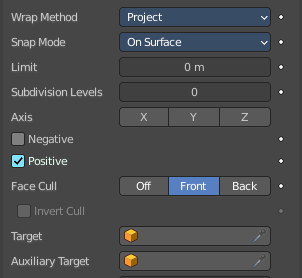
Projects all vertices along a chosen axis until they hit the surface of the target object.
Vertices that never hits the surface are not calculated.
Snap Mode
How the vertex snaps to the surface. The methods should be self explaining.
| Property | What it changes |
|---|---|
| Limit | A distance limit between original vertex and surface. If the distance is larger than this limit vertex would not be projected onto the surface. |
| Subdivision Levels | This applies a (temporary) Catmull-Clark subdivision to the modified object’s geometry, before computing the wrap. |
| Axis | Along which local axis of the modified object the projection is done. These options can be combined with each other, yielding a “median axis” of projection. If none are selected, the normal direction is used. |
| Negative/Positive | This allows you to select the allowed direction(s) of the shrink along the selected axis. If both options are enabled, both ways are evaluated and the closest hit is selected. |
Face Cull
Allows you to prevent any projection over the “front side” or the “back side” of the target’s faces. The “side” of a face is determined by its normal.
Invert Cull
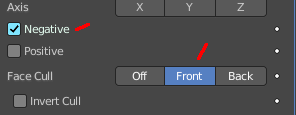
When projecting in the negative direction then invert culling.
You need to have negative ticked and face cull either front or back to set this property active.
| Property | What it changes |
|---|---|
| Target | The target mesh to shrink to. |
| Auxiliary Target | An additional object to project to. |
Nearest Vertex

Target
The target mesh to shrink to.
| Property | What it changes |
|---|---|
| Offset | An offset distance to keep to the target surface. |
| Smooth factor | Amount of smoothing to apply |
| Repeat | Number of steps to apply smooth. |
| Vertex Group | Restrict the affected vertices to a vertex group. · Invert: Inverts the influence of the selected vertex group. |
Influence subpanel
| Property | What it changes |
|---|---|
| Layer | Restricts the effect only to one layer or to any layers that share the same pass index. Click to pick the layer that you want to use. · Invert: Inverts the influence. |
| Layer Pass | The layer pass index. · Use Layer pass: Use the layer pass. · Layer pass value: The layer pass value. · Invert: Inverts the influence. |
| Material | Restricts the effect only to material that share the same material or pass index. Click to pick the material that you want to use. · Invert: Inverts the influence. |
| Material Pass | The material pass index. · Use Material pass: Use the Material pass. · Material pass value: The Material pass value. · Invert: Inverts the influence. |
Smooth
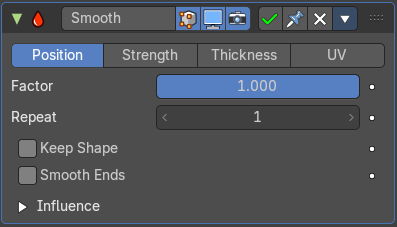
The Smooth modifier smoothens a stroke.
| Property | What it changes |
|---|---|
| Mode | What elements to affect. · Position: Affects the position of the point. · Strength: Affects the color strength of the point · Thickness: Affects the thickness of the point. · UV: Affects the uv rotation factor of the point. |
| Factor | The smoothing amount. Higher values will increase the effect. Values outside expected range (above 1.0 or below 0.0) will distort the mesh. |
| Repeat | The number of smoothing iterations. |
| Keep Shape | Smooth the details, but keep the overall shape. |
| Smooth Ends | Smooth the ends of strokes. |
Influence subpanel
| Property | What it changes |
|---|---|
| Layer | Restricts the effect only to one layer or to any layers that share the same pass index. Click to pick the layer that you want to use. · Invert: Inverts the influence. |
| Layer Pass | The layer pass index. · Use Layer pass: Use the layer pass. · Layer pass value: The layer pass value. · Invert: Inverts the influence. |
| Material | Restricts the effect only to material that share the same material or pass index. Click to pick the material that you want to use. · Invert: Inverts the influence. |
| Material Pass | The material pass index. · Use Material pass: Use the Material pass. · Material pass value: The Material pass value. · Invert: Inverts the influence. |
Thickness
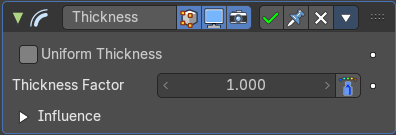
The Thickness Modifier change the stroke points thickness.
| Property | What it changes |
|---|---|
| Uniform Thickness | When enabled, makes the thickness equal for the entire strokes. |
| Thickness Factor | Value to add or subtract to the actual points thickness. · Weighted: Use weight to modulate effect. |
Influence subpanel
| Property | What it changes |
|---|---|
| Layer | Restricts the effect only to one layer or to any layers that share the same pass index. Click to pick the layer that you want to use. · Invert: Inverts the influence. |
| Layer Pass | The layer pass index. · Use Layer pass: Use the layer pass. · Layer pass value: The layer pass value. · Invert: Inverts the influence. |
| Material | Restricts the effect only to material that share the same material or pass index. Click to pick the material that you want to use. · Invert: Inverts the influence. |
| Material Pass | The material pass index. · Use Material pass: Use the Material pass. · Material pass value: The Material pass value. · Invert: Inverts the influence. |
Custom Curve
Use a custom curve to define the noise along the strokes.
Navigation elements
The navigation elements at the top are described from left to right.
Zoom in and out
The two buttons with the magnifying glass at it zooms in and out in the curve window.
Clipping
Clipping options. Set up clipping for the stroke.
Tools
Tools is a menu where you can find some curve related tools.
| Property | What it changes |
|---|---|
| Reset View | Resets the curve windows zoom. |
| Extend Horizontal | Extend the curve points horizontal before the first curve point and after the last curve point. |
| Extend Vertical | Extend the curve points vertical before the first curve point and after the last curve point. |
| Reset Curve | Resets the curve to the initial shape. |
Curve window
Tweak and adjust the falloff curve by clicking at a curve point and dragging it around.
Double click adds a new point.
Holding down ctrl activates temporary snapping.
Holding down shift enables slower movement, which allows more accurate setting.
Vector Handle
Set handle type to Vector.
| Property | What it changes |
|---|---|
| Auto Handle | Set handle type to Auto. |
| Auto Clamped Handle | Set handle type to Auto Clamped. |
| X / Y | The position of the currently selected curve point. · Delete Points: Deletes selected curve points. |