

































































Color modifiers (Grease Pencil)
Color modifiers just exists for the Grease Pencil object.
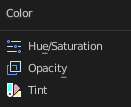
Color modifiers just exists for the Grease Pencil object.
Hue/Saturation
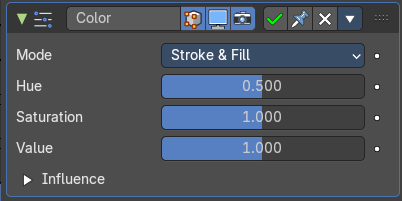
The Hue/Saturation Modifier applies a color transformation to the object output color.
Mode
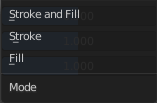
The color transformation will be applied on the stroke and/or the fill color.
Stroke and Fill, Stroke, Fill
| Property | What it changes |
|---|---|
| Hue | Specifies the hue rotation of the image. 360° are mapped to (0 to 1). The hue shifts of 0 (-180°) and 1 (+180°) have the same result. |
| Saturation | A saturation of 0 removes hues from the image, resulting in a greyscale image. A shift greater than 1.0 increases saturation. |
| Value | Value is the overall brightness of the image. De/Increasing values shift an image darker/lighter. |
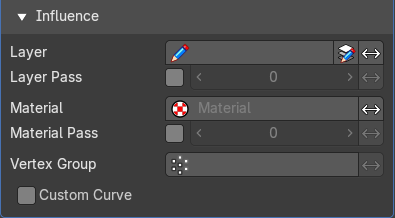
Influence subpanel
| Property | What it changes |
|---|---|
| Layer | Restricts the effect only to one layer or to any layers that share the same pass index. Click to pick the layer that you want to use. · Invert: Inverts the influence. |
| Layer Pass | The layer pass index. · Use Layer pass: Use the layer pass. · Layer pass value: The layer pass value. · Invert: Inverts the influence. |
| Material | Restricts the effect only to material that share the same material or pass index. Click to pick the material that you want to use. · Invert: Inverts the influence. |
| Material Pass | The material pass index. · Use Material pass: Use the Material pass. · Material pass value: The Material pass value. · Invert: Inverts the influence. |
Custom Curve
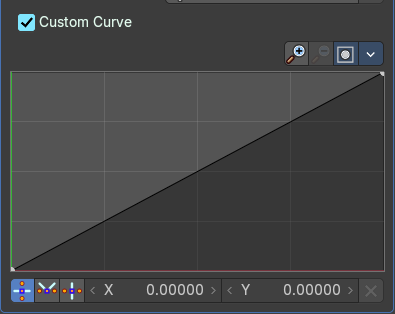
Use a custom curve to define the noise along the strokes.
Navigation elements
The navigation elements at the top are described from left to right.
Zoom in and out
The two buttons with the magnifying glass at it zooms in and out in the curve window.
Clipping
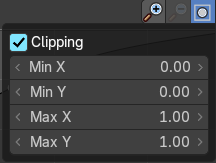
Clipping options. Set up clipping for the stroke.
Tools
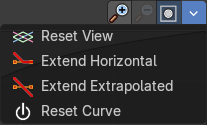
Tools is a menu where you can find some curve related tools.
| Property | What it changes |
|---|---|
| Reset View | Resets the curve windows zoom. |
| Extend Horizontal | Extend the curve points horizontal before the first curve point and after the last curve point. |
| Extend Vertical | Extend the curve points vertical before the first curve point and after the last curve point. |
| Reset Curve | Resets the curve to the initial shape. |
Curve window
Tweak and adjust the falloff curve by clicking at a curve point and dragging it around.
Double click adds a new point.
Holding down ctrl activates temporary snapping.
Holding down shift enables slower movement, which allows more accurate setting.
Vector Handle

Set handle type to Vector.
| Property | What it changes |
|---|---|
| Auto Handle | Set handle type to Auto. |
| Auto Clamped Handle | Set handle type to Auto Clamped. |
| X / Y | The position of the currently selected curve point. · Delete Points: Deletes selected curve points. |
Opacity Modifier
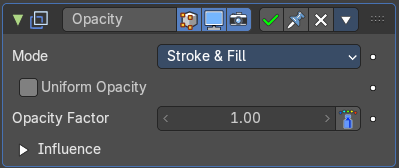
The Opacity Modifier change the opacity (alpha) value of the stroke points.
The alpha value in Grease Pencil is stored per-point. The modifier can alter these values to go from totally transparent points to totally opaque points.
Mode
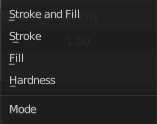
The color transformation will be applied to the stroke/fill color or stroke Hardness. When Hardness is selected, then the opacity affects the stroke’s transparency (alpha) from the center to the border.
Stroke and Fill, Stroke, Fill, or Hardness.
Uniform Opacity
When enabled, makes the opacity equal for the entire strokes.
Opacity Factor
Controls the opacity value of the stroke points. A value of 1.0 respect the original alpha value of the points, a shift less than 1.0 make the points more transparent than originally, and a shift greater than 1.0 make the points more opaque than originally.
Sets value to 2.0 makes the points alpha fully opaque.
Weighted
Use Weight to modulate effect.
Influence subpanel
| Property | What it changes |
|---|---|
| Layer | Restricts the effect only to one layer or to any layers that share the same pass index. Click to pick the layer that you want to use. · Invert: Inverts the influence. |
| Layer Pass | The layer pass index. · Use Layer pass: Use the layer pass. · Layer pass value: The layer pass value. · Invert: Inverts the influence. |
| Material | Restricts the effect only to material that share the same material or pass index. Click to pick the material that you want to use. · Invert: Inverts the influence. |
| Material Pass | The material pass index. · Use Material pass: Use the Material pass. · Material pass value: The Material pass value. · Invert: Inverts the influence. |
Custom Curve
Use a custom curve to define the noise along the strokes.
Navigation elements
The navigation elements at the top are described from left to right.
Zoom in and out
The two buttons with the magnifying glass at it zooms in and out in the curve window.
Clipping
Clipping options. Set up clipping for the stroke.
Tools
Tools is a menu where you can find some curve related tools.
| Property | What it changes |
|---|---|
| Reset View | Resets the curve windows zoom. |
| Extend Horizontal | Extend the curve points horizontal before the first curve point and after the last curve point. |
| Extend Vertical | Extend the curve points vertical before the first curve point and after the last curve point. |
| Reset Curve | Resets the curve to the initial shape. |
Curve window
Tweak and adjust the falloff curve by clicking at a curve point and dragging it around.
Double click adds a new point.
Holding down ctrl activates temporary snapping.
Holding down shift enables slower movement, which allows more accurate setting.
Vector Handle
Set handle type to Vector.
| Property | What it changes |
|---|---|
| Auto Handle | Set handle type to Auto. |
| Auto Clamped Handle | Set handle type to Auto Clamped. |
| X / Y | The position of the currently selected curve point. · Delete Points: Deletes selected curve points. |
Tint Modifier
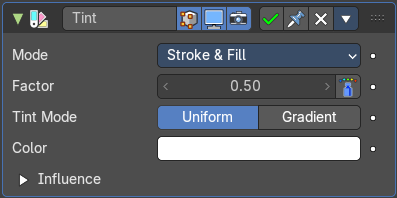
The Tint Modifier colorize the original stroke or fill with a selected color.
Mode
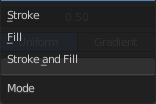
The color transformation will be applied on the stroke and/or the fill color.
Stroke and Fill, Stroke, Fill
Strength
Controls the amount for the color mixing.
A value of 0 respect the original strokes vertex color, a value of 1.0 totally replace the original color with the tint color.
A shift greater than 1.0 will make the points alpha less transparent than originally (2.0 is fully opaque).
Weighted
Use weight to modulate effect.
Tint Type
Uniform
Color

Defines the tint color for mixing with the original color.
Gradient
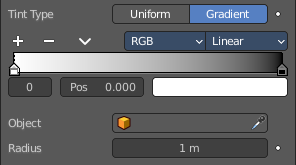
Color Ramp
Defines the tint gradient color for mixing with the original vertex color.
Controls
| Property | What it changes |
|---|---|
| + | Add a stop to your color ramp. The stop will be added after the selected one, in the middle to the next one. |
| - | Deletes the selected color stop from the list. |
Tools menu
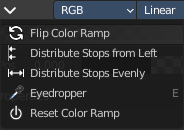
| Property | What it changes |
|---|---|
| Flip Color Ramp | Flips the gradient, inverting the values of the color ramp. |
| Distribute Stops from Left | Rearrange the stops so that every step has the same space to the right. |
| Distribute Stops Evenly | Space between all neighboring stops becomes equal. |
| Eyedropper (pipette icon) E | An Eyedropper to sample a color or gradient from the interface to be used in the color ramp. |
| Reset Color Ramp | Resets the color ramp to its default state. |
Color Mode
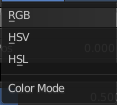
| Property | What it changes |
|---|---|
| RGB | Blends color by mixing each color channel and combining. |
| HSV/HSL | Blends colors by first converting to HSV or HSL, mixing, then combining again. This has the advantage of maintaining saturation between different hues, where RGB would de-saturate, this allows for a richer gradient. |
Interpolation
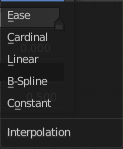
| Property | What it changes |
|---|---|
| Ease | Uses an Ease Interpolation for the color stops. |
| Cardinal | Uses a Cardinal Interpolation for the color stops. |
| Linear | Uses a Linear Interpolation for the color stops. |
| B-Spline | Uses a B-Spline Interpolation for the color stops. |
| Constant | Uses a Constant Interpolation for the color stops. |
Color Ramp

The color band. A click at one of the color stops makes it the active one. You can move the color stops by clicking at them and dragging them around.
Active Color Stop elements

Adjust the active color stop.
| Property | What it changes |
|---|---|
| Choose active color stop | Choose the color stop by index. |
| Pos | The position of the active color stop. The range goes from 0.000 to 1.000. |
| Property | What it changes |
|---|---|
| Object | A Data ID to select an object (usually an empty), which position and rotation will be used to define the center of the effect. |
| Radius | Defines the maximum distance of the effect. |
Influence subpanel
| Property | What it changes |
|---|---|
| Layer | Restricts the effect only to one layer or to any layers that share the same pass index. Click to pick the layer that you want to use. · Invert: Inverts the influence. |
| Layer Pass | The layer pass index. · Use Layer pass: Use the layer pass. · Layer pass value: The layer pass value. · Invert: Inverts the influence. |
| Material | Restricts the effect only to material that share the same material or pass index. Click to pick the material that you want to use. · Invert: Inverts the influence. |
| Material Pass | The material pass index. · Use Material pass: Use the Material pass. · Material pass value: The Material pass value. · Invert: Inverts the influence. |
Custom Curve
Use a custom curve to define the noise along the strokes.
Navigation elements
The navigation elements at the top are described from left to right.
Zoom in and out
The two buttons with the magnifying glass at it zooms in and out in the curve window.
Clipping
Clipping options. Set up clipping for the stroke.
Tools
Tools is a menu where you can find some curve related tools.
| Property | What it changes |
|---|---|
| Reset View | Resets the curve windows zoom. |
| Extend Horizontal | Extend the curve points horizontal before the first curve point and after the last curve point. |
| Extend Vertical | Extend the curve points vertical before the first curve point and after the last curve point. |
| Reset Curve | Resets the curve to the initial shape. |
Curve window
Tweak and adjust the falloff curve by clicking at a curve point and dragging it around.
Double click adds a new point.
Holding down ctrl activates temporary snapping.
Holding down shift enables slower movement, which allows more accurate setting.
Vector Handle
Set handle type to Vector.
| Property | What it changes |
|---|---|
| Auto Handle | Set handle type to Auto. |
| Auto Clamped Handle | Set handle type to Auto Clamped. |
| X / Y | The position of the currently selected curve point. · Delete Points: Deletes selected curve points. |