

































































Modifiers tab
Modifers are automatic operations that affects the geometry of objects in a non destructive way. You can, for example ,subdivide a mesh object dynamically where the base geometry stays intact when in edit mode.
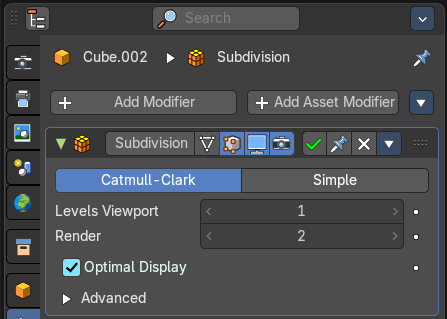
Modifers are automatic operations that affects the geometry of objects in a non destructive way. You can, for example ,subdivide a mesh object dynamically where the base geometry stays intact when in edit mode.
Modifiers can also be applied to the object and “frozen”. In this case the change is destructive.
Modifiers gets added in a modifier stack. Choose a modifier from the list, and re-arrange the modifiers per your needs. Modifiers can build on top of each other and can be reordered. Sometimes the order of operations is important.
Object types with modifiers
There are two general types of objects where you can use modifiers. Mesh objects and Curve objects. The Grease Pencil object is a special object in this regards and has some exclusive modifiers that the other object types does not have. The Grease Pencil object is under the hood also a curve object.
Each object types shows a different set of modifiers. Some modifiers have the same name, but shows different settings for different object types.
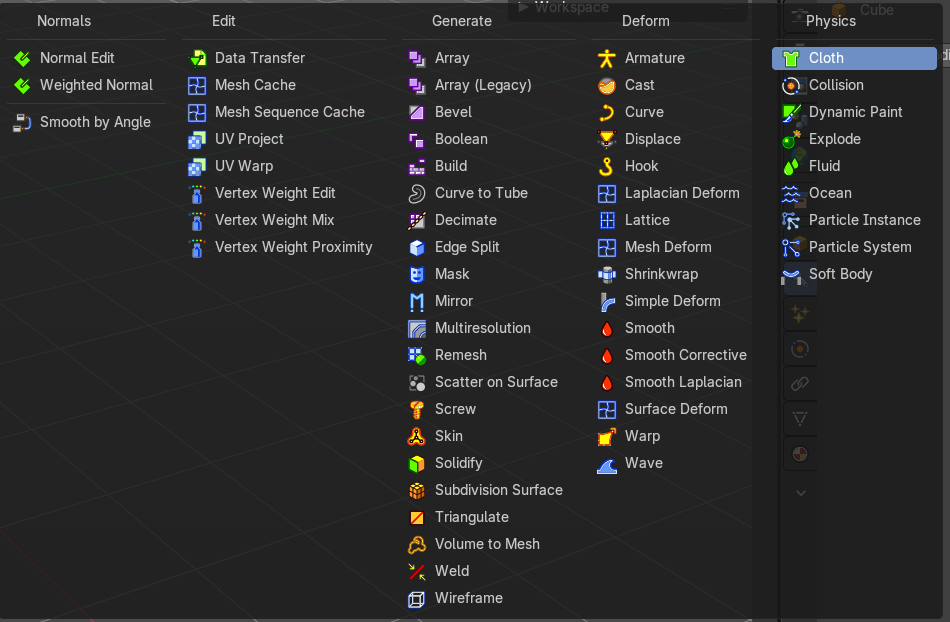
Mesh object
These show modifiers divided into four categories: Edit, Generate, Deform and Physics.
You can also use Geometry Nodes Asset Modifiers.
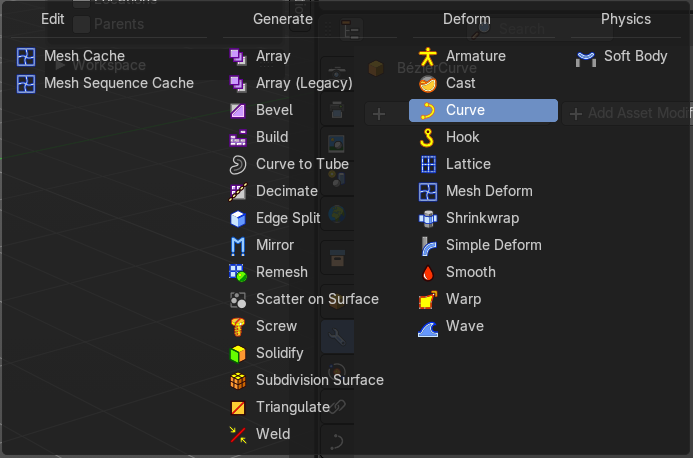
Curve + Text Object
These show modifiers divided into four categories: Edit, Generate, Deform and Physics.
You can also use Geometry Nodes Asset Modifiers.
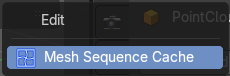
Point Cloud object
Just one entry.
Volume Object
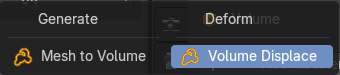
These show modifiers divided into two categories: Generate and Deform.
You can also use Geometry Nodes Asset Modifiers.
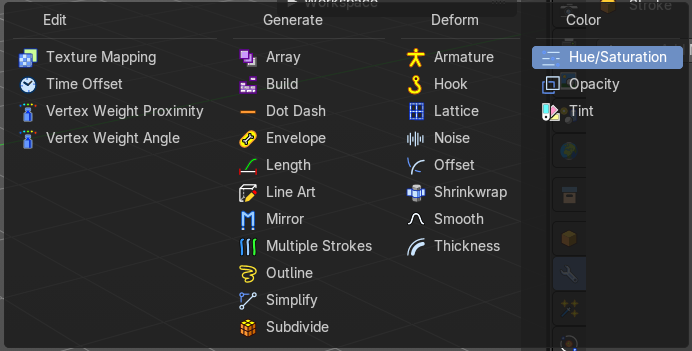
Grease Pencil Object
These show modifiers divided into four categories: Edit, Generate, Deform and Color.
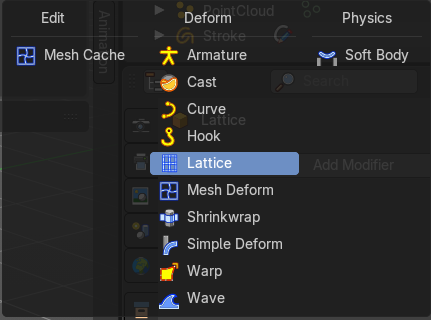
Lattice Object
These show modifiers divided into three categories: Edit, Deform and Physics.
Modifier types
There are several types of modifiers:
| Property | What it changes |
|---|---|
| Geometry Nodes | This allows you to insert a Geometry Nodes modifier. |
| Normals | Normal nodes |
| Edit | Miscellaneous modifiers like the mesh cache |
| Modify | Change the shape of an object, without altering its topology. But not directly, but by some other data like vertex groups. |
| Generate | Constructive/destructive tools that will affect the whole Topology of the mesh. They can change the general appearance of the object, or add new geometry to it. |
| Deform | Change the shape of an object, without altering its topology. |
| Phyiscs | Those represent physics simulations. In most cases, they are automatically added to the modifiers stack whenever a Particle System or Physics simulation is enabled. Their only role is to define the position in the modifier stack from which is taken the base data for the simulation they represent. As such, they typically have no attributes, and are controlled by settings exposed in separate sections of the Properties. |
| Color | Just for the grease pencil object. Adds some modifiers to adjust the color. |
| Hair | Mesh Object. Add Hair Curve Modifiers. |
General functionality
Add Modifier
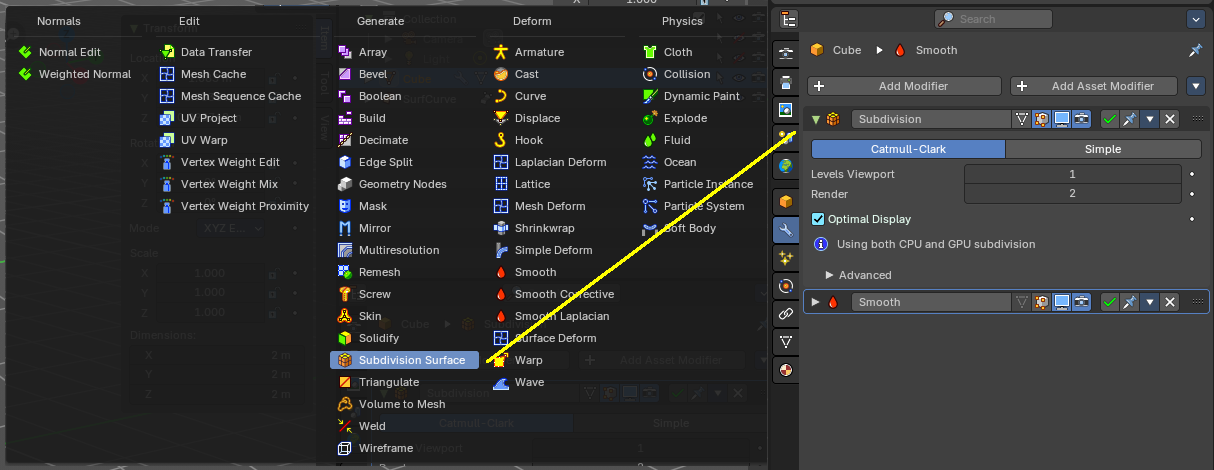
To add a modifier to a selection of objects, simply open the add menu, and choose the type of modifier that you want to add.
This will add the modifier to the list on your selection.
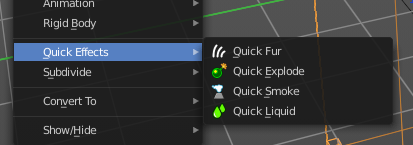
For some modifiers you will also find menu items in the 3D view. The Quick effect Fluid will for example add a fluid and liquid particle system modifier.
This menu entries exists to simplify the workflow. This menu entries are described in other chapters.
Note: To add modifiers will generally apply to all selected objects, unless you press and hold Alt and click on the operators. When removing and applying modifiers, they will generally apply to all selected objects, unless you press and hold Alt and click on the operators.
Header elements
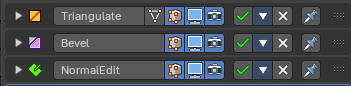
You might want to disable a modifier temporarily. Or just see the effect in the final rendering. This can be adjusted in the header. The header is what you see when you collapse the modifier panel.
Note that not all modifiers have the same header content. Fluid modifiers for example doesn't even have a remove button. They get removed by removing the fluid simulation in the physics tab.
Elements are explained from left to right.
Collapse panel
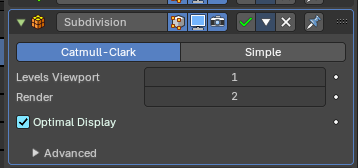
The whole modifier panel can be collapsed. Click at the arrow button up left in the header.
Modifier Icon

This icon shows the type of the modifier. And has no further functionality.
Modifier Name
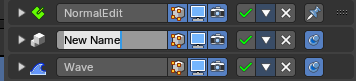
The name of the modifier. You can rename modifiers by clicking into the edit field and change the text.
| Property | What it changes |
|---|---|
| On Cage | Adjust edit cage to modifier result. With this option the geometry will be viewed at the position they will be after the modifier is calculated. Important for the mirror modifier for example. |
| Edit Mode | Display the modifier result in edit mode. |
| Realtime | Display the modifier in the viewport. |
| Render | Display the modifier in the rendered result. |
| Apply | This will apply the modifier, and it destructively change the mesh. Note: If multiple objects have the same modifier with the same name, they will be applied to the selection. If you want to apply to only the Active object, press and hold Alt then click on the operator. |
Header menu
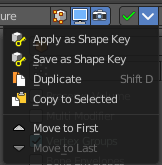
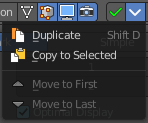
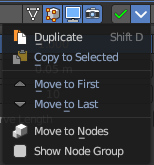
| Property | What it changes |
|---|---|
| Apply as Shapekey | Armature modifier. Applies the current pose as a shape key, and removes the modifier. |
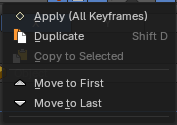
| Apply (All Keyframes) | Grease pencil object. Applies the modifier to all keyframes, and removes it then. |
Save as Shapekey
Armature modifier. Applies the current pose as a shape key, and keeps the modifier.
| Property | What it changes |
|---|---|
| Duplicate | Duplicates the modifier, and places the duplicate below the current modifier. |
| Copy to Selected | Copies the modifier to the selected object. First select the object where you want to paste the modifier to. Then select the object with the modifier with holding down shift so that both objects are selected. Now use Copy to Selected. And the modifier will copy over to the first object. Works also with multiple objects. |
| Move to first | Move the modifier to the first position in the stack. |
| Move to last | Move the modifier to the last position in the stack. |
| Move to Nodes | Hair modifier. Moves the modifier to nodes instead. |
Show Node Groups

Hair modifier. Shows the node groups prop in the modifier
Remove
Removes the modifier from the stack on all selected objects.
Note: If multiple objects have the same modifier with the same name, they will be removed from the selection. If you want to remove from only the Active object, press and hold Alt then click on the operator.
Pin to Last
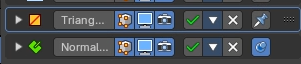
Keep the modifier at the end of the list. You can pin multiple modifiers at the end of the stack. The order of the pinned modifiers is set by the order that you pin the modifiers.
Change Context
Some modifiers cannot be removed from the modifiers stack directly. Like fluid modifiers. You need to remove the fluid simulation instead, in the physics tab. With the change context button you jump to the required tab where you can now remove the simulation.
Reorder
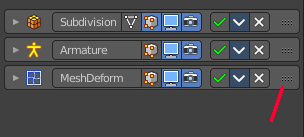
You can have more than one modifier in the list. And sometimes the order of the modifiers is very important.
Grab the handler at the right and drag the modifier to the position where you want it to have.
Animate Property
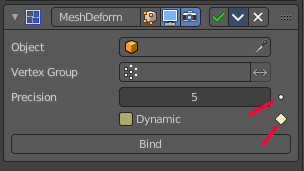
Some of the properties can be animated. Click at the animate property button at the right to add a keyframe.
Add Asset Modifier
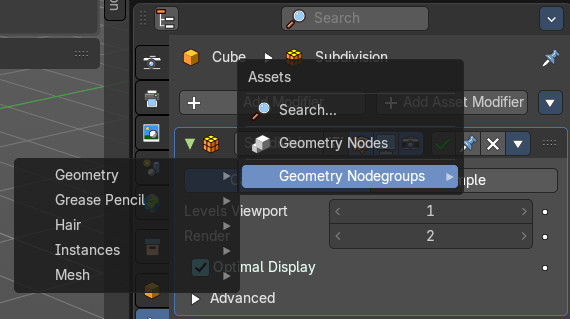
Add a modifier nodegroup into the modifier stack. This will list and create all Geometry Node group assets assigned to the Modifier property. If they are not assigned to a category in the Asset Browser, they will list as “unassigned”.
For more information, please check out the chapter
Editors - Properties Editor - Modifiers Properties Tab - Add Modifier menus
Add Modifier menu buttons

There are two types of modifiers, builtin modifiers and geometry nodes modifiers that were marked as assets.
| Menu entry | What it does |
|---|---|
| Add Modifier Button | The button to the left adds built in modifiers to all selected objects. Note: When adding modifier assets will apply to all selected object. |
| Add Asset Modifier | The button to the right adds geometry nodes assets as modifiers to all selected objects. Note: When adding modifier assets will apply to all selected object. |
| Modifier Special menu | Contains some general modifier operators. |
Add Modifier menu
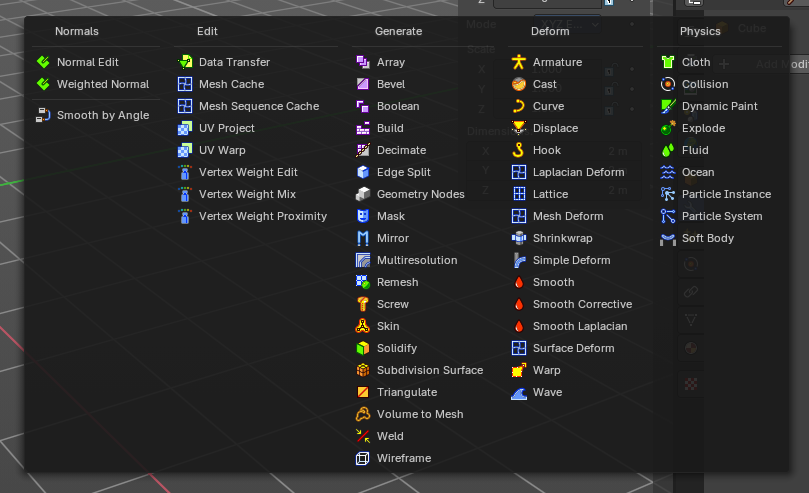
This menu with a list of modifier items adds built in modifiers to all selected objects. This shows with all objects.
These are divided into several categories.
Type to Search…
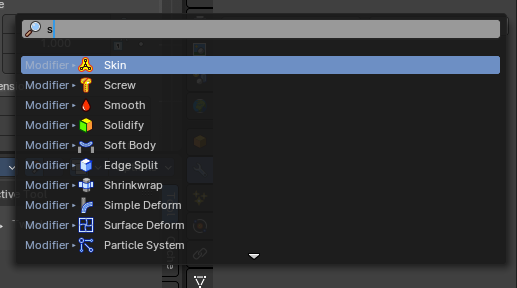
When the menu is open, you can press any key to start typing to search, this will filter the modifiers by name.
Add Asset Modifier menu
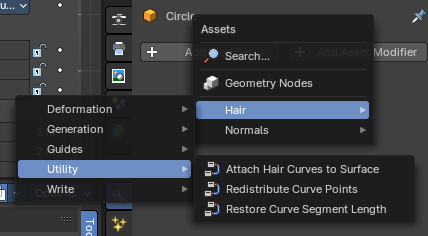
There is also an add asset modifier menu items that shows all Geometry Node groups marked as assets that you can add as a modifier to all selected objects.
Search…
Search for a specific modifier.
Type to Search…
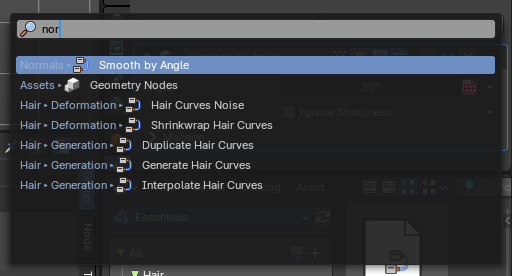
When the menu is open, you can press any key to start typing to search, this will filter the asset modifiers by name.
Geometry Nodes
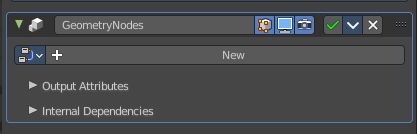
Add a geometry nodes modifier.
This is usually done in the Geometry Nodes Editor.
The geometry Nodes modifier adds a geometry node tree, which can be modified in the geometry node editor.


Manage the nodes. If there is no geometry node tree for the current object, then you will see the New button.
Geometry Nodes Assets
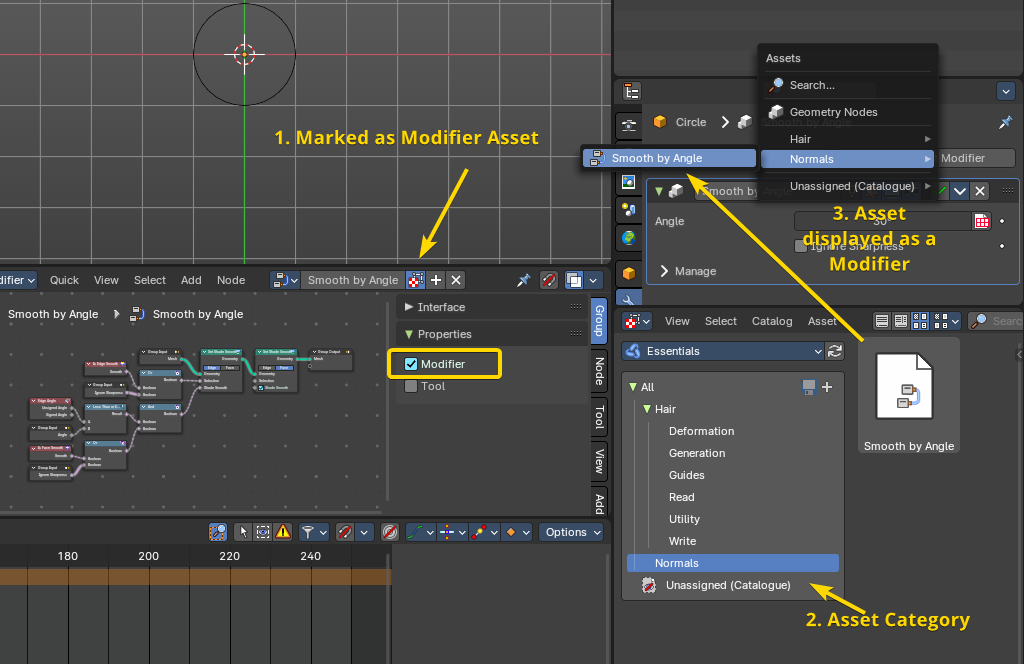
These are Geometry Node groups that have been marked as assets, set as a “Modifier” in the node group properties, and organized into an
Asset Browser category.
1 . Mark Node Group as asset and set the Node Group properties to “Modifier”, so this will show in the Modifier stack. Do this from the Geometry Nodes editor.
- Assign the Nodegroup to a category in the File Browser Editor.
- Now you can use the Add Asset Modifier menu to quickly assign a new Geometry Nodes Asset Modifer preset to any object.
Data Browser
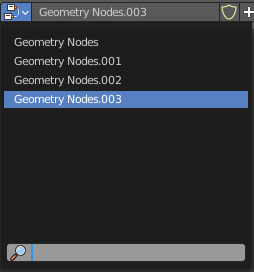
The list of available geometry node trees in the scene.
Edit box
The name of the current active geometry node tree. Here you can also rename the node tree.
Add Fake User
Wit this button you assign a fake user to this selected geometry node tree.
Data, like node trees, that is not longer linked to anything else gets removed when you save and reload a scene. Bforartists has the concept of fake users to go around this behavior. An image with a fake user is in fact linked to something. And so it is not lost when you save and reload the scene.
| Menu entry | What it does |
|---|---|
| User | The number of users that uses this data. Data with a user number of 0 will be removed with closing Bforartists. |
| Add | Adds a duplicate geometry nodes nodegroup. |
| Remove | Removes the geometry node tree. To delete it completely you need to purge it. See Fake user. |
Custom Inputs and Outputs
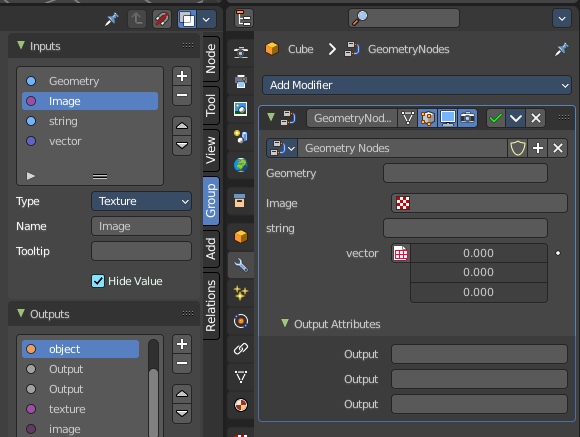
In case you define custom inputs and outputs in the geometry nodes editor, then these inputs and outputs also shows in the modifier.
Unassigned (Catalogue)

Custom modifier assets. This menu item shows when you for example add a geometry node, and apply it. Then this applied node tree goes into this menu which allows you to reuse it. The term non-assets is a label, and no custom asset.
Modifier Special menu
Copy Modifiers to selected Objects
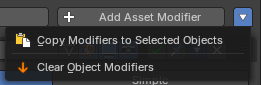
Pastes the existing modifers at the active object to the selected objects.
Select the objects that you want to copy the modifiers to . Hold down shift, select the active object with the Modifier. Perform the operator. The modifiers will be pasted to them.
Clear Object Modifiers
Removes all modifiers at the selected objects.